1. Okwu mmalite
The Brickhouse Security Spark Nano 7 GPS Tracker is a compact and versatile device designed for real-time tracking of vehicles, assets, and personal belongings. Its small size allows for discreet placement, while its advanced features provide comprehensive monitoring capabilities.
This manual provides detailed instructions on setting up, operating, and maintaining your Spark Nano 7 GPS Tracker to ensure optimal performance.

Image: The Spark Nano 7 GPS Tracker shown alongside a smartphone displaying its tracking application interface. The device is blue and black, compact, and designed for discreet use.
2. Gịnị gụnyere
Upon unboxing your Spark Nano 7 GPS Tracker, please verify that all components are present:
- Spark Nano 7.0 GPS Tracker Unit
- Mgbidi chaja
- User's Guide (this manual)
- Pre-installed SIM Card
3. Ntọlite na ịgbalite
3.1 Ịchaji ngwaọrụ
Before first use, fully charge your Spark Nano 7 GPS Tracker using the provided wall charger. Connect the charger to the device's charging port and plug it into a standard electrical outlet. The charging indicator light will confirm the charging status.
3.2 Activating Your Subscription
A subscription plan is required for the Spark Nano 7 to function. The device comes with a pre-installed SIM card. To activate your service and choose a plan, visit the Brickhouse Security website or contact customer support. You will need the device's serial number, typically found on the back of the unit or its packaging.
3.3 Downloading the Mobile App
For real-time tracking and access to all features, download the Brickhouse Security mobile application. It is available for both iOS (iPhone) and Android devices. Chọọ maka "Brickhouse Security" in your device's app store. A web application is also available for desktop access.

Image: A smartphone screen showing the user-friendly interface of the Brickhouse Security mobile application, illustrating how users can access tracking data from anywhere.
4. Ijikwa ngwaọrụ gị
4.1 ezigbo oge nsochi
Once activated, the Spark Nano 7 provides real-time location updates. Access these updates through the mobile app or web browser. The device reports automatically every 60 seconds, with options to adjust tracking intervals based on your subscription plan.
4.2 Geofencing
Set up virtual boundaries (geofences) on the map within the application. You will receive alerts when the tracker enters or exits these predefined areas. This feature is useful for monitoring vehicles, ensuring assets remain within designated zones, or for personal safety.
4.3 Speed Alerts
Configure speed thresholds in the app to receive notifications if the tracker exceeds a specified speed limit. This is particularly useful for fleet management or monitoring driving habits.
4.4 bọtịnụ ụjọ
The Spark Nano 7 features a panic button. In an emergency, pressing this button will send an immediate alert to pre-configured contacts, providing the device's current location.
4.5 Data akụkọ ihe mere eme
Review detailed travel reports and location history within the application. The duration of historical data storage depends on your subscription plan (e.g., 30, 90, or 180 days).

Image: A laptop screen displaying the web application for the Spark Nano 7, demonstrating real-time location viewing and access to historical data.
5. Nlekọta
5.1 Ndụ batrị
The Spark Nano 7 is equipped with a Lithium Ion battery. Battery life varies based on usage and tracking frequency. It offers up to 2 weeks of standby time or 14 hours of constant tracking. Regularly check the battery level via the mobile app and recharge as needed.
5.2 Nlekọta ngwaọrụ
Keep the device clean and dry. Avoid exposing it to extreme temperatures, direct sunlight for prolonged periods, or harsh chemicals. While compact, it is not inherently waterproof unless placed in a suitable protective case (not included).
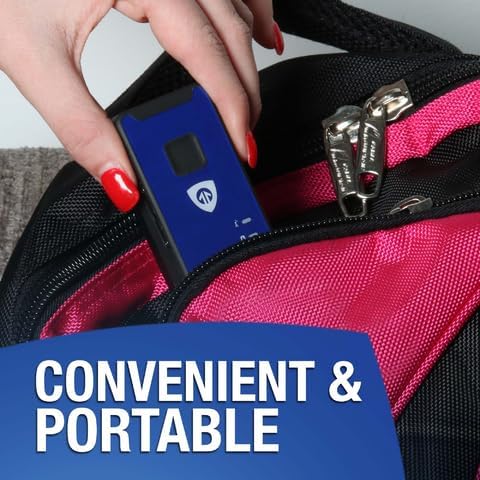
Image: A hand placing the compact Spark Nano 7 GPS Tracker into a bag, illustrating its portable and discreet design for convenient tracking.
6. Nchọpụta nsogbu
| Nsogbu | Ihe nwere ike ime | Ngwọta |
|---|---|---|
| Device not reporting location. | No active subscription, low battery, no cellular signal. | Verify subscription status, charge the device, move to an area with better cellular coverage. |
| Inaccurate location data. | Poor GPS signal (e.g., indoors, dense urban areas), device obstruction. | Move the device to an open area with clear sky view. Ensure no metal objects are directly covering the device. |
| Cannot log into mobile app/web portal. | Incorrect credentials, internet connectivity issues. | Double-check username and password. Ensure your device has a stable internet connection. Reset password if necessary. |
| Batrị na-agbapụ ngwa ngwa. | Frequent tracking updates, extreme temperatures. | Adjust tracking frequency to a longer interval if possible. Avoid placing the device in very hot or cold environments. |
7. Nkọwapụta
- Ụdị: Spark Nano 7 GPS Tracker (Blue)
- Akụkụ: 3 x 1.58 x 1 sentimita asatọ
- Arọ: 8.8 ounces
- Batrị: 1 batrị lithium ion achọrọ (gụnyere)
- Njikọta: Cellular (4G LTE coverage across North America, International tracking available)
- Tracking Intervals: Reports automatically every 60 seconds (adjustable based on plan)
- Atụmatụ pụrụ iche: Smallest GPS Tracker, Lifetime Warranty (check terms), Real-Time Location Viewing, Panic Button, Geofencing, Speed Alerts, No Long-Term Contract Needed.
- Ngwa akwadoro: GPS, iOS iPhone, Android, Web App, Alexa
- Onye nrụpụta: BRICKHOUSE SECURITY

Image: The Spark Nano 7 GPS Tracker with its compact dimensions (3 x 1.58 x 1 inches) highlighted, emphasizing its small and easily concealable design.
8. Subscription Plans
To utilize the full capabilities of your Spark Nano 7 GPS Tracker, an active subscription plan is required. Brickhouse Security offers various plans to suit different needs, billed monthly, quarterly, or annually. No long-term contracts are required, and you can cancel anytime.
Available Plans (Billed Annually, as examples):
- BASIC: Starting at $17.99/unit/month (billed annually). Includes Unlimited Cellular Data, Cloud Software, Mobile Application, 30 Days of Tracking History, 60-Second Location Updates, 60 SMS Alerts, 5 Geofences, Single Login, Coverage in North America, 2 Standard Reports.
- gbakwunyere: Starting at $27.99/unit/month (billed annually). Includes Unlimited Cellular Data, Cloud Software, Mobile Application, 90 Days of Tracking History, 30-Second Location Updates, 200 SMS Alerts, 60 Geofences, Up to 3 User Logins, Coverage in North America & Europe, 4 Standard Reports, 10% off Future Devices.
- PREMIUM Starting at $34.99/unit/month (billed annually). Includes Unlimited Cellular Data, Cloud Software, Mobile Application, 180 Days of Tracking History, 5-Second Location Updates, Unlimited SMS Alerts, Unlimited Geofences, Unlimited User Logins, Worldwide Coverage, 8 Standard Reports, 15% off Future Devices.
For the most current pricing and detailed feature comparisons, please visit the official Brickhouse Security websaịtị.

Image: A detailed comparison table outlining the features and pricing for Basic, Plus, and Premium subscription plans for the GPS tracker, highlighting differences in tracking history, alerts, and coverage.
9. Akwụkwọ ikike na nkwado
The Spark Nano 7 GPS Tracker comes with a Lifetime Warranty. Please refer to the official Brickhouse Security website or your purchase documentation for specific terms and conditions of the warranty, including coverage details and claim procedures.
For technical assistance, troubleshooting, or any questions regarding your device or subscription, please contact Brickhouse Security Customer Service. Contact information can be found on their official websaịtị ma ọ bụ na nkwakọ ngwaahịa gị.
Akụrụngwa dị n'ịntanetị: Gaa leta Brickhouse Security Store on Amazon maka ozi ngwaahịa na nkwado ndị ọzọ.


