1. Okwu mmalite
This manual provides detailed instructions for the setup, operation, maintenance, and troubleshooting of your TECURS RGB Backlit Wired Gaming Keyboard. Please read this manual thoroughly to ensure proper use and to maximize your keyboard's features.
2. Akụrụngwa Ngwaahịa
- Ahụigodo enwere ike ịhazi ya: Program macro keys, configure key functions, and set multimedia controls using dedicated software.
- Quiet Gaming Keyboard: Features membrane technology for quieter operation compared to mechanical keyboards, minimizing disturbance.
- Mpi dị mma: Designed with a soft touch and ergonomic profile for extended use comfort.
- Ọkụ azụ RGB: Offers 10 distinct backlight modes to enhance the visual experience.
- Ergonomic & Waterproof Design: IP32-rated for spill and dust resistance, protecting the keyboard from accidental liquid splashes and dust accumulation. Ergonomic design reduces hand fatigue.
- Mgbochi Ghosting: 9-key anti-ghosting ensures accurate input even during rapid, simultaneous key presses.

Image: Close-up of keyboard keys, highlighting the silent gaming switch technology for reduced noise.
3. Ntuziaka Nhazi
Ihe ngwugwu 3.1
- TECURS RGB Backlit Wired Gaming Keyboard
- Akwụkwọ ntuziaka onye ọrụ
3.2 Jikọọ ahụigodo
- Unpack the keyboard and ensure all components are present.
- Locate an available USB port on your computer (PC, Laptop, Gaming Console).
- Tinye njikọ USB nke keyboard ahụ n'ime ọdụ ụgbọ USB.
- Sistemụ arụmọrụ ga-achọpụta ma wụnye draịva dị mkpa na akpaghị aka. A naghị achọ ntinye draịva ọzọ maka ọrụ ndị bụ isi.
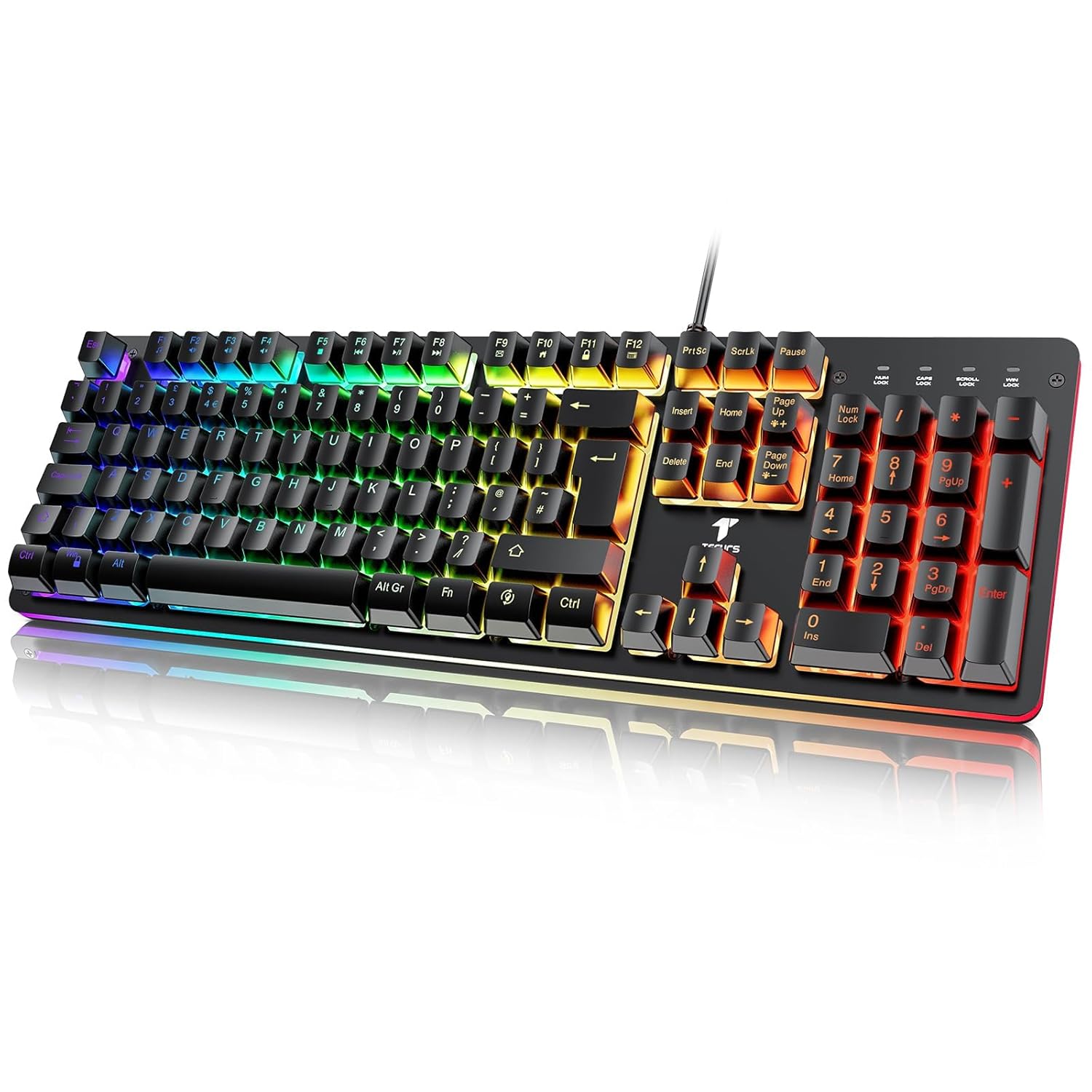
Image: The TECURS RGB Backlit Wired Gaming Keyboard, showcasing its full QWERTY layout and integrated USB cable for connection.
4. Ntuziaka ọrụ
4.1 Ọrụ ahụigodo bụ isi
The keyboard features a standard 105-key QWERTY layout. All standard alphanumeric and function keys operate as expected.
4.2 RGB njikwa ọkụ azụ
The keyboard offers various RGB lighting effects and adjustments:
- Toggle Backlight On/Off: Press the dedicated backlight key (often indicated by a light bulb icon or similar).
- Change Backlight Modes: Jiri Fn + [specific key] combinations to cycle through 10 different RGB light effects. Refer to the keyboard's keycaps for specific indicators (e.g., Fn + 1-0 or Fn + arrow keys).
- Gbanwee ọsọ ọkụ azụ: Jiri Fn + [Page Up/Page Down] or similar keys to adjust the speed of dynamic lighting effects (6 adjustable gear speeds).
- Gbanwee ọkụ azụ: Jiri Fn + [Up/Down Arrow] or similar keys to increase or decrease backlight brightness.

Image: Illustration of key combinations for controlling RGB backlight effects, speed, and brightness.
4.3 Customizable Functions and Macros
The TECURS Gaming Keyboard supports customization through dedicated software. This software allows you to:
- Create and assign macro keys for complex command sequences.
- Reconfigure individual key functions.
- Set multimedia key functions for quick access to audio and video controls.
To download the customization software, please visit the official TECURS websaịtị: tecurs.com.

Image: Screenshot of the TECURS customization software interface, showing options for button, light, and macro settings.
4.4 Njirimara Mgbochi Mmụọ
The keyboard incorporates 9-key anti-ghosting technology. This ensures that up to 9 simultaneous key presses are registered accurately, which is crucial for fast-paced gaming scenarios.
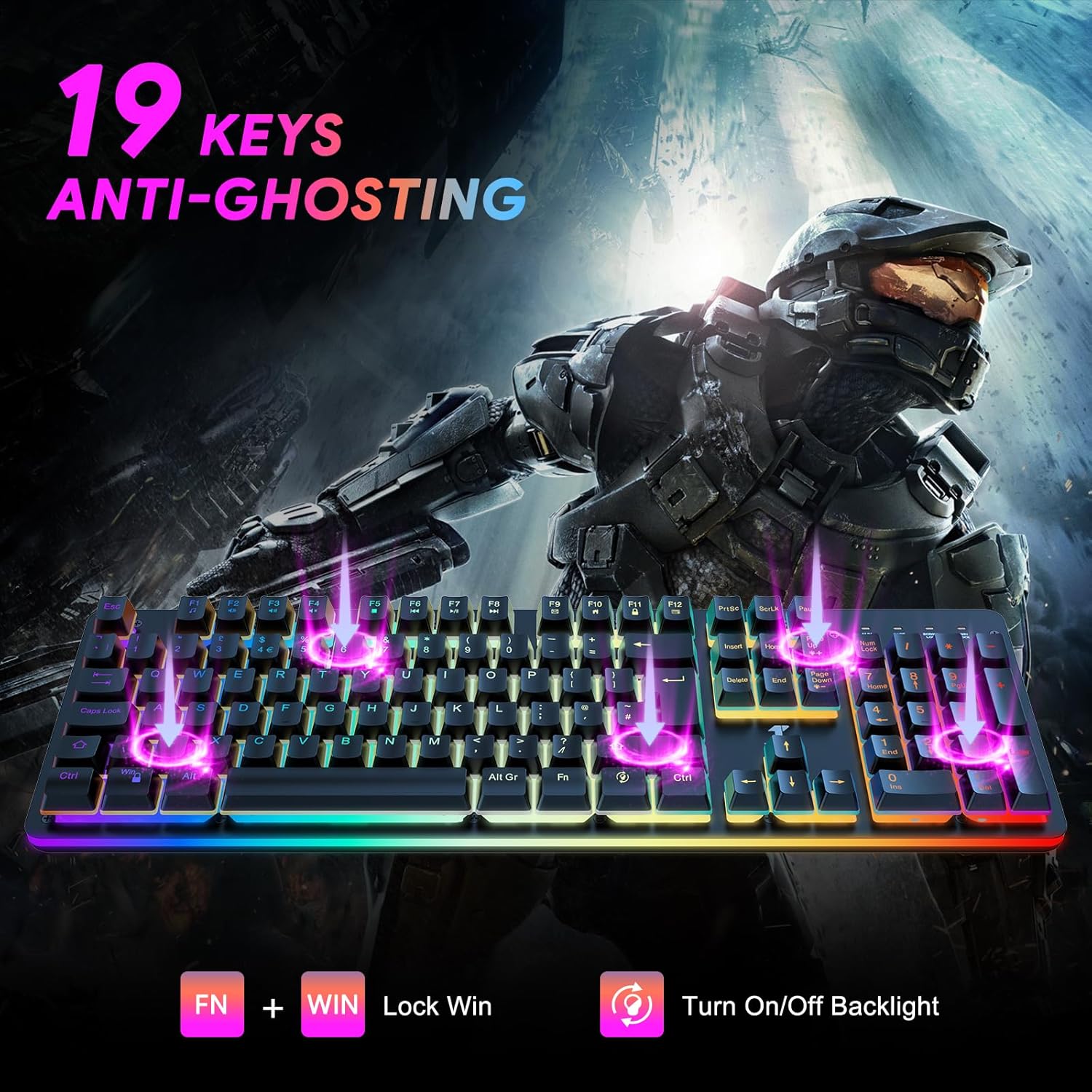
Image: Visual representation highlighting the 9-key anti-ghosting capability of the keyboard, showing multiple keys being pressed simultaneously.
5. Nlekọta
5.1 Ihicha ahụigodo
- Kwụpụ kiiboodu na kọmputa gị tupu ihicha.
- Jiri akwa dị nro na-enweghị ntụpọ dampejiri mmiri ma ọ bụ ihe nhicha dị nro hichaa elu ahụ.
- Maka uzuzu na irighiri ihe n'etiti igodo, jiri ikuku abịakọrọ.
- Zere iji kemịkalụ siri ike, ihe na-ehicha ihe, ma ọ bụ oke mmiri, n'ihi na ndị a nwere ike imebi ahụigodo.
5.2 Spill Resistance
The keyboard features IP32-level water and dust resistance. While it can withstand accidental splashes, it is not fully waterproof. In case of a spill, immediately disconnect the keyboard, wipe it dry, and allow it to air dry completely before reconnecting.

Foto: nso nso view of the keyboard keys with water droplets, illustrating its IP32 water-resistant design.
6. Nchọpụta nsogbu
| Nsogbu | Ihe nwere ike ime | Ngwọta |
|---|---|---|
| Ahụigodo anaghị aza | Njikọ USB rụrụ arụ, ọdụ ụgbọ USB adịghị mma, nsogbu ọkwọ ụgbọ ala. | Gbaa mbọ hụ na etinyere eriri USB na nchekwa. Gbalịa ọdụ ụgbọ USB dị iche. Malitegharịa ekwentị gị na kọmputa. |
| Igwe ọkụ azụ RGB anaghị arụ ọrụ | Backlight turned off, software conflict. | Press the backlight toggle key. Check Fn key combinations for brightness/mode. Reinstall customization software if used. |
| Certain keys not registering | Debris under keycap, software issue, hardware defect. | Use compressed air to clean around the key. Test on another computer. If issue persists, contact support. |
| Customization software not working | Incorrect installation, compatibility issue. | Ensure software is downloaded from the official TECURS website. Reinstall the software. Check system compatibility. |
7. Nkọwapụta
| Njirimara | Nkọwa |
|---|---|
| Ụdị | TECURS |
| Nlereanya | GK105 |
| Njikọta | USB eriri |
| Ụdị ahụigodo | Membrane |
| Nhazi igodo | QWERTY, 105 Keys Full Size |
| Ìhè azụ | RGB, 10 Modes |
| Mgbochi mmụọ | 9-Igodo |
| Mmiri Nguzogide | IP32 Spill-Resistant |
| Ngwa dakọtara | PC, Laptọọpụ, Gaming Console |
| Sistemu eji arụ ọrụ | Windows XP/Vista/7/8/10, Linux |
| Akụkụ ngwaahịa | 44.5 x 15.3 x 2.1 cm |
| Ibu Ibu | 68.8 g |
8. Akwụkwọ ikike na nkwado
TECURS products are designed for reliability and performance. For warranty information, technical support, or service inquiries, please visit the official TECURS websaịtị ma ọ bụ kpọtụrụ nkwado ndị ahịa ha ozugbo.
Ndị ọchịchị Websaịtị: tecurs.com


