Ngwaahịa gafereview
The TECURS Wireless Gaming Keyboard is designed for an optimal typing and gaming experience. It features advanced 2.4 GHz wireless technology for stable and fast data transmission, ensuring no delays or drops within a 33-foot range. The keyboard utilizes silent membrane technology, providing a responsive typing experience with minimal noise, ideal for quiet environments. Its full-size, ergonomic design includes an inclination angle for comfortable typing during extended use. Dedicated multimedia keys offer convenient control over media functions, and the monochromatic backlight with adjustable brightness enhances visibility in various lighting conditions. This keyboard is widely compatible with Windows XP, Windows 8, and Windows 10 operating systems, making it suitable for desktops, laptops, and other devices.

Image: The TECURS Wireless Gaming Keyboard, showcasing its full-size layout with vibrant, multi-color backlighting. A compact USB receiver is visible to the right of the keyboard, indicating its wireless connectivity.
Ntọala na nwụnye
Setting up your TECURS Wireless Gaming Keyboard is a straightforward process, designed for quick plug-and-play functionality.
- Mepee ahụigodo: Carefully remove the keyboard and the USB receiver from its packaging.
- Chọta onye nnata USB: The compact USB receiver is typically stored in a compartment on the keyboard or included separately in the box.
- Jikọọ onye nnata: Fanye ihe nnata USB n'ime ọdụ USB dị na kọmputa gị (desktọpụ ma ọ bụ laptọọpụ).
- Ike na ahụigodo: Ensure the keyboard is charged or has sufficient battery. There might be a power switch on the keyboard; turn it to the 'ON' position if present.
- Njikọ akpaaka: The keyboard should automatically connect to your computer within a few seconds. No additional drivers are typically required for basic functionality.
- Ebube mbụ: For optimal performance, it is recommended to fully charge the keyboard before its first use. Use the provided USB charging cable to connect the keyboard to a USB power source.
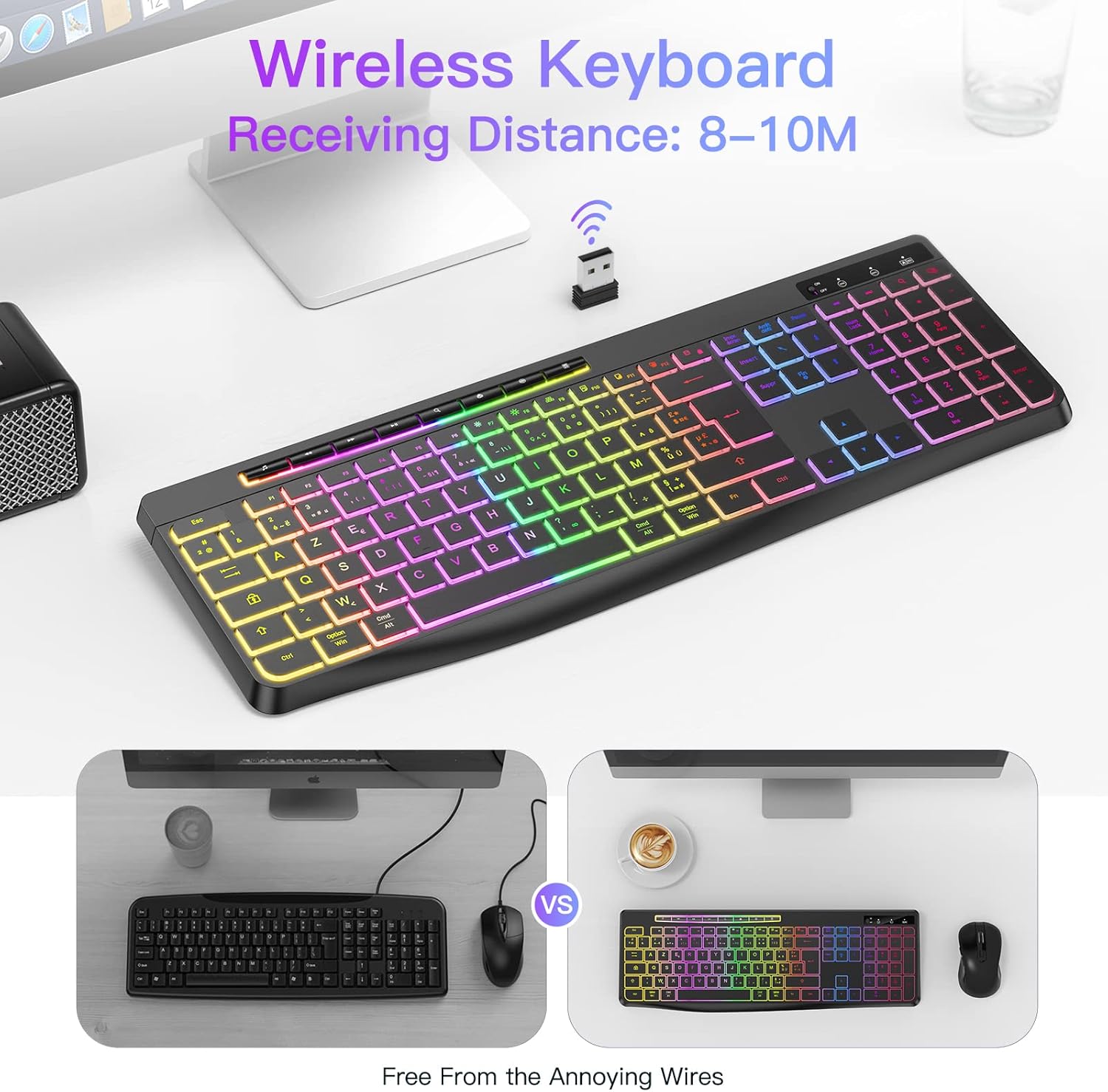
Image: The TECURS Wireless Keyboard positioned on a desk, with its USB receiver prominently displayed. An icon above the receiver indicates a wireless signal, illustrating the 8-10 meter receiving distance.
Ntuziaka ọrụ
Isi ojiji
Once connected, the keyboard functions like a standard full-size keyboard. Its silent membrane keys provide a comfortable and quiet typing experience, suitable for various environments.

Image: A person's hands are shown typing on the TECURS keyboard, which features colorful backlighting. The image emphasizes the low noise operation, with a muted speaker icon, suggesting its suitability for quiet environments like a bedroom where a child is sleeping in the background.
Multimedia Igodo
The keyboard includes dedicated multimedia keys for quick access to media controls. These keys are typically located along the top row (F-keys) and can be activated directly or by pressing the Fn key in combination with the respective F-key.
- Njikwa olu: Adjust volume up, down, or mute.
- Ndabere mgbasa ozi: Play/pause, stop, previous track, next track.
- Ọrụ ndị ọzọ: Access calculator, web browser, email, etc. (refer to keyboard legends for specific functions).

Foto: nkọwa zuru ezu view of the keyboard highlighting its dimensions (437mm length, 149mm width, 20mm thickness) and key features. Insets show compatibility with Mac/Windows, the row of individual multimedia buttons, and the adjustable stand at the back of the keyboard.
Njikwa ọkụ azụ
The keyboard features a monochromatic backlight with adjustable brightness. This allows you to customize the illumination to suit your environment and preference.
- Gbanwee ọkụ azụ: Use the dedicated backlight key (often indicated by a light bulb icon or combined with Fn + Pịgharịa mkpọchi or similar) to turn the backlight on/off.
- Gbanwee ihie: Use the brightness control keys (often Fn + Ibe elu / Ibe ala or similar) to increase or decrease the backlight intensity.
Note: The backlight may automatically turn off after a period of inactivity to conserve battery. Press any key to reactivate it.

Image: A split image demonstrating the keyboard's backlight feature. The left side shows the keyboard with the backlight off, indicating a "Backlight 15 Days" battery life. The right side shows the keyboard with the backlight on, indicating "Light on 10 Hours" battery life, with a 1000mAh battery icon at the top.
Nlekọta na nlekọta
Proper maintenance ensures the longevity and optimal performance of your TECURS Wireless Gaming Keyboard.
- Nhicha:
- Kwụpụ kiiboodu na kọmputa gị tupu ihicha.
- Jiri akwa dị nro na-enweghị ntụpọ dampejiri mmiri ma ọ bụ ihe nhicha dị nro hichaa elu ahụ.
- Avoid harsh chemicals, abrasive cleaners, or excessive moisture.
- Jiri ikuku abịakọrọ wepụ uzuzu na irighiri ihe n'etiti igodo.
- Nlekọta batrị:
- The keyboard uses a rechargeable Lithium-ion battery.
- Zere ịchaji batrị ugboro ugboro ka ọ gbatịa ndụ ya.
- Charge the keyboard using the provided USB cable and a standard USB power source.
- If storing the keyboard for an extended period, charge it to about 50% and store in a cool, dry place.
- Nchekwa: Debe ahụigodo ahụ n'ebe dị ọcha ma kpọọ nkụ, ebe okpomọkụ na anwụ na-anaghị apụta oke.
Nchọpụta nsogbu
If you encounter issues with your TECURS Wireless Gaming Keyboard, refer to the following common troubleshooting steps:
| Nsogbu | Ngwọta enwere ike |
|---|---|
| Keyboard not responding / No connection. |
|
| Ọkụ azụ anaghị arụ ọrụ ma ọ bụ na-adịghị mma. |
|
| Igodo ndị ahụ na-arapara arapara maọbụ anaghị anabata ya. |
|
Nkọwapụta ngwaahịa
| Njirimara | Nkọwa |
|---|---|
| Ụdị | TECURS |
| Nọmba nlereanya | B0C5QJ6F34 |
| Agba | Nwa |
| Teknụzụ Njikọta | Ikuku 2.4GHz (USB nnata) |
| Ndakọrịta sistemụ arụmọrụ | Windows XP, Windows 8, Windows 10 |
| Ngwa dakọtara | Gaming Console, Laptọọpụ, PC |
| Nkọwa ahụigodo | Membrane |
| Atụmatụ pụrụ iche | Multimedia Shortcuts, Backlit |
| Ọnụọgụ igodo | 104 |
| Njikwa Agba Azụ Ọkụ | Single Color (Monochromatic) |
| Ụdị batrị | Lithium-ion (Rechargeable) |
| Ndụ isi | 50,000,000 pịa |
Akwụkwọ ikike na nkwado
For warranty information, technical support, or any inquiries regarding your TECURS Wireless Gaming Keyboard, please contact TECURS customer service directly. Details can typically be found on the product packaging, the official TECURS websaịtị, ma ọ bụ site na ụlọ ahịa ebe azụrụ ngwaahịa ahụ.
The manufacturer, TECURS, is committed to providing quality products and support to its customers.


