Okwu mmalite
This manual provides essential information for setting up, operating, and maintaining your Microsoft Surface Studio 2+ All-In-One Desktop Computer. The Surface Studio 2+ is designed for productivity and creativity, featuring a versatile 28-inch PixelSense™ touchscreen display.
Biko gụọ akwụkwọ ntuziaka a nke ọma iji hụ na ejiri ya nke ọma ma mee ka ngwaọrụ gị dị ogologo ndụ.
Kedu ihe dị na Igbe ahụ
Chọpụta na ihe niile dị na nkwakọ ngwaahịa:
- Surface Studio 2+ All-in-One Computer
- Pen dị n'elu
- Elu kiiboodu
- Òké
- Power Cord with Grip-Release Cable
- Ntuziaka mmalite ngwa ngwa
- Ntuziaka nchekwa na akwụkwọ ikike
Melite
- Iwepu: Carefully remove the Surface Studio 2+ and its accessories from the packaging. Place the computer on a stable, flat surface.

Image: The Microsoft Surface Studio 2+ All-in-One computer displaying the Windows 11 desktop interface.
- Njikọ ike: Connect the power cord to the power port on the back of the Surface Studio 2+ base, then plug the other end into a wall outlet.

Foto: N'azụ view of the Surface Studio 2+ base, highlighting the various ports including the power input.
- Ngwa njikọ: Connect the Surface Keyboard and Mouse. These devices typically connect wirelessly via Bluetooth. Follow the on-screen instructions during initial setup for pairing.
- Boot mbụ: Press the power button, usually located on the back or side of the display. The computer will guide you through the Windows 11 Pro setup process, including language selection, network connection, and user account creation.
Ntuziaka ọrụ
Na-edozi Ngosipụta
The Surface Studio 2+ features a unique Zero Gravity Hinge, allowing the display to be adjusted from an upright desktop mode to a flat studio mode for drawing and writing.

Image: A sequence showing the Surface Studio 2+ display being adjusted from an upright position to a nearly flat angle.
- Ụdị Desktọpụ: Gently push the top of the screen backward to tilt it into an upright position for traditional desktop use.
- Ụdị Studio: Gently pull the top of the screen forward and down towards the base to transition it into a low-angle, flat position ideal for creative tasks with the Surface Pen.
Using the Surface Pen and Touchscreen
The 28-inch PixelSense™ touchscreen supports multi-touch gestures and is optimized for use with the included Surface Pen.
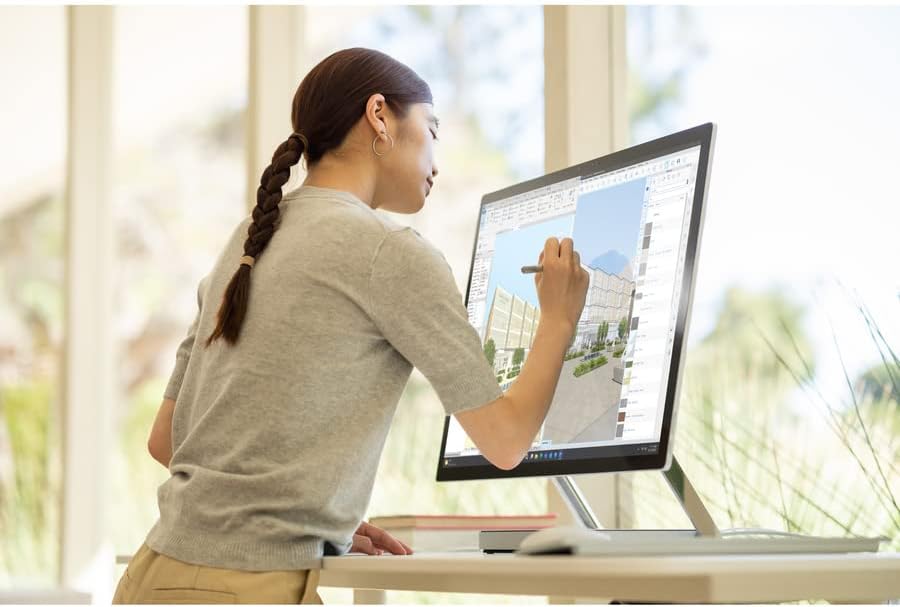
Image: A person using the Surface Pen to interact with the touchscreen of the Microsoft Surface Studio 2+ in studio mode.
- Mmegharị aka: Utilize standard Windows touch gestures for navigation, zooming, and scrolling.
- Surface Pen: The Surface Pen allows for precise drawing, writing, and annotation directly on the screen. It can be magnetically attached to the side of the display for storage.
Windows 11 Pro
Your Surface Studio 2+ comes pre-installed with Windows 11 Pro. Familiarize yourself with the operating system's interface and features for optimal productivity.
- Mmalite menu: Access applications, settings, and power options from the Start Menu.
- Ogwe ọrụ: Tinye ngwa ndị a na-ejikarị eme ihe na taskbar maka ohere ngwa ngwa.
- Ntọala: Customize your device, manage accounts, and configure privacy settings through the Settings app.
Atụmatụ
The Microsoft Surface Studio 2+ is equipped with advanced components for high performance:
- Ihe nhazi: Intel Core i7 3 GHz processor for demanding tasks.
- Ebe nchekwa: 32 GB DDR4 RAM for smooth multitasking.
- Nchekwa: 1 TB Solid State Drive (SSD) for fast boot times and application loading.
- Eserese: NVIDIA GeForce RTX 3060 with 6GB dedicated memory for graphics-intensive applications and gaming.
- Ngosipụta: 28-inch PixelSense™ touchscreen with 4500 x 3000 resolution.
- Sistemụ nrụọrụ: Windows 11 Pro.
- Njikọta: Integrated 802.11ax Wi-Fi and Bluetooth for wireless connections.
Nlekọta
Na-ehicha ngwaọrụ
- Ihuenyo: Jiri akwa dị nro na-enweghị ntụpọ dampened with water or a screen cleaner specifically designed for electronics. Avoid harsh chemicals.
- Ahụ: Jiri akwa dị nro hichaa ihe dị n'èzí.
- Igwe ikuku: Ensure the ventilation openings on the base are clear of dust and obstructions to prevent overheating.
Mmelite ngwanrọ
Na-enyocha ma wụnye mmelite Windows mgbe niile iji hụ na sistemụ gị nwere ihe ndozi nchekwa kachasị ọhụrụ na mmezi arụmọrụ.
- Gaa na Ntọala > Mmelite Windows.
- Pịa Lelee maka mmelite ma wụnye mmelite ọ bụla dị.
Nchọpụta nsogbu
| Okwu | Ngwọta enwere ike |
|---|---|
| Kọmputa anaghị agba ọkụ. | Ensure the power cord is securely connected to both the computer and a working electrical outlet. Try a different outlet. |
| Ngosipụta bụ oghere. | Check power connection. Ensure the computer is powered on. If connected to an external display, verify display input settings. |
| Surface Pen or Mouse not responding. | Check battery levels. Re-pair the devices via Bluetooth settings in Windows. |
| Ịrụ ọrụ nwayọ. | Close unnecessary applications. Check for and install Windows updates. Run a disk cleanup. |
| Nsogbu njikọ Wi-Fi. | Restart your router and the Surface Studio 2+. Check Wi-Fi settings in Windows to ensure it's enabled and connected to the correct network. |
Nkọwapụta
| Njirimara | Nkọwa |
|---|---|
| Nọmba nlereanya | SBG-00001 |
| Ngosipụta nha | 28 sentimita asatọ |
| Mkpebi ihuenyo | 4500 x3000 |
| Nhazi | Intel Core i7 (3 GHz) |
| RAM | 32 GB DDR4 |
| Draịvụ ike | 1 TB SSD |
| Ihe eserese eserese | NVIDIA GeForce RTX 3060 |
| Ihe eserese kaadị RAM nha | 6 GB |
| Sistemụ nrụọrụ | Windows 11 Pro |
| Ụdị ikuku | Bluetooth, 802.11ax |
| Ibu Ibu | 21.1 pound |
| Akụkụ ngwaahịa (LxWxH) | 25.1 x 0.5 x 17.3 sentimita asatọ |
| Agba | Ọlaọcha |
Akwụkwọ ikike na nkwado
Your Microsoft Surface Studio 2+ is covered by a manufacturer's warranty. Please refer to the included "Safety and Warranty Guide" for detailed information regarding warranty terms, conditions, and registration.
For technical support, driver downloads, or further assistance, please visit the official Microsoft Support website or contact Microsoft customer service.
Nkwado n'ịntanetị: support.microsoft.com/surface


