Okwu mmalite
Daalụ maka ịzụrụasing the THOMSON Sound Bar B206. This sound bar is designed to enhance your audio experience for television, music, and gaming, featuring multiple connectivity options and two wireless microphones for karaoke. This manual provides essential information for safe and efficient use of your device. Please read it thoroughly before operation and retain it for future reference.
Ozi nchekwa
- Ewepụla ngwaọrụ ahụ na mmiri ozuzo, mmiri mmiri ma ọ bụ oke okpomọkụ.
- Ensure proper ventilation around the sound bar to prevent overheating.
- Emeghela casing; zigara ndị ọrụ ruru eru ọrụ niile.
- Jiri naanị ihe nkwụnye ọkụ enyere.
- Debe ngwaọrụ ahụ pụọ na oghere magnetik siri ike.
- Avoid placing heavy objects on the sound bar.
Ihe ngwugwu
Nyochaa na etinyere ihe niile edepụtara n'okpuru na ngwugwu gị:
- THOMSON Sound Bar (B206) x 1
- Ime Remote x 1
- Igwe okwu ikuku x 2
- Ihe nkwụnye ọkụ x 1
- Igwe okwu ọdịyo x 1
- Coaxial Cable x 1
- Optical Fiber Cable x 1
- Wall Mounting Kit x 1 (includes padlocks, gel column, screws)
- Akwụkwọ ntuziaka onye ọrụ x 1

Ọgụgụ 1: Ngwa gụnyere
This image displays the complete set of items provided with your THOMSON Sound Bar B206, including the sound bar unit, remote control, two wireless microphones, power adapter, user manual, audio cable, coaxial cable, optical fiber cable, and wall mounting kit components.
Ngwaahịa gafereview
Sound Bar Components
The THOMSON Sound Bar B206 features a sleek design with integrated controls and various input ports for versatile connectivity.

Figure 2: Sound Bar, Microphones, and Remote
This image shows the main sound bar unit, two wireless microphones, and the remote control, providing a complete view of the primary components.
Internal Speaker Design
The sound bar is equipped with four large dual drive units, delivering a maximum output power of 200 Watts for HiFi sound quality, including dual bass and clear mid-range frequencies for a 3D surround sound effect.

Figure 3: Internal Speaker Structure
This diagram illustrates the internal construction of the sound bar's speakers, emphasizing the dual drive units responsible for audio output, alongside the Bluetooth connectivity symbol.
Rear Panel Connections and Remote Control
The rear panel provides various input options, while the remote control offers full command over the sound bar's functions.

Figure 4: Rear Panel Ports and Remote Control
This image details the connectivity options on the sound bar's rear panel, including the power switch, HDMI ARC, power input, subwoofer output, coaxial, optical, and AUX inputs. The accompanying remote control is also shown, indicating various function buttons.
Melite
1. Nhọrọ Ntinye
The THOMSON Sound Bar B206 can be placed on a desktop or mounted on a wall. A wall mounting kit is included for convenient installation.
- Ndokwa Desktọpụ: Place the sound bar on a stable, flat surface in front of your TV.
- Ịkwanye mgbidi: Use the provided wall mounting kit (padlocks, gel column, screws) to securely attach the sound bar to a wall below your TV. Ensure the wall material can support the weight of the sound bar.
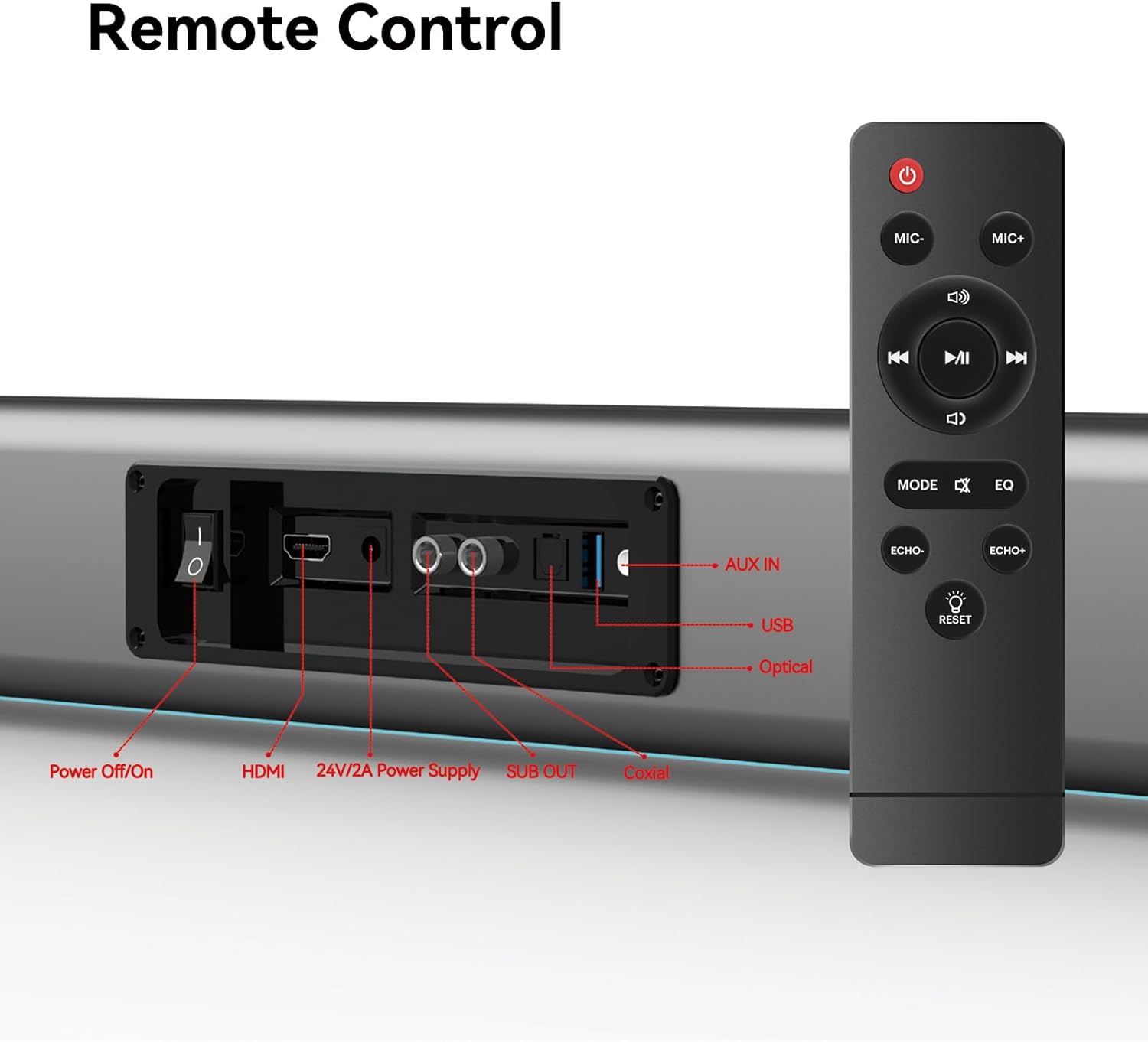
Figure 5: Placement Options (Wall Mount and Desktop)
This image illustrates the versatility of the sound bar's placement, showing it both mounted on a wall beneath a television and resting on a media console, highlighting the included wall mount kit for an elegant setup.
2. Ijikọ na Ike
- Connect the power adapter to the "24V/2A Power Supply" port on the sound bar's rear panel.
- Tinye nkwụnye ọkụ n'ime oghere mgbidi.
3. Njikọ ọdịyo
Choose one of the following methods to connect the sound bar to your audio source (e.g., TV, smartphone, tablet, laptop):
- HDMI AKA:
Connect an HDMI cable (not included) from the HDMI ARC port on your TV to the HDMI port on the sound bar. Ensure your TV's HDMI ARC function is enabled in its settings.
- Ngwa anya:
Connect the provided optical fiber cable from your TV's optical output to the "Optical" port on the sound bar. Select "Optical" as the input source on the sound bar.
- AUX (3.5mm Audio Jack):
Connect the provided audio cable from your device's headphone jack or audio output to the "AUX IN" port on the sound bar. Select "AUX" as the input source.
- Coaxial:
Connect the provided coaxial cable from your TV's coaxial output to the "Coaxial" port on the sound bar. Select "Coaxial" as the input source.
- USB:
Fanye draịva USB nwere ọdịyo files into the "USB" port. The sound bar will automatically switch to USB mode and begin playback.
- Bluetooth:
Refer to the "Bluetooth Pairing" section under Operating Instructions for detailed steps.
Ntuziaka ọrụ
1. Gbanyụọ / gbanyụọ
Pịa Gbanyụọ/Gbanye button on the sound bar's rear panel or the Ike bọtịnụ dị na njikwa dịpụrụ adịpụ iji gbanye ma ọ bụ gbanyụọ ngwaọrụ ahụ.
2. Nhọrọ Isi mmalite ntinye
Pịa MODE button on the remote control to cycle through available input sources: HDMI ARC, Optical, AUX, Coaxial, USB, and Bluetooth. The LED display on the sound bar will indicate the currently selected mode.
3. Njikwa olu
Jiri ihe Mpịakọta + na Mpịakọta - buttons on the remote control or the physical controls on the right side of the sound bar to adjust the volume. The sound bar supports 8 levels of bass and treble adjustment.
4. Ụdị EQ
The sound bar offers 5 Equalizer (EQ) modes to optimize audio for different content types. Press the EQ bọtịnụ dị na njikwa dịpụrụ adịpụ iji gbanwee n'etiti ụdịdị:
- Ọnọdụ ihe nkiri: Enhances cinematic sound effects and dialogue.
- Ụdị egwu: Optimizes audio for music playback.
- Ụdị akụkọ: Clarifies spoken dialogue for news and talk shows.
- Additional modes may be available for specific audio profiles.
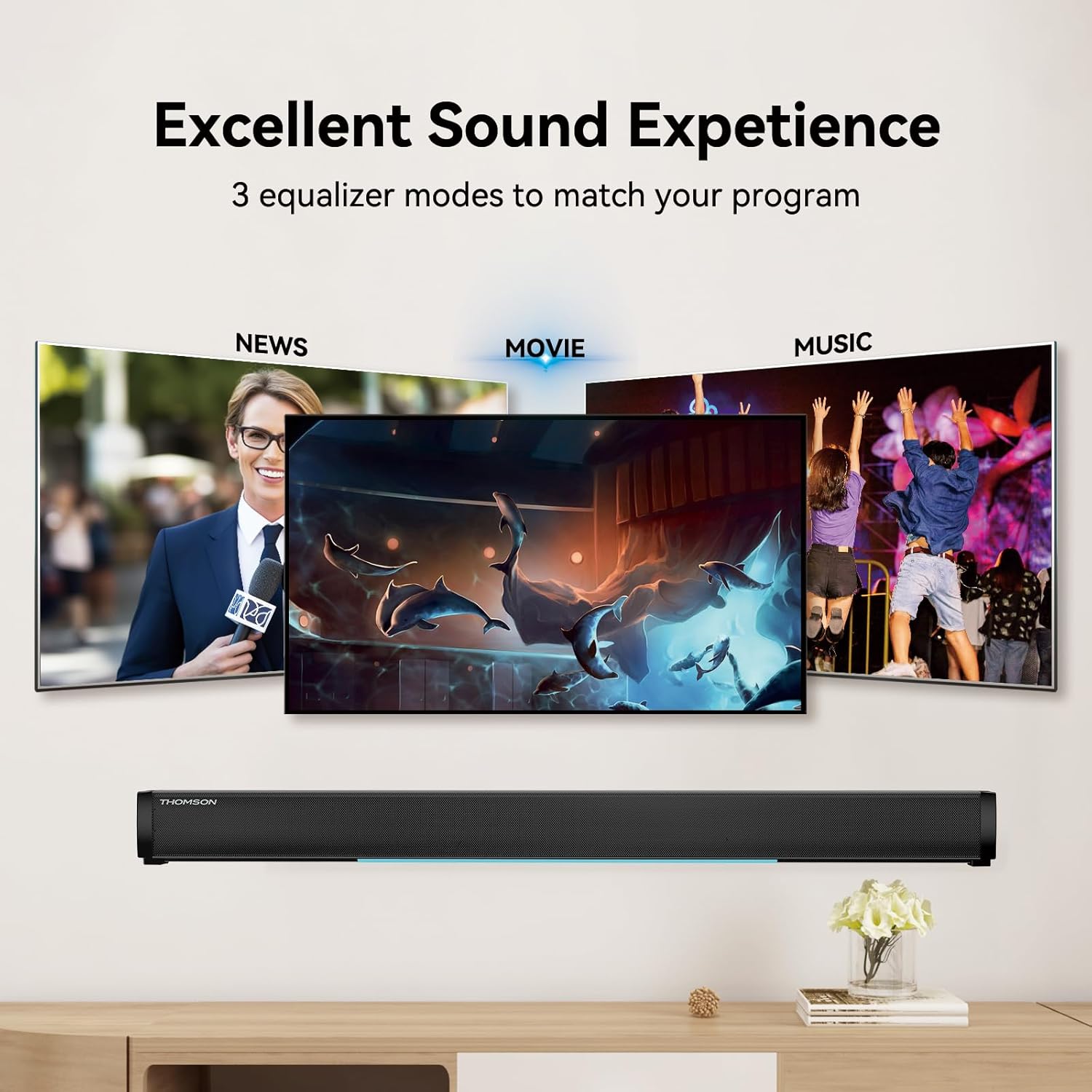
Figure 6: EQ Modes
This image illustrates the three primary equalizer modes (News, Movie, Music) available on the sound bar, demonstrating how each mode is tailored for different audio experiences.
5. Njikọ Bluetooth
- Turn on the sound bar and select Bluetooth mode using the MODE button on the remote. The LED display will show "BT" and flash, indicating pairing mode.
- Na ngwaọrụ gị (smartphone, tabletị, wdg), gbanye Bluetooth wee chọọ ngwaọrụ dịnụ.
- Select "THOMSON B206" from the list. Once connected, the sound bar's LED display will stop flashing.
6. Wireless Microphones
The sound bar comes with two wireless microphones for karaoke or vocal use.
- Ensure the microphones have fresh batteries (AAA, not included).
- Turn on the microphones. They should automatically pair with the sound bar.
- Jiri ihe MIC+ na MIC- buttons on the remote to adjust microphone volume.
- Jiri ihe ECHO+ na ECHO- buttons to adjust the echo effect.

Figure 7: Karaoke Functionality
This image depicts two individuals enjoying a karaoke session, utilizing the THOMSON sound bar and its wireless microphones connected to a large display, showcasing the product's entertainment capabilities.
Nchọpụta nsogbu
| Nsogbu | Ihe nwere ike ime | Ngwọta |
|---|---|---|
| Enweghị ike | Ejikọghị eriri ọkụ; Ọkụ ọkụ anaghị arụ ọrụ. | Ensure power cable is securely connected. Check if the power outlet is working. |
| Enweghị ụda | ahọpụtara isi mmalite ntinye ezighi ezi; Olu dị oke ala; Ejikọghị eriri nke ọma. | Select the correct input source (HDMI, Optical, AUX, etc.). Increase volume. Check all audio cable connections. |
| Njikọ Bluetooth adaghị | Sound bar not in pairing mode; Device too far; Bluetooth disabled on device. | Ensure sound bar is in Bluetooth mode and flashing. Move device closer. Enable Bluetooth on your device. |
| Igwe okwu anaghị arụ ọrụ | Microphone batteries low/dead; Microphones not turned on. | Replace microphone batteries. Ensure microphones are switched on. |
| Volume jumps too much with one press | This can be a characteristic of the sound bar's volume control sensitivity. | Adjust volume carefully. Consider using the TV's volume control if connected via HDMI ARC, as it may offer finer adjustments. |
Nkọwapụta
| Njirimara | Nkọwa |
|---|---|
| Aha Nlereanya | THOMSON Sound Bar B206 |
| Ụdị Ọkà Okwu | Igwe ụda ụda |
| Ike Nwepu kacha elu | 200 Watt |
| Nhazi ọwa ụda gburugburu | 2.0 |
| Teknụzụ Njikọta | Auxiliary, Bluetooth, Coaxial, HDMI ARC, Optical, USB |
| Teknụzụ nzikọrịta ozi ikuku | Bluetooth |
| Usoro njikwa | Ime ime |
| Akụkụ ngwaahịa | 37"D x 3.35"W x 2.9"H |
| Ibu Ibu | 8.63 pound |
| Ihe onwunwe | Plastic |
| Isi Iyi Ike | Igwe ọkụ eletrik |
| Njirimara Pụrụ Iche | Igwe igwe ikuku |
Nlekọta
- Nhicha: Use a soft, dry cloth to clean the surface of the sound bar. Do not use liquid cleaners or abrasive materials.
- Nchekwa: When not in use for extended periods, store the sound bar in a cool, dry place, away from direct sunlight and extreme temperatures.
- Nlekọta igwe okwu: Remove batteries from the wireless microphones if they will not be used for a long time to prevent leakage.
Akwụkwọ ikike na nkwado
THOMSON products are designed and manufactured to the highest quality standards. For warranty information and customer support, please refer to the warranty card included in your package or visit the official THOMSON websaịtị. Debe nnata nzụta gị ka ihe akaebe nke ịzụrụ.
Ozi nnabata
This device complies with relevant regulations for electronic equipment. Any changes or modifications not expressly approved by the manufacturer could void the user's authority to operate the equipment.


