1. Okwu mmalite
The XTOOL AD20 Pro is a compact and portable Bluetooth OBD2 diagnostic scanner designed for comprehensive vehicle system analysis. It connects wirelessly to your iOS or Android device, providing detailed diagnostic information, real-time performance monitoring, and maintenance functions. This manual provides instructions for setting up, operating, and maintaining your AD20 Pro device.
2. Kedu ihe dị na Igbe ahụ
- 1 x XTOOL AD20 Pro Scanner
- 1 x Ntuziaka mmalite ngwa ngwa
3. Nhazi
3.1. Ndakọrịta
The XTOOL AD20 Pro is compatible with most 12V American vehicles manufactured after 1996, and European and Asian vehicles manufactured after 2000. It supports both iOS (version 11+) and Android (version 4.4+ with 64-bit processor) devices. It does not support 24V heavy-duty trucks or motorcycles.
3.2. Ngwa nwụnye
- Download the "Advancer AD20" application from the Google Play Store (for Android) or the Apple App Store (for iOS). You can also scan the QR code provided in the packaging or user manual.
- Wụnye ngwa na ama ma ọ bụ mbadamba gị.

Image: Quick installation guide for iOS and Android, showing app download options and connection steps.
3.3. Device Connection and Pairing
- Locate the OBD2 port in your vehicle. This is typically found under the dashboard on the driver's side.
- Plug the XTOOL AD20 Pro scanner firmly into the vehicle's OBD2 port.
- Ensure the vehicle's ignition is in the "ON" position or the engine is running.
- Open the "Advancer AD20" app on your smartphone.
- The app will automatically detect the device. Follow the on-screen prompts to pair the scanner via Bluetooth 5.0.
- Create an account if prompted (requires email and password).

Image: The XTOOL AD20 Pro scanner connected to a vehicle's OBD2 port, with the companion app displayed on a smartphone.
4. Ntuziaka ọrụ
4.1. Nchọpụta Sistemụ zuru oke
The AD20 Pro performs a comprehensive scan of all available vehicle systems, including engine, transmission (AT), SRS (Airbag), ABS, TPMS, body system, air conditioning, and more. This provides a detailed overview of your vehicle's health.
- From the app's main screen, select "Full Diagnosis" or "In-depth check".
- The scanner will automatically identify your vehicle's VIN and begin scanning all systems.
- Review the diagnostic report for any detected fault codes (DTCs).

Image: Visual representation of the XTOOL AD20 Pro performing a full system diagnosis, highlighting various vehicle systems being checked.
4.2. Reading and Clearing Diagnostic Trouble Codes (DTCs)
The device can read emission-related DTCs, freeze frame data, and parameter data streams (PIDs) from the Powertrain Control Module (PCM). It helps identify the cause of the Check Engine Light (MIL) and provides potential solutions.
- After a full system diagnosis, the app will display any detected DTCs.
- Tap on a DTC to view its detailed description, potential causes, and suggested repair actions.
- To clear DTCs and turn off the Check Engine Light, ensure the underlying issue has been resolved. Then, select the "Clear Codes" option in the app.

Image: The XTOOL AD20 Pro app screen showing detected fault codes and options for detailed descriptions and clearing codes.
4.3. Real-time Performance Monitoring
Monitor key vehicle data in real-time, such as engine RPM, vehicle speed, coolant temperature, engine load, throttle position, intake air temperature, fuel trim, and battery voltage. This feature allows for performance tests and driving analysis.
- Navigate to the "Live Data" section in the app.
- Select the parameters you wish to monitor. The data will be displayed in text format.

Image: The XTOOL AD20 Pro app showing real-time OBD2 data, including various engine and vehicle parameters.
4.4. Maintenance Light Reset
This function allows you to reset the maintenance light after performing vehicle service. The app provides guidance on when maintenance is due and helps clear the reminder.
- Go to the "Maintenance Light Reset" function in the app.
- Follow the on-screen instructions to reset the light.

Image: The XTOOL AD20 Pro app interface for resetting the maintenance light, with a car icon and instructional text.
4.5. Nnwale batrị
Perform a quick test of your vehicle's battery condition. This helps ensure optimal battery performance and alerts you to potential issues.
- Access the "Battery Test" feature in the app.
- Follow the prompts, which may include turning the engine off and then on, to complete the test.
- Review the battery status report.
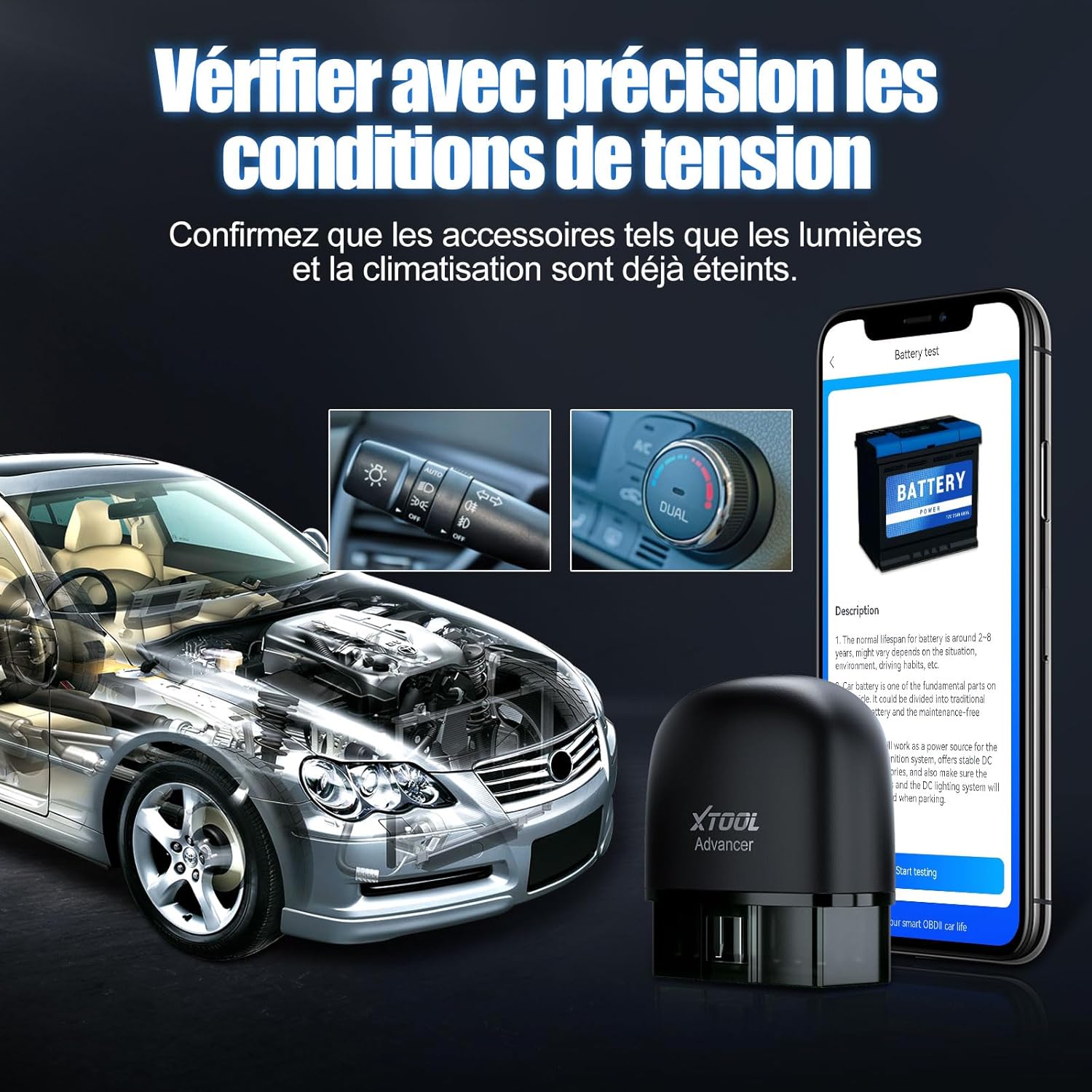
Image: The XTOOL AD20 Pro app displaying a battery test in progress, showing a car battery and test data.
4.6. Trip Recording and Driving Analysis
The AD20 Pro can record trip data and analyze driving habits, including driving distance, average speed, maximum speed, and fuel consumption. This helps in understanding and improving driving efficiency.
- Access the "Trip Data" or "Driving Analysis" section in the app.
- Review historical trip records and driving behavior analysis.

Image: The XTOOL AD20 Pro app interface showcasing vehicle management, trip recording, performance testing, battery voltage testing, and smart dashboard features.
4.7. Changing App Language
The application supports multiple languages. You can change the language setting within the app.
- From the app's main screen, navigate to "My Info" (or similar profile/settings icon).
- Select "General Settings" or "Language".
- Choose your desired language from the list.
4.8. Using on Multiple Vehicles
To use the AD20 Pro on a different vehicle, you must first unpair it from the current vehicle in the app, then pair it with the new vehicle.
- In the app, go to "My Info" and then "Car Management".
- Select the currently paired vehicle and choose "Unpair". Confirm the action.
- Once unpaired, select "Add Car" and scan the AD20 Pro QR code again.
- Plug the AD20 Pro into the new vehicle's OBD2 port and ensure the ignition is on or the engine is running.
- Follow the app's instructions to pair with the new vehicle.
5. Nchọpụta nsogbu
5.1. Okwu Njikọ Bluetooth
If you experience problems connecting the AD20 Pro via Bluetooth, consider the following:
- Device OS Version: Ensure your smartphone or tablet runs Android 4.4+ (with a 64-bit processor) or iOS 11+. Older 32-bit Android devices are not supported.
- Njikọ echekwara Verify that the AD20 Pro dongle is firmly inserted into the vehicle's OBDII port.
- Stable Network: Maintain a stable internet connection on your device for app functionality and updates.
- Ọkwa Ụgbọala: The vehicle must be started or the ignition key must be in the "ON" position for the scanner to function.
6. Nkọwapụta
| Ụdị | XTOOL |
| Nlereanya | AD20 Pro |
| Ibu Ibu | 30 g |
| Akụkụ ngwaahịa (L x W x H) | 10.49 x 6.71 x 2.69 cm |
| Ndakọrịta sistemụ arụmọrụ | Android (4.4+ 64-bit), iOS (11+) |
| Njikọta | Bluetooth 5.0 |
| Ụgbọ ala Voltage | 12V (Not for 24V heavy-duty trucks or motorcycles) |
7. Akwụkwọ ikike na nkwado
The XTOOL AD20 Pro comes with a 2-year warranty and lifetime free software updates. For technical assistance or any inquiries, please contact XTOOL customer support directly. They offer 24/7 technical support.

Image: XTOOL customer support representatives providing remote technical assistance.


