Okwu mmalite
The BuzzTV E5 is a 4K UHD Streaming Media Player designed to deliver an immersive viewing experience with its Android 11 operating system. This manual provides essential information to help you set up, operate, and maintain your device.
Ihe ngwugwu
Hụ na ihe niile dị n'ime igbe ahụ:
- BuzzTV E5 Set Top Box
- Ụdị ike USB Ụdị-C
- 2 x AA batrị
- IR-200 Remote
- Setup/Help Card
- HDMI USB

The package includes the BuzzTV E5 Set Top Box, a USB Type-C power supply, two AA batteries for the remote, an IR-200 remote control, a setup/help card, and an HDMI cable.
Ngwaahịa gafereview
The BuzzTV E5 is a compact and powerful streaming device.

The device features multiple ports for connectivity, including USB 3.0, LAN, TF card slot, AV, Ethernet, HDMI, Optical, and USB-C power input.
Atụmatụ igodo
- 4K UHD Streaming: Supports ultra-high-definition 4K resolution for crisp visuals.
- Arụmọrụ dị nro: Equipped with 2GB RAM and 32GB storage for responsive operation.
- Android 11 OS: Access to a wide range of apps and streaming services with an intuitive interface.
- Easy Setup and Connectivity: HDMI output for TV connection and reliable Wi-Fi.
- Nhazi kọmpat: Sleek, space-saving form factor.
Ntuziaka nhazi
Ntọlite mbụ
Follow these steps for the initial setup of your BuzzTV E5:
- Jikọọ na TV: Connect the BuzzTV E5 to your television using the provided HDMI cable. Insert one end into the HDMI port on the E5 and the other into an available HDMI input on your TV.
- Njikọ ike: Connect the USB Type-C power supply to the E5 and plug the adapter into a power outlet.
- Fanye batrị: Open the battery compartment on the IR-200 remote control and insert the two AA batteries, ensuring correct polarity.
- Ike Na: Press the power button on the E5 device or the remote control to turn on the device.
- Nhazi izizi: Follow the on-screen instructions to select your language, connect to your Wi-Fi network, and log in with your Google account.

Gbaa mbọ hụ na ejikọrọ eriri niile na nchekwa tupu ịgbanye ngwaọrụ ahụ.
Ntuziaka ọrụ
Isi ọrụ
Navigate the Android 11 interface using the IR-200 remote control.
- Ntugharị: Use the directional pad and 'OK' button to select items.
- Bọtịnụ ụlọ: Press the home button to return to the main screen.
- Bọtịnụ azụ: Use the back button to go to the previous screen.
- Njikwa olu: Adjust volume using the dedicated volume buttons.
- Nweta ngwa: Access installed applications from the home screen or the Apps menu.
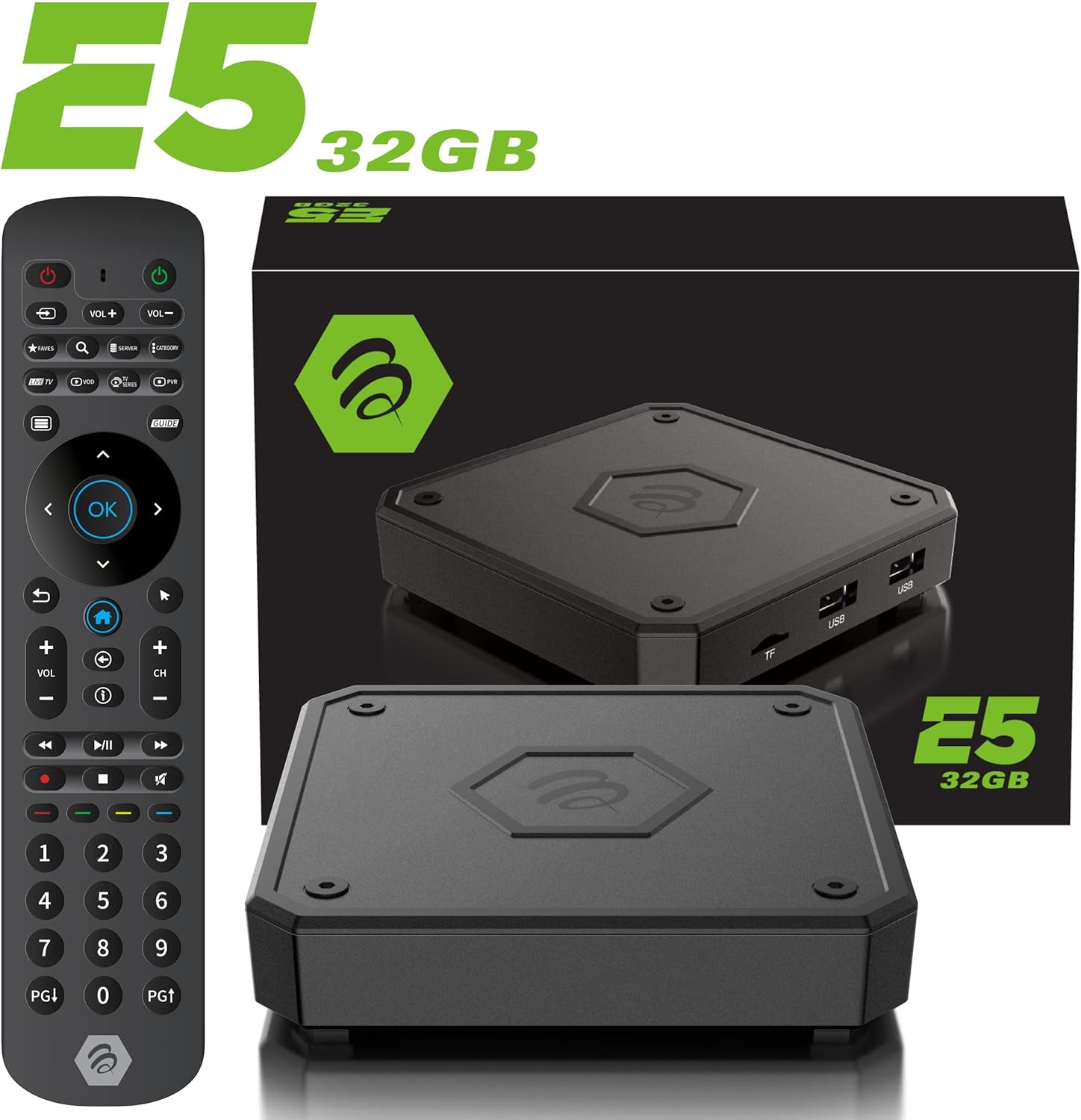
The IR-200 remote provides intuitive control over the BuzzTV E5's functions.
Njikọta
Nhọrọ njikọta
- Wi-Fi: Supports dual-band Wi-Fi (2.4 GHz and 5 GHz) for wireless internet connection.
- Ethernet: A Gigabit LAN port is available for wired internet connection.
- HDMI: HDMI 2.1 output for high-quality video and audio to your TV.
- USB 3.0: For connecting external storage devices or peripherals.
- Mmepụta anya: For digital audio output to compatible sound systems.
Media Playback & Streaming
Media Playback and Streaming
The BuzzTV E5 supports various media formats and provides access to numerous streaming services via the Google Play Store.
- Ọrụ akwadoro: Access Netflix, Disney+, YouTube, Prime Video, Hulu, and many more.
- Mgbasa ozi mpaghara: Gwuo mgbasa ozi files from connected USB drives or TF cards.
Official Product Video: Introducing the BuzzTV 5th Generation Lineup
Vidiyo a na-enye nkọwa zuru ezuview of the BuzzTV 5th Generation lineup, highlighting key features and models.
Nkọwapụta
Nkọwa nka nka
| Njirimara | Nkọwa |
|---|---|
| Aha Nlereanya | E5 |
| Sistemụ nrụọrụ | Android 11 |
| RAM | 2GB nke DDR |
| Nchekwa | 32GB eMMC |
| Mkpebi | 4K UHD |
| Njikọta | Wi-Fi (2T2R Dual Band), Ethernet (10/100 Mbps) |
| ọdụ ụgbọ mmiri | HDMI 2.1, USB 3.0, USB 2.0, Optical Audio, Power Input, MicroSD |
| CPU | Amlogic S905X4 Quad-core 64bit Cortex-A55 |
| GPU | Mali-G31 MP2 |
| Bluetooth | 5.0 |
| Akụkụ | 3 x 12 x 12 sentimita asatọ |
| Ibu | 1.83 pound |

Detailed technical specifications for the BuzzTV E5 model.
Nchọpụta nsogbu
Okwu na ngwọta nkịtị
- Enweghị ike: Ensure the power adapter is securely connected to both the device and the power outlet. Check if the power button on the device is pressed.
- Enweghị mgbaama na TV: Verify the HDMI cable is correctly connected to both the E5 and the TV. Ensure your TV input is set to the correct HDMI port.
- Okwu njikọ Wi-Fi: Check your Wi-Fi router and ensure it's working. Re-enter your Wi-Fi password in the E5 settings.
- Remote anaghị aza: Check if the batteries are correctly inserted and have sufficient charge. Re-pair the remote if necessary (refer to the setup card).
- App Freezing/Crashing: Try restarting the application. If the issue persists, restart the BuzzTV E5 device.
Akwụkwọ ikike na nkwado
For warranty information and technical support, please refer to the official BuzzTV website or the contact information provided on your setup/help card. Keep your purchase receipt for warranty claims.
Online resources and FAQs may also be available on the BuzzTV support page.
Official Product Video: MAG555 Google TV 4K UHD Media Player With Voice Control And HDR From Infomir
This video provides an unboxing and setup guide for a similar Google TV media player, demonstrating general functionality and connectivity.
Official Product Video: MAG555 - revolutionize entertainment with the Google TV
This video showcases the features and user experience of the MAG555 Google TV, highlighting its entertainment capabilities.


