1. Okwu mmalite
The Unitek S1306A Dual-Bay SATA Clone Drive Station is designed for efficient data management, allowing you to connect and clone 2.5-inch and 3.5-inch SATA I, II, or III hard disk drives (HDDs) and solid-state drives (SSDs). This device supports standalone cloning without a computer connection and also functions as a dual-bay external drive enclosure when connected to a PC via its USB 3.2 Gen1 port, offering data transfer speeds up to 5 Gbps. It is a plug-and-play device, requiring no additional driver installation for basic operation.
2. Ihe ngwugwu
- Unitek S1306A Dual-Bay SATA Clone Drive Station
- USB-B na eriri USB-A
- Ihe nkwụnye ọkụ (DC 12V)
- Akwụkwọ ntuziaka
3. Ngwaahịa gafereview
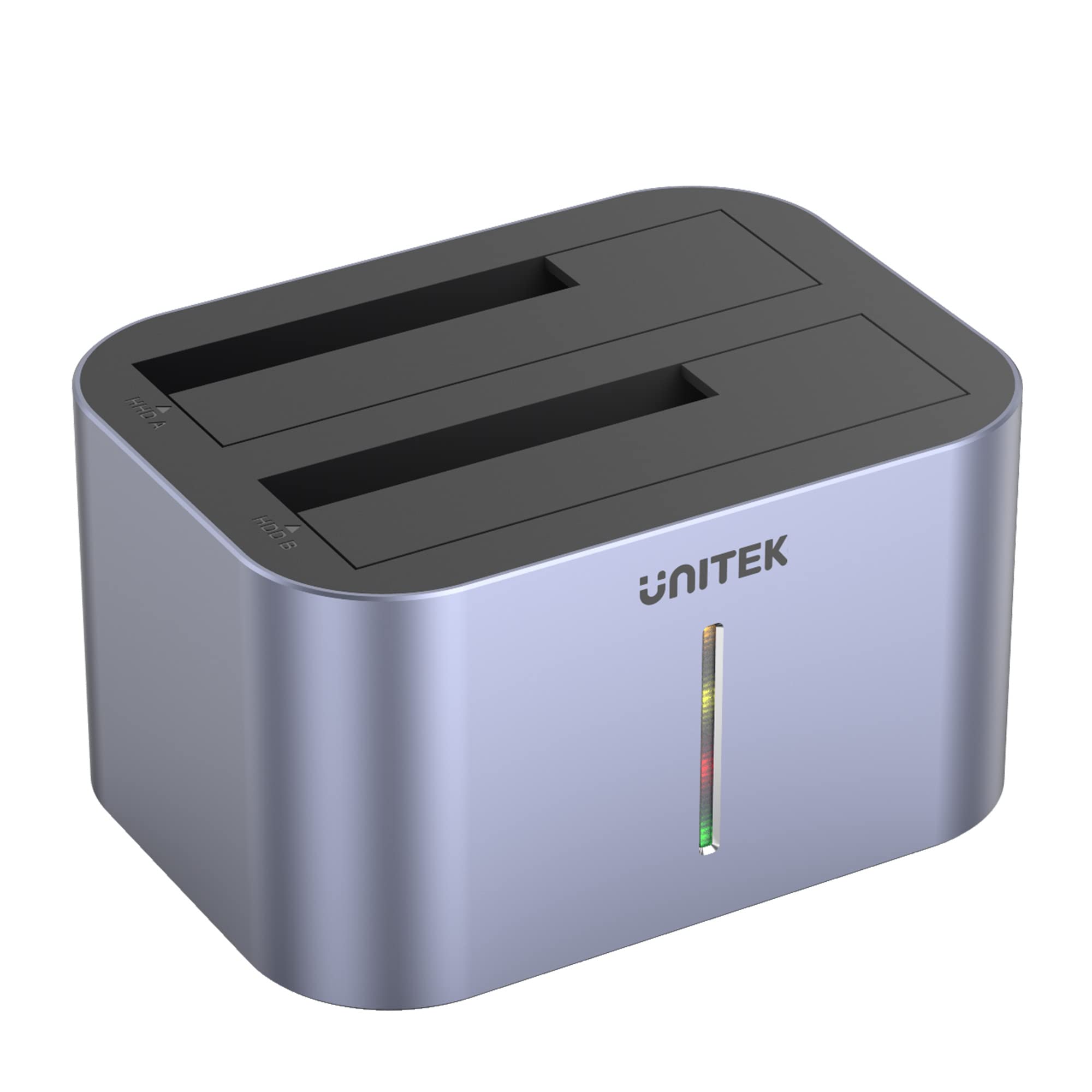
Foto 3.1: N'ihu view of the Unitek S1306A Dual-Bay SATA Clone Drive Station, showing the two drive bays and the LED indicator strip.

Ọgụgụ 3.2: N'azụ view of the Unitek S1306A, highlighting the USB 3.2 Gen1 port, DC 12V power input, ON/OFF switch, and Clone button.
- Drive Bays (HDD A & HDD B): Two slots for inserting 2.5-inch or 3.5-inch SATA HDDs/SSDs. HDD A is the source drive slot for cloning, and HDD B is the target drive slot.
- Ihe ngosi LED: A vertical LED strip on the front panel that indicates power status and cloning progress.
- Ọdụ USB 3.2 Gen1: Connects the station to a computer for data transfer.
- Ntinye ike DC 12V: Jikọọ na nkwụnye ọkụ gụnyere.
- Gbanyụọ/gbanyụọ Na-agbanye ngwaọrụ ahụ ma ọ bụ gbanyụọ.
- Clone Button: Initiates the standalone cloning process.
4. Nhazi
4.1 Inserting Drives
- Gbaa mbọ hụ na agbanyụrụ ngwaọrụ ahụ.
- Align your 2.5-inch or 3.5-inch SATA HDD/SSD with the SATA connector inside the drive bay.
- Gently push the drive down until it is firmly seated. For cloning, the source drive goes into HDD A and the target drive into HDD B.

Figure 4.1: Illustration of inserting both 3.5-inch and 2.5-inch SATA drives into the respective bays of the cloning station.
4.2 Njikọ ike
- Connect the included power adapter to the DC 12V input port on the rear of the station.
- Tinye nkwụnye ọkụ n'ime oghere mgbidi.
4.3 PC Connection (Optional)
If you intend to use the station as an external drive enclosure with a computer:
- Connect the USB-B end of the provided USB cable to the USB 3.2 Gen1 port on the station.
- Jikọọ njedebe USB-A na ọdụ USB dị na kọmputa gị.
5. Ụdị arụ ọrụ
5.1 PC Connection Mode (Data Transfer)
In this mode, the station acts as an external dual-bay drive enclosure, allowing your computer to access the inserted drives.
- Ensure drives are inserted (refer to Section 4.1).
- Connect the station to your computer using the USB cable (refer to Section 4.3).
- Flip the ON/OFF switch to the 'ON' position. The LED indicator will illuminate.
- Your computer's operating system will detect the drives. They will appear as removable storage devices.
- You can now access, read, and write data to the drives. The device supports hot-swapping, meaning you can remove and insert drives while the station is connected and powered on, provided the operating system is not actively accessing the drive.
5.2 Standalone Clone Mode (Without PC)
This mode allows you to duplicate a source drive to a target drive without needing a computer connection.
Ihe ndị dị mkpa:
- Nke target drive (HDD B) must have a capacity equal to or greater than the source drive (HDD A). If the target drive is smaller, the cloning process will fail.
- All data on the target drive will be overwritten during the cloning process. Ensure you have backed up any important data from the target drive before proceeding.
- Do not connect the USB cable to a computer during standalone cloning.
- Ensure the station is powered off and disconnected from any computer.
- Insert the source drive into the HDD A oghere.
- Insert the target drive into the HDD B oghere.
- Flip the ON/OFF switch to the 'ON' position.
- Pịa ma jide bọtịnụ mmepụta oyiri for approximately 3-5 seconds until the LED indicator begins to flash, indicating the start of the cloning process.
- The LED indicator will show the progress of the cloning (e.g., 25%, 50%, 75%, 100%).
- Ozugbo LED niile siri ike, usoro nhazi ahụ agwụla.
- Flip the ON/OFF switch to 'OFF' and safely remove the drives.
6. Nlekọta
- Debe ngwaọrụ ahụ ọcha site na iji akwa dị nro na-ehichapụ ya.
- Avoid exposing the device to liquids, excessive dust, or extreme temperatures.
- Chekwaa ngwaọrụ ahụ n'ebe dị jụụ, kpọrọ nkụ mgbe ọ naghị eji ya.
- Gbaa mbọ hụ na ikuku ikuku dị na gburugburu ngwaọrụ mgbe ọ na-arụ ọrụ.
7. Nchọpụta nsogbu
7.1 Device Not Recognized by Computer
- Ensure the power adapter is securely connected and the device is powered on.
- Verify the USB cable is properly connected to both the station and the computer.
- Gbalịa jikọọ na ọdụ ụgbọ USB dị iche na kọmputa gị.
- Ensure the drives are correctly seated in their bays.
- Check if the drives are initialized and formatted in your computer's Disk Management (Windows) or Disk Utility (macOS).
7.2 Standalone Cloning Fails or Does Not Start
- Confirm that the target drive (HDD B) has a capacity equal to or greater than the source drive (HDD A).
- Ensure the USB cable is disconnected from the computer. Standalone cloning requires no PC connection.
- Verify both drives are securely inserted.
- Press and hold the Clone button for the required 3-5 seconds until the LED indicator responds.
- Check the health of both source and target drives. A faulty drive may prevent cloning.
7.3 Ọsọ Nnyefe Data Dị Nwayọọ
- Ensure the station is connected to a USB 3.0 (or higher) port on your computer. Connecting to a USB 2.0 port will result in slower speeds.
- The actual transfer speed depends on the performance of the drives used.
8. Nkọwapụta
| Njirimara | Nkọwa |
|---|---|
| Nlereanya | S1306A |
| Ụgbọ ala akwadoro | 2.5-inch / 3.5-inch SATA I/II/III HDD/SSD |
| Max Drive Capacity | Up to 8 TB per bay (16 TB total) |
| Interface | USB 3.2 Gen1 (USB 3.0 compatible) |
| Ọnụego mbufe data | Ruo 5 Gbps |
| Ịnye ọkụ | DC 12V ihe nkwụnye ọkụ |
| Ọrụ | Standalone Cloning, External Drive Enclosure |
| Akụkụ | 50 x 50 x 28 cm |
| Ibu | 760 g |
9. Ozi nchekwa
- Do not disassemble or attempt to repair the device. This may void the warranty and pose safety risks.
- Use only the provided power adapter. Using an incorrect adapter may damage the device or cause fire.
- Debe ngwaọrụ ahụ pụọ na mmiri, ọkụ na oke okpomọkụ.
- Zere idobe ma ọ bụ idobe ngwaọrụ ahụ na mmetụta siri ike.
- Gbanyụọ ihe nkwụnye ọkụ eletrik n'oge oké ifufe ma ọ bụ mgbe ejiri ya ruo ogologo oge.
10. Akwụkwọ ikike na nkwado
Unitek products are designed for reliability and performance. For warranty information, technical support, or customer service inquiries, please refer to the warranty card included with your product or visit the official Unitek website. Please have your product model number (S1306A) and purchase details ready when contacting support.


