1. Ngwaahịa gafereview
The Taiahiro Low Profile Mechanical Keyboard is an ultra-slim 87-key keyboard designed specifically for Mac users, offering a compact 80% layout. It features ultra-low profile brown switches for a tactile and responsive typing experience. This wired keyboard provides full support for Mac function keys and customizable white backlighting.
Atụmatụ igodo
- Pro dị alafile Brown Switches for tactile feedback.
- 87-key (TKL) compact design.
- Full Mac Function Keys Support.
- Detachable Type-C connection.
- 18-Modes LED White Backlighting with 4 adjustable brightness levels.
- Durable Aluminum Alloy Panel construction.
- Double Shot Injection Keycaps for comfortable typing.
- Ergonomic design for comfortable angle.
Ihe ngwugwu
- Taiahiro Low Profile Ahụigodo igwe
- USB-C na eriri USB-A
- Akwụkwọ ntuziaka onye ọrụ
Eserese ngwaahịa

Nyocha 1: N'eluview of the Taiahiro Low Profile Mechanical Keyboard, highlighting its compact design and key layout.
2. Ntuziaka Nhazi
Jikọọ ahụigodo
- Chọta ọdụ USB-C n'azụ ahụigodo ahụ.
- Jikọọ otu nsọtụ nke eriri USB-C enyere na ọdụ USB-C nke ahụigodo ahụ.
- Connect the other end of the USB-C cable to an available USB-A port on your computer (MacBook Pro/Air, iMac, Mac Mini, or PC).
- Ahụigodo ahụ bụ nkwụnye na-egwu ma ekwesịrị ịmara ya na-akpaghị aka site na sistemụ arụmọrụ gị.
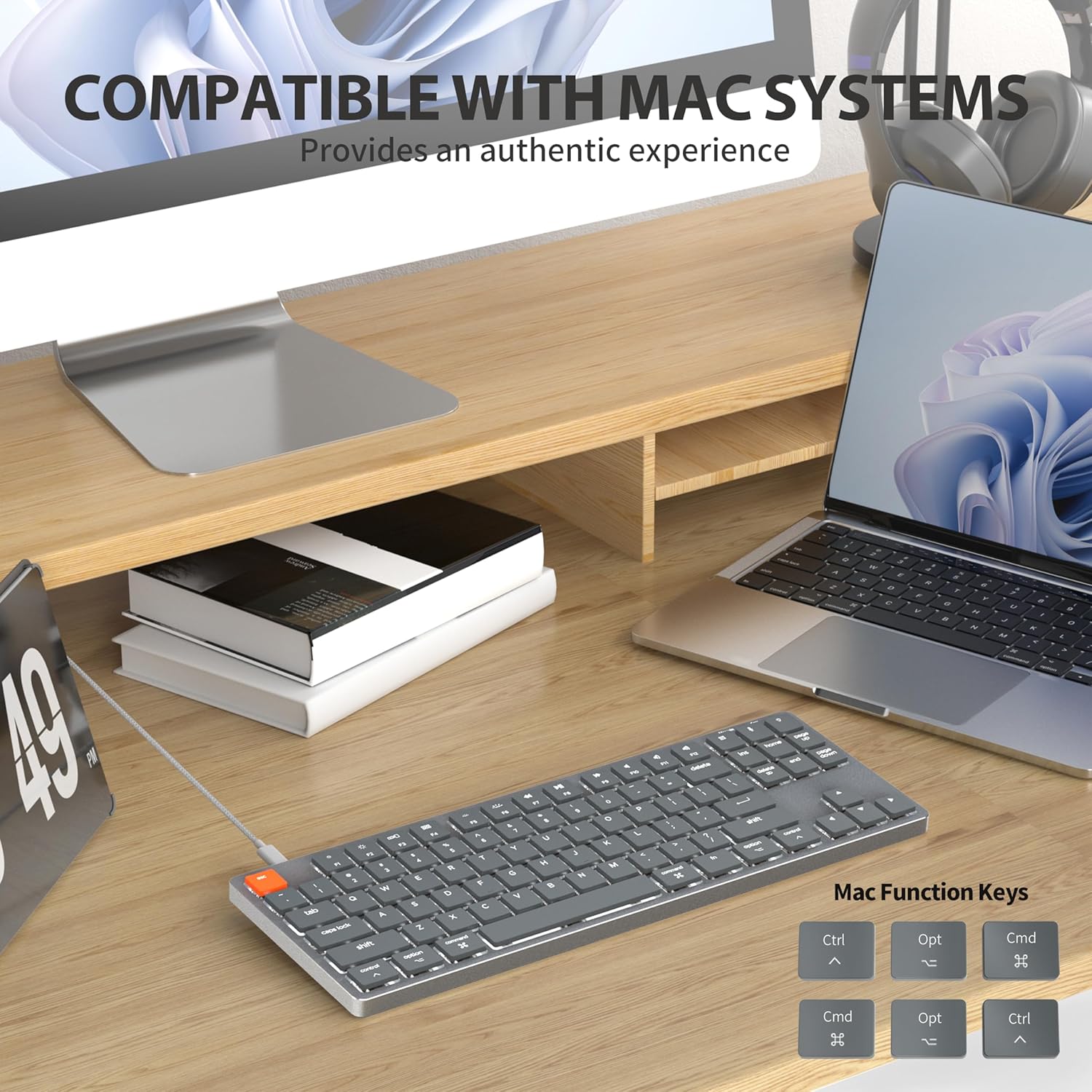
Figure 2: Connecting the detachable Type-C cable to the keyboard for convenience and efficiency.
Ndakọrịta sistemụ
This keyboard is designed for full compatibility with Mac OS and Windows operating systems. It supports Mac Mini, MacBook Air, MacBook Pro, PC, and iMac devices.

Figure 3: The keyboard seamlessly integrated with a Mac system, providing an authentic user experience.
3. Ntuziaka ọrụ
Ide ihe dị mfe
Obere profile brown switches provide a quiet yet responsive typing experience with satisfying tactile feedback. The ultra-thin design and high-quality keycaps enhance fingertip comfort during extended use.
Njikwa Ọkụ Azụ
The keyboard features 18 distinct LED white backlighting modes. You can cycle through these modes and adjust brightness levels using the dedicated function keys. Refer to the keyboard's layout for specific key combinations, typically involving the 'Fn' key combined with other keys (e.g., Fn + F1/F2 for brightness, Fn + arrow keys for modes).

Figure 4: The keyboard's 18-modes LED white backlighting, offering customizable illumination.
Mac Function Keys Support
The keyboard is specifically designed to support Mac function keys, allowing you to easily control system functions such as screen brightness, volume, and media playback directly from the keyboard. These functions are typically accessed by pressing the 'Fn' key in combination with the corresponding F-keys (F1-F12).
Igodo ụzọ mkpirisi
The keyboard includes multifunctional shortcut keys for enhanced productivity. These keys provide quick access to various commands, including multimedia controls. Consult the keycap legends for specific shortcut functions.

Figure 5: The keyboard's multifunctional shortcut keys, providing 100% fully loaded functionality.
4. Nlekọta na nlekọta
Na-ehicha ahụigodo
- Kwụpụ kiiboodu na kọmputa gị tupu ihicha.
- Jiri akwa dị nro na-enweghị ntụpọ dampejiri mmiri tinye ma ọ bụ ihe ngwọta dị nro iji hichaa igodo igodo na elu.
- Maka uzuzu na irighiri ihe n'etiti igodo, jiri ikuku abịakọrọ ma ọ bụ obere ahịhịa.
- Zere iji kemịkalụ siri ike, ihe nhicha ihe na-emebi emebi, ma ọ bụ oke mmiri mmiri.
Nchekwa
When not in use for extended periods, store the keyboard in a cool, dry place away from direct sunlight and extreme temperatures to prevent damage.
5. Nchọpụta nsogbu
Ahụigodo Anaghị aza
- Lelee njikọ: Hụ na eriri USB-C ejikọtara na ahụigodo ahụ na kọmputa gị nke ọma.
- Nwaa Ọdụ Dị Iche Iche: Plug the keyboard into a different USB port on your computer.
- Malitegharịa kọmputa: Mgbe ụfọdụ, ịmalitegharịa sistemụ dị mfe nwere ike idozi nsogbu njikọ.
- Lelee eriri: If possible, try using a different USB-C cable to rule out a faulty cable.
Nsogbu ọkụ azụ
- Enable Backlight: Ensure the backlight is not turned off. Use the designated function keys (e.g., Fn + backlight key) to toggle it on/off.
- Gbanwee ihie: Cycle through brightness levels using the appropriate function keys (e.g., Fn + F1/F2) to ensure it's not set to the lowest level.
- Gbanwee ụkpụrụ: Try cycling through different backlight modes to see if the issue persists across all modes.
Mac Compatibility Concerns
- Ụdị Sistemụ Ọrụ: Ensure your Mac OS is up to date or meets the minimum requirements for peripheral compatibility.
- Ụdị nhazi: While designed for Mac, some specific processor architectures (e.g., M2/ARM) might require updated drivers or system settings. Check Taiahiro's official support page for any specific driver downloads or compatibility notes.
- Ụdị ahụigodo: If your keyboard has a physical switch or key combination to toggle between Mac/Windows mode, ensure it is set to Mac mode.
6. Nka na ụzụ nkọwa
| Njirimara | Nkọwa |
|---|---|
| Nọmba nlereanya | 201 |
| Ụdị | Taiahiro |
| Ụdị ahụigodo | Pro dị alafile Ahụigodo igwe |
| Ngbanwe Ụdị | Ngbanwe Brown |
| Ọnụọgụ igodo | 87 |
| Njikọta | Ejiri waya (USB-C) |
| Ịkụ azụ azụ | 18-Modes LED White Backlighting |
| Ihe onwunwe | Aluminum Alloy Panel |
| Agba | Black-Gray |
| Akụkụ ngwaahịa | 12.5 x 1.8 x 34.59 cm (4.92 x 0.71 x 13.62 inch) |
| Ibu Ibu | 971 g |
| OS dakọtara | Mac OS, Windows |
Dimensions and Profile

Figure 6: Detailed dimensions of the 87-key ultra-thin mechanical keyboard, illustrating its compact and slim profile.
Gbanwee teknụzụ

Figure 7: Comparison of Ultra Low Profile Brown Switch with standard mechanical switches, highlighting shorter actuation point for faster and more precise input.
Keycap Design

Figure 8: The ultra-thin double shot injection keycaps, designed for comfortable and durable typing.
Ergonomics
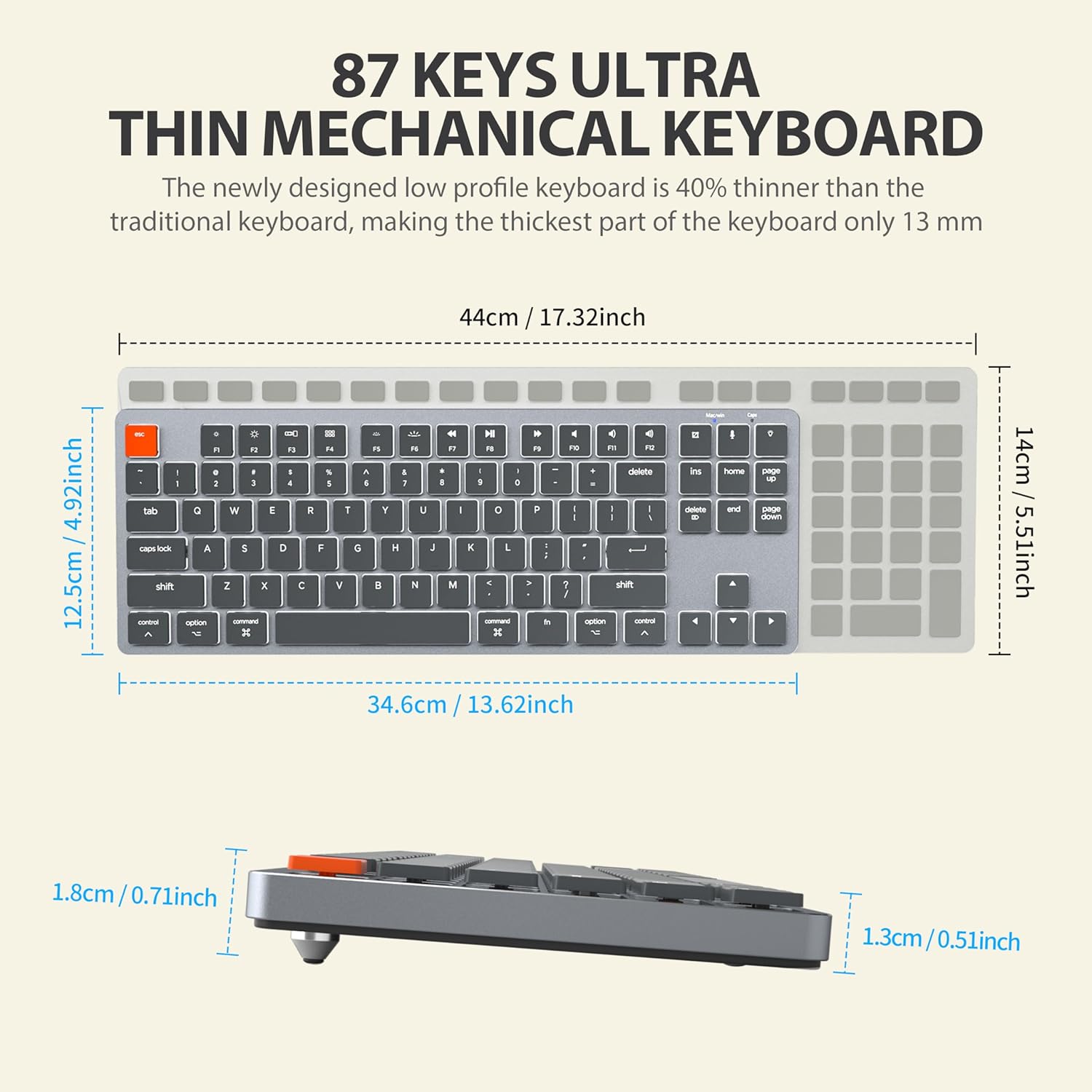
Figure 9: The ergonomic design of the keyboard, providing a comfortable angle for extended typing sessions.
7. Akwụkwọ ikike na nkwado
Ozi akwụkwọ ikike
This Taiahiro product comes with a standard manufacturer's warranty. Please refer to the product packaging or the official Taiahiro website for specific warranty terms and conditions, including coverage period and claim procedures.
Nkwado ndị ahịa
For technical assistance, troubleshooting, or any product-related inquiries, please visit the official Taiahiro webma ọ bụ kpọtụrụ ngalaba ọrụ ndị ahịa ha. Enwere ike ịchọta ozi kọntaktị na ngwugwu ngwaahịa ahụ ma ọ bụ ọnụnọ nke akara ahụ n'ịntanetị.