1. Okwu mmalite
The ATTACK SHARK G6 Gaming Mouse is a versatile peripheral designed for both gaming and daily productivity. It offers three distinct connection modes: wired, 2.4G wireless, and Bluetooth, ensuring reliable and accurate transmission across various devices. Its ergonomic design, adjustable DPI settings, and customizable RGB lighting provide a tailored user experience.

Figure 1: The ATTACK SHARK G6 Gaming Mouse (Blue/White) with its USB receiver.
2. Atụmatụ
- Njikọta ụdị atọ: Seamlessly switch between wired (USB-C), 2.4G wireless (via USB receiver), and Bluetooth connections for maximum flexibility.
- DPI nwere ike imeghari: Features 5 adjustable DPI levels (1200/1600/2000/2400/4000) for precise control and responsiveness, suitable for various tasks from detailed work to fast-paced gaming.
- 11 Chroma RGB Lighting Modes: Customize your setup with 11 distinct RGB lighting effects, enhancing your gaming atmosphere.
- 10 bọtịnụ mmemme: Equipped with 10 function buttons, strategically placed for easy access, allowing for quick actions like light changes, one-click web access, and navigation.
- Nhazi Ergonomic: Specifically designed for right-hand users with a comfortable thumb rest, reducing fatigue during extended use.
- Pịa bọtịnụ jụụ: Left and right buttons feature a silent click design, minimizing noise and preventing disturbance to others.
- Batrị enwere ike ịchaji: Built-in 500mAh lithium battery, rechargeable via Type-C, providing long-lasting use on a single charge (approx. 3-4 hours for full charge).
- Ndakọrịta sara mbara: Compatible with Windows, Mac, Android, and other operating systems, ensuring broad usability.

Nyocha 2: N'eluview of the 10 programmable buttons and ergonomic finger rests.
3. Ihe ngwugwu
Biko lelee ọdịnaya ngwungwu mgbe ị na-ebupụ igbe iji hụ na ihe niile dị:
- ATTACK SHARK G6 Gaming Mouse
- USB 2.4G Wireless Receiver
- USB-C eriri USB
- Akwụkwọ ntuziaka (akwụkwọ a)
4. Nhazi
4.1. Ịchaji òké
Before first use, it is recommended to fully charge the mouse. Connect the supplied USB-C charging cable to the mouse's Type-C port and the other end to a USB power source (e.g., computer USB port, USB wall adapter). The charging indicator will show status (refer to LED indicator section for details). A full charge typically takes 3-4 hours.

Figure 3: Charging the G6 Gaming Mouse via its Type-C port.
4.2. Ụdị njikọ
The G6 mouse supports three connection methods:
- Ọnọdụ ikuku 2.4G:
- Locate the USB 2.4G wireless receiver, usually stored in a compartment on the underside of the mouse.
- Tinye ihe nnata n'ọdụ ụgbọ mmiri USB dị na kọmputa gị.
- Gbanye òké ahụ site na iji ihe mgba ọkụ dị n'okpuru ya. Òké ahụ kwesịrị ijikọ na akpaghị aka.
- Ọnọdụ Bluetooth:
- Turn on the mouse and switch it to Bluetooth mode (refer to the switch on the underside).
- On your device (computer, tablet, phone), go to Bluetooth settings and search for new devices.
- Select "ATTACK SHARK G6" (or similar name) from the list to pair.
- Ọnọdụ Wired:
- Connect the supplied USB-C cable to the mouse's Type-C port.
- Jikọọ nsọtụ nke ọzọ nke eriri na ọdụ USB na kọmputa gị.
- The mouse will function immediately in wired mode and will also charge simultaneously.
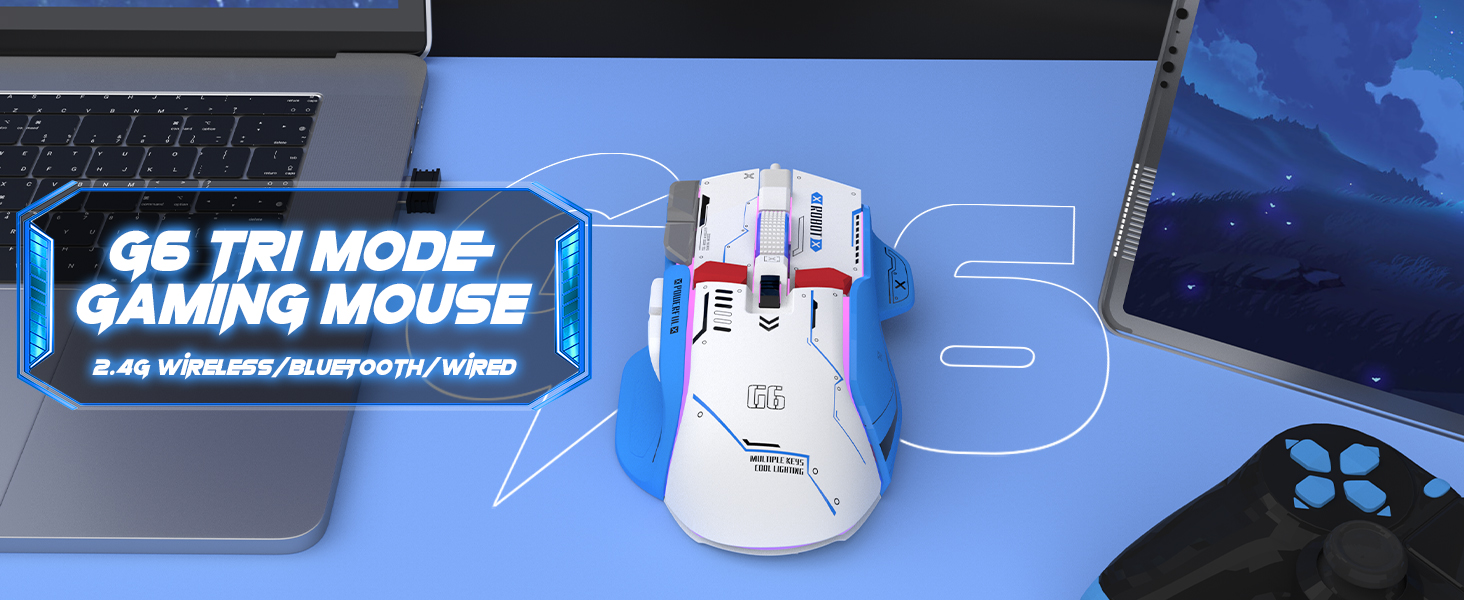
Figure 4: The G6 mouse supports 2.4G wireless, Bluetooth, and wired connections.
5. Ntuziaka ọrụ
5.1. DPI mmezi
The G6 mouse features a dedicated DPI button (refer to Figure 2 for location) to cycle through 5 adjustable DPI levels: 1200, 1600, 2000, 2400, and 4000. Press the DPI button to switch between sensitivity settings to match your preference or game requirements.
5.2. Njikwa ọkụ RGB
The mouse offers 11 Chroma RGB lighting modes. Use the dedicated Light Control button (refer to Figure 2) to cycle through the different lighting effects. To turn off the RGB lighting, continue pressing the button until the lights are off, or refer to the software if available for more advanced control.

Figure 5: The G6 mouse features 11 kinds of RGB backlight modes.
5.3. Ọrụ bọtịnụ
The G6 mouse has 10 function buttons. Their default functions are:
- Pịa aka ekpe: Standard left mouse button.
- Pịa aka nri: Standard right mouse button (silent click).
- Mpempe akwụkwọ mpịakọta: Pịgharịa gaa na elu/ala, pịa etiti.
- Bọtịnụ DPI: Na-agafe na ntọala DPI.
- Bọtịnụ njikwa ọkụ: Cycles through RGB lighting modes.
- Bọtịnụ mbugharị: Na-aga n'ihu web browsers/folders.
- Bọtịnụ azụ: Na-agagharị azụ n'ime web browsers/folders.
- Bọtịnụ ọkụ: Rapid fire function (default, may be programmable).
- Desktop Button: One-click access to desktop.
- Webpage Button: One-click access to web ihe nchọgharị.

Ọgụgụ 6: Zuru ezu view of key features including finger rests and Type-C port.

Figure 7: The silent click feature ensures quiet operation, ideal for shared spaces.
6. Nlekọta
To ensure the longevity and optimal performance of your ATTACK SHARK G6 Gaming Mouse, follow these maintenance guidelines:
- Nhicha: Jiri ákwà dị nro ma kpọọ nkụ hichaa elu òké ahụ. Maka unyi siri ike, jiri obere d hichaa ya.amp cloth with mild soap can be used, but ensure no liquid enters the mouse. Do not use harsh chemicals or abrasive materials.
- Nchekwa: Chekwaa òké ahụ n'ebe dị jụụ, kpọrọ nkụ pụọ na ìhè anyanwụ kpọmkwem na oke okpomọkụ.
- Zere mbelata: Protect the mouse from drops and impacts, which can damage internal components.
- Nlekọta USB: When using wired mode or charging, handle the USB-C cable carefully to prevent bending or fraying.
7. Nchọpụta nsogbu
If you encounter issues with your ATTACK SHARK G6 Gaming Mouse, please refer to the following common solutions:
| Nsogbu | Ngwọta enwere ike |
|---|---|
| Mouse not responding (Wireless/Bluetooth) |
|
| Ntọala DPI anaghị agbanwe agbanwe |
|
| Ọkụ RGB anaghị arụ ọrụ ma ọ bụ rapara |
|
| Njikọ ma ọ bụ ogologo oge |
|
7.1. Nduzi Vidiyo Ngwaahịa
For a visual guide on the mouse's features and operation, please watch the official product video:
Video: G6 Wireless/wired/bluetooth gaming mouse. This video demonstrates the RGB lighting effects and general appearance of the G6 gaming mouse in different colors.
8. Nkọwapụta
| Njirimara | Nkọwa |
|---|---|
| Ụdị | Mwakpo Shark |
| Nọmba nlereanya | G6 |
| Teknụzụ Njikọta | Bluetooth, Wired, Wireless (2.4G) |
| Teknụzụ nchọpụta ngagharị | Ngwa anya |
| Ọkwa DPI na-agbanwe agbanwe | 1200/1600/2000/2400/4000 |
| Ụdị RGB | 11 Chroma RGB modes |
| Ọnụọgụ bọtịnụ | 10 |
| Ike batrị | 500mAh batrị lithium na-ebufe |
| Nchaji ọdụ ụgbọ mmiri | Ụdị-C |
| Ibu Ibu | 7.4 ounces (ihe dị ka gram 210) |
| Akụkụ ngwugwu | 6.38 x 5.43 x 2.13 sentimita asatọ |
| Ndakọrịta | Windows, Mac, Android, iOS |
9. Akwụkwọ ikike na nkwado
ATTACK SHARK products are designed and manufactured to the highest quality standards. This product is covered by a limited warranty from the date of purchase. For detailed warranty terms, technical support, or customer service inquiries, please contact your retailer or visit the official ATTACK SHARK websaịtị.
Nkwado n'ịntanetị: Visit the ATTACK SHARK Store on Amazon


