Okwu mmalite
The Aura Walden 15" WiFi Digital Picture Frame provides an effortless way to display and share your cherished photos and videos. Designed for ease of use and elegant integration into any home, this frame offers a high-quality visual experience with smart features and unlimited cloud storage. This manual will guide you through the setup, operation, and maintenance of your new digital picture frame.

Image: The Aura Walden 15" frame showcasing a vibrant photo, accompanied by a smartphone illustrating the intuitive Aura app.
Melite
Setting up your Aura Walden frame is designed to be quick and straightforward, allowing you to start enjoying your memories in minutes.
- Mwepu na ntinye: Carefully remove the frame from its packaging. The Aura Walden frame can be placed on a tabletop using the included stand or mounted on a wall with the provided mounting kit. Ensure the frame is positioned in a location with stable Wi-Fi coverage.
- Njikọ ike: Connect the power adapter to the frame and plug it into a power outlet. The frame will automatically power on.
- Download the Aura App: Download the free Aura app from the Apple App Store (for iOS devices) or Google Play Store (for Android devices).
- Jikọọ na Wi-Fi: Follow the on-screen instructions in the Aura app to connect your frame to your home Wi-Fi network. This process typically involves selecting your network and entering the password.
- Add Photos and Videos: Once connected, use the Aura app to upload photos and videos directly from your smartphone. You can select individual items or entire albums.
- Invite Family and Friends: The Aura app allows you to invite family and friends to contribute photos and videos to your frame, enabling shared memories from anywhere in the world.
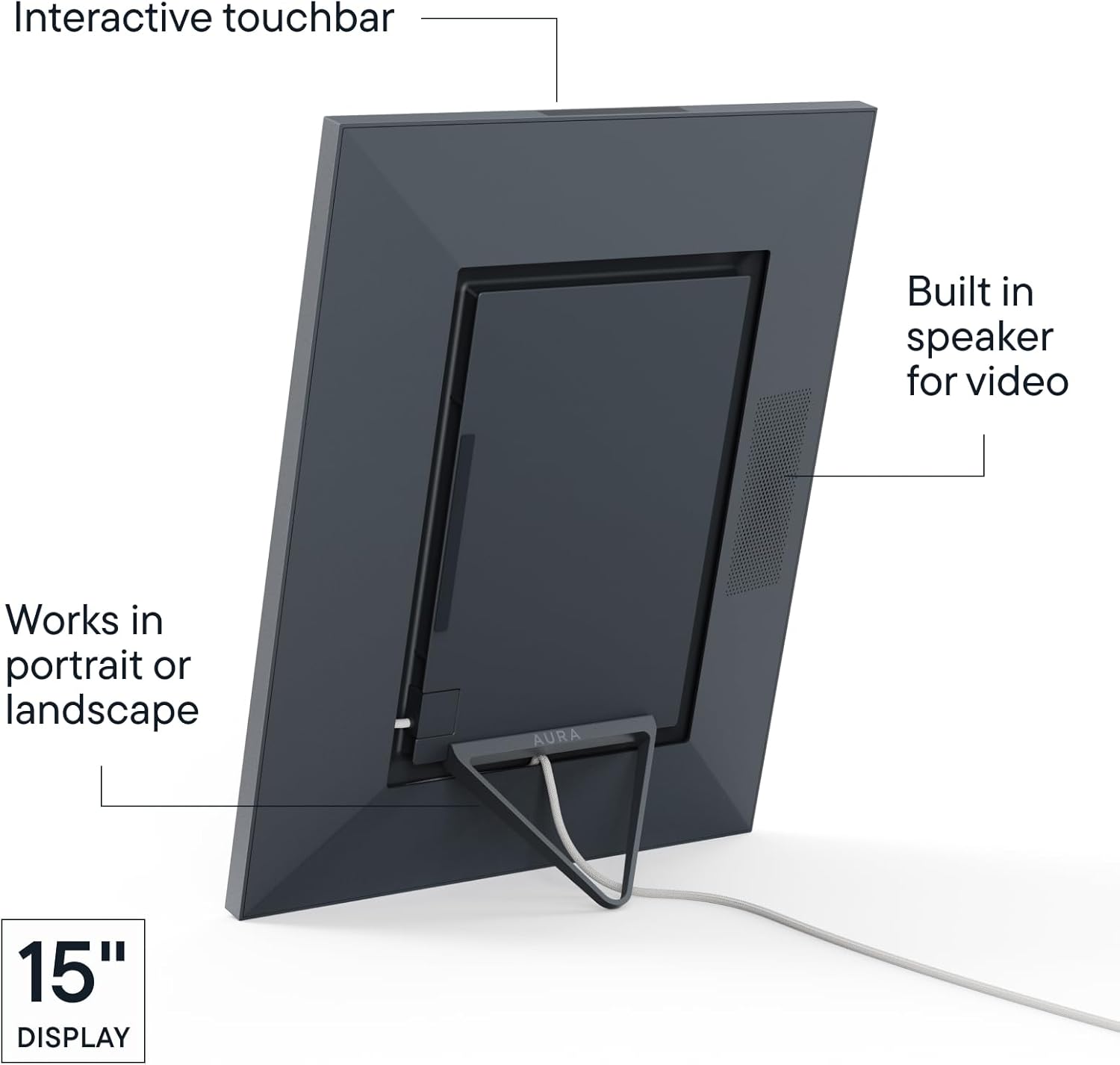
Image: The back of the Aura Walden frame, illustrating its integrated stand and power input for flexible placement.
Ntuziaka ọrụ
Your Aura Walden frame is designed for intuitive operation, with smart features that enhance your viewahụmahụ.
- Ngosipụta akpaaka: The frame automatically cycles through your uploaded photos and videos.
- Atụmatụ amamihe: The frame includes ambient light sensors to adjust screen brightness according to room conditions. It also automatically turns off at night and resumes display in the morning.
- Dual Orientation: The Aura Walden frame automatically detects its orientation (portrait or landscape) and adjusts the display of photos and videos accordingly. It intelligently crops images to fit the screen while preserving important content.
- Interactive Touch Bar: Located on the top edge of the frame, the interactive touch bar allows you to manually advance through photos, view details about the current photo, or 'like' a photo.
- Ihe nkiri vidiyo: Videos will play silently by default. The frame includes a built-in speaker for video playback, which can be activated or controlled via the Aura app.
- Njikwa ngwa: All frame settings, including slideshow timing, photo order (shuffle or chronological), autoplay videos, photo matching, and background options, can be managed remotely through the Aura app.
Vidiyo: Efereview of the design and thoughtful features integrated into Aura frames, highlighting material selection and user experience.
Atụmatụ
The Aura Walden frame is equipped with several features designed to provide a premium digital photo display experience:
- 15" Full HD Display: A large, color-calibrated, anti-glare screen with 1600 x 1200 resolution ensures vivid and clear image presentation.
- Paper-like Matting: The frame features a textured white mat that enhances the visual appeal of your photos, mimicking a traditional matted print.
- Unlimited Free Storage: Enjoy unlimited cloud storage for all your photos and videos without any subscription fees.
- Private and Secure: Your photos remain private and secure, shared only with those you invite to your frame.
- Nhazi eche echiche: Crafted with high-quality materials, the frame is designed to complement any decor.
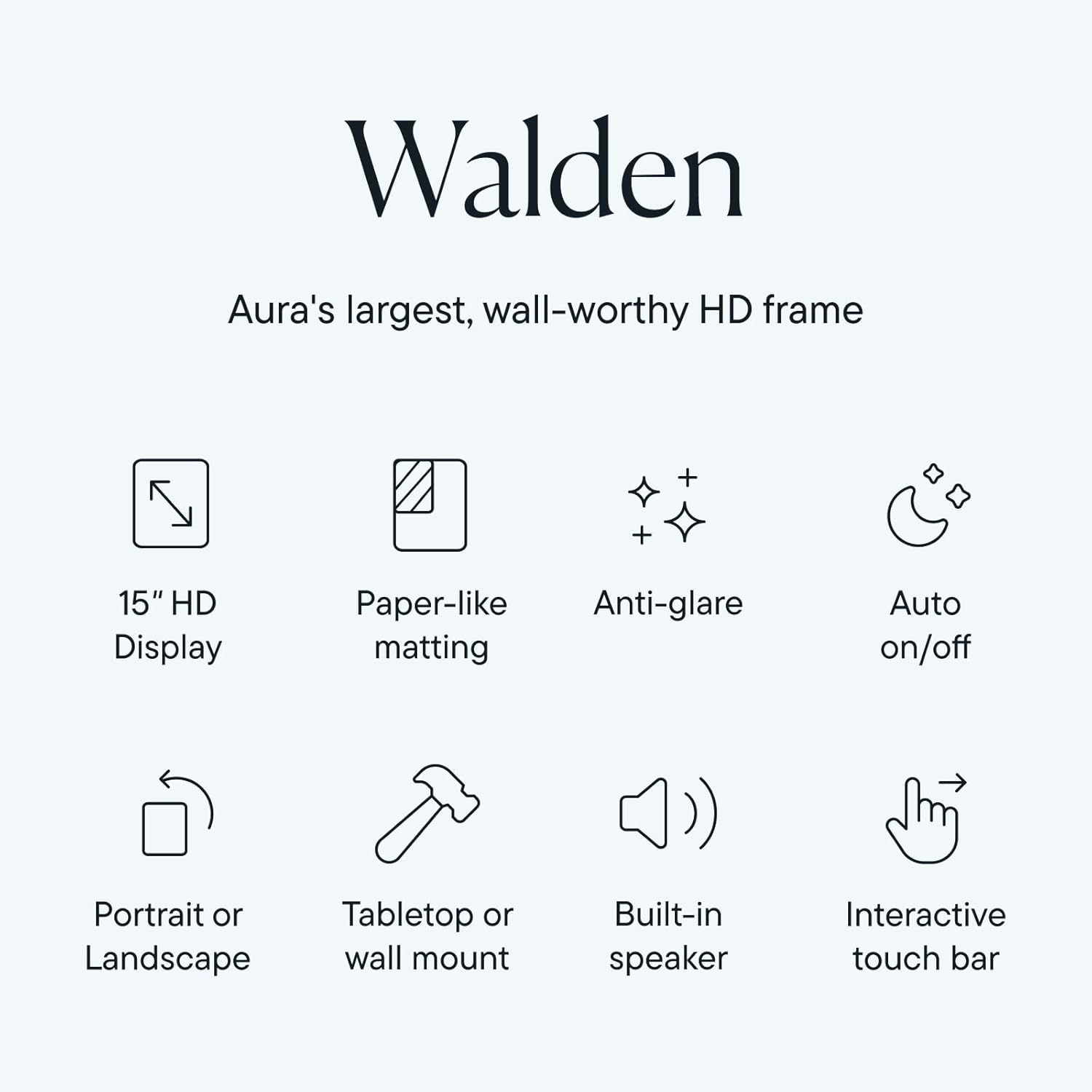
Image: An infographic highlighting the core features of the Aura Walden frame, including its display, matting, and smart functionalities.
Nlekọta
To ensure the longevity and optimal performance of your Aura Walden frame, follow these maintenance guidelines:
- Na-ehicha ihuenyo: Jiri akwa dị nro na-enweghị lint iji hichaa ihuenyo ahụ nwayọ. Maka isi ike smudges, ntakịrị dampJiri mmiri ma ọ bụ ihe nhicha dị mma kpuchie ákwà ahụ. Zere kemịkalụ siri ike ma ọ bụ ihe ndị na-emebi emebi.
- Na-ehicha Frame: Wipe the frame's exterior with a dry, soft cloth.
- Nkwanye: Avoid placing the frame in direct sunlight for extended periods, as this can affect screen performance and longevity. Keep it away from extreme temperatures and high humidity.
- Ike: Always use the original power adapter provided with your frame.
Nchọpụta nsogbu
If you encounter issues with your Aura Walden frame, try the following solutions:
- Efere anaghị agba ọkụ: Hụ na e jikọtara ihe nkwụnye ọkụ eletrik ahụ nke ọma na etiti ahụ na ebe ọkụ eletrik na-arụ ọrụ.
- No Photos Displaying: Check your Wi-Fi connection in the Aura app. Verify that photos have been successfully uploaded to the frame's album in the app.
- Ogo onyonyo adịghị mma: Ensure the original photos uploaded are of high resolution. The frame's display is Full HD, so lower resolution images may appear pixelated.
- Okwu njikọ Wi-Fi: Restart your Wi-Fi router and the Aura frame. Re-attempt the Wi-Fi setup process through the Aura app. Ensure the frame is within range of your Wi-Fi signal.
- Ngwa anaghị aza: Close and reopen the Aura app. If the issue persists, try reinstalling the app.
- Frame Not Responding to Touch Bar: Gently clean the touch bar area to ensure no obstructions. If unresponsive, try restarting the frame by unplugging and re-plugging the power.
Nkọwapụta
| Njirimara | Nkọwa |
|---|---|
| Akụkụ ngwaahịa | 3.2 x 14.5 x 0.99 sentimita asatọ |
| Ibu Ibu | 7.81 pound |
| Nọmba Nlereanya ihe | AF110-MBLK |
| Mkpebi | 1600 x1200 |
| Ngwa dakọtara | Na-arụ ọrụ na iOS na Android |
| Nha ihuenyo | 15 sentimita asatọ |
| Onye nrụpụta | AURA |
Akwụkwọ ikike na nkwado
Aura offers various protection plans to safeguard your investment. For detailed warranty information, product support, or to inquire about extended protection plans, please visit the official Aura website or contact their customer service. Information regarding 2-Year and 3-Year Protection Plans, as well as Complete Protect options, may be available through your retailer.


