1. Okwu mmalite
This manual provides detailed instructions for the safe and effective use of your TOPTRO X5 Projector. Please read this manual thoroughly before operating the device and retain it for future reference. The TOPTRO X5 Projector is designed to deliver a high-quality visual experience with advanced connectivity features.

Image 1.1: TOPTRO X5 Projector with accessories and a sample projection.
2. Atụmatụ igodo
- Nkwado 1080P na 4K nke obodo: Delivers clear, high-definition images with support for 4K video input and a 15000:1 dynamic contrast ratio.
- High Brightness & Color Range: Features 460 ANSI lumens (18000 Lumens) and 90% NTSC technology for vibrant colors.
- Ultra-fast 5G WiFi: Equipped with an advanced 5G WiFi chip for stable and smooth wireless screen mirroring.
- Bidirectional Bluetooth 5.1: Connects to external Bluetooth speakers/headphones or functions as a Bluetooth speaker for mobile devices.
- Large Screen & Keystone Correction: Supports 50-300 inch projection size with 4:3/16:9 aspect ratio and 4P/4D keystone correction for image alignment.
- Ndakọrịta sara mbara: Connects to TV sticks, PCs, laptops, Android/iOS phones, PS4, Switch, and supports direct playback of Microsoft Office and Adobe PDF files site na USB.

Foto 2.1: Ofeview of TOPTRO X5 Projector's core features.
3. Ntuziaka Nhazi
3.1 Ntinye
Position the projector on a stable, flat surface. Ensure adequate ventilation around the device. The projection distance will determine the screen size, with support for 50 to 300 inches. For optimal image quality, project onto a smooth, light-colored surface or a dedicated projector screen.
3.2 Njikọ ike
- Jikọọ eriri ike na ọdụ ụgbọ mmiri ntinye ike nke projector.
- Tinye nsọtụ nke ọzọ nke eriri ọkụ n'ime oghere eletrik kwesịrị ekwesị.
- Pịa bọtịnụ ike na projector ma ọ bụ remote control ka ịgbanwuo ngwaọrụ.
3.3 Ndozi anya
After powering on, adjust the focus ring on the projector lens until the projected image appears sharp and clear. This may need to be re-adjusted if the projector's distance to the screen changes.
4. Njikọta
4.1 Wireless Screen Mirroring (5G WiFi)
The TOPTRO X5 supports both 2.4G and 5G WiFi for stable and fast screen mirroring from compatible devices (iOS, Android, Windows). To connect:
- Navigate to the 'Screen Mirroring' or 'WiFi Display' option in the projector's menu.
- Ensure your mobile device or computer is connected to the same WiFi network as the projector.
- On your device, activate its screen mirroring function (e.g., 'Screen Mirroring' for iOS, 'Smart View'/'Cast' for Android, 'Project' for Windows).
- Select the projector's name from the list of available devices to establish the connection.

Image 4.1: Wireless screen mirroring via 2.4G/5G dual-band WiFi.
4.2 Bidirectional Bluetooth 5.1
The projector's Bluetooth 5.1 allows for both transmitting and receiving audio.
Transmitter Mode (Connect to external audio devices):
- Go to the Bluetooth settings in the projector's menu.
- Enable Bluetooth and search for nearby devices.
- Select your Bluetooth speaker or headphones from the list to pair.
Receiver Mode (Use projector as a Bluetooth speaker):
- Activate 'Speaker Mode' in the projector's Bluetooth settings.
- On your mobile device, search for Bluetooth devices and select the projector's name (e.g., 'X5-Bluetooth-XXXX').
- Pair your device to play audio through the projector's built-in speakers.

Image 4.2: Bidirectional Bluetooth 5.1 connectivity options.
4.3 Njikọ wired
The projector features multiple ports for wired connectivity:
- HDMI: Connects to laptops, gaming consoles (PS4, Switch), TV sticks, and other HDMI-enabled devices.
- USB: Maka egwu mgbasa ozi files directly from a USB flash drive. Supports Microsoft Office (Excel, Word, PPT) and Adobe PDF files.
- Ọdụ ụgbọ mmiri AV: Maka ijikọ ngwaọrụ ochie site na iji eriri AV.
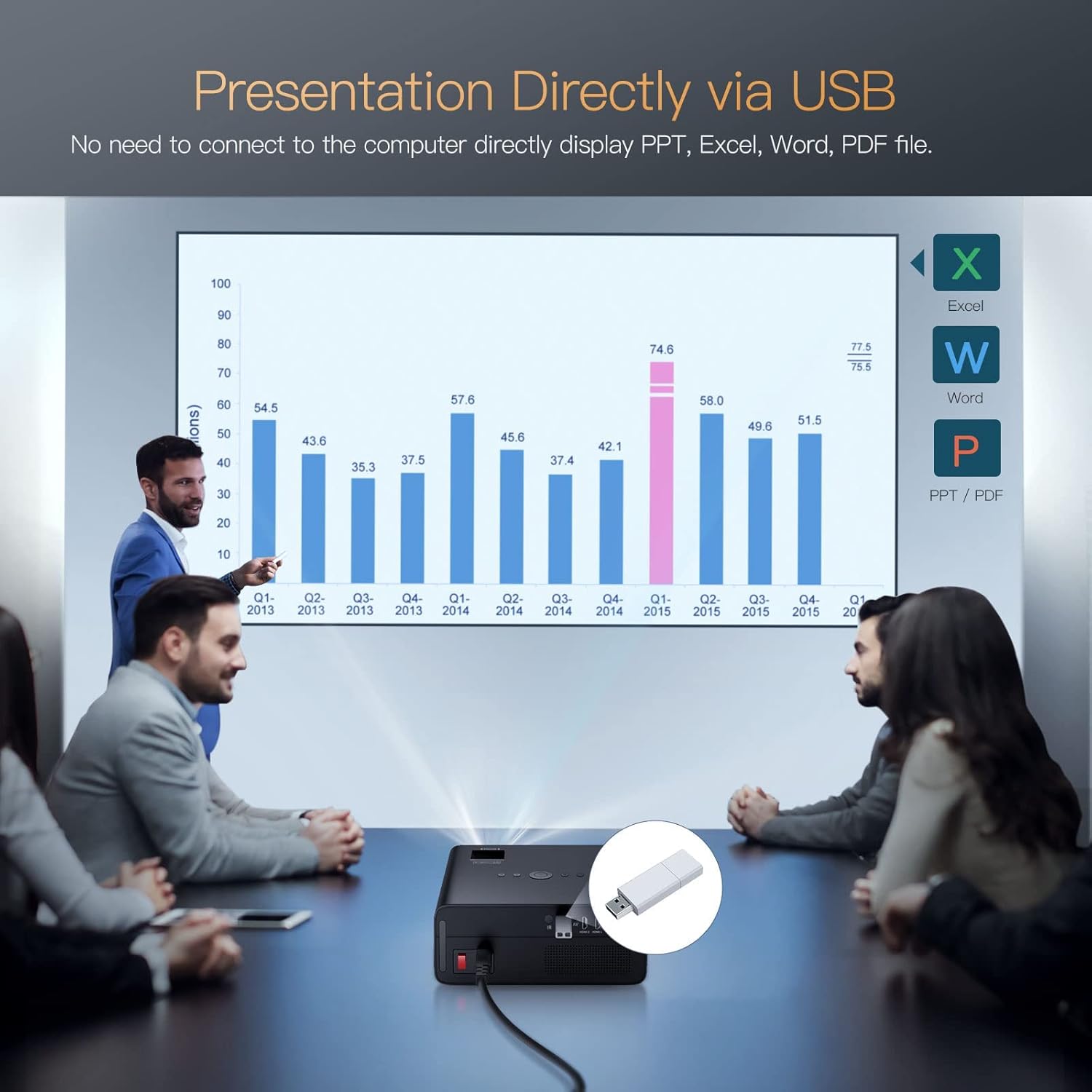
Image 4.3: Direct presentation from USB drive.
5. Ọrụ
5.1 Nsoro ụzọ
Use the included remote control to navigate the projector's menu, select input sources, adjust volume, and access various settings. The projector also has physical buttons for basic controls.
5.2 Image Adjustment (Keystone & Zoom)
The TOPTRO X5 features 4P/4D keystone correction to adjust the image shape and size, ensuring a rectangular projection even when the projector is not perfectly aligned with the screen. Use the remote control to access these settings and make adjustments. The projector also supports a zoom function to resize the image without moving the unit.

Image 5.1: 4D and 4P Digital Keystone Correction in action.
6. Nlekọta
6.1 Nhicha
- oghere: Jiri ákwà dị nro, nke na-enweghị lint nke e mere kpọmkwem maka lenzi anya iji hichaa lenzi ihe ngosi ahụ nke ọma. Zere ihe ndị na-emebi emebi ma ọ bụ kemịkalụ siri ike.
- Mputa: Jiri ákwà dị nro ma kpọọ nkụ hichaa mpụta ihe ngosi ahụ. Ejila ihe nhicha mmiri kpọmkwem na ngwaọrụ ahụ.
- Oghere: Periodically check and clean the ventilation openings to ensure proper airflow and prevent overheating. Use a soft brush or compressed air to remove dust.
6.2 Nchekwa
When not in use for extended periods, store the projector in a cool, dry, and dust-free environment. Use the original packaging or a protective case to prevent damage.
7. Nchọpụta nsogbu
- Enweghị ike: Ensure the power cord is securely connected to both the projector and the power outlet. Check if the power outlet is functional.
- Enweghị onyonyo: Verify the input source is correctly selected in the projector's menu. Check all cable connections (HDMI, AV, USB) for proper seating.
- Onyonyo na-adịghị ahụkebe: Adjust the focus ring on the lens. Ensure the projection surface is flat and the projector is within the recommended distance. Use keystone correction if the image is distorted.
- Enweghị ụda: Check the volume settings on both the projector and the connected source device. If using Bluetooth, ensure it's correctly paired. If using wired audio, check cable connections.
- WiFi/Bluetooth Connection Issues: Ensure both devices are within range. Restart the projector and the connected device. Check for any interference from other wireless devices.
- Image Discoloration or Burn-in: If you observe persistent discoloration or 'burn-in' on the projected image, this may indicate an issue with the internal components. If this occurs, please contact TOPTRO customer support for assistance.
8. Nkọwapụta
| Njirimara | Nkọwapụta |
|---|---|
| Ụdị | TOPTRO |
| Nlereanya | X5 |
| Mkpebi obodo | 1920 x 1080 (Ndepụta 1080P) |
| Mkpebi akwadoro | Up to 3840 x 2160 Pixels (4K) |
| Icha ọkụ | Lumen 18000 (460 ANSI Lumens) |
| Ọnụọgụ ọdịiche | 15000:1 |
| Ngosipụta teknụzụ | LCD |
| Oke Akụkụ Foto | 16:9, 4:3 |
| Njikọ ikuku | 2.4G & 5G Dual-band WiFi, Bluetooth 5.1 (Bidirectional) |
| Ngwaọrụ Akụrụngwa | AV Port, HDMI, USB (2 ports) |
| Atụmatụ pụrụ iche | 90% NTSC Wide Color Gamut, 4P/4D Keystone Correction, Wireless Screen Mirroring, Direct USB File Playback (Office/PDF) |
| Ụdị nkwụnye | N'ihu/azụ na oche, ihu/azụ n'elu ụlọ |
| Akụkụ ngwaahịa | 26 x 22.75 x 11.2 cm |
| Ibu Ibu | 3.17 n'arọ |
| Isi Iyi Ike | Corded Electric (220 watts) |
| Ọnụego ume ọhụrụ | 60 Hz |
9. Akwụkwọ ikike na nkwado
TOPTRO provides comprehensive support for your X5 Projector:
- Iwu nloghachi: 6-Month return period.
- Ọrụ ndozi: 3-Year repair warranty.
- Nkwado ndị teknuzu: Lifetime professional technical support.
For any inquiries or assistance, please contact TOPTRO customer service through the official channels provided at the point of purchase or on the TOPTRO websaịtị.


