1. Ngwaahịa gafereview
The CZUR Fancy S Pro is a versatile 3-in-1 device functioning as a document camera, webcam, and scanner. It features a 12MP camera capable of 4K resolution, a built-in microphone, and an LED fill light. Its multi-joint design allows for flexible positioning and height adjustment, making it suitable for various applications.

Image 1.1: The CZUR Fancy S Pro in operation, capturing a drawing on a desk and displaying it on a connected laptop.
Akụkụ ndị bụ isi:
- 12MP HD Camera: Streams up to 60 fps at Full HD 1080P and up to 15 fps at 4K Ultra HD (4000x3000 pixels).
- Max A3 Size Capture: Capable of capturing documents up to 16.5" x 11.7".
- Flexible & Space-saving Design: Multi-joint arm with height adjustment and camera rotation for various angles.
- Igwe okwu arụnyere n'ime ya: For audio capture during video recording or web conferences.
- Igwe ọkụ ọkụ ọkụ LED: Three brightness levels for optimal illumination in low-light environments.
- Dual-Mode Autofocus (AF-S/AF-C): Single autofocus for static objects and continuous autofocus for moving objects.
- CZUR Visualizer Software: Integrated functions including digital zoom, image annotation, tone adjustment, image rotation, video recording, snapshot, and document scanning.

Image 1.2: Labeled diagram illustrating the main components and adjustable features of the CZUR Fancy S Pro.
2. Ntuziaka Nhazi
2.1 Unpacking and Physical Setup
- Carefully remove the CZUR Fancy S Pro from its packaging.
- Place the weighted base on a stable, flat surface.
- Adjust the multi-joint arm to the desired height and angle. Ensure the forearm is stable by spinning to tighten any loose screws.
- Connect the integrated USB cable from the device to an available USB port on your computer. An included USB-A to USB-C adapter is provided for compatibility.

Image 2.1: Physical dimensions of the Fancy S Pro and its accessories, including the USB cable and adapter.
2.2 Nwụnye ngwanrọ
To utilize the full functionality of the CZUR Fancy S Pro, you must install the CZUR Visualizer software. Do ọ bụghị install any software named "CZUR Fancy" as it is not compatible with this model.
- Visit the official CZUR websaịtị.
- Navigate to the "Download Software" section.
- Select "Fancy S Pro" from the list of available devices.
- Download and install the correct version of the CZUR Visualizer software for your computer's operating system (Windows or macOS).

Image 2.2: Instructions for downloading the CZUR Visualizer software from the official CZUR websaịtị.
3. Ntuziaka ọrụ
3.1 Basic Arụmọrụ
- Ensure the CZUR Fancy S Pro is connected to your computer and the CZUR Visualizer software is running.
- Place the document or object you wish to capture under the camera lens.
- Ihe ndabara viewing area is A4. Adjust the camera height to achieve an A3 viewing area if needed.

Image 3.1: The CZUR Fancy S Pro capturing an A3-sized document, demonstrating its maximum capture area.
3.2 Camera Controls
The camera head features several controls for focus, exposure, and rotation:
- AF (Autofocus) Button: Press to initiate autofocus.
- AF-S (Autofocus-Single): Focus is locked after a single autofocus event, suitable for static documents.
- AF-C (Autofocus-Continuous): Continuously adjusts focus, ideal for capturing moving objects.
- EXP (Exposure) Adjustment: Adjusts brightness with 12 levels.
- Bọtịnụ ọkụ ọkụ LED: Toggles the LED fill light and cycles through 3 brightness levels.
- Screen 180° Rotation Button: Rotates the displayed image 180 degrees.
- Camera 90° Rotation: Physically swivel the camera head to switch between horizontal and vertical orientation.
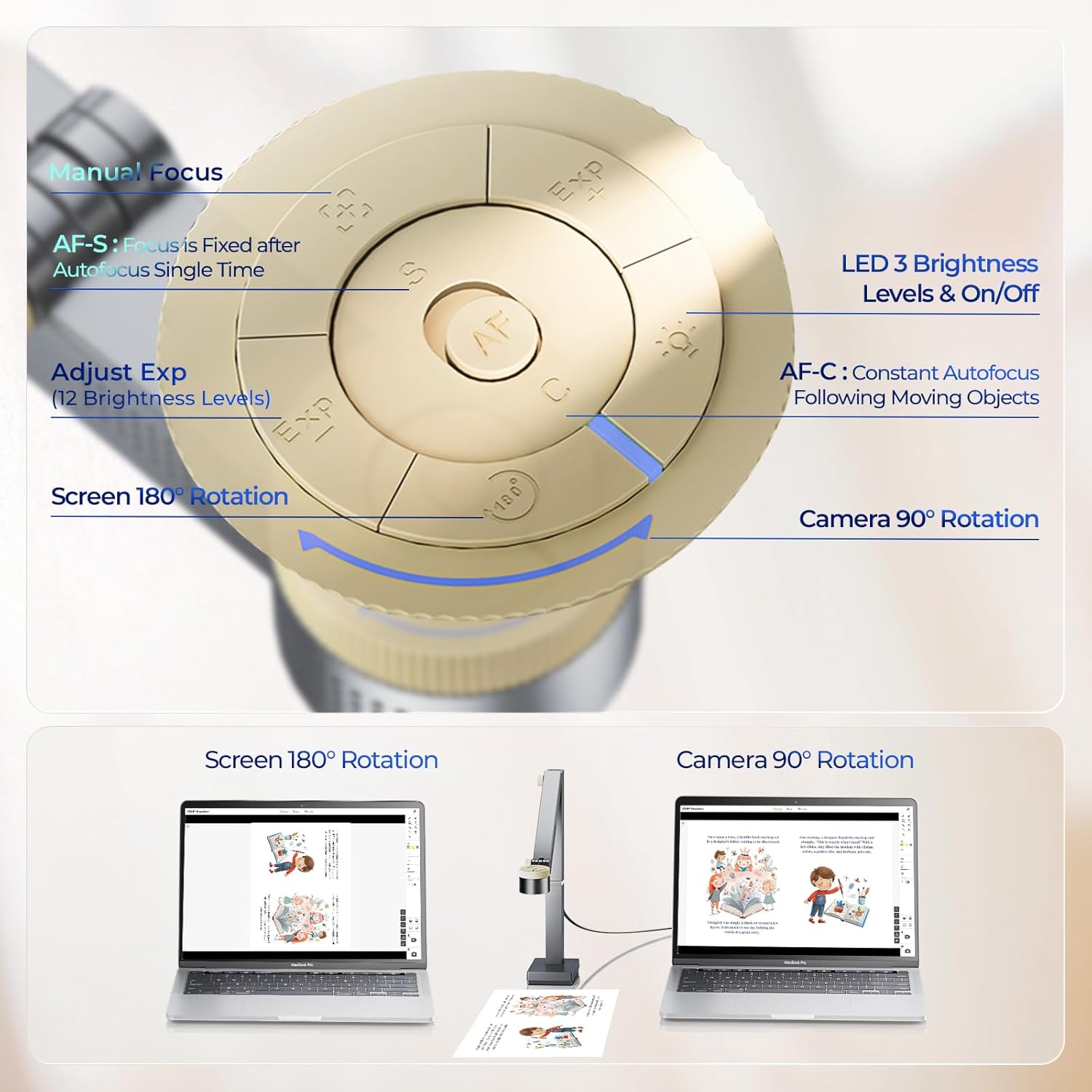
Foto 3.2: Zuru ezu view of the control buttons located on the camera head.

Image 3.3: Illustration of the camera's 90-degree rotation capability for changing document orientation.

Image 3.4: Demonstrating the 180-degree screen rotation for switching to a selfie view.
3.3 CZUR Visualizer Software Functions
The CZUR Visualizer software provides comprehensive tools for various tasks:
- Ụdị ngosi: Offers annotation tools (graphic, text, zoom, brush, laser pointer), screen settings (screenshots, Picture-in-picture (PiP), record video, freeze), and camera tools (adjust brightness, sharpness, resolution, auto focus mode, mirror, watermark).
- Ụdị nyocha: Allows simple scanning of documents into JPG images. Note that Scan Mode does ọ bụghị support Optical Character Recognition (OCR).
- Picture-in-picture (PiP): Connect up to 3 cameras and display them simultaneously in separate windows.

Image 3.5: CZUR Visualizer software's Display Mode with annotation tools.

Image 3.6: CZUR Visualizer software's Scan Mode interface.
4. Nlekọta
To ensure the longevity and optimal performance of your CZUR Fancy S Pro, follow these maintenance guidelines:
- Debe ngwaọrụ ahụ ọcha site n'iji ákwà dị nro ma kpọọ nkụ hichaa ya. Zere ihe nhicha ma ọ bụ ihe mgbaze.
- Protect the camera lens from dust and scratches. Use a lens cleaning cloth if necessary.
- Store the device in its protective foam case when not in use to prevent damage during transport or storage.
- Regularly check for and install software updates for the CZUR Visualizer to benefit from performance improvements and new features.
5. Nchọpụta nsogbu
If you encounter issues with your CZUR Fancy S Pro, refer to the following common solutions:
- Amataghị ngwaọrụ: Ensure the USB cable is securely connected to both the device and your computer. Try a different USB port. Verify that the CZUR Visualizer software is correctly installed and running. Avoid installing incompatible software like "CZUR Fancy."
- Unstable Image/Wobbling: Check the multi-joint arm and ensure all adjustable screws are tightened to stabilize the forearm.
- Ogo onyonyo adịghị mma: Ensure adequate lighting. Adjust the LED fill light brightness. Verify the camera lens is clean and free from obstructions. Check focus settings (AF-S or AF-C) and adjust manually if needed.
- Software Functionality Issues: Ensure you have the latest version of CZUR Visualizer. If issues persist, try reinstalling the software.
- No OCR Functionality: The CZUR Fancy S Pro's Scan Mode does not include Optical Character Recognition (OCR). This is a design specification, not a malfunction.
6. Nkọwapụta
| Njirimara | Nkọwapụta |
|---|---|
| Aha Nlereanya | Fancy S Pro |
| Mkpebi igwefoto | 12 Megapixels (4000x3000 pixels) |
| Ọnụego Frame vidiyo | Up to 60 fps (1080P), Up to 15 fps (4K) |
| Max Capture Size | A3 (16.5" x 11.7") |
| Njikọta | USB |
| Ibu Ibu | 14.8 ounces (0.42 Kilogram) |
| Akụkụ ngwugwu | 13.78 x 6.3 x 4.09 sentimita asatọ |
| Ndakọrịta sistemụ arụmọrụ | Mac na Windows |
7. Nkwado
For technical assistance, software updates, or further inquiries, please refer to the official CZUR support channels. CZUR provides professional technical support and online software upgrades to ensure your device operates effectively.
- CZUR gọọmentị Websaịtị: Visit the CZUR website for the latest software downloads, FAQs, and support resources.
- Online Software Upgrades: Regularly check the official website for available software updates to enhance functionality and performance.

Image 7.1: CZUR offers professional technical support and online software upgrades.


