1. Okwu mmalite
Thank you for choosing the Delton Ergonomic Vertical Rechargeable Wireless Mouse S12. This manual provides detailed instructions for setting up, operating, and maintaining your new mouse. Designed for comfort and efficiency, this vertical mouse promotes a more natural hand and wrist posture, reducing strain during extended computer use.
Please read this manual thoroughly before use to ensure optimal performance and longevity of your device.
2. Ihe ngwugwu
Chọpụta na ihe niile dị na ngwugwu gị:
- Delton Ergonomic Vertical Wireless Mouse
- USB Dongle (2.4GHz receiver)
- Igwe nchaji USB
- Akwụkwọ ntuziaka (akwụkwọ a)
3. Ngwaahịa gafereview
The Delton S12 mouse features an ergonomic vertical design, six programmable buttons, and adjustable DPI settings for precise control. It connects wirelessly via a 2.4GHz USB dongle and is powered by a rechargeable battery.

Image: The Delton S12 Ergonomic Vertical Wireless Mouse, shown with its accompanying USB dongle.
3.1 Ergonomic imewe
The vertical orientation of the mouse is designed to align your hand and wrist in a natural handshake position, which can help reduce muscle strain and discomfort often associated with traditional mice.

Image: A hand comfortably gripping the Delton vertical mouse, demonstrating the natural, ergonomic wrist position it promotes.
3.2 Njikọ ikuku
The mouse connects wirelessly to your device via a 2.4GHz USB dongle, offering a stable connection up to 30 feet (10 meters). This provides flexibility and reduces cable clutter.

Image: The Delton vertical mouse wirelessly connected to a laptop, with the USB dongle inserted into the laptop's port.
3.3 batrị enwere ike ịchaji
Equipped with a built-in rechargeable Lithium-Ion battery, the mouse offers up to 30 days of daily use and 12 months of standby time on a single charge. It can also be used while charging.

Image: The Delton vertical mouse being charged via a USB cable, illustrating its rechargeable feature.
3.4 Six Buttons Functionality
The mouse features six responsive buttons for enhanced productivity:
- Pịa aka ekpe
- Pịa aka nri
- Scroll Wheel (with click function)
- Bọtịnụ mgbanwe DPI
- Bọtịnụ n'ihu
- Bọtịnụ azụ

Image: A detailed diagram highlighting the location and function of the six buttons on the Delton vertical mouse.
3.5 Customizable DPI Levels
Adjust the mouse sensitivity with three DPI settings: 800, 1200, and 2400. An indicator light changes color to show the current DPI level.
- Acha anụnụ anụnụ: 800 DPI
- Uhie: 1200 DPI
- Akwụkwọ ndụ akwụkwọ ndụ: 2400 DPI
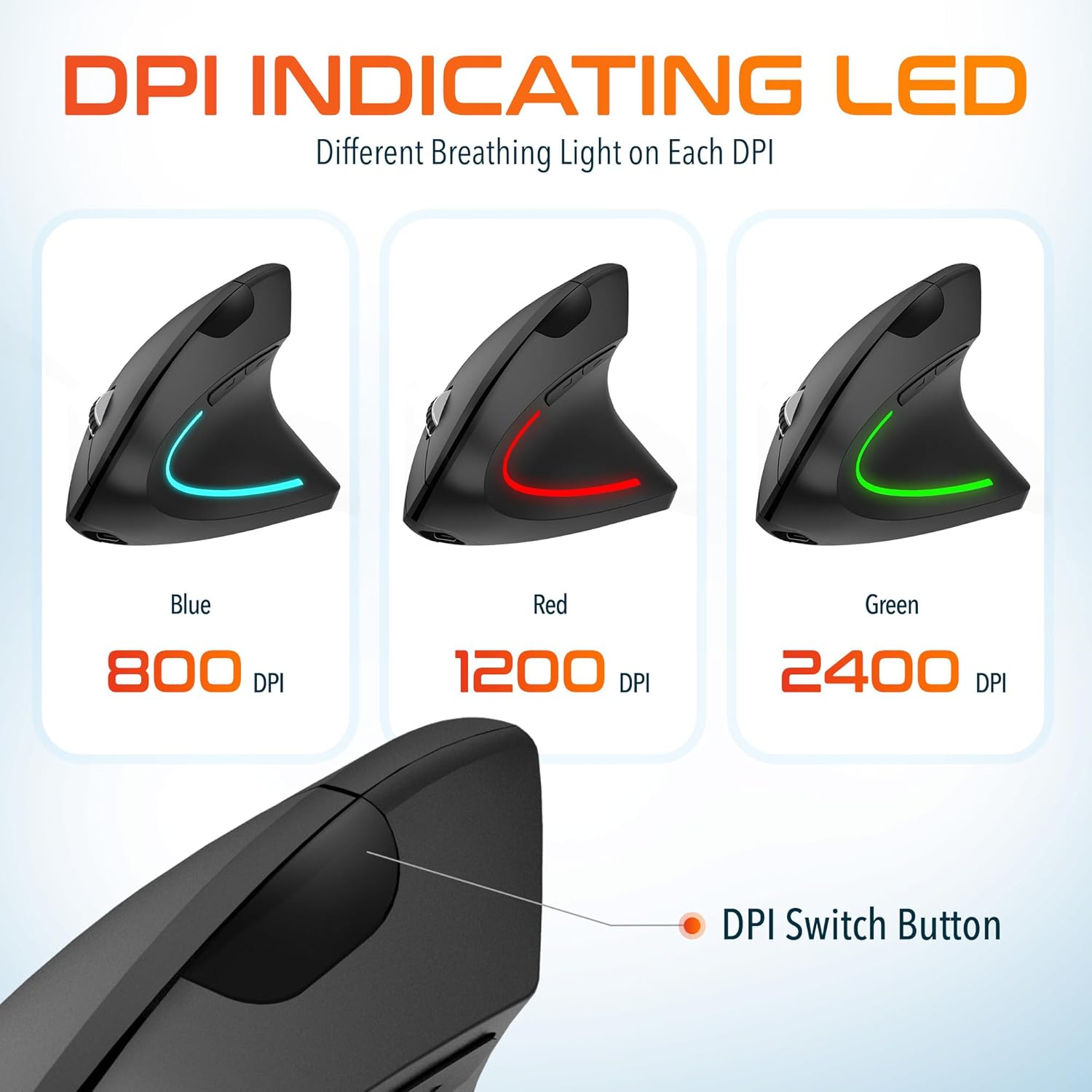
Image: The Delton vertical mouse displaying its LED indicator in blue (800 DPI), red (1200 DPI), and green (2400 DPI) to show current sensitivity settings.
4. Nhazi ntuziaka
4.1 Ịchaji òké
- Connect the provided USB charging cable to the charging port on the front of the mouse.
- Plug the other end of the USB cable into a USB power source (e.g., computer USB port, wall adapter, power bank).
- The LED indicator will illuminate during charging and turn off when fully charged. A full charge typically takes approximately 1 hour.
4.2 Connecting the USB Dongle
- Locate the USB dongle, usually stored in a compartment on the underside of the mouse.
- Insert the USB dongle into an available USB port on your computer (PC, Laptop, Mac, Chromebook).
- The system will automatically detect and install the necessary drivers. This process may take a few moments.
4.3 Gbanyụọ/ gbanyụọ
Locate the power switch on the underside of the mouse. Slide the switch to the 'ON' position to power on the mouse. Slide it to 'OFF' when not in use to conserve battery life.
5. Ntuziaka ọrụ
5.1 DPI mmezi
To change the mouse sensitivity (DPI), press the DPI switch button located on the top of the mouse, behind the scroll wheel. Each press cycles through the available DPI settings (800, 1200, 2400), indicated by the changing color of the LED light.
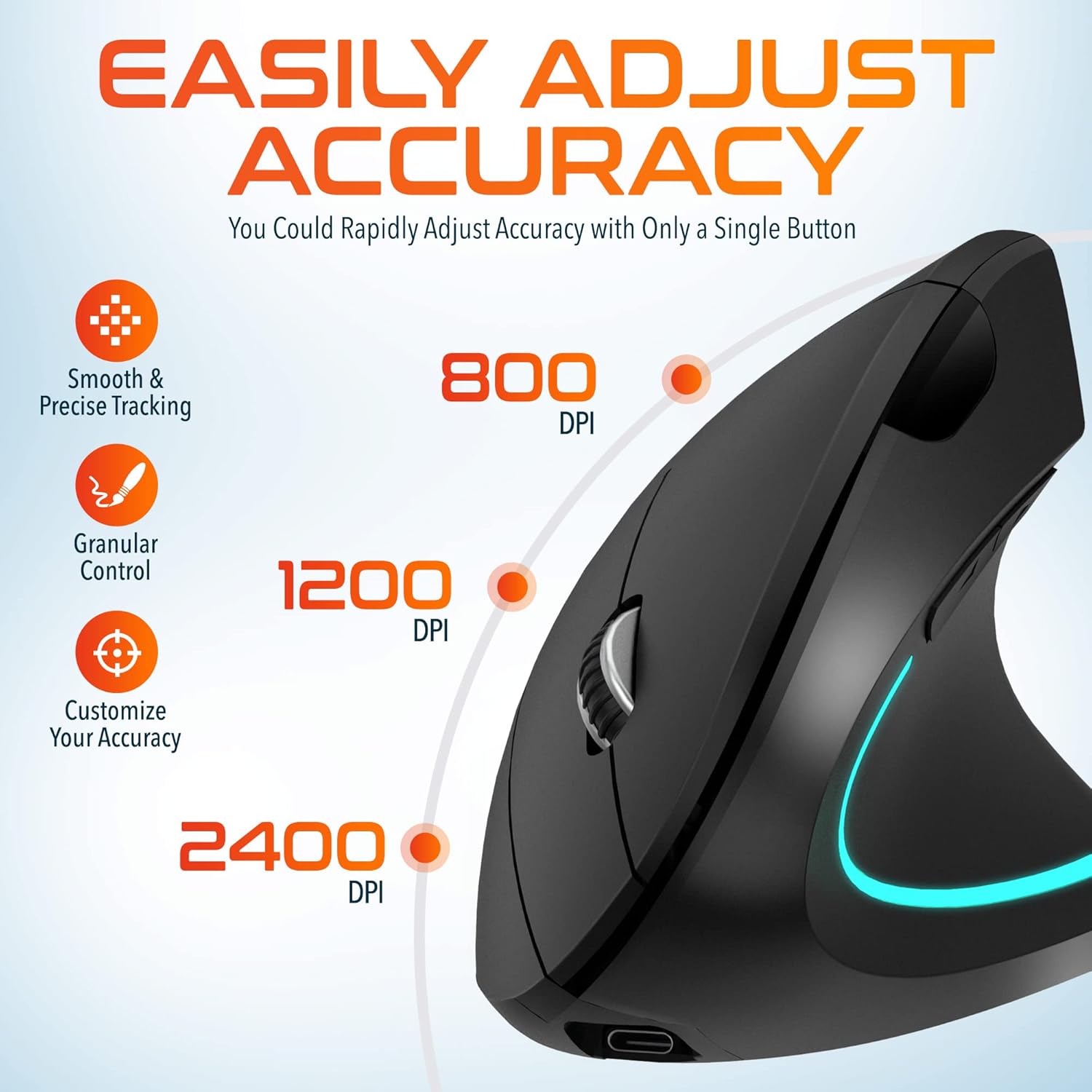
Image: A visual representation of the three adjustable DPI settings (800, 1200, 2400) and their corresponding cursor precision levels.
5.2 bọtịnụ Ọrụ
- Pịa aka ekpe: Standard isi pịa ọrụ.
- Pịa aka nri: Ọkọlọtọ nke abụọ pịa ọrụ.
- Mpempe akwụkwọ mpịakọta: Pịgharịa gaa na elu ma ọ bụ ala site na akwụkwọ na web peeji. Ịpị wiil mpịakọta ahụ na-arụ ọrụ dị ka pịa etiti.
- Bọtịnụ mbugharị: Na-aga n'ihu web ihe nchọgharị ma ọ bụ file ndị na-eme nchọpụta.
- Bọtịnụ azụ: Na-agagharị azụ n'ime web ihe nchọgharị ma ọ bụ file ndị na-eme nchọpụta.

Foto: A nso nso view of the mouse's scroll wheel and the conveniently placed forward and backward shortcut keys.
6. Nlekọta
- Nhicha: Jiri akwa dị nro dị nro hichaa òké. Maka unyi isi ike, ntakịrị dampen akwa na mmiri. Zere iji kemịkalụ siri ike ma ọ bụ ihe na-emebi emebi.
- Nchekwa: When not in use for extended periods, store the mouse in a cool, dry place. Ensure the power switch is in the 'OFF' position to preserve battery life.
- Nlekọta batrị: Zere ịchaji batrị ugboro ugboro. Na-akwụ ụgwọ òké oge niile iji kwado ahụike batrị.
7. Nchọpụta nsogbu
| Nsogbu | Ihe nwere ike ime | Ngwọta |
|---|---|---|
| Òké anaghị aza | Low battery; USB dongle not connected; Mouse not powered on; Driver issue | Charge the mouse; Ensure dongle is securely plugged in; Turn on the mouse; Try a different USB port; Restart computer |
| Njikọ na-adịte aka | Interference; Dongle too far from mouse; Low battery | Move mouse closer to dongle; Remove obstacles; Charge the mouse; Avoid using near other 2.4GHz devices |
| DPI anaghị agbanwe agbanwe | DPI button not pressed correctly; Mouse unresponsive | Press the DPI button firmly; Check battery and connection |
| Ihe nrụaka òké na-adịghị arụ ọrụ nke ọma | Dirty optical sensor; Uneven surface | Clean the optical sensor with a soft cloth; Use on a clean, flat mouse pad or surface |
8. Nkọwapụta
| Njirimara | Nkọwa |
|---|---|
| Nọmba nlereanya | S12 |
| Njikọta | 2.4GHz Wireless (USB Dongle) |
| Ọkwa DPI | 800 / 1200 / 2400 |
| Bọtịnụ | 6 (Aka ekpe, aka nri, wiil pịgharịa, DPI, Gaa n'ihu, Laa azụ) |
| Ụdị batrị | Rechargeable Lithium Ion (included) |
| Ikuku iche | Ruo 30 ft (mita 10) |
| Akụkụ ngwaahịa | 5 x 2.6 x 3.25 sentimita asatọ |
| Ibu Ibu | 4.9 ounces |
| Ndakọrịta | PC, Laptop, Mac, Chromebook (Windows, macOS, iOS) |
9. Akwụkwọ ikike na nkwado
Delton products are designed for reliability and performance. For warranty information or technical support, please refer to the contact details provided with your purchase or visit the official Delton websaịtị. Debe nnata nzụta gị dị ka ihe akaebe nke ịzụrụ maka nkwupụta ikike.


