1. Okwu mmalite
This manual provides essential instructions for setting up, operating, and maintaining your Huawei H158-381 5G CPE Pro 5 Router. Please read this guide thoroughly before using the device to ensure proper functionality and safety.
2. Ihe ngwugwu
Nyochaa na agụnyere ihe niile ndị a na ngwungwu ngwaahịa gị:
- Huawei H158-381 5G CPE Pro 5 Router
- 12V 3A nkwụnye ọkụ
- Ntuziaka mmalite ngwa ngwa (akwụkwọ ntuziaka a)
3. Ngwaahịa gafereview
The Huawei H158-381 5G CPE Pro 5 Router is a high-performance wireless router designed for advanced internet connectivity. It supports both 5G and 4G networks, offering high-speed data transmission and robust Wi-Fi capabilities.
Akụkụ ndị bụ isi:
- 5G and 4G Network Compatibility: Supports 5G frequencies in NSA and SA modes (n1/3/5/7/20/28/71/38/40/41/77/78/79) and 4G bands (B1/3/5/7/8/18/19/20/26/28/32/34/38/39/40/41/42/43). Note: 2G and 3G are not supported.
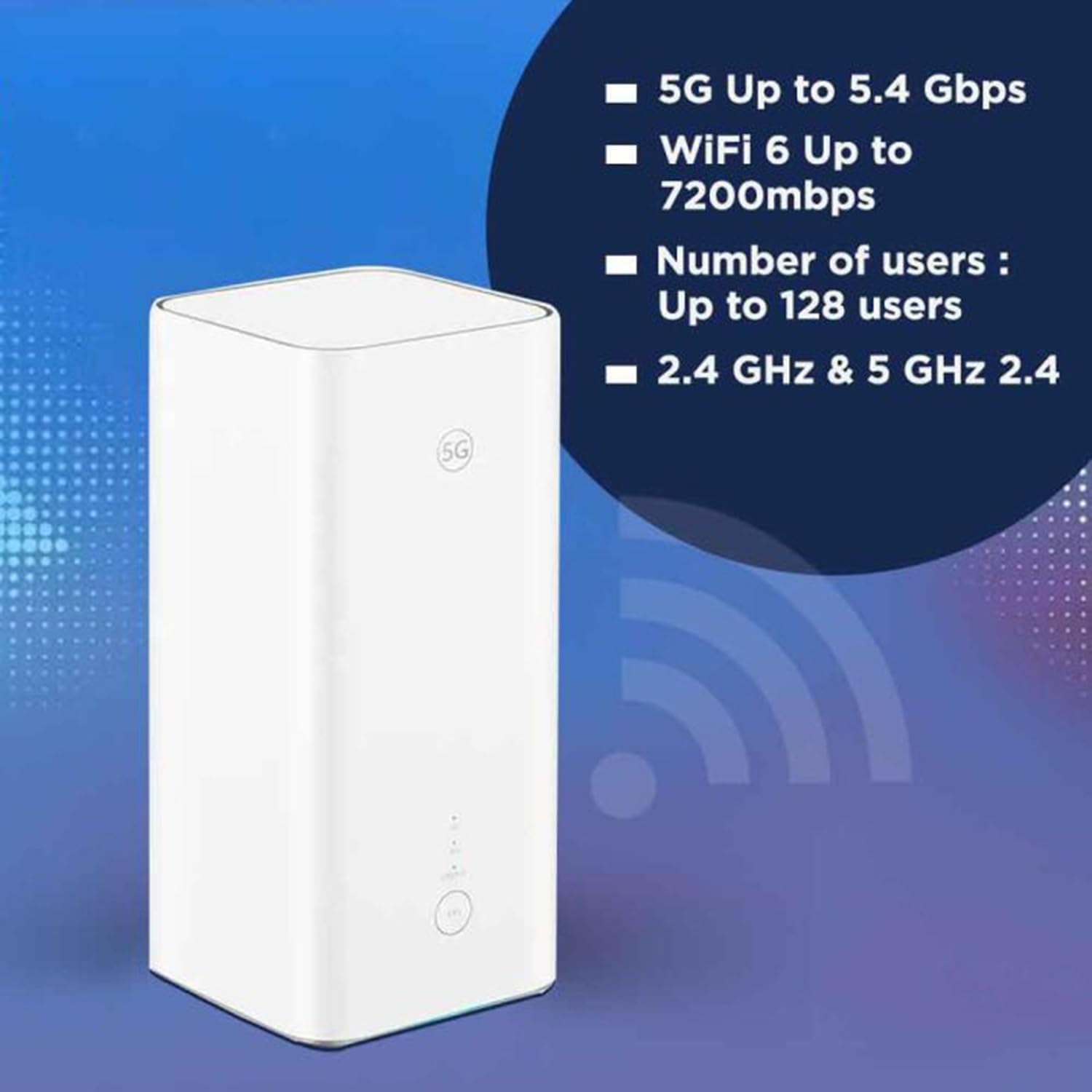
- Data Ọsọ Ọsọ: Achieves download speeds up to 5.4 Gbps and upload speeds up to 500 Mbps on 5G (network dependent).
- Wi-Fi 6 (AX7200): Provides Wi-Fi speeds up to 7200 Mbps across 2.4 GHz and 5 GHz bands, supporting up to 128 connected users.
- Nchekwa WPA3: Enhanced wireless security protocol for a safer network.
- Nano-SIM Slot: For mobile broadband connectivity.
- Integrated 5G NR Antenna: Features a 12 dBi internal antenna for optimized signal reception.
- ọdụ ụgbọ mmiri Ethernet: Includes 2 Ethernet ports for wired connections.
Akụkụ anụ ahụ:


4. Ntuziaka Nhazi
4.1 nwụnye kaadị SIM
- Locate the Nano-SIM card slot on your router.
- Insert a Nano-SIM card into the slot. Ensure the SIM card is correctly oriented according to the diagram near the slot.
- Ihe dị mkpa: It is recommended to disable the PIN code of your SIM card using a mobile phone before inserting it into the router for a smoother setup process.
4.2 Njikọ ike
- Connect the provided 12V 3A power adapter to the router's power input port.
- Tinye nkwụnye ọkụ n'ime oghere eletrik kwesịrị ekwesị.
- The router will automatically power on. Wait for the status indicators to stabilize.
4.3 Nhazi izizi
Once powered on, the router will attempt to connect to the mobile network. You can access the router's web interface or use the dedicated mobile application for further configuration, such as changing Wi-Fi names and passwords.
5. Ntuziaka ọrụ
5.1 Ijikọ Ngwaọrụ site na Wi-Fi
- Na ngwaọrụ gị (ama, laptọọpụ, mbadamba), chọọ netwọk Wi-Fi dị.
- Select the Wi-Fi network name (SSID) corresponding to your router. The default SSID and password are usually found on a label at the bottom of the router.
- Tinye Wi-Fi paswọọdụ mgbe kpaliri.
- Ekwesịrị ijikọ ngwaọrụ gị na ịntanetị ugbu a.
5.2 Connecting Devices via Ethernet
The router features two Ethernet ports for wired connections:
- Connect one end of an Ethernet cable to an Ethernet port on the back of the router.
- Connect the other end of the Ethernet cable to the Ethernet port on your device (e.g., computer, gaming console, smart TV).
- The device should automatically establish a wired network connection.
6. Advanced Atụmatụ
6.1 External Antenna Support
The Huawei H158-381 router supports external 5G antennas to enhance signal reception. To utilize this feature:
- Install your external 5G antennas according to their respective instructions.
- Connect the external antennas to the designated external antenna ports on the router.
- Open the router's management application (e.g., Deco app), navigate to Advanced > External Antennas, and activate the external antennas option.
- When activated, the external antennas will replace a portion of the internal antennas for signal reception.
6.2 Product Summary Video
Kirie ihe onyonyo a ka ị hụ ngwa ngwaview of the Huawei H158-381 5G CPE Pro 5 Router's features and benefits.
Vidio 6.1: A product summary video showcasing the Huawei H158-381 5G CPE Pro 5 Router's design and core functionalities.
7. Nka na ụzụ nkọwa
| Njirimara | Nkọwapụta |
|---|---|
| Ụdị | Huawei |
| Onye nrụpụta | Huawei |
| Usoro | H158-381 |
| Akụkụ ngwaahịa | 10.3 x 10.3 x 22.6 cm; 915 g |
| Nọmba Nlereanya ihe | H158-381 |
| Agba | Ọcha |
| Njikọta .dị | Wi-Fi |
| Ụdị ikuku | 802.11ax |
| Ọnụọgụ ọdụ ụgbọ mmiri Ethernet | 2 |
| Voltage | 12 Volt |
| Sistemụ nrụọrụ | RouterOS |
| Batrị gụnyere | Mba |
| Nwelite Ngwanrọ akwadoro ruo | Mee 23, 2025 |
| Aha Nlereanya | H158-381 |
| Atụmatụ pụrụ iche | WPS |
| Klaasị ugboro ugboro | Otu abụọ |
| Ikuku Communication Standard | 802.11ax |
| Ngwa dakọtara | Game console, tablet, personal computer, smartphone, smart television, streaming device, security camera, printer, smart thermostat |
| Eji ngwaahịa akwadoro | Ebe Obibi, Azụmaahịa |
| Ngwa gụnyere | Manual, 12V 3A Charger, Router H158-381 |
| Njikọ Njikọ | Ethernet, Wi-Fi |
8. Nlekọta
To ensure the longevity and optimal performance of your router, consider the following maintenance tips:
- Nkwanye: Debe rawụta ahụ n'ebe etiti, pụọ na mgbochi na ngwaọrụ eletrọnịkị ndị ọzọ nwere ike ibute ndabichi.
- Nhicha: Keep the router clean and free from dust. Use a soft, dry cloth for cleaning.
- Mmelite femụwe: Regularly check for and install firmware updates to benefit from improved performance, security, and new features. This can usually be done through the router's web interface ma ọ bụ ngwa mkpanaaka.
- Igwe ikuku: Ensure the router has adequate ventilation to prevent overheating. Do not cover ventilation openings.
9. Nchọpụta nsogbu
Ọ bụrụ na ị na-enwe nsogbu na rawụta gị, gbalịa usoro ndị a:
- Enweghị njikọ ịntanetị:
- Lelee ma ọ bụrụ na etinyere kaadị SIM ahụ nke ọma ma rụọ ọrụ nke ọma.
- Ensure the router is powered on and all indicator lights are functioning as expected.
- Restart the router by unplugging it from the power source, waiting 30 seconds, and plugging it back in.
- Verify your mobile data plan is active and has sufficient data.
- Ọsọ Wi-Fi dị nwayọ:
- Gaa nso na rawụta iji kwalite ike mgbaama.
- Belata ọnụ ọgụgụ ngwaọrụ ejikọrọ ma ọ bụ mmemme na-akpa ike bandwidth.
- Lelee maka ndabichi sitere na ngwaọrụ eletrọnịkị ndị ọzọ.
- Consider using external antennas if signal strength is consistently low.
- Enweghị ike ịnweta ntọala router:
- Gbaa mbọ hụ na ejikọrọ ngwaọrụ gị na netwọk Wi-Fi nke rawụta ma ọ bụ site na eriri Ethernet.
- Verify you are entering the correct IP address (usually 192.168.8.1 or 192.168.1.1) in your web ihe nchọgharị.
- Confirm you are using the correct administrator username and password.
If problems persist, consult the official Huawei support websaịtị ma ọ bụ kpọtụrụ ndị ahịa maka enyemaka ọzọ.
10. Akwụkwọ ikike na nkwado
For warranty information, please refer to the warranty card included with your product or visit the official HUAWEI website. Technical support and customer service contact details can also be found on the HUAWEI support portal.


