1. Okwu mmalite
This manual provides detailed instructions for setting up, operating, and maintaining your MINISFORUM UM690L Slim Mini PC. Please read this manual thoroughly before using the device.
2. Ihe ngwugwu
The MINISFORUM UM690L Slim Mini PC package includes the following items:
- MINISFORUM UM690L Slim Mini PC
- Ihe nkwụnye ọkụ
- Igwe ọkụ ọkụ
- HDMI USB
- VESA Mount Bracket with Screws
- Akwụkwọ ntuziaka
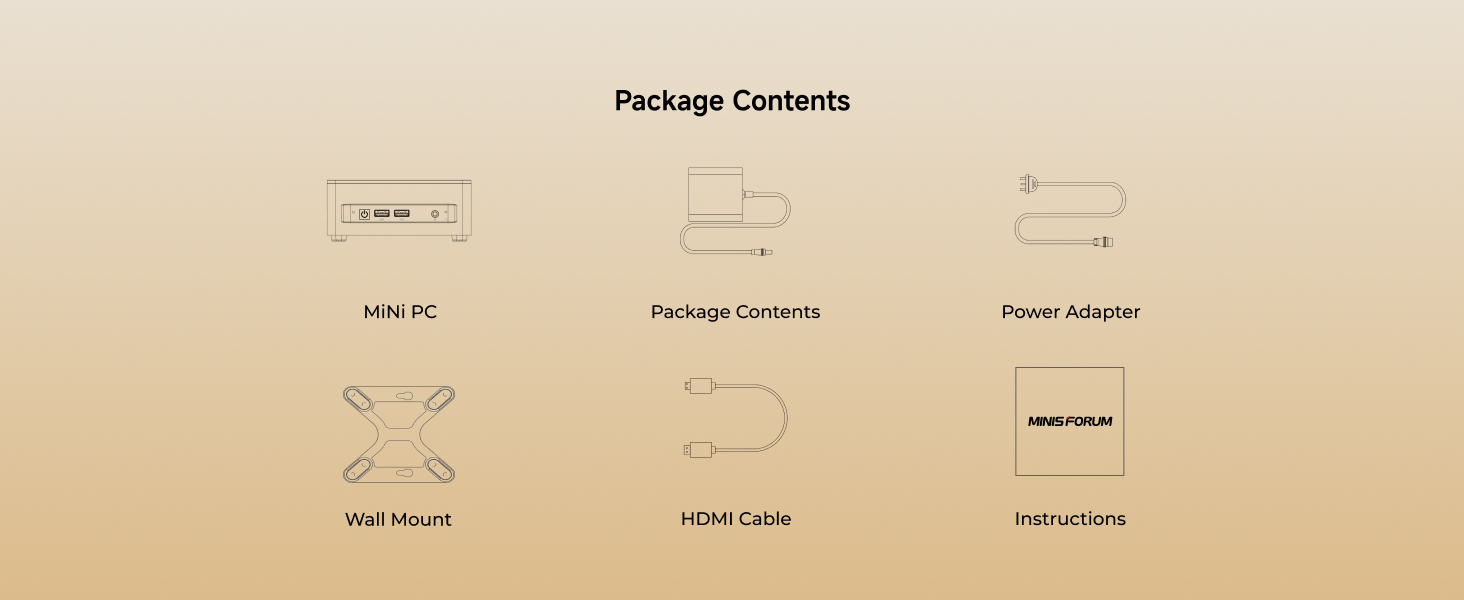
Image: Package contents for the MINISFORUM UM690L Slim Mini PC. Includes the mini PC unit, power adapter, power cable, HDMI cable, VESA mount bracket, and the instruction manual.
3. Ngwaahịa gafereview
3.1 Ogwe ihu
The front panel of the UM690L Slim Mini PC features convenient access ports:
- bọtịnụ ike
- Ọdụ USB 3.2 Gen2 Ụdị-A abụọ
- 1 x USB4 port (supports Alt PD)
- Jack ọdịyo
3.2 Ogwe azụ
The rear panel provides essential connectivity options:
- DC Power Input (19V)
- 2 x 2.5G LAN ports
- 1 x HDMI 2.1 ọdụ ụgbọ mmiri
- 1 x DisplayPort 1.4
- 2 x USB 2.0 ọdụ ụgbọ mmiri
- Kpochapụ bọtịnụ CMOS

Foto: Zuru ezu view of the front and rear I/O interfaces of the MINISFORUM UM690L Slim Mini PC, including USB, HDMI, DisplayPort, LAN, and power input.
4. Nhazi
4.1 Ijikọ na Ngosipụta
Connect your monitor(s) to the Mini PC using the HDMI, DisplayPort, or USB4 port. The UM690L Slim supports up to three 4K displays simultaneously.
- HDMI2.1: Supports 4K@120Hz or 8K@60Hz.
- DisplayPort 1.4: Supports 4K@120Hz.
- USB 4: Supports 8K@60Hz output.

Image: The MINISFORUM UM690L Slim Mini PC connected to three external displays, showcasing its triple display output capabilities via HDMI, DisplayPort, and USB4.
4.2 Njikọ ike
Connect the power adapter to the DC power input port on the rear panel of the Mini PC, then plug the power cable into a wall outlet.
4.3 Njikọ Mgbidi
Connect your keyboard, mouse, and other USB devices to the available USB ports (USB 3.2 Gen2 Type-A or USB 2.0).
4.4 Njikọ netwọkụ
For a wired connection, connect an Ethernet cable to one of the 2.5G LAN ports. For wireless connectivity, the device supports Wi-Fi 6E and Bluetooth 5.3.

Image: Close-up of the 2.5Gbps LAN port on the MINISFORUM UM690L Slim Mini PC, highlighting its faster network capabilities.
4.5 Mounting the Mini PC
The included VESA mount bracket allows you to attach the Mini PC to the back of a compatible monitor or to a wall, saving desk space.
Video: Instructions on how to install the MINISFORUM Mini PC using the VESA mount bracket to save space by attaching it to a monitor.
5. Ntuziaka ọrụ
5.1 Gbanyụọ ma ọ bụ gbanyụọ
Press the power button on the front panel to turn the Mini PC on or off.
5.2 Ntọala mbụ
Upon first boot, follow the on-screen instructions to complete the Windows 11 Pro operating system setup.
5.3 Ntọala BIOS
To access the BIOS settings, press the designated key (usually DEL or F2) repeatedly during startup. The BIOS allows configuration of various system parameters.
Video: A detailed walkthrough of the BIOS settings for a MINISFORUM M1 Pro, demonstrating various configuration options including power profiles, CPU settings, and boot order.
6. Nlekọta
6.1 Nhicha
Regularly clean the exterior of the Mini PC with a soft, dry cloth. Ensure ventilation grilles are free from dust to maintain optimal cooling.
6.2 Mmelite ngwanrọ
Mee ka sistemụ arụmọrụ gị na draịva gị dị ọhụrụ iji hụ na arụmọrụ na nchekwa kacha mma.
7. Storage and Memory Upgrade
The MINISFORUM UM690L Slim Mini PC is equipped with 32 GB LPDDR5 RAM and a 1 TB PCIe 4.0 SSD. It features two M.2 2280 PCIe 4.0 SSD slots, supporting up to 4 TB of storage capacity.
To upgrade or replace storage/memory components, carefully open the device by removing the screws on the bottom panel. Refer to the video for a visual guide.
Video: Step-by-step guide on how to install DDR RAM and SSD storage in a MINISFORUM UM870 Slim Mini PC, demonstrating the process of opening the case and inserting components.
8. Nchọpụta nsogbu
8.1 Enweghị ngosi
Ensure all display cables (HDMI, DisplayPort, USB4) are securely connected to both the Mini PC and the monitor. Verify the monitor is powered on and set to the correct input source.
8.2 Enweghị ike
Check that the power adapter is correctly connected to the Mini PC and the power cable is securely plugged into a working electrical outlet.
8.3 Overheating/Loud Fan
Ensure the Mini PC's ventilation grilles are not obstructed. The active heat dissipation system is designed to keep the unit cool and quiet (under 35 dB under high load). If issues persist, ensure the device is placed in a well-ventilated area.
8.4 Okwu Njikọta
For wired connections, check the Ethernet cable and router status. For Wi-Fi/Bluetooth, ensure drivers are updated and the devices are within range.
9. Nkọwapụta
| Njirimara | Nkọwapụta |
|---|---|
| Nhazi | AMD Ryzen 9 6900HX (8 Cores/16 Threads, up to 4.9 GHz) |
| Eserese | Integrated AMD Radeon 680M |
| RAM | 32 GB LPDDR5 (6400 MHz) |
| Nchekwa | 1 TB PCIe 4.0 SSD (2 x M.2 2280 slots, up to 4 TB) |
| Mmepụta vidiyo | HDMI 2.1, DisplayPort 1.4, USB4 (Triple 4K display support) |
| ọdụ ụgbọ mmiri USB | 2 x USB 3.2 Gen2 Type-A, 2 x USB 2.0, 1 x USB4 |
| Netwọk | 2.5G LAN, Wi-Fi 6E, Bluetooth 5.3 |
| Sistemụ jụrụ oyi | Active heat dissipation (Phase change materials, CPU/memory/SSD heat sinks) |
| Akụkụ | 7.13 x 6.34 x 4.49 sentimita asatọ |
| Ibu | 2.7 pound |
| Sistemụ nrụọrụ | Windows 11 Pro (Etinyegoro ya na mbụ) |
10. Akwụkwọ ikike na nkwado
10.1 Akwụkwọ ikike
This MINISFORUM UM690L Slim Mini PC comes with a 3-year protection plan. Please retain your proof of purchase for warranty claims.
10.2 nloghachi
A 30-day return policy is available for this product. Refer to your retailer's return policy for details.
10.3 Nkwado ndị ahịa
For technical assistance or further inquiries, please visit the official MINISFORUM websaịtị ma ọ bụ kpọtụrụ nkwado ndị ahịa ha.


