1. Okwu mmalite
This manual provides detailed instructions for the ENDORFY Thock Wireless Mechanical Keyboard, model EY5A078. It covers setup, operation, maintenance, and troubleshooting to ensure optimal performance and longevity of your device. Please read this manual thoroughly before using the keyboard.

Image 1.1: The ENDORFY Thock Wireless Mechanical Keyboard EY5A078. This image displays the full QWERTY layout with illuminated keys, showcasing the keyboard's design and RGB capabilities.
2. Ihe ngwugwu
Chọpụta na ihe niile dị na ngwugwu:
- ENDORFY Thock Wireless Mechanical Keyboard EY5A078
- USB-C to USB-A Cable (detachable)
- 2.4 GHz USB nnata
- Onye na-adọkpụ igodo
- Gbanwee Puller
- Akwụkwọ ntuziaka (akwụkwọ a)
3. Ntọala na Njikọ
The ENDORFY Thock Wireless Mechanical Keyboard offers three connection modes: wired, 2.4 GHz wireless, and Bluetooth.
3.1. Njikọ eriri
- Locate the USB-C port on the keyboard (typically on the back or top edge).
- Connect the provided USB-C to USB-A cable to the keyboard.
- Jikọọ njedebe USB-A na ọdụ USB dị na kọmputa gị.
- A ga-achọpụta ahụigodo na-akpaghị aka ma dịrị njikere maka ojiji.
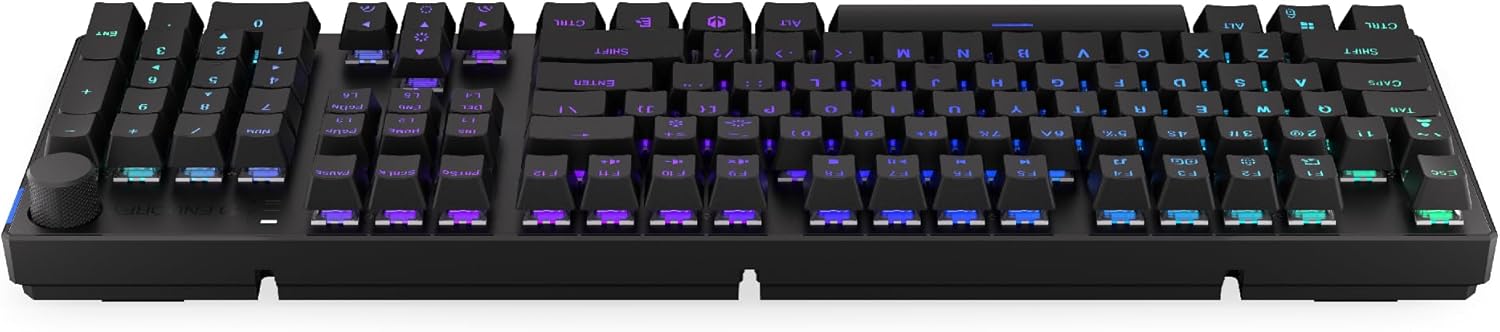
Foto 3.1: Akụkụ view nke ahụigodo ahụ, na-egosipụta ọdụ USB-C maka njikọ waya na chaja.
3.2. 2.4 GHz Njikọ ikuku
- Locate the 2.4 GHz USB receiver. It may be stored in a compartment on the underside of the keyboard.
- Plug the 2.4 GHz USB receiver into an available USB port on your computer.
- On the keyboard, locate the mode switch (usually on the back or side) and set it to the 2.4 GHz wireless mode (often indicated by a specific icon or "2.4G").
- The keyboard should automatically connect. An indicator light may confirm the connection.

Image 3.2: Underside of the keyboard, showing the compartment for storing the 2.4 GHz USB receiver and adjustable feet.
3.3. Njikọ Bluetooth
- On the keyboard, set the mode switch to Bluetooth mode (often indicated by a Bluetooth icon or "BT").
- The keyboard may have multiple Bluetooth profiles (e.g., BT1, BT2, BT3). Select one by pressing Fn + 1, Fn + 2, or Fn + 3. The corresponding indicator light will flash.
- Na kọmputa ma ọ bụ ngwaọrụ gị, mepee ntọala Bluetooth wee chọọ ngwaọrụ ọhụrụ.
- Select "ENDORFY Thock Wireless" (or similar name) from the list of available devices.
- Soro mkpali na ihuenyo ọ bụla iji mezue usoro njikọta.
- Ozugbo ejikọtara ọnụ, ọkụ egosi na ahụigodo ga-akwụsị ịcha ọkụ wee nọgide na-esi ike.
4. Ọrụ
4.1. Key Functions and Shortcuts
The keyboard features various function key combinations (Fn + Key) for multimedia control, lighting adjustments, and other settings.
- Fn + F1-F12: Multimedia and system functions (e.g., volume control, media playback, calculator). Refer to the keycap legends for specific functions.
- Igodo Fn + akụ: Adjust RGB lighting effects (e.g., brightness, speed, direction).
- Fn + 1/2/3: Switch between Bluetooth profiles.
- Fn + 4: Switch to 2.4 GHz wireless mode.
- Fn + 5: Gbanwee gaa na ọnọdụ waya.
4.2. Njikwa ọkụ RGB
The ENDORFY Thock keyboard features programmable RGB backlighting. Use the following combinations to customize the lighting:
- Fn + Ụka aka nri: Change lighting effect.
- Fn + Ụka akaekpe: Change lighting effect direction.
- Fn + akụ elu: Mụbaa nchapụta.
- Fn + akụ ala: Belata nchapụta.
- Fn + Ins: Gbanwee agba.
- Fn + Del: Adjust effect speed.
4.3. Mpịakọta olu
The dedicated volume knob located on the top right of the keyboard allows for quick audio adjustments.
- Tụgharịa n'aka elekere: Welie olu.
- Tụgharịa gaa n'akụkụ aka ekpe: Belata olu.
- Pịa ala: Mechie/Mechie ụda.

Image 4.1: Detail of the volume knob and status indicator lights, located on the upper right side of the keyboard.
4.4. Mgbanwe Ndị A Na-agbanwe n'Ọkụ
The ENDORFY Thock keyboard features hot-swappable switches, allowing you to change mechanical switches without soldering. This enables customization of typing feel.
- Wepụ mkpuchi igodo: Jiri mkpịsị ugodi ahụ enyere ka ọ were nwayọ wepu okpu igodo achọrọ.
- Wepụ Switch: Use the provided switch puller to carefully grip the top and bottom clips of the switch and pull it straight up.
- Fanye Mgbanwe Ọhụrụ: Align the pins of the new switch with the holes on the PCB. Press the switch firmly until it clicks into place. Ensure pins are not bent.
- Dochie Mkpọchi igodo: Tinye mkpuchi igodo ahụ azụ n'elu ogwe mgbanwe ọhụrụ ahụ.

Foto 4.2: nso nso view of the Kailh Box Brown mechanical switches, demonstrating the hot-swappable design.
5. Nlekọta
5.1. Na-ehicha ahụigodo
ihicha mgbe niile na-enyere aka ịnọgide na-arụ ọrụ na ọdịdị ahụigodo.
- Kwụpụ kiiboodu na kọmputa gị tupu ihicha.
- Jiri ihe ndọpụta mkpuchi igodo wepụ mkpuchi igodo maka ihicha nke ọma.
- Jiri ikuku abịakọrọ wepụ uzuzu na irighiri ihe n'etiti igodo.
- Wipe keycaps and the keyboard surface with a soft, damp akwa . Zere kemịkalụ siri ike.
- Ensure the keyboard is completely dry before reconnecting.
5.2. Keycap and Switch Replacement
Refer to Section 4.4 for detailed instructions on replacing keycaps and switches. Use only compatible keycaps and switches to avoid damage.
6. Nchọpụta nsogbu
| Nsogbu | Ihe nwere ike ime | Ngwọta |
|---|---|---|
| Ahụigodo anaghị azaghachi (Ejikọrọ) | Njikọ eriri na-atọ ụtọ, ọdụ ụgbọ USB adịghị mma. | Ensure USB-C cable is securely connected. Try a different USB port or cable. |
| Ahụigodo anaghị azaghachi (ikuku) | Low battery, incorrect mode, receiver not plugged in, pairing issue. | Charge the keyboard. Ensure mode switch is set correctly (2.4G or BT). Re-pair Bluetooth or re-insert 2.4 GHz receiver. |
| RGB ọkụ anaghị arụ ọrụ | Lighting turned off, low battery, software issue. | Check lighting controls (Fn + Arrow keys). Charge the keyboard. Restart computer. |
| Igodo pịnye ugboro abụọ ma ọ bụ ghara ịdenye aha | Dust/debris under switch, faulty switch. | Clean under keycaps with compressed air. If issue persists, replace the switch (refer to Section 4.4). |
7. Nkọwapụta
- Ụdị: EY5A078
- Akara: NKWUKWU
- Njikọta: Wired (USB-C), 2.4 GHz Wireless, Bluetooth
- Ụdị mgbanwe: Kailh Box Brown (Hot-swappable)
- Isi igodo: PBT ugboro abụọ
- Nhazi: Full-size QWERTY
- Ọkụ azụ: RGB nwere ike ime
- Sistemu eji arụ ọrụ: Linux, Mac OS X 10.12 Sierra, Windows 10
- Agba: Nwa
- Ihe: Polybutylene terephthalate (PBT)
- Atụmatụ pụrụ iche: Detachable cable, Volume knob with mute, Hot-swappable switches
- Batrị: Lithium-ion (gụnyere)
8. Akwụkwọ ikike na nkwado
ENDORFY products are covered by a manufacturer's warranty. For detailed warranty information, please refer to the warranty card included with your product or visit the official ENDORFY website. For technical support, product inquiries, or service requests, please contact ENDORFY customer support through their official channels.
Ndị ọchịchị Websaịtị: www.endorfy.com
9. Ozi nchekwa
- Debe kiiboodu pụọ na mmiri mmiri na oke mmiri.
- Zere ikpughe ahụigodo na oke okpomọkụ.
- Do not attempt to disassemble or modify the keyboard beyond hot-swapping switches and keycaps, as this may void the warranty and cause damage.
- Jiri naanị eriri chaja enyere maọbụ nke akwadoro.
- Dispose of the battery and electronic components responsibly according to local regulations.