1. N'eluview
The llano HDMI 2.1 Switcher is designed to expand the HDMI input capabilities of your display device. It allows you to connect up to four HDMI source devices to a single HDMI input on your television, monitor, or projector. This device supports advanced HDMI 2.1 features, including high resolutions and refresh rates, ensuring optimal performance for modern entertainment and gaming setups.

Image: The llano HDMI 2.1 Switcher, showing its compact design, multiple HDMI ports, and included remote control and USB power cable.
2. Atụmatụ igodo
- HDMI 2.1 nnabata: Supports the latest HDMI 2.1 standard for high-bandwidth data transmission.
- High Resolution & Refresh Rate: Capable of handling video resolutions up to 8K@60Hz and 4K@120Hz.
- 4-Input, 1-Output Configuration: Connects up to four HDMI source devices to a single display.
- Nhọrọ njikwa ọtụtụ: Features manual button switching, IR remote control, and automatic switching via CEC.
- Teknụzụ vidiyo dị elu: Supports CEC (Consumer Electronics Control), HDCP2.3, 3D video, HDR10+ (High Dynamic Range), VRR (Variable Refresh Rate), and ALLM (Auto Low Latency Mode) for enhanced viewing and gaming experiences.
- Nkwado ọdịyo: Compatible with various audio formats including Dolby Atmos and PCM 7.1.

Image: Visual representation of HDMI 2.1's superior bandwidth and resolution capabilities, supporting up to 8K@60Hz.

Image: A gaming console connected through the switch to a display, emphasizing support for 4K@120Hz, VRR, and ALLM for smooth gameplay.
3. Ngwa ngwaahịa
The llano HDMI 2.1 Switcher package includes the following items:
- llano HDMI 2.1 Switcher Unit
- Njikwa anya IR
- USB-C Power Cable (for power supply, adapter not included)
- Akwụkwọ ntuziaka (akwụkwọ a)
Video: An official product video demonstrating the llano HDMI 2.1 Switcher's features, including its 8K intelligent chip, 48Gbps data transfer, ARC support, 4K 120Hz VRR, and various switching methods.
4. Nhazi ntuziaka
Follow these steps to set up your llano HDMI 2.1 Switcher:
- Njikọ ike: Connect the provided USB-C power cable to the DC 5V port on the switch. Connect the other end of the USB-C cable to a suitable USB power adapter (e.g., a 5V/2A phone charger, not included). Ensure the switch receives stable power.
- Njikọ ngwaọrụ ntinye: Connect your HDMI source devices (such as gaming consoles like PS5 or Xbox, Blu-ray players, PCs, or streaming devices) to the HDMI INPUT 1, INPUT 2, INPUT 3, and INPUT 4/ARC ports on the switch. Use high-quality HDMI 2.1 compatible cables for optimal performance.
- Output Display Connection: Connect your television, monitor, or projector to the HDMI OUTPUT port on the switch. Again, use an HDMI 2.1 compatible cable.
- ARC Connection (Optional): If you intend to use the Audio Return Channel (ARC) feature, ensure your television and audio receiver both support ARC. Connect an HDMI cable from your TV's ARC-enabled HDMI port to the INPUT 4/ARC port on the switch. Note that only this specific input port supports ARC functionality.
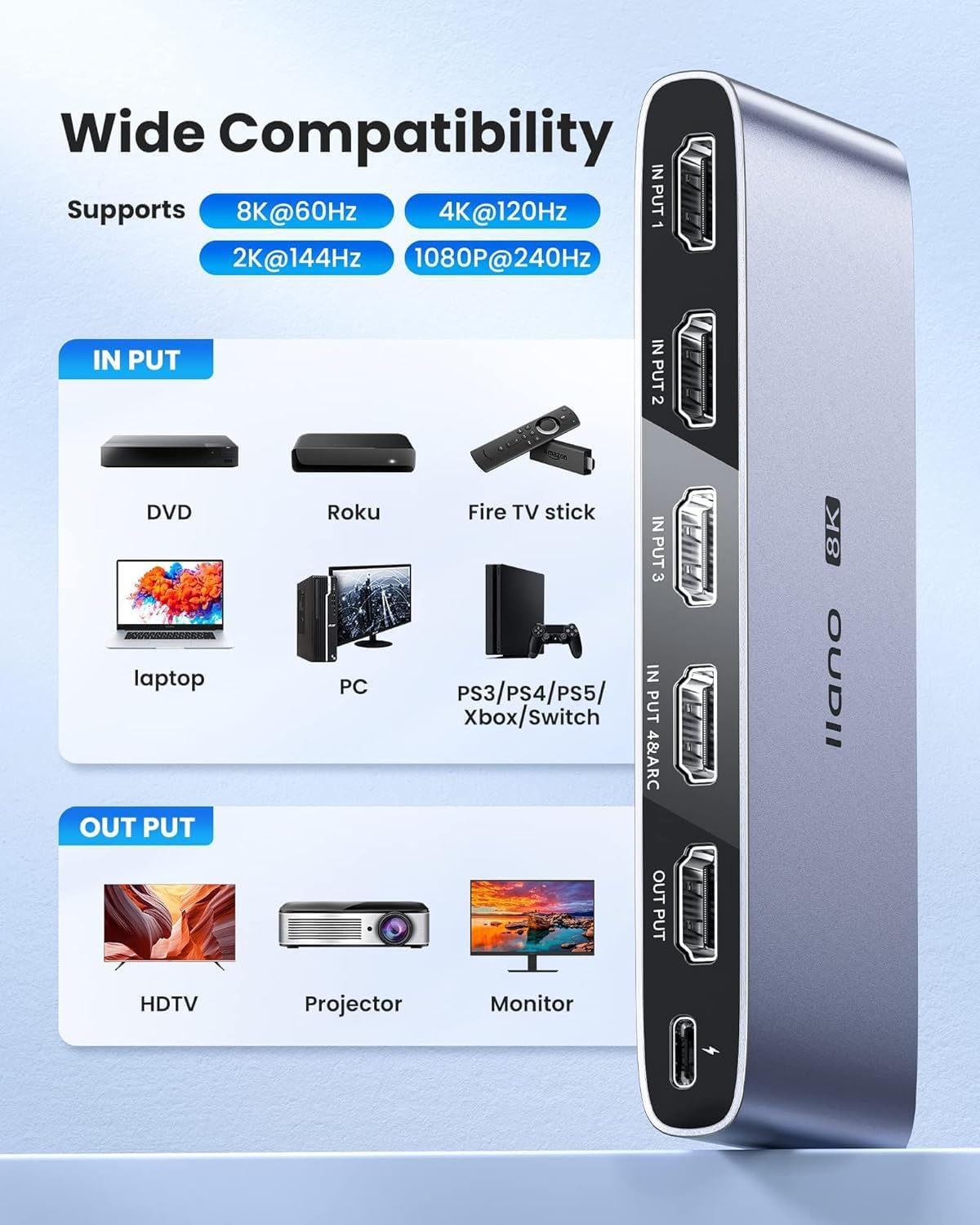
Image: Illustration of wide compatibility, showing various input devices connecting to the switch and outputting to different display types.
5. Ntuziaka ọrụ
The llano HDMI 2.1 Switcher offers multiple ways to select your desired input source:
- Ngbanwe akwụkwọ ntuziaka: Press the 'SELECT' button located on the front panel of the switch to cycle through the connected HDMI input sources (Input 1, 2, 3, 4). The corresponding LED indicator will light up to show the active input.
- Njikwa anya IR: Use the included IR remote control to directly select an input source. Press the '1', '2', '3', or '4' button on the remote to switch to the respective HDMI input. Ensure there is a clear line of sight between the remote and the IR receiver on the switch for proper operation.
- Automatic Switching (CEC): The switch supports Consumer Electronics Control (CEC). When a connected HDMI source device is powered on or begins playback, the switch may automatically detect the active signal and switch to that input. This functionality depends on the CEC compatibility and settings of your connected devices.
- Ọkụ egosi: Observe the LED indicators on the front panel to identify the currently active input source.

Image: Depiction of the three available input switching methods: automatic, remote, and manual button.
6. Nlekọta
To ensure the longevity and optimal performance of your llano HDMI 2.1 Switcher, please observe the following maintenance guidelines:
- Nhicha: Use a soft, dry cloth to clean the exterior of the device. Avoid using liquid cleaners or abrasive materials, as these can damage the finish or internal components.
- gburugburu: Place the switch in a well-ventilated area, away from direct sunlight, heat sources, and excessive humidity. Ensure no objects block the ventilation openings.
- Ijikwa: Jiri nlezianya jikwaa ngwaọrụ ahụ. Zere idobe ya ma ọ bụ tinye ya na mmetụta siri ike.
- Ike: Disconnect the power adapter when the device is not in use for extended periods.
7. Nchọpụta nsogbu
If you encounter issues with your llano HDMI 2.1 Switcher, refer to the following common troubleshooting steps:
- Enweghị Vidiyo/Ọdịyo:
- Hụ na e jikọtara eriri HDMI niile nke ọma na ngwaọrụ isi mmalite, swiichi, na ngosipụta ahụ.
- Verify that the correct input source is selected on the switch (check LED indicators).
- Confirm that the switch is receiving power from the USB-C power cable and adapter.
- Test with different HDMI cables, especially high-quality HDMI 2.1 certified cables, as lower quality cables may not support high resolutions/refresh rates.
- Bypass the switch and connect the source device directly to the display to confirm the source device and display are functioning correctly.
- Ihuenyo na-amị amị ma ọ bụ akara ngosi na-akwụsị akwụsị:
- This can often be caused by cable quality. Replace HDMI cables with certified HDMI 2.1 cables.
- Ensure the power supply is stable and sufficient.
- Reduce the resolution or refresh rate of the source device to see if the issue persists.
- IR Remote Control Not Responding:
- Check and replace the battery in the remote control.
- Gbaa mbọ hụ na onweghị ihe mgbochi n'etiti ebe dịpụrụ adịpụ na nnata IR na mgba ọkụ.
- Note that the effective range of the remote control may be limited.
- ARC (Audio Return Channel) Not Functioning:
- Confirm that both your TV and audio receiver are ARC-enabled and that ARC is activated in their respective settings.
- Ensure the HDMI cable is connected to the INPUT 4/ARC port on the switch and the designated ARC HDMI port on your TV.
- Some TV brands (e.g., Sony) may have specific ARC compatibility considerations with external switches. Consult your TV's manual.
- Automatic Switching (CEC) Issues:
- CEC functionality can be inconsistent across different brands and devices. Ensure CEC is enabled on all connected devices.
- Try disabling and re-enabling CEC on your devices and the switch (if applicable).
8. Nkọwapụta
| Njirimara | Nkọwa |
|---|---|
| Nọmba nlereanya | LL-HDMI2.1-SWITCH |
| Ụdị HDMI | HDMI 2.1 |
| Mkpebi Max | 8K @ 60Hz, 4K@120Hz |
| Ntinye | 4 x HDMI |
| Nsonaazụ | 1 x HDMI |
| Nkwado ARC | Yes (on INPUT 4/ARC port) |
| Cdị HDCP | HDCP2.3 |
| Teknụzụ akwadoro | CEC, 3D, HDR10+, VRR, ALLM |
| Ịnye ọkụ | DC 5V (via USB-C) |
| Ibu Ibu | 9.2 ounces |
| Akụkụ ngwugwu | 5.87 x 4.25 x 1.14 sentimita asatọ |
9. Akwụkwọ ikike & Nkwado
For warranty information and technical support, please refer to the official llano websaịtị ma ọ bụ kpọtụrụ ngalaba ọrụ ndị ahịa ha. Debe akwụkwọ nnata ịzụrụ maka akwụkwọ ikike.