1. Ngwaahịa gafereview
The YABER K2s is a high-performance projector designed for a cinematic entertainment experience. It features 1000 ANSI Lumens brightness, native 1080P resolution with 4K support, integrated Google TV with access to over 7000 apps, and sound engineered by JBL with Dolby Audio support. Key features include auto focus, auto keystone correction, NFC screencast, Wi-Fi 6 connectivity, and Alexa voice control compatibility.

Image: The YABER K2s Projector, showcasing its sleek design and the integrated Google TV interface with popular streaming app logos like Netflix, Prime Video, YouTube, Disney+, and Hulu.

Image: A visual comparison highlighting the superior brightness of the YABER K2s with 1000 ANSI Lumens, demonstrating clearer and more vibrant visuals compared to other projectors.
2. Kedu ihe dị na Igbe ahụ
- YABER K2s Projector
- HDMI USB
- Ihe mkpuchi oghere projector
- Njikwa anya
- Quick Start Guide (QSG) & FAQ
- Ụdọ ọkụ
3. Ntuziaka Nhazi
3.1 Initial Placement and Power On
Place the projector on a stable, flat surface or mount it to the ceiling. Connect the power cord to the projector and a suitable power outlet. Press the power button to turn on the device. Upon startup, the projector will display a stock photo, followed by the YABER logo, and then five focusing patterns. The projector will automatically adjust focus and keystone correction within a few seconds, preparing the image for viewing.

Image: The YABER K2s Projector automatically adjusting its focus and keystone to achieve a perfect, sharp image on the projection surface.
3.2 Ngwa jikọọ
The K2s projector offers multiple connectivity options:
- HDMI: Use the provided HDMI cable to connect external devices such as laptops, gaming consoles, or Blu-ray players. The projector supports HDMI ARC and HDMI CEC.
- USB: Jikọọ ngwaọrụ nchekwa USB maka ịkpọghachi mgbasa ozi.
- Wi-Fi 6: Connect to your wireless network for internet access and streaming.
- Bluetooth: Pair with external Bluetooth speakers or use the projector as a standalone JBL Bluetooth speaker.
- Ihe nleba anya NFC: For compatible NFC-enabled phones, simply tap your phone to the projector to effortlessly cast content to the screen.
- Detachable TV Dongle: The integrated TV dongle is detachable and compatible with most micro HDMI output devices, allowing for plug-and-play functionality with laptops, PCs, and tablets.

Image: Individuals enjoying a projected movie or game, illustrating the fast, stable, and smooth experience provided by the projector's advanced Wi-Fi 6 technology.
Video: An unboxing and introduction video for the YABER K2s projector, demonstrating its components and initial setup steps.
4. Ntuziaka ọrụ
4.1 Google TV Interface
The YABER K2s comes with an integrated Google TV system, providing access to over 7000 applications and 400,000+ movies and TV episodes. The user interface is designed to be clean and intuitive with large, easy-to-select icons. Navigate using the remote control to browse and launch applications like Netflix, Prime Video, YouTube, Disney+, and HBO Max.

Image: The projector displaying its Android TV interface, showing a wide array of available applications for entertainment.
4.2 Akụkụ ọdịyo
The projector features dual 10W JBL stereo speakers with Dolby Audio support for an immersive sound experience. Utilize the two-way Bluetooth functionality to connect external audio devices or to use the projector as a dedicated JBL Bluetooth speaker with the screen turned off.

Image: A visual representation of sound emanating from the YABER K2s projector, emphasizing its immersive audio experience powered by JBL and Dolby Audio technologies.
4.3 Alexa olu njikwa
Pair your YABER K2s projector with an Alexa-enabled device for hands-free control. You can use voice commands to switch signals, open applications like Netflix, and adjust the volume, enhancing your overall entertainment experience.

Image: A woman interacting with an Alexa device to control the YABER K2s projector, illustrating the convenience of smart voice control.
4.4 Ndozi onyonyo
While the projector features automatic focus and keystone correction, digital zoom is available for fine-tuning the image size. When adjusting image modes (e.g., brightness, contrast, saturation, sharpness, color temperature), ensure you are doing so within the interface of the video currently playing, then save the settings. Adjustments made in the main interface may not be retained for video playback.
4.5 Ọnọdụ gburugburu
The projector includes an Ambient Mode with various settings to create a desired atmosphere. Options include Starry Sky, Forest, Bonfire, and Sunset Waves, providing visual ambiance for different moods.
5. Nlekọta
The YABER K2s projector features a single-LCD design with a fully sealed, dust-protected optical package, which minimizes the need for frequent internal cleaning. For general maintenance:
- Nchacha oghere: Jiri nwayọ hichaa anya projector ahụ na ákwà dị nro, nke na-enweghị lint nke e mere kpọmkwem maka elu anya. Zere ihe ndị na-emebi emebi ma ọ bụ kemịkalụ siri ike.
- Nchacha mpụta: Use a soft, dry cloth to clean the exterior surfaces of the projector.
- Igwe ikuku: Ensure the projector's ventilation openings are clear and unobstructed to prevent overheating.
- Nchekwa: When not in use, cover the lens with the provided lens cover and store the projector in a cool, dry place away from direct sunlight.
6. Nchọpụta nsogbu
For comprehensive troubleshooting, refer to the dedicated Ntuziaka nchọpụta nsogbu (PDF). Below are common issues and solutions:
- No Sound from External Streaming Devices (e.g., Fire TV, Roku sticks): If your streaming device is set to an incompatible audio format (e.g., Dolby), the projector may not output sound. Navigate to your streaming device's audio settings and change the output format to PCM.
- Image Not Clear or Out of Focus: The projector features auto focus and keystone correction. Ensure the projector is placed on a stable surface. If issues persist, try restarting the projector. Manual focus is not available, but digital zoom can be used for size adjustment.
- Image Mode Settings Not Saving: When adjusting picture settings like brightness or color, make these adjustments within the interface of the video content currently playing, not from the main system menu. Save the settings after adjustment.
- Okwu arụmọrụ izugbe: Many reported issues are setup-related and can often be resolved with guidance. If you encounter any problems, please contact customer support directly.
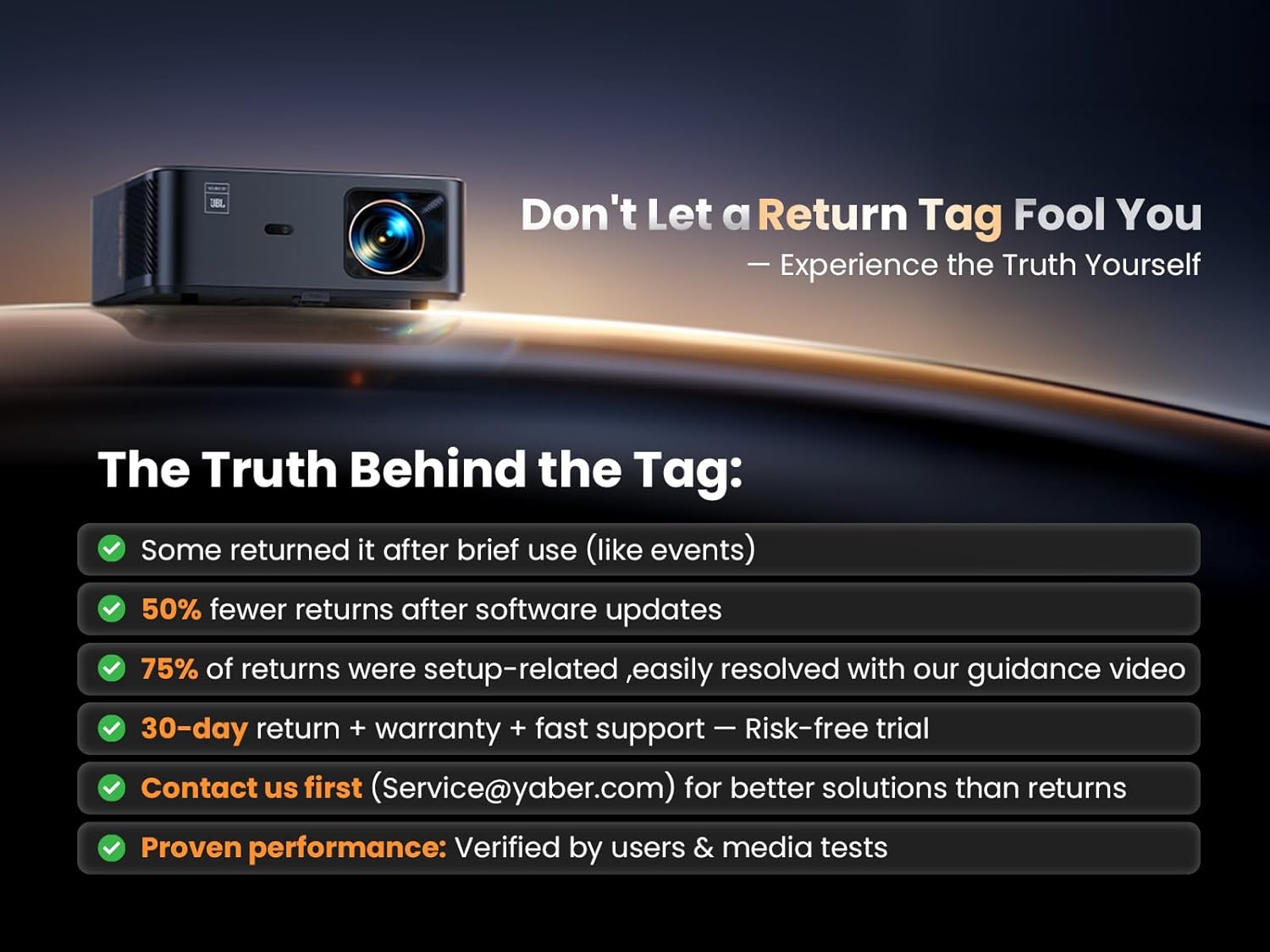
Image: An informational graphic addressing common concerns about product returns, emphasizing that many issues are easily resolved with support and software updates.
7. Nkọwapụta
| Njirimara | Nkọwa |
|---|---|
| Ụdị | agba |
| Nọmba nlereanya | K2 afọ |
| Ngosipụta mkpebi | 1920 x 1080 (Native 1080P, 4K Supported) |
| Icha ọkụ | 1000 ANSI Oghere |
| Teknụzụ Njikọta | HDMI CEC, Wi-Fi 6, HDMI ARC, Bluetooth, USB |
| Atụmatụ pụrụ iche | Built-in JBL Speakers, Google TV (7000+ apps), Auto Focus/Keystone, Alexa Voice Control, NFC Screencast |
| Audio | Dual 10W JBL Stereo Speakers, Dolby Audio Support, Two-way Bluetooth |
| Akụkụ ngwaahịa | 11.45 x 10.62 x 4.96 sentimita asatọ |
| Ibu Ibu | 9.57 pound |
| Eji akwadoro | Outdoor Movie Night, Indoor/Outdoor, Home Cinema, Gaming, Business |
8. Akwụkwọ ikike na nkwado
YABER na-agba mbọ ịnye ezigbo ọrụ ndị ahịa yana nkwado maka ihe nrụpụta K2s gị.
- Akwụkwọ ikike: The product includes a warranty. Please refer to the Quick Start Guide or contact customer support for specific warranty terms.
- na-alaghachi: Enjoy 30 days of hassle-free returns.
- Nkwado ndị teknuzu: Lifetime technical support is provided for the YABER K2s projector.
- Nkwado ndị ahịa: 24-hour customer support is available. For any issues or inquiries, please contact Service@yaber.com. It is recommended to contact support directly for solutions before considering returns.
Ihe mgbakwunye:


