1. Okwu mmalite
The EDISION Picco S2 Pro is a Full HD DVB-S2 H.265/HEVC digital satellite receiver designed for receiving satellite signals. This dynamically designed receiver features a built-in card reader, Multistream support, and on-board Wi-Fi for accessing various internet applications. It also includes a 2-in-1 universal remote control and H.265 media player capabilities.

Image: EDISION Picco S2 Pro product packaging.
2. Ngwaahịa gafereview
2.1 Atụmatụ
- DVB-S2 H.265/HEVC digital satellite receiver for satellite channels.
- On-board Wi-Fi, card reader, Multistream, Unicable & SCR Unicable 2 support.
- USB connection for PVR (Personal Video Recorder), Timeshift, Playback, software updates, and backup function.
- Internet connection for applications: YouTube, Stalker TV, Xtream, WebTV, Shoutcast, Dailymotion, Weather.
- H.265 media player (supports MP3/AC3/AAC/JPEG/PNG/MP4/MOV/AVI/MKV/MPG/MPEG/Xvid/DviX).
- Ergonomic 2-in-1 universal remote control for set-top box and TV, with 4 programmable buttons for TV.
Ihe ngwugwu 2.2
Gbaa mbọ hụ na ihe niile dị na ngwugwu:

Image: EDISION Picco S2 Pro package contents.
- EDISION Picco S2 Pro Receiver
- 2-na-1 njikwa anya ụwa niile
- Power Supply Unit (PSU 12V/1A)
- 2 x AAA batrị
- Ntuziaka onye ọrụ ngwa ngwa
2.3 Front & Side Panel
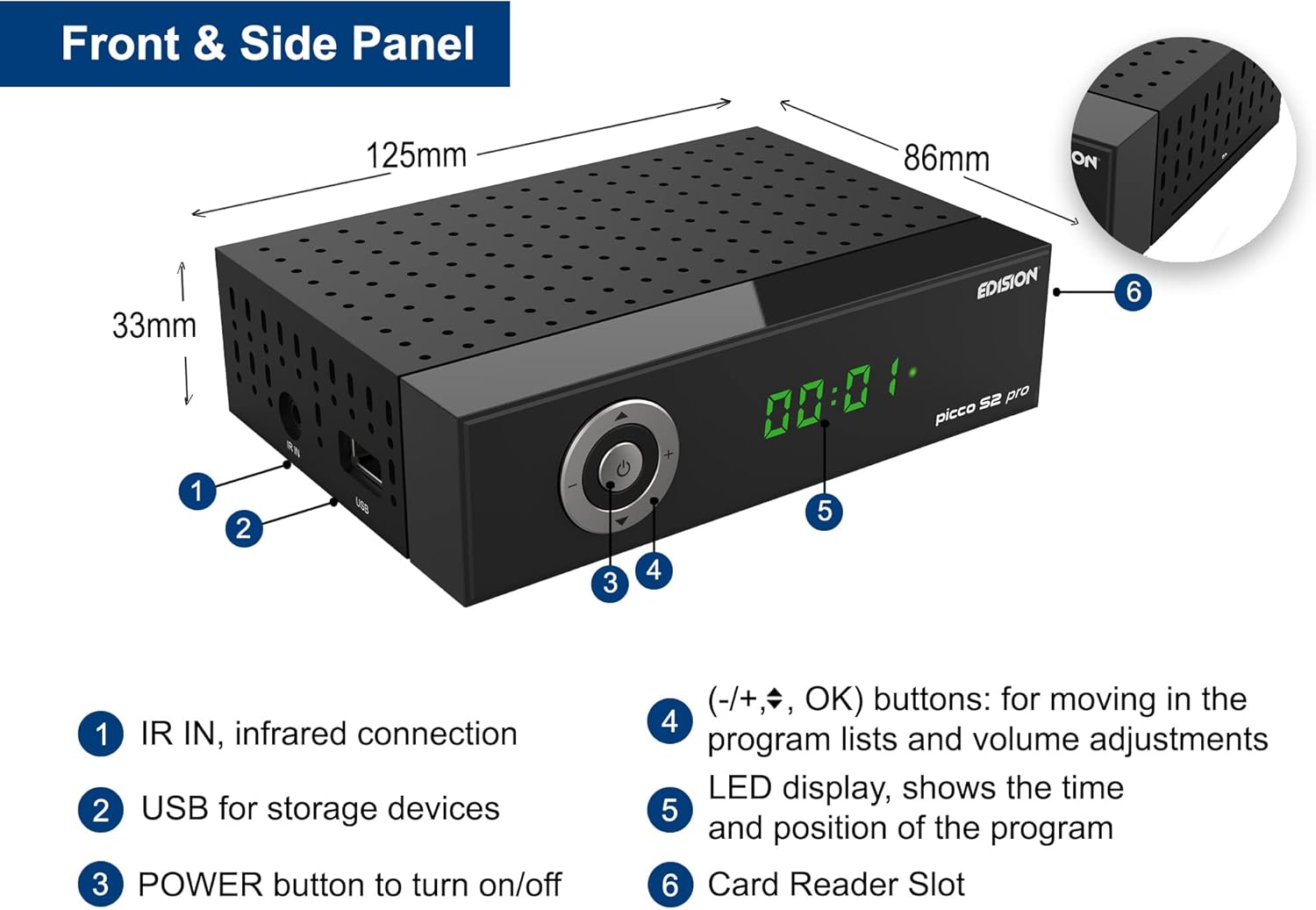
Image: Front and side panel layout with dimensions and labeled components.
- IR na: Infrared connection for external IR sensor.
- USB: For storage devices (PVR, media playback, software updates).
- Bọtịnụ IKE: Ka ịgbanwuo/ gbanyụọ ngwaọrụ.
- (-/+, OK) buttons: For navigating program lists and adjusting volume.
- Ihe ngosi LED: Shows the time and current program position.
- Card Reader Slot: For conditional access cards.
2.4 Njikọ azụ azụ

Image: Rear panel connections with labeled ports.
- LNB IN (13V/18V 400mA Max): DVB-S2 tuner to receive satellite channels.
- S/PDIF: Coaxial audio connection.
- HDMI: HDMI connection, up to Full HD 1080p.
- Nkewa: Analog TV njikọ.
- DC 12V: Connection for external power supply.
2.5 2-in-1 njikwa anya ụwa niile

Image: EDISION 2-in-1 Universal Remote Control.
The remote control is designed for both the set-top box (STB) and your TV. It comes pre-programmed with the 4 most important functions for SAMSUNG and LG TVs. You can program these 4 buttons as desired for other TV brands.
3. Nhazi
3.1 Jikọọ onye nnata
Follow these steps to connect your EDISION Picco S2 Pro receiver:
- Njikọ efere satịlaịtị: Connect the LNB cable from your satellite dish to the 'LNB IN' port on the rear panel of the receiver.
- Njikọ TV:
- For High Definition (HD) output, connect an HDMI cable from the 'HDMI' port on the receiver to an HDMI input on your television.
- For Standard Definition (SD) output, connect a SCART cable from the 'SCART' port on the receiver to the SCART input on your television.
- Audio System Connection (Optional): If you have an external audio system, connect it to the 'S/PDIF' coaxial audio output for digital audio.
- Njikọ ike: Connect the provided 12V/1A power adapter to the 'DC 12V' input on the receiver, then plug the adapter into a wall outlet.

Image: Receiver connected to a television, showing the main menu interface.
3.2 Agbanye ike mbụ
After connecting all cables, press the POWER button on the front panel or the remote control to turn on the receiver. The LED display will show the current status. Follow the on-screen instructions for initial setup, which typically includes language selection, country, and satellite scanning.
4. Ntuziaka ọrụ
4.1 Basic Arụmọrụ
- Ọchọ ọwa: Access the 'Installation' menu to perform an automatic or manual channel scan for available satellite channels.
- Nsoro ụzọ ọwa: Use the CH+/CH- buttons on the remote to change channels. Use the numeric keypad to directly enter channel numbers.
- Njikwa olu: Use the VOL+/VOL- buttons to adjust the volume.
- Nweta menu: Press the 'MENU' button to access the main menu for settings, applications, and other functions.
4.2 Wi-Fi & Internet Applications
The built-in Wi-Fi allows you to connect the receiver to your home network and access various online applications:
- YouTube
- Stalker TV
- Xtream
- WebTV
- Mkpu mkpu
- Dailymotion
- Amụma ihu igwe

Image: Stalker TV application logo, one of the supported internet applications.
4.3 Media Playback & PVR
Connect a USB storage device to the USB port on the front panel to utilize the following functions:
- PVR (ihe ndekọ vidiyo nkeonwe): Record live TV programs.
- Oge mgbanwe: Pause, rewind, and fast-forward live TV.
- Ndabere mgbasa ozi: Play various media files including MP3, AC3, AAC, JPEG, PNG, MP4, MOV, AVI, MKV, MPG, MPEG, Xvid, and DviX.
- Software Updates & Backup: Use the USB port for convenient software updates and system backups.
5. Nlekọta
To ensure optimal performance and longevity of your receiver:
- Nhicha: Use a soft, dry cloth to clean the exterior of the receiver. Do not use liquid cleaners or aerosols.
- Igwe ikuku: Ensure the receiver has adequate ventilation. Do not block the ventilation holes.
- Mmelite ngwanrọ: Regularly check for and install online software updates to improve performance and add new features. These can typically be found in the system settings menu or via USB.
- Gbanyụọ: If the receiver will not be used for an extended period, disconnect it from the power supply.
6. Nchọpụta nsogbu
If you encounter issues with your EDISION Picco S2 Pro, consider the following basic troubleshooting steps:
- Enweghị ike: Check if the power adapter is securely connected to both the receiver and the wall outlet. Ensure the outlet is functional.
- Enweghị akara: Verify that the satellite LNB cable is correctly connected to the 'LNB IN' port. Check your satellite dish alignment.
- Enweghị foto/ụda: Ensure the HDMI or SCART cable is securely connected to both the receiver and the TV. Check the TV's input source selection.
- Njikwa anya anaghị arụ ọrụ: Lelee batrị ndị dị na njikwa remote ma dochie ha ma ọ bụrụ na ọ dị mkpa. Hụ na enweghị ihe mgbochi ọ bụla n'etiti remote na sensọ IR nke receiver.
- Nsogbu Njikọ Ịntanetị: Verify your Wi-Fi network is active and the receiver is correctly connected. Re-enter Wi-Fi credentials if needed.
- System Freeze/Unresponsive: Try restarting the receiver by unplugging it from the power outlet for a few seconds and then plugging it back in.
For persistent issues, consult the detailed user manual (if available) or contact EDISION customer support.
7. Nkọwapụta
| Njirimara | Nkọwapụta |
|---|---|
| Ụdị | Mbipụta |
| Agba | Nwa |
| Teknụzụ Njikọta | HDMI, SCART, USB, Wi-Fi |
| Mgbakọta ọdụ ụgbọ mmiri USB | 1 |
| Mgbakọta ọdụ ụgbọ mmiri HDMI | 1 |
| Ọnọdụ mmepụta ọdịyo | Stereo |
| Ngwa dakọtara | Television with HDMI, SCART, or 3RCA connection |
| Ụdị ọdịyo akwadoro | Various formats (MP3/AC3/AAC) |
| Voltage | 12 volts (DC) |
| Eji ngwaahịa akwadoro | Watching high-definition satellite channels |
| Nọmba Nlereanya ihe | 01-07-0028 |
| Onye nrụpụta | Mbipụta |
| Mba onye si | China |
| Ngwakọta batrị | Alkaline |
| Batrị enwere ike ịchaji | Mba |
| Nnweta akụkụ mapụtara | Ozi adịghị |
| Ekwadoro mmelite ngwanrọ ruo | Ozi adịghị |
8. Akwụkwọ ikike na nkwado
Information regarding specific warranty terms and conditions for the EDISION Picco S2 Pro is not available in the provided product details. For warranty claims or technical support, please refer to the documentation included with your purchase or contact EDISION customer service directly.
Spare parts availability and guaranteed software update periods are also not specified in the available information.


