1. Okwu mmalite
The IK Multimedia TONEX Pedal is a stereo multi-effects guitar and bass pedal designed to bring ultra-realistic amp and pedal tones to your live performance or studio setup. Utilizing breakthrough AI Machine Modeling technology, it offers a vast library of authentic tone models, along with a comprehensive suite of built-in effects. This manual provides essential information for setting up, operating, maintaining, and troubleshooting your TONEX Pedal.
2. Ozi nchekwa
- Ịnye ọkụ: Use only the provided 9V DC power supply. Ensure the correct voltage and polarity to prevent damage.
- Mmiri na mmiri: Do not expose the unit to water, rain, or excessive moisture. Avoid operating in damp gburugburu.
- Isi mmalite ọkụ: Keep the unit away from heat sources such as radiators, heat registers, stoves, or other apparatus that produce heat.
- Igwe ikuku: Gbaa mbọ hụ na ikuku ikuku dị mma. Akwụsịla oghere ikuku ikuku ọ bụla.
- Nhicha: Jiri akwa kpọrọ nkụ hichaa naanị. Ejila ihe nhicha mmiri ma ọ bụ ihe nhicha ikuku.
- Ije ozi: Nye ndị ọrụ ọrụ ruru eru ọrụ niile. Anwala ịrụzi ngwaahịa a n'onwe gị.
3. Ihe ngwugwu
- IK Multimedia TONEX Pedal
- 9V DC Ike Tụkwasịnụ
- eriri USB
- Registration Card/Software Download Instructions
4. Ngwaahịa gafereview
The TONEX Pedal features a robust anodized aluminum chassis designed for durability. Its intuitive layout provides quick access to essential controls and versatile connectivity options.
4.1. Njikwa ihu ihu
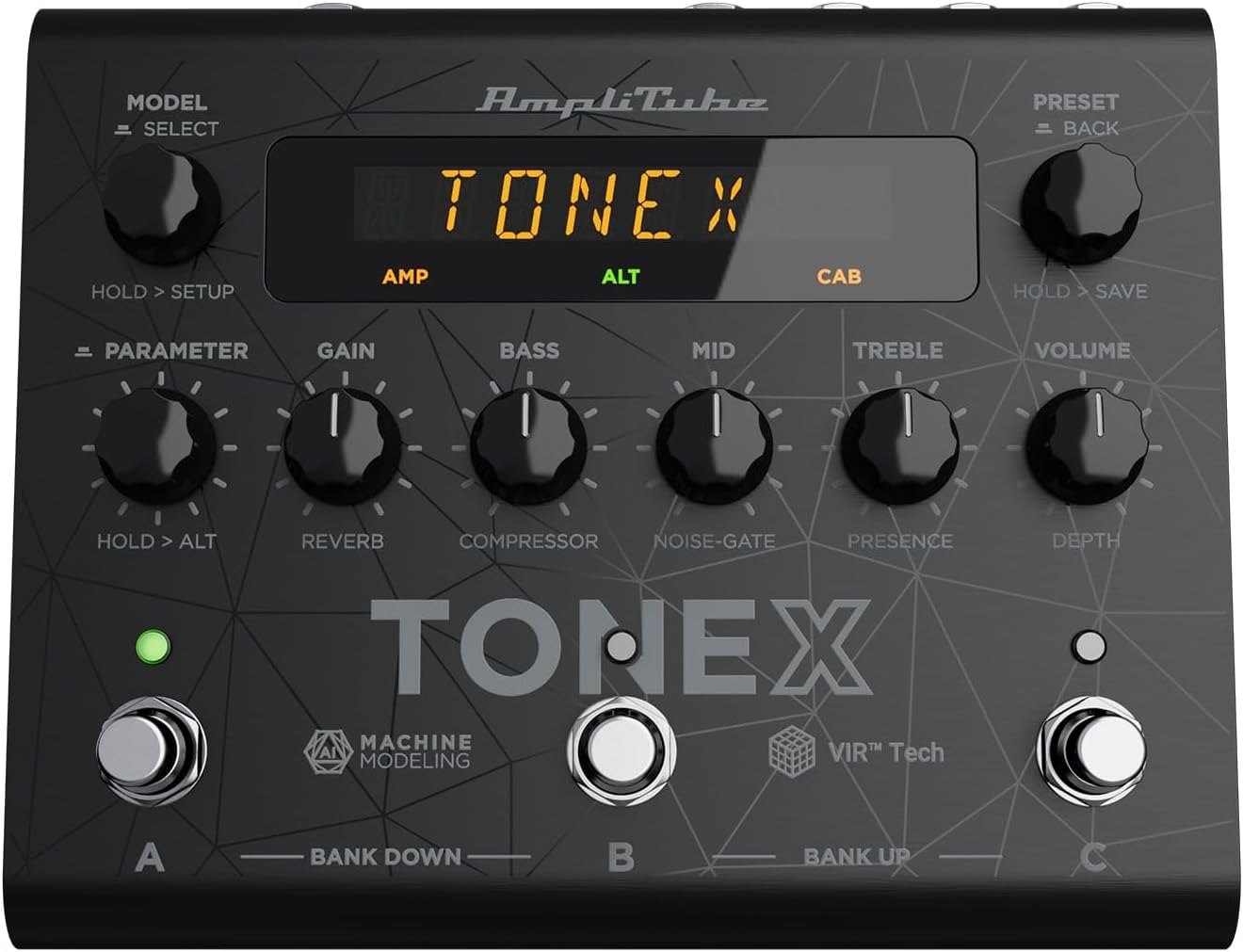
Figure 1: TONEX Pedal Front Panel
Foto a gosipụtara elu ya view of the TONEX Pedal, highlighting its compact design and the arrangement of knobs, footswitches, and the digital display. Key controls such as 'Model/Select', 'Preset/Back', 'Parameter', 'Gain', 'Bass', 'Mid', 'Treble', and 'Volume' are visible, along with the three footswitches labeled A, B, and C.
- MODEL / SELECT Knob: Used to select tone models and navigate menus. Press and hold for Setup menu.
- PRESET / BACK Knob: Used to select presets and go back in menus. Press and hold to save presets.
- Nkwụnye PARAMETA: Adjusts various parameters. Press and hold for alternative parameters.
- Nweta akara: Controls the input gain of the tone model.
- BASS Knob: Na-agbanwe mmeghachi omume dị ala ugboro ole.
- MID mkpịsị aka: Na-agbanwe nzaghachi ugboro etiti.
- KỌỌRỤ TRUB: Na-agbanwe mmeghachi omume ugboro ugboro dị elu.
- Mpịakọta olu: Na-achịkwa oke mmepụta n'ozuzu ya.
- Footswitches A, B, C: Select presets within a bank. Also used for bank up/down (A+B, B+C) and bypass.
- Ngosipụta: Shows current preset, parameter values, and menu options.
4.2. Njikọ azụ panel
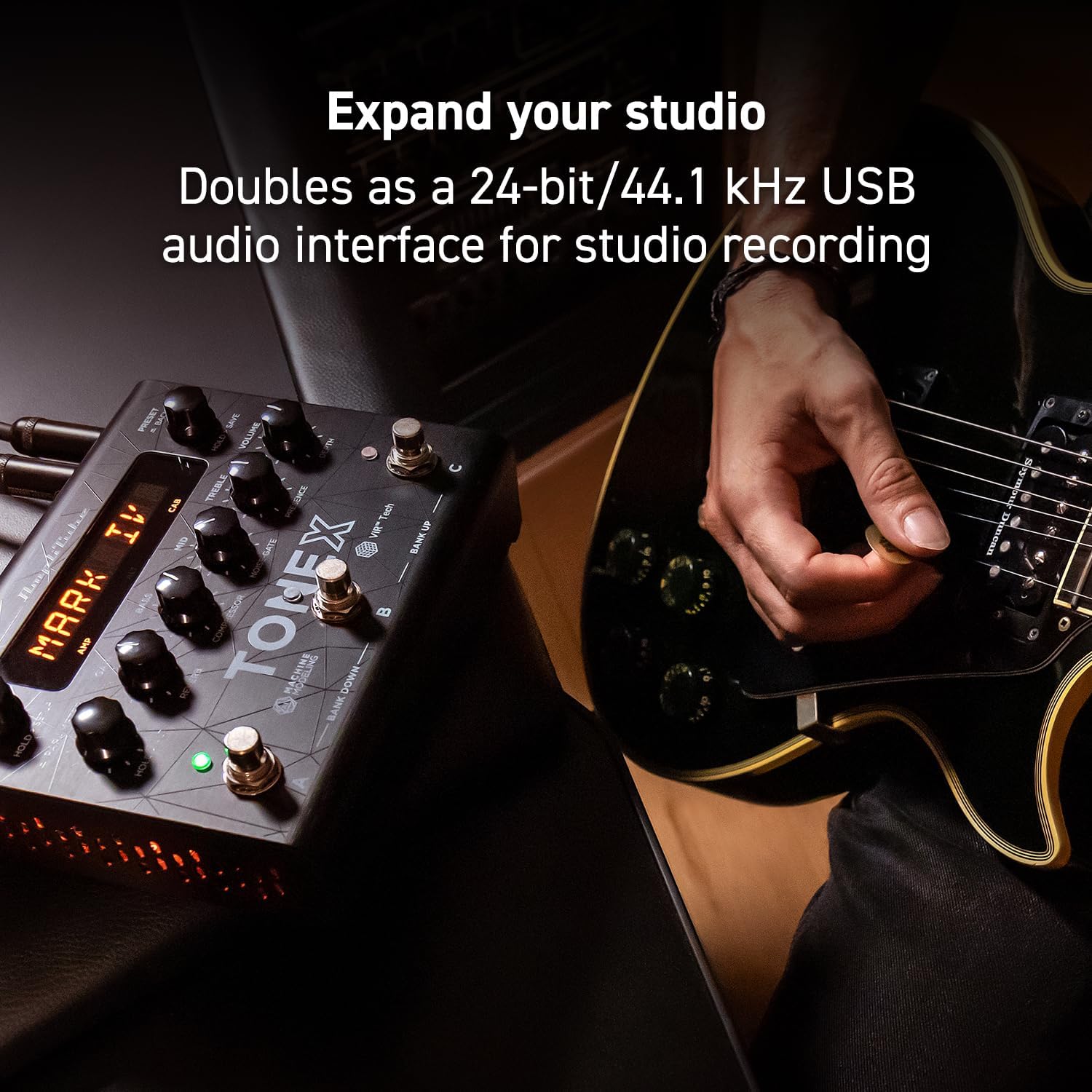
Figure 2: TONEX Pedal Rear Panel Connections
This image shows the rear panel of the TONEX Pedal, detailing its various input and output connections. Visible ports include the instrument input, left and right outputs (mono), headphone output, MIDI In/Out, external control input, USB port, and the 9V DC power input. This panel facilitates integration into various audio setups, from live rigs to studio environments.
- Ntinye: 1/4" mono input for your guitar or bass.
- OUTPUT L/R (MONO): 1/4" stereo outputs for connecting to a PA system, power amp, or audio interface. Use the L output for mono operation.
- AKỤKỌ: 1/4" stereo output for silent practice.
- MIDI N'IME/N'ỌPỤTA: 5-pin DIN connectors for MIDI control and integration with other MIDI devices.
- EXT. CONTROL: 1/4" input for an external expression pedal or footswitch.
- USB: USB-B port for connecting to a computer (PC/Mac) for software control, preset management, and using the pedal as an audio interface.
- POWER 9V DC: Input for the included 9V DC power supply.
5. Nhazi
5.1. Njikọ Mbụ
- Jikọọ ngwa gị na Ntinye jack dị n'azụ panel.
- Jikọọ Mpụta L (na R for stereo) to your amplifier, PA system, or audio interface.
- If desired, connect headphones to the Igwe ekweisi jakị.
- Connect the included 9V DC power supply to the IKE 9V DC input and plug it into a power outlet. The pedal will power on automatically.
5.2. Nwụnye ngwanrọ
To unlock the full potential of your TONEX Pedal, including access to ToneNET and advanced editing features, install the TONEX Editor software on your computer.
- Visit the IK Multimedia website and register your product using the provided registration card.
- Download and install the TONEX Editor software for your operating system (Windows 10 or later, macOS 10.15 or later).
- Connect the TONEX Pedal to your computer via the USB port. The pedal can function as a 24-bit/44.1 kHz USB audio interface for studio recording.
- Follow the on-screen instructions in the software to update firmware and manage your tone models and presets.
6. Ntuziaka ọrụ
6.1. Navigating Presets
The TONEX Pedal comes preloaded with 150 gig-ready presets, organized into 50 banks of three presets each.
- Ịhọrọ Preset: Tugharia ihe PRESET / BACK knob to quickly scroll through and audition available presets.
- Using Footswitches: Tap footswitches A, B, ma ọ bụ C to load different presets within the current bank.
- Changing Banks: Simultaneously press footswitches A na B to move down a bank, or B na C to move up a bank.
- Bypass Tone Model: Once a preset is loaded, tapping its corresponding footswitch a second time will bypass the tone model, allowing for a clean signal.
6.2. Mmezi Parameters
The TONEX Pedal offers five main and five alternative parameters on the front panel for tone shaping.
- Akụkụ ndị bụ isi: Directly adjust URU, Bass, N'etiti, IKU, na Mpịakọta using their respective knobs.
- Alternative Parameters: Jidesie ike PARAMETER encoder to access alternative parameters: Reverb Level, Compressor Threshold, Noise Gate Threshold, Presence, and Depth. Rotate the corresponding knobs to adjust these.
- Oke ndị ọzọ: Pịa PARAMETER encoder once to access further parameters for fine-tuning your sound.
6.3. Ịchekwa atọrọ atọ
- Saving with Renaming/Relocation: Jide ya PRESET / BACK encoder. You can then rotate the PRESET knob to edit characters for renaming, and rotate the Ụdị knob to move the cursor or change the bank location. Press the PRESET knob again to confirm and save.
- Quick Save: To quickly save a preset with the same name in the same location, press the Ụdị na PRESET encoders simultaneously. The display will show "SAVED".
6.4. Cab Emulation
If connecting to a standard guitar or bass amp with its own speaker cabinet, you may wish to turn off the TONEX Pedal's internal cab emulation to avoid redundant processing. This can be done via the Setup menu (hold MODEL / SELECT isi).
6.5. Official Product Video: TONEX Pedal Main Features
Vidiyo nke 1: Mwepuview of the IK Multimedia TONEX Pedal's main features, including its controls, connectivity, and basic operation. This video demonstrates how to navigate presets, adjust parameters, and utilize the pedal's various functions for live and studio use.
7. Nlekọta
- Nhicha: Regularly wipe the pedal with a soft, dry cloth to remove dust and grime. Avoid abrasive cleaners.
- Nchekwa: Store the pedal in a cool, dry place when not in use. Protect it from extreme temperatures and humidity.
- Njikwa USB: Ensure cables are not kinked or strained to prevent damage to the connectors and ports.
8. Nchọpụta nsogbu
- Enweghị ike: Ensure the 9V DC power supply is correctly connected to the pedal and a working power outlet.
- Enweghị ụda: Check all audio cable connections (instrument input, outputs to amp/PA, headphones). Verify volume levels on the pedal and connected devices. Ensure the tone model is not bypassed.
- Unexpected Behavior/Glitches: Try performing a factory reset (refer to the full online manual for specific steps). Ensure your firmware is up to date via the TONEX Editor software.
- Software Connectivity Issues: Ensure the USB cable is securely connected. Try a different USB port or cable. Restart both the pedal and your computer.
9. Nkọwapụta
| Njirimara | Nkọwapụta |
|---|---|
| Nọmba nlereanya | ONEX pedal |
| Akụkụ (L x W x H) | 6.93 x 5.59 x 2.17 sentimita (ihe dịka 17.6 x 14.2 x 5.5 cm) |
| Ibu Ibu | 2.86 pound (ihe dị ka 1.3 n'arọ) |
| Agba | Nwa |
| Isi Iyi Ike | 9V DC (Corded Electric) |
| Ngwaọrụ Akụrụngwa | USB |
| Ụdị mgbaàmà | Dijitalụ |
| Ndakọrịta sistemụ arụmọrụ | Windows® 10 or later, macOS® 10.15 or later (macOS® 11 Big Sur required for Modeler) |
| Nzaghachi ugboro ugboro | 5 Hz - 24 kHz |
| Oke dị ike | 123 dB |
10. Akwụkwọ ikike na nkwado
IK Multimedia products are covered by a limited warranty. For detailed warranty information, product registration, and technical support, please visit the official IK Multimedia websaịtị ma ọ bụ kpọtụrụ ndị ahịa ha ọrụ. Debe ihe akaebe nke ịzụrụ ihe maka akwụkwọ ikike.
Websaịtị: www.ikmultimedia.com


