1. Okwu mmalite
Thank you for choosing the WOOLLEY ZigBee Motion Sensor. This device is designed to enhance your smart home security and automation by detecting movement within its range. It integrates seamlessly with your existing Zigbee gateway and the eWelink application to provide intelligent control and notifications.
Please read this manual carefully before installation and use to ensure proper operation and to maximize the sensor's capabilities.
2. Ngwaahịa gafereview
The WOOLLEY ZigBee Motion Sensor is a compact, wireless device that detects motion and can trigger various smart home actions. Its key features include:
- Nchọpụta ngagharị: Detects movement within a 6-meter range and a 110° viewakụkụ n'akuku.
- Njikọta Smart Scene: Automate lights and other devices based on motion detection.
- Security Alerts: Receive instant notifications on your smartphone when motion is detected.
- Ndekọ akụkọ ihe mere eme: Access motion detection logs for up to 3 months.
- Amamọkwa batrị dị ala: Alerts you when the battery level is at 10%.
- Nwụnye dị mfe: Simple 3M adhesive mounting.

The WOOLLEY ZigBee Motion Sensor provides an additional layer of security for your home by detecting movement within its range.

The sensor features a 110-degree detection angle and a 6-meter range. It can be configured to trigger actions upon motion and then reset after a period of no motion, such as 60 seconds.
3. Ihe ngwugwu
Chọpụta na ihe niile dị na ngwugwu gị:
- WOOLLEY ZigBee Motion Sensor (ZBSA-MS)
- Akwụkwọ ntuziaka (akwụkwọ a)
- 3M Adhesive Pad for mounting
- CR2045 Battery (pre-installed or included)
4. Important Requirements and Notes
- Zigbee Gateway Hub Required: This sensor is a Zigbee protocol device and AKWỤKWỌ be used with a compatible Zigbee Gateway Hub (not included). Examples include the Woolley ZigBee gateway hub.
- 2.4GHz Network Only: The sensor operates exclusively on a 2.4GHz Wi-Fi network. 5GHz networks are not supported.
- eWelink App: Only the "eWelink" application is supported for controlling and managing this device. Other applications are not compatible.
- Akwụkwọ ntuziaka: Always read the instruction manual before installing and operating the product.
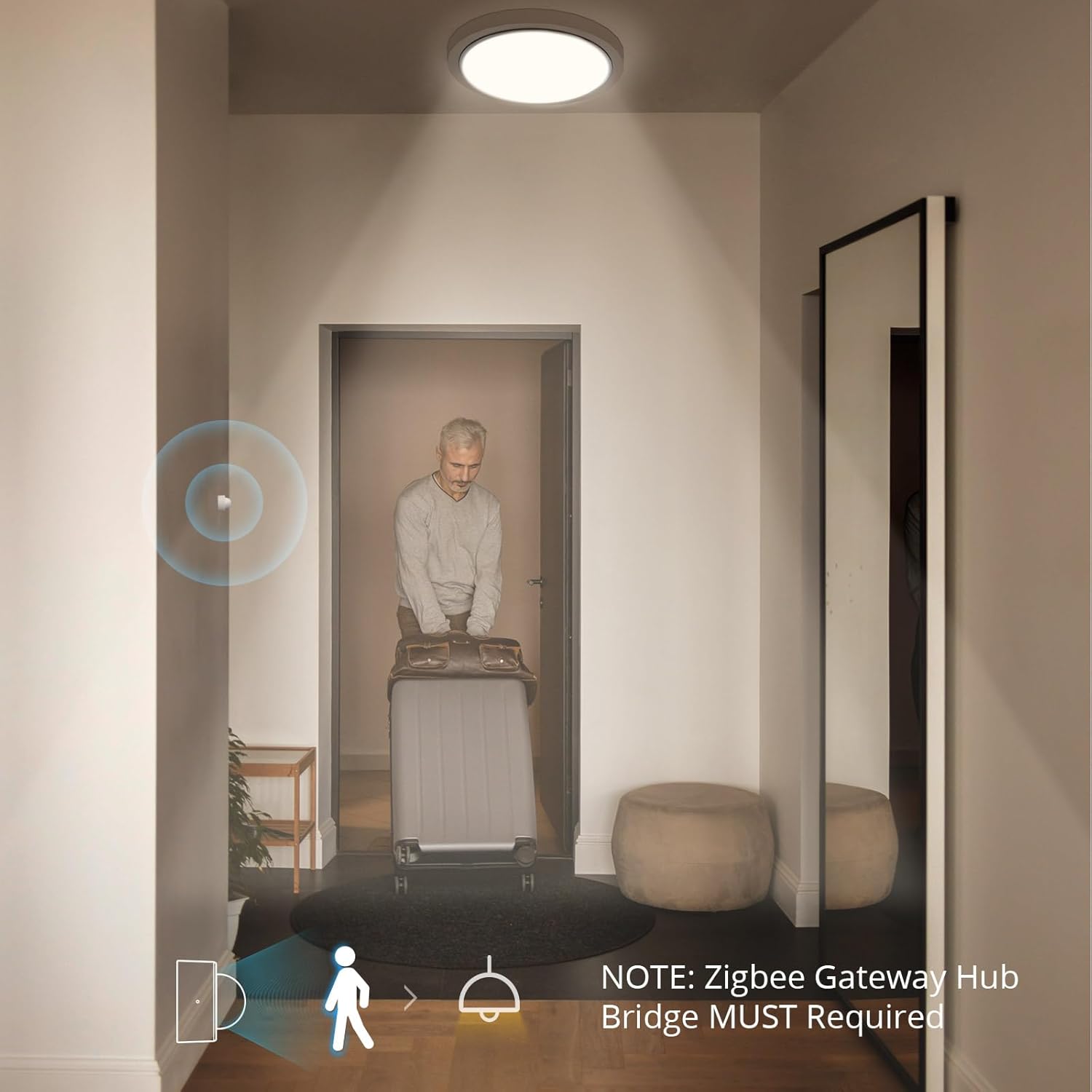
This image illustrates the sensor's ability to trigger smart home actions, such as turning on lights, upon detecting motion. A Zigbee Gateway Hub is essential for this functionality.
5. Nhazi
5.1. Ntinye batrị
The sensor uses a CR2045 Lithium metal battery. If the battery is not pre-installed, or if you need to replace it:
- Gently twist or open the sensor casing iji nweta oghere batrị.
- Insert the CR2045 battery, ensuring the correct polarity (+/-).
- Mechie ihe mmetụta casing nke ọma.
5.2. eWelink App Installation
Download and install the "eWelink" app on your smartphone from your device's app store (Google Play Store for Android or Apple App Store for iOS).
5.3. Pairing with Zigbee Gateway
Follow the instructions provided with your specific Zigbee Gateway Hub to add new Zigbee devices. Generally, the process involves:
- Ensure your Zigbee Gateway Hub is powered on and connected to your 2.4GHz Wi-Fi network.
- Open the eWelink app and navigate to your Zigbee Gateway Hub.
- Select the option to add a new sub-device or sensor.
- Activate the WOOLLEY Motion Sensor (this usually involves pressing a reset/pairing button on the sensor, refer to the sensor's specific pairing mode instructions if available).
- The app will search for and detect the sensor. Once found, follow the on-screen prompts to complete the pairing process.
6. Ntuziaka ọrụ
6.1. Nchọpụta ngagharị
Once paired, the sensor will automatically detect motion within its 6-meter range and 110° angle. When motion is detected, it sends a signal to your Zigbee Gateway Hub, which then communicates with the eWelink app.
6.2. Smart Scene Creation
You can create intelligent automation rules (smart scenes) within the eWelink app to link the motion sensor with other smart devices, such as lights or smart switches (e.g., Woolley Zigbee switch SA-034).
- In the eWelink app, go to the 'Scene' or 'Automation' section.
- Create a new scene.
- Set the condition: "When WOOLLEY Motion Sensor detects motion."
- Set the action: "Turn on/off [your smart light/switch]."
- You can also add time constraints (e.g., only activate between 17:00 and 06:00) or a delay for turning off the device after no motion is detected for a certain period (e.g., 60 seconds).

Utilize smart scenes to automate lighting based on motion detection, optimizing energy usage. For example, lights can turn on only when motion is detected during specific hours and turn off after a set period of inactivity.
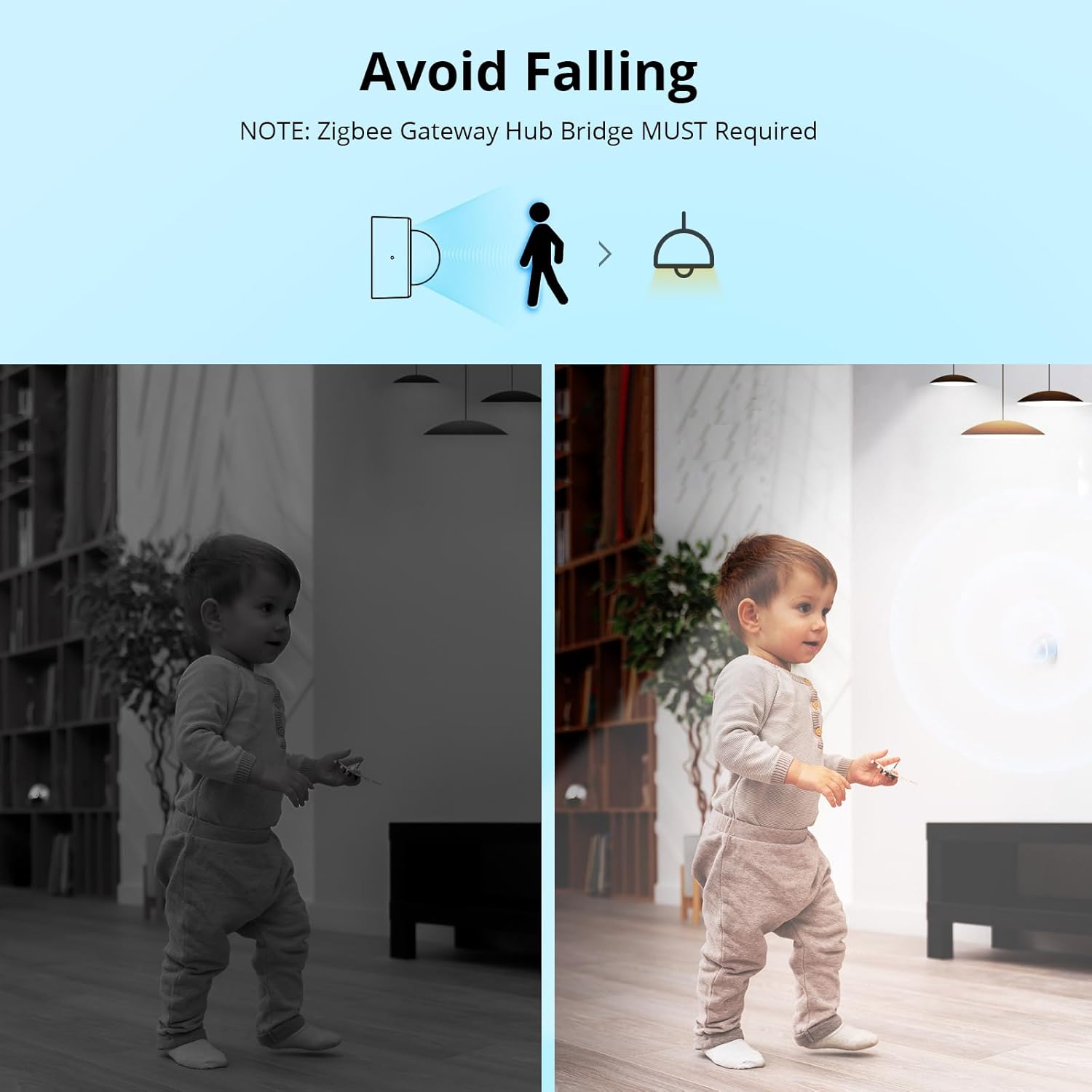
The motion sensor can improve safety by automatically illuminating areas when movement is detected, helping to prevent falls, especially in low-light conditions.
6.3. Camera Function Integration
The eWelink app allows you to integrate a separate camera (not included) with the motion sensor. This feature enables you to view ndu footage or recordings from your camera directly on the sensor's page within the app when motion is detected. This is useful for verifying alerts, especially for security purposes.
6.4. Kekọrịta njikwa
You can share control of your WOOLLEY Motion Sensor with family members or friends who also have an eWelink account. This allows multiple users to monitor and manage the device.
6.5. Ihe ndekọ akụkọ ihe mere eme
The eWelink app stores motion detection history for up to 3 months. You can review these records to track activity in your home, which can be helpful for security monitoring.

Enhance home security with instant notifications to your smartphone when the Zigbee Motion Sensor detects unexpected movement, even when you are away.
6.6. Low Battery Notification
The eWelink app will send a notification to your phone when the sensor's battery level drops to 10%, reminding you to replace the battery promptly to ensure continuous operation.

Receive timely notifications on your eWelink app when the sensor's battery level is low, ensuring continuous operation and security.
7. Ụzọ nwụnye
The compact design of the WOOLLEY Motion Sensor allows for flexible installation using the provided 3M adhesive pad. Consider the detection range and angle when choosing a location.
- Ịkwanye mgbidi: Ideal for hallways, staircases, or rooms to cover a wide area.
- N'okpuru Ngwongwo: Can be placed discreetly under beds or sofas for specific area monitoring.
- Entryways: Position near doors or windows to detect entry/exit.
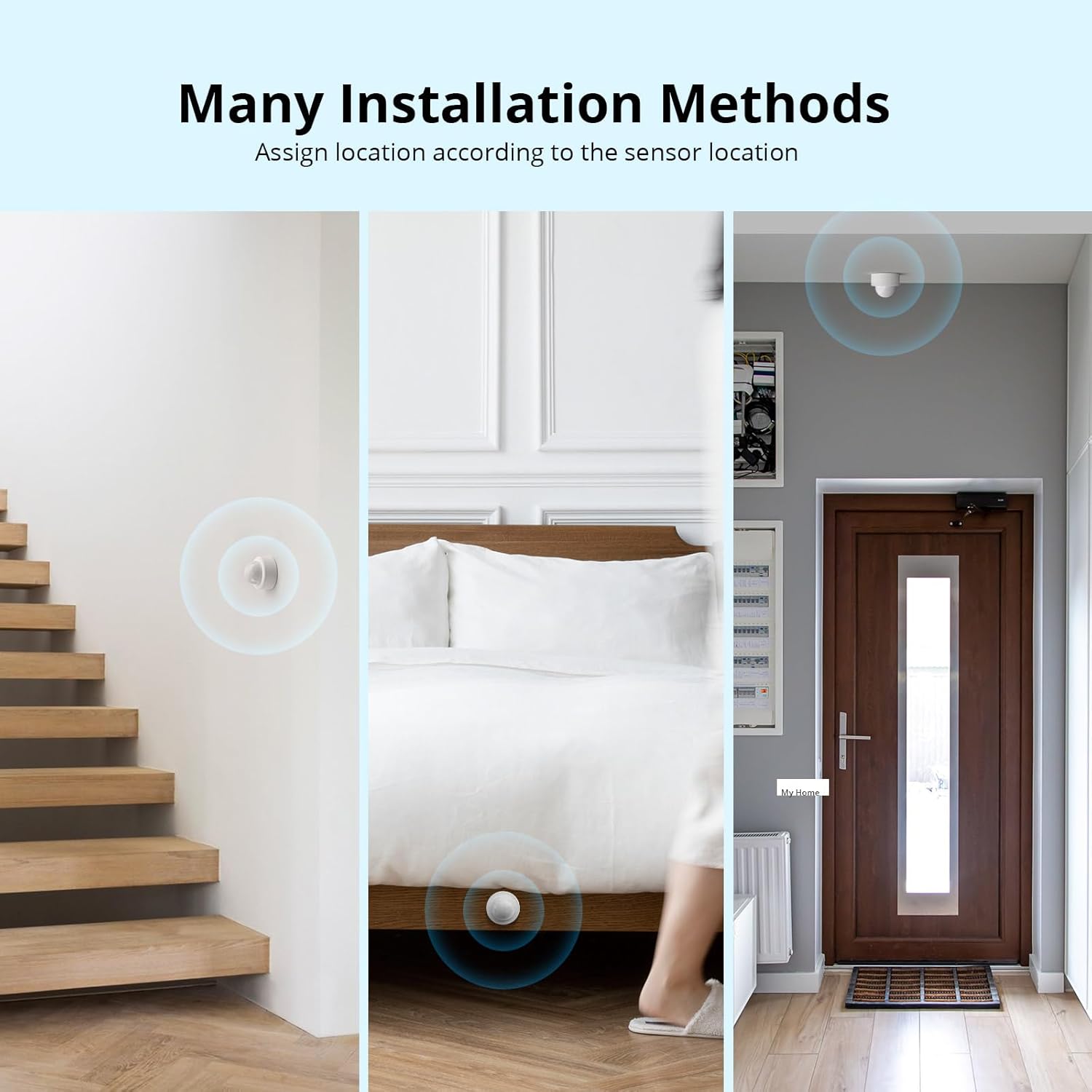
The compact design and adhesive mounting allow for versatile installation in various locations, such as hallways, bedrooms, or entryways, to suit your specific needs.
8. Nlekọta
8.1. Ngbanwe batrị
When you receive a low battery notification, replace the CR2045 battery promptly to ensure continuous operation. Follow the battery installation steps in Section 5.1.
8.2. Nhicha
To maintain optimal performance, periodically clean the sensor's lens and casing na akwa dị nro, kpọrọ nkụ. Zere iji ihe nhicha ma ọ bụ ihe mgbaze.
9. Nchọpụta nsogbu
- Sensor not detecting motion:
- Lelee ọkwa batrị wee dochie ma ọ dị mkpa.
- Ensure the sensor is placed within its effective detection range (6 meters) and angle (110°).
- Verify there are no obstructions blocking the sensor's view.
- Ensure the sensor is properly paired with the Zigbee Gateway Hub.
- Sensor not connecting to eWelink app:
- Confirm your Zigbee Gateway Hub is online and connected to a 2.4GHz Wi-Fi network.
- Restart your Zigbee Gateway Hub.
- Attempt to re-pair the sensor with the gateway.
- Ensure your eWelink app is updated to the latest version.
- Ndụ batrị dị mkpụmkpụ:
- Ensure you are using a fresh, high-quality CR2045 battery.
- Extreme temperatures (below -10℃ or above 40℃) can affect battery performance.
- Frequent motion detection in high-traffic areas may consume battery faster.
10. Nkọwapụta
| Oke | Uru |
|---|---|
| Nlereanya | ZBSA-MS |
| Protocol ikuku | Zigbee (IEEE 802.15.4) |
| Ụdị batrị | CR2045 (Lithium Metal) |
| Ntinye | 600mAh 3 V |
| Okpomọkụ na-arụ ọrụ | -10℃ ruo 40℃ (14°F ruo 104°F) |
| Ihe onwunwe | ABS |
| Anya nchọpụta | Ruo mita 6 |
| Akụkụ nchọpụta | 110° |
| Ụdị nkwụnye | Wall Mount (Adhesive) |
11. Akwụkwọ ikike na nkwado
For warranty information and technical support, please refer to the documentation provided with your purchase or contact WOOLLEY customer service through their official website or the eWelink app support section. Keep your purchase receipt as proof of purchase.


