Okwu mmalite
This manual provides essential information for the proper setup, operation, and maintenance of your Unitech TS100 2D Hands-Free Presentation Barcode Scanner. Please read this manual thoroughly before using the device to ensure optimal performance and to prevent damage.
The Unitech TS100 is an omnidirectional USB wired desktop barcode reader designed for efficient and intuitive scanning of 1D and 2D barcodes, including PDF417 and Data Matrix, in retail and other point-of-sale environments.
Ozi nchekwa
- Do not expose the scanner to extreme temperatures, humidity, or direct sunlight.
- Avoid dropping the scanner or subjecting it to strong impacts.
- Do not attempt to disassemble or modify the scanner. This will void the warranty.
- Jiri naanị eriri USB enyere maka njikọ.
- Keep the scanning window clean to ensure accurate barcode reading.
Ihe ngwugwu
Biko lelee ọdịnaya nke ngwugwu ahụ ka ị hụ na ihe niile dị:
- Unitech TS100 2D Presentation Barcode Scanner
- eriri USB
- Ntuziaka mmalite ngwa ngwa (ọ bụrụ na ọdabara)
Ngwaahịa gafereview
The Unitech TS100 features a compact design with a large scan window for easy barcode presentation. Its omnidirectional scanning capability allows for quick and efficient data capture.
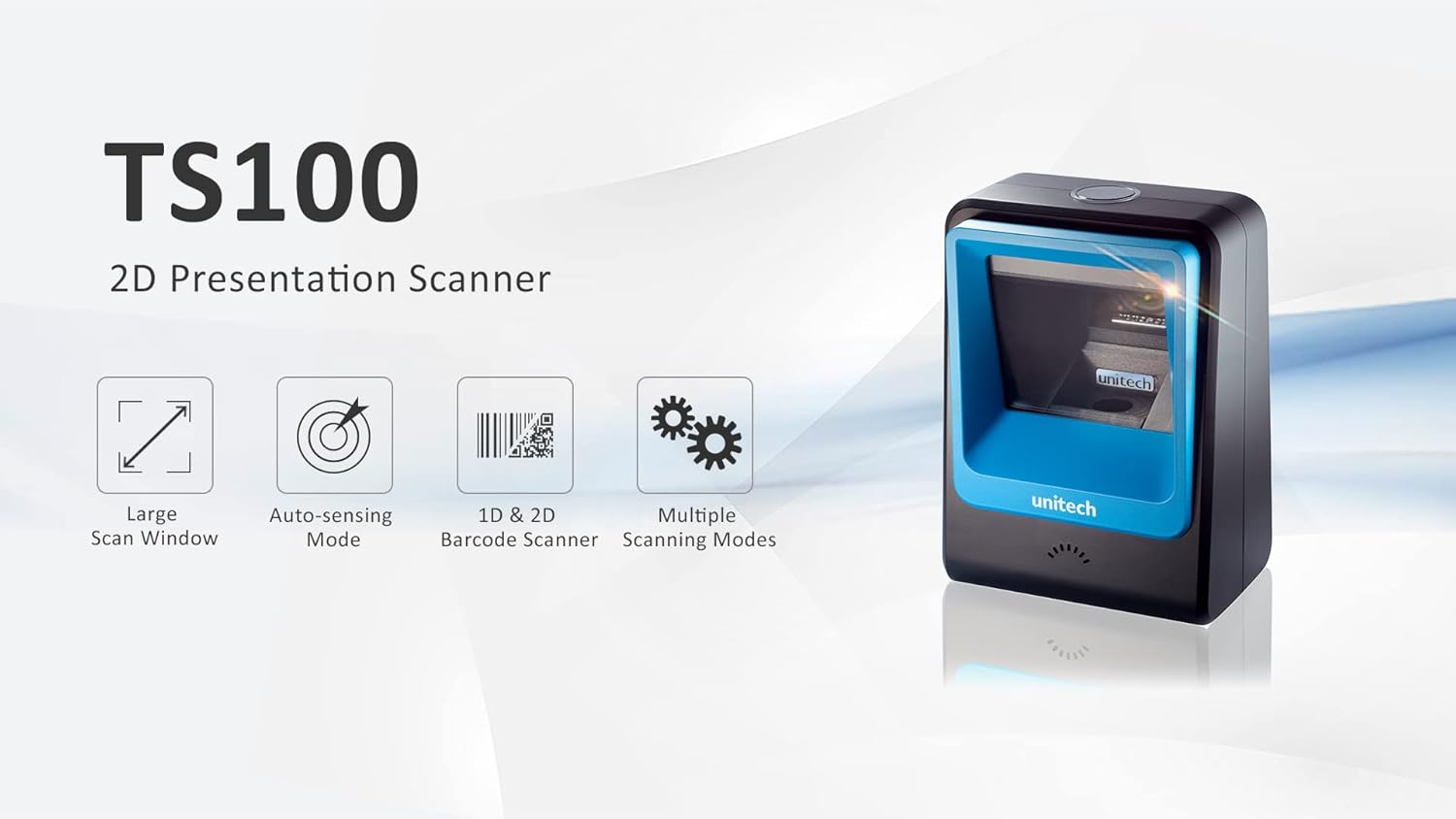
Figure 1: Unitech TS100 2D Presentation Scanner highlighting its large scan window, auto-sensing mode, 1D & 2D barcode scanning, and multiple scanning modes.

Foto 2: N'ihu view of the Unitech TS100 scanner, showing the blue scanning window and the Unitech logo.

Ọgụgụ 3: Azụ view of the Unitech TS100 scanner, displaying the product label with model number TS100-SUCB00-SG and power specifications.
Melite
Follow these steps to set up your Unitech TS100 barcode scanner:
- Mepee ihe nyocha: Carefully remove the TS100 scanner and its accessories from the packaging.
- Jikọọ eriri USB: Insert the USB cable into the port at the back of the scanner.
- Jikọọ na ngwaọrụ nnabata: Plug the other end of the USB cable into an available USB port on your computer, laptop, or POS system.
- Nwụnye ọkwọ ụgbọala: The scanner is typically plug-and-play. Your operating system should automatically detect and install the necessary drivers. Wait for the installation to complete.
- Ike Na: The scanner will power on automatically once connected to a powered USB port. A beep and/or LED indicator will confirm it is ready for use.
Ntuziaka ọrụ
The Unitech TS100 is designed for hands-free operation, offering multiple scanning modes for various applications.
Isi nyocha
- Place the barcode within the scanner's field of view, facing the scanning window.
- The scanner will automatically detect the barcode and emit a successful scan indication (e.g., a beep and/or green LED).
- The scanned data will be transmitted to your connected host device as keyboard input.
Ụdị nyocha
The TS100 supports multiple scanning modes to optimize performance for different barcode types and environments:
- Ụdị nkịtị: Standard scanning for most 1D and 2D barcodes.
- Smartphone Mode: Optimized for reading barcodes displayed on smartphone screens, which can sometimes be reflective.
- Ụdị ngwa ngwa: Designed for faster scanning of multiple barcodes in quick succession.
Refer to the full programming manual (available on the Unitech website) for instructions on how to switch between these modes using configuration barcodes.
Nlekọta
Proper maintenance ensures the longevity and performance of your scanner:
- Nhicha windo nyocha: Jiri akwa dị nro na nke enweghị mmiri ọkụ dampened with water or a mild, non-abrasive cleaner. Do not use harsh chemicals or abrasive materials.
- Na-ehicha Mpụga: Jiri akwa dị nro hichaa mpụta nke nyocha.
- Nchekwa: Mgbe ejighị ya, chekwaa nyocha ahụ n'ebe dị ọcha, kpọrọ nkụ pụọ na ìhè anyanwụ kpọmkwem na oke okpomọkụ.
Nchọpụta nsogbu
If you encounter issues with your TS100 scanner, refer to the table below for common problems and solutions:
| Nsogbu | Ihe nwere ike ime | Ngwọta |
|---|---|---|
| Scanner anaghị agbanye ọkụ. | USB cable not properly connected or host device USB port is not powered. | Ensure the USB cable is securely connected to both the scanner and the host device. Try a different USB port or host device. |
| Scanner does not read barcodes. | Barcode is damaged, poorly printed, or not supported. Scanning window is dirty. Incorrect scanning mode. | Ensure the barcode is clear and undamaged. Clean the scanning window. Verify the barcode symbology is supported. Try switching scanning modes (e.g., Smartphone Mode for screen barcodes). |
| Scanned data is incorrect or incomplete. | Poor barcode quality. Scanner configuration issues. | Ensure the barcode is clear. Refer to the programming manual for advanced configuration settings. |
| Scanner beeps but no data is transmitted. | Host device not recognizing the scanner as a keyboard input. | Ensure the cursor is in a text field on your host device. Reconnect the USB cable. Restart the host device. |
Nkọwapụta
Detailed technical specifications for the Unitech TS100 scanner:
| Njirimara | Nkọwapụta |
|---|---|
| Sensọ | Image Sensor with 1280x800 pixels |
| Ọkụ | 650nm RED LED |
| Ọnụego nyocha | 60fps |
| Skew Angle | Horizontal Angle: 50°; Vertical Angle: 35° |
| Akuku ịma ọkwa | ±65° |
| Mpịakọta mpịakọta | 360° |
| Mkpebi Ngwa | 1D: 4 mil; 2D: 6.7 mil |
| Printing Contrast Scale | 25% |
| Ọbịa Interface | USB |
| Akụkụ (L x W x H) | 4.1 na x 5.7 na x 2.7 na (105mm x 146mm x 70mm) |
| Ibu | 12.1 oz / 345g (without cable) |
| 1D Symbologies Supported | UPC-A/E, EAN-8/13, UPC/EAN Supplementals, EAN-8 Extend, Code 128, Code 39, Code 93, Code 11, Interleaved 2 of 5, Matrix 2 of 5, Codabar, MSI Plessey, GS1 DataBar, China Postal, Korean Postal, etc. |
| 2D Symbologies Supported | PDF417, MicroPDF417, DataMatrix, DataMatrix-Inverse, Maxicode, QRcode, MicroQR, Aztec, Aztec Inverse, Han Xin, Han Xin Inverse |
| Ihe ngosi | LED, Buzzer |
| Okpomọkụ na-arụ ọrụ | 32°F ruo 122°F (0°C ruo 50°C) |
| Okpomọkụ nchekwa | -40°F ruo 158°F (-40°C ruo 70°C) |
| Iru mmiri dị nso | 0% ruo 95% na-abụghị condensing |
Akwụkwọ ikike na nkwado
The Unitech TS100 barcode scanner main unit comes with a 1-afọ akwụkwọ ikike site na ụbọchị ịzụrụ. Akwụkwọ ikike a na-ekpuchi ntụpọ dị na ngwa na arụ ọrụ n'okpuru ojiji nkịtị.
For technical support, warranty claims, or further assistance, please contact Unitech customer service or visit the official Unitech website. Keep your purchase receipt as proof of purchase for warranty services.
Unitech America Websaịtị: www.unitechamerica.com


