Okwu mmalite
This manual provides comprehensive instructions for the safe and effective use of your Insta360 GPS Action Remote. Please read this manual thoroughly before operating the device to ensure optimal performance and longevity.
Ozi nchekwa dị mkpa
- Do not attempt to disassemble or modify the remote. This may cause damage and void the warranty.
- Keep the remote away from extreme temperatures, direct sunlight, and corrosive liquids.
- Hụ na ọdụ chaja kpọrọ nkụ tupu ijikọ eriri USB.
- While the remote is waterproof, it is not designed for prolonged underwater use, especially where GPS signals may be negatively affected.
- Jiri naanị eriri nchaji enyere ma ọ bụ ihe dabara adabara.
Ihe ngwugwu
Nyochaa na etinyere ihe niile edepụtara n'okpuru na ngwugwu gị:
- 1x Insta360 GPS Action Remote
- USB USB Nchaji USB 1x
- 1 x eriri aka
- 1 x clamp (for selfie stick attachment)
- 1 x Akwụkwọ ntuziaka onye ọrụ (akwụkwọ a)
This image displays the Insta360 GPS Action Remote along with its included accessories: a wrist strap and a clamp, illustrating the typical contents found in the product packaging.
Ngwaahịa gafereview
The Insta360 GPS Action Remote is designed to provide convenient remote control for your Insta360 action cameras, along with integrated GPS data recording.

N'ihu view of the remote, highlighting its display screen and large red control button.

N'azụ view of the remote, showcasing the integrated mounting plate for accessories.
Akụkụ ndị bụ isi:
- Njikọ Bluetooth: Connects wirelessly to compatible Insta360 cameras.
- GPS Data Recording: Records speed, altitude, and direction metadata with your video and photos.
- Remote Wake: Ability to wake up your camera remotely.
- Nhazi mgbochi mmiri: Waterproof up to 5m (16ft) deep.
- Ogologo ndụ batrị: Built-in Li-ion battery provides extended usage.
Melite
1. Charging the Remote
Before first use, fully charge the remote. Connect the provided USB charging cable to the remote's charging port and a USB power source. The display will indicate charging status. A full charge takes approximately two hours.
2. Pairing with Insta360 Cameras
The remote connects to your Insta360 camera via Bluetooth 5.0 for a fast and stable connection.
- Ensure your Insta360 camera (X3, ONE X2, ONE RS, ONE R) is powered on and Bluetooth is enabled.
- On the remote, navigate to the pairing menu (refer to the remote's on-screen instructions).
- Select your camera from the list of available devices to establish a connection.
- Once paired, the remote's display will show connection strength and camera status.
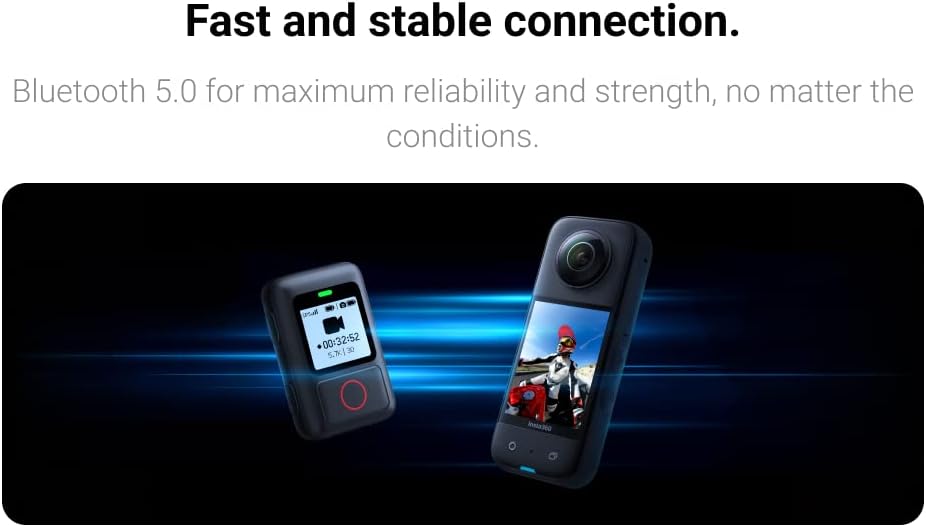
This image depicts the GPS Action Remote establishing a fast and stable Bluetooth connection with an Insta360 camera.
3. Attaching the Remote
The remote offers flexible attachment options for various scenarios.
- eriri aka: Use the included wrist strap to wear the remote on your wrist for easy access during activities.
- Clamp: Attach the remote to a selfie stick, handlebars, or other compatible mounts using the provided clamp.

This image illustrates various attachment methods for the remote, including wearing it on the wrist and mounting it on a bicycle handlebar.
Ntuziaka ọrụ
Njikwa ntọala
The large accessible buttons on the remote allow for intuitive control of your camera.
- Bọtịnụ ike: Press and hold to power on/off. Short press to wake/sleep.
- Record Button (Red Circle): Press to start or stop video recording, or to capture a photo.
- Bọtịnụ igodo nsoroụzọ: Use the side buttons (if present) to navigate menus and adjust camera settings displayed on the remote's screen.
The remote's display shows essential information such as clip record duration, battery level of both the remote and the camera, and connection strength indicators.
GPS Functionality and Data Recording
The remote receives GPS data (GPS, BD, Galileo, GLONASS) and sends it to the camera, saving it with your video and photo metadata. This allows for tracking speed, altitude, and direction.

This image demonstrates how the GPS Action Remote enables the recording of accurate GPS data, which can be overlaid onto video footage.

This image visually represents the real-time GPS data acquisition by the remote, ensuring accurate location tracking.
Mara: GPS signals may be negatively affected underwater or in areas with limited satellite visibility (e.g., dense urban canyons, indoors).
Remote Wake Feature
Even when your camera is off, the remote can wake it up with ease, allowing you to start recording without physically accessing the camera.
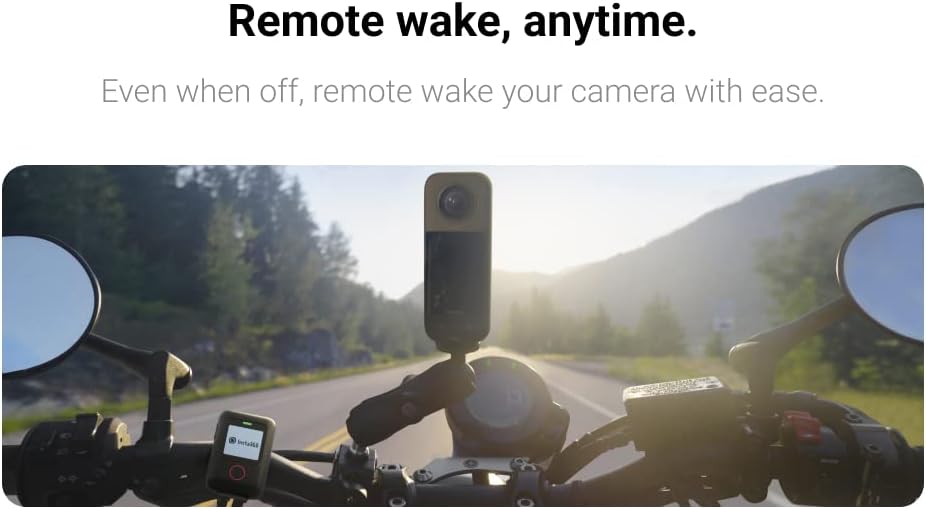
This image illustrates the remote wake feature, allowing users to activate their camera remotely, even when it's powered off.
One-Touch Upload to Google Street View
Videos and photos recorded with location metadata can be easily uploaded to Google Street View via the Insta360 smartphone app, enhancing your immersive content sharing.
Nlekọta
Nhicha
Wipe the remote with a soft, damp cloth. Do not use harsh chemicals or abrasive materials. Ensure the charging port is clean and free of debris.
Nlekọta batrị
To prolong battery life, avoid fully discharging the remote frequently. Store the remote with a partial charge if not used for extended periods.
Waterproof Considerations
The remote is waterproof up to 5m (16ft). However, it is not designed for prolonged underwater use, and GPS signals are negatively affected in water. Always ensure the charging port cover is securely closed before exposure to water.
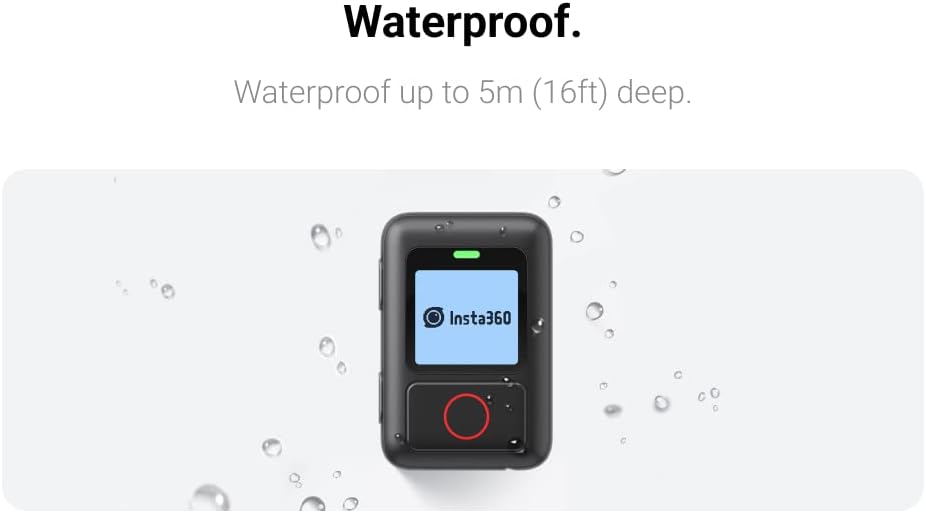
This image highlights the waterproof design of the remote, capable of withstanding splashes and submersion up to 5 meters.
Nchọpụta nsogbu
| Nsogbu | Ihe nwere ike ime | Ngwọta |
|---|---|---|
| Remote not connecting to camera. | Bluetooth is off on camera/remote; remote/camera out of range; interference. | Ensure Bluetooth is on for both devices. Bring devices closer. Restart both devices. Re-pair the remote and camera. |
| Inaccurate or no GPS data. | Poor satellite signal (indoors, dense areas); remote not acquiring signal. | Move to an open outdoor area. Wait for the remote to acquire a strong GPS signal (indicated on display). |
| Ndụ batrị dị mkpụmkpụ. | Frequent use of GPS; aging battery; incomplete charging. | Ensure full charge before use. Reduce GPS usage if not critical. Battery may need replacement if significantly degraded. |
| Remote not turning on. | Batrị agwụla. | Charge the remote for at least 30 minutes. If still unresponsive, contact support. |
Nkọwapụta
| Njirimara | Nkọwa |
|---|---|
| Nọmba nlereanya | CINSAAV/A-ALT1 |
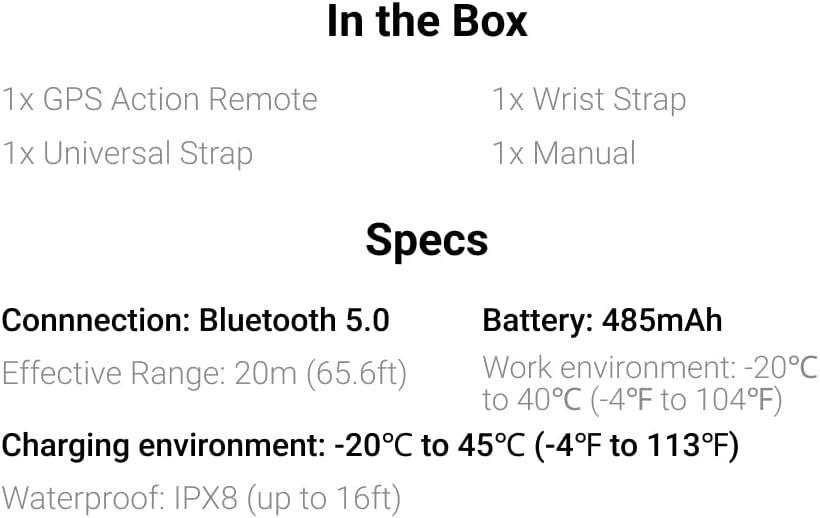
| Njikọta | Bluetooth 5.0 |
| Ngwa dakọtara | Insta360 X3, ONE X2, ONE RS, ONE R, GO 3S/GO 3, X5/X4, ACE/ACE PRO/ACE PRO 2 |
| Ụdị batrị | Built-in Li-ion (485mAh) |
| Oge Nchaji | Ihe ruru. awa 2 |
| Ndụ batrị | Ihe ruru. awa 24 |
| Oke dị irè | 20m (65.6 ft) |
| Ngosi nke enweghị mmiri | IPX8 (up to 5m / 16ft) |
| Okpomọkụ na-arụ ọrụ | -20°C ruo 40°C (-4°F ruo 104°F) |
| Nchaji okpomọkụ | -20°C ruo 45°C (-4°F ruo 113°F) |
| Akụkụ | 7.28 x 3.98 x 2.99 inch (Ngwugwu) |
| Ibu | 5.6 ounces |
This image provides a quick overview of the remote's key specifications, such as connectivity, battery capacity, and waterproof rating.
Akwụkwọ ikike na nkwado
Insta360 products come with a standard manufacturer's warranty. For detailed warranty terms and conditions, please refer to the warranty card included with your product or visit the official Insta360 websaịtị.
For technical support, troubleshooting assistance, or service inquiries, please contact Insta360 Customer Service through their official websaịtị ma ọ bụ ozi kọntaktị enyere na nkwakọ ngwaahịa gị.
Akụrụngwa dị n'ịntanetị:


