1. Okwu mmalite
Thank you for choosing the DELTACO Gaming PM80 Wireless Optical Gaming Mouse. This manual provides essential information for setting up, operating, and maintaining your new gaming mouse. Please read these instructions carefully before use to ensure optimal performance and longevity of your device.
2. Ihe ngwugwu
- DELTACO Gaming PM80 Wireless Optical Gaming Mouse
- Ihe nnata ikuku ikuku USB
- Igwe nchaji USB
- Akwụkwọ ntuziaka onye ọrụ
3. Ngwaahịa gafereview
The DELTACO Gaming PM80 is a high-performance wireless optical gaming mouse designed for precision and comfort. It features 7 programmable buttons, adjustable DPI up to 4800, and customizable illumination. The mouse is rechargeable, ensuring uninterrupted gaming sessions.
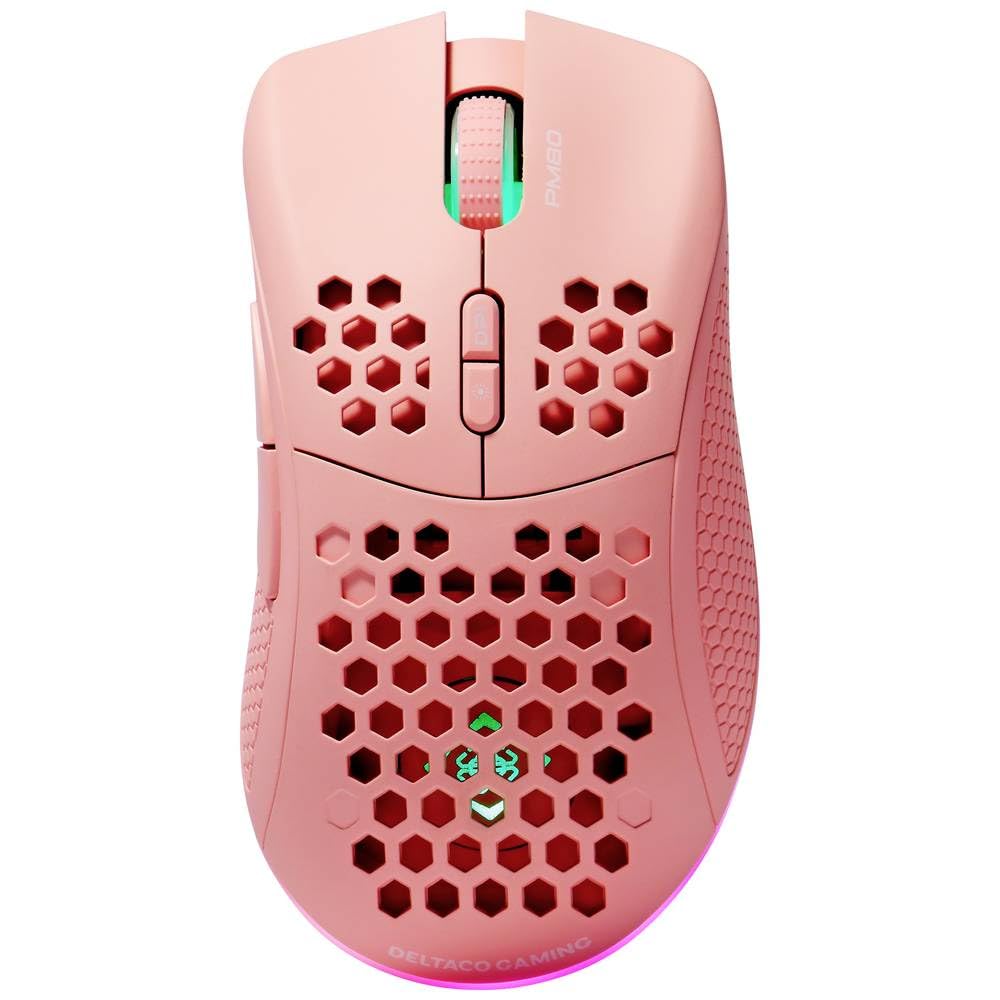
Image: DELTACO Gaming PM80 Wireless Optical Gaming Mouse. This image displays the mouse from a top-down perspective, highlighting its ergonomic design, the central scroll wheel, and the arrangement of its seven buttons.
Ọrụ bọtịnụ:
- Bọtịnụ Pịa aka ekpe: Standard isi pịa ọrụ.
- Pịa aka nri bọtịnụ: Ọkọlọtọ nke abụọ pịa ọrụ.
- Mpempe akwụkwọ mpịakọta: Scrolls up/down, and acts as a middle click button.
- Bọtịnụ okirikiri DPI: Changes the mouse's sensitivity (DPI).
- Bọtịnụ mbugharị: Na-aga n'ihu web ihe nchọgharị ma ọ bụ file ndị na-eme nchọpụta.
- Bọtịnụ azụ: Na-agagharị azụ n'ime web ihe nchọgharị ma ọ bụ file ndị na-eme nchọpụta.
- Illumination Mode Button: Cycles through different lighting effects or turns illumination on/off.
4. Nhazi
4.1. Ịchaji òké
- Connect the small end of the USB charging cable to the charging port on the front of the mouse.
- Connect the larger end of the USB charging cable to an available USB port on your computer or a USB wall adapter.
- The mouse's illumination will indicate charging status (e.g., breathing effect, specific color). A full charge typically takes 2-3 hours.
- Once fully charged, the illumination may change or turn off. Disconnect the charging cable.
4.2. Connecting the USB Wireless Receiver
- Locate the USB wireless receiver, usually stored in a compartment on the underside of the mouse.
- Remove the receiver from its storage slot.
- Tinye ihe nnata ikuku USB n'ime ọdụ USB dị na kọmputa gị.
- Kọmputa gị kwesịrị ịchọpụta na wụnye ndị ọkwọ ụgbọala dị mkpa na-akpaghị aka. Nke a nwere ike iwe obere oge.
4.3. Ịgbanye / gbanyụọ
- Chọta mgba ọkụ n'okpuru òké.
- Slide the switch to the 'ON' position to power on the mouse. The illumination will light up.
- To conserve battery life, slide the switch to the 'OFF' position when the mouse is not in use for extended periods.
5. Ntuziaka ọrụ
5.1. Isi ojiji
Once connected and powered on, the mouse is ready for use. Move the mouse on a flat surface to control the cursor on your screen. Use the left and right click buttons for primary and secondary actions, and the scroll wheel for navigation.
5.2. DPI mmezi
The DPI (Dots Per Inch) setting determines the sensitivity of your mouse. The DELTACO Gaming PM80 offers multiple DPI levels up to 4800 DPI. To adjust the DPI:
- Pịa Bọtịnụ okirikiri DPI (typically located behind the scroll wheel).
- Each press will cycle through the available DPI settings. The mouse's illumination may change color or flash to indicate the current DPI level.
- Select the DPI setting that best suits your preference for gaming or general use.
5.3. Njikwa ọkụ
The DELTACO Gaming PM80 features customizable illumination. To change the lighting effects:
- Pịa Illumination Mode Button (refer to Product Overview maka ebe).
- Each press will cycle through different lighting modes, such as static colors, breathing effects, or off.
6. Nlekọta
6.1. Nhicha
- Hụ na òké ahụ agbanyụrụ ọkụ tupu ị sachaa ya.
- Jiri ákwà dị nro, kpọrọ nkụ, nke na-enweghị lint hichaa elu òké ahụ.
- Maka unyi isi ike, ntakịrị dampen akwa na mmiri ma ọ bụ dị nwayọọ, na-adịghị abrasive Cleaner. Zere oke mmiri mmiri.
- Ejila kemịkalụ siri ike, ihe mgbaze, ma ọ bụ ihe abrasive, n'ihi na ndị a nwere ike imebi njedebe òké ahụ.
- Jiri ákwà owu ma ọ bụ ikuku a kpọchiri akpọchi hichaa gburugburu wiil mpịakọta na oghere bọtịnụ.
6.2. Nchekwa
When not in use for extended periods, store the mouse in a cool, dry place away from direct sunlight and extreme temperatures. Ensure the power switch is in the 'OFF' position to preserve battery life.
7. Nchọpụta nsogbu
- Òké anaghị aza:
- Gbaa mbọ hụ na agbanyere òké ahụ.
- Lelee ma ọ bụrụ na e tinyere ihe nnata ikuku USB n'ime ọdụ ụgbọ USB na-arụ ọrụ nke ọma.
- Verify the mouse battery is charged. Connect the charging cable and try again.
- Gbalịa itinye ihe nnata n'ọdụ ụgbọ mmiri USB dị iche.
- Malitegharịa ekwentị gị na kọmputa.
- Njikọ nkwụsịtụ ma ọ bụ nke na-adịghị arụ ọrụ:
- Ensure the mouse is within close proximity to the USB receiver (ideally within 10 meters).
- Zere itinye ihe nnata nso ngwaọrụ ikuku ndị ọzọ ma ọ bụ ihe ndị na-akpata nsogbu (dịka ọmụmaatụ, rawụta Wi-Fi, ekwentị enweghị waya).
- Hụ na òké ahụ nwere ike ịchaji nke ọma.
- Mmegharị cursor adịghị agbanwe agbanwe ma ọ bụ nke na-ezighi ezi:
- Jiri akwa dị nro hichaa ihe mmetụta anya dị n'okpuru òké ahụ.
- Hụ na ị na-eji òké ahụ n'elu ebe kwesịrị ekwesị (dịka ọmụmaatụ, pad òké). Zere elu na-egbukepụ egbukepụ ma ọ bụ nke na-apụta ìhè nke ukwuu.
- Hazie ntọala DPI ka ọ dị obere mmetụta ma ọ bụrụ na kọsọ ahụ dị oke ọsọ.
- Illumination not working:
- Gbaa mbọ hụ na agbanyere òké ahụ.
- Press the Illumination Mode Button to cycle through modes, ensuring it's not set to 'off'.
- Check battery level; low battery might disable illumination.
8. Nkọwapụta
| Njirimara | Nkọwa |
|---|---|
| Ụdị | Egwuregwu DELTACO |
| Nọmba nlereanya | GAM-120-P |
| Njikọta | Ikuku (USB nnata) |
| Ụdị ihe mmetụta | Ngwa anya |
| DPI | Ruo 4800 DPI (nwere ike idozi) |
| Ọnụọgụ bọtịnụ | 7 |
| Ntuzi aka | Right |
| Ọkụ | Ee |
| Enwere ike ibugharị | Ee |
| Batrị achọrọ | No (Internal Rechargeable) |
9. Akwụkwọ ikike na nkwado
For warranty information and technical support, please refer to the warranty card included with your product or visit the official DELTACO Gaming websaịtị. Debe ihe akaebe nke ịzụrụ ihe maka akwụkwọ ikike ọ bụla.


