1. Okwu mmalite
Ngwaahịa gafereview
The Insta360 GPS Action Remote provides precise control and accurate GPS data for your Insta360 camera. It features a fast and stable Bluetooth 5.0 connection for maximum reliability. Real-time GPS data, including GPS, BD, Galileo, and GLONASS, work in tandem to provide an accurate and super low-latency feed. The remote supports remote wake functionality, allowing you to wake your camera with ease even when it's off. It is waterproof up to 5 meters (16 feet) deep and offers flexible attachment options to suit various shooting scenarios.
Kedu ihe gụnyere
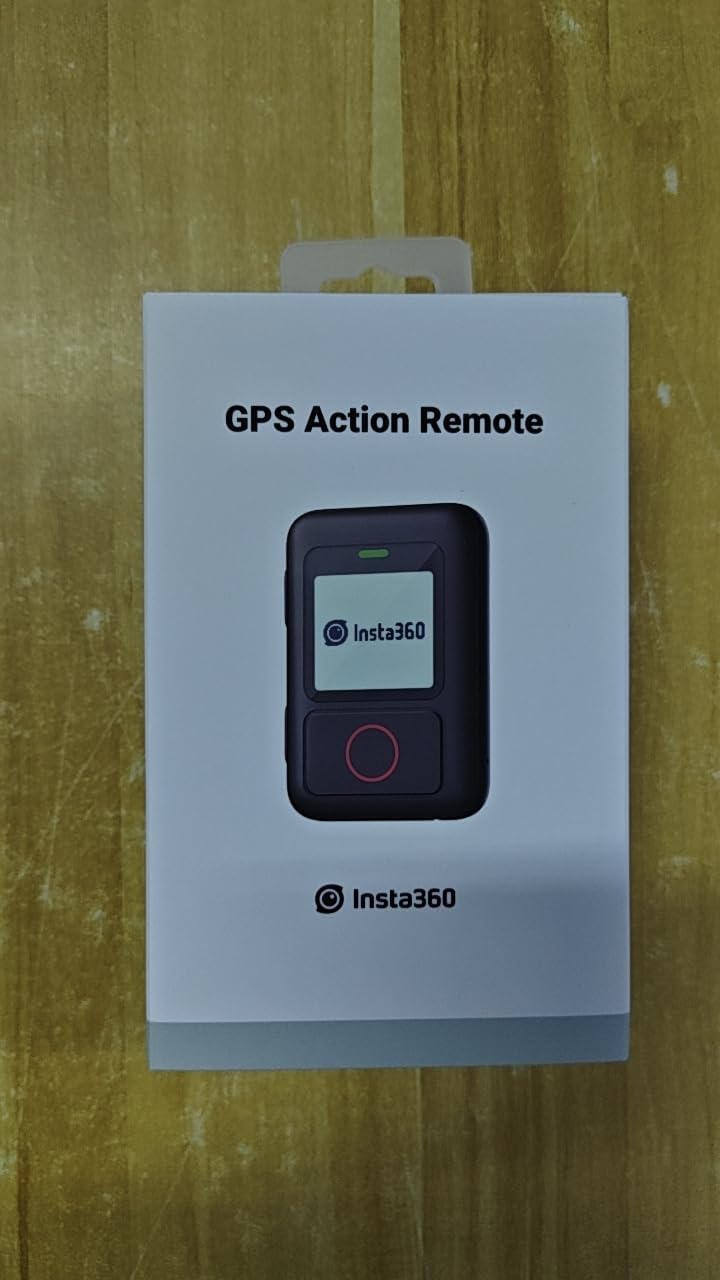
- Insta360 GPS Action Remote

N'ihu view of the Insta360 GPS Action Remote, showing the display and red shutter button.
- Eriri aka
The remote attached to a wrist strap, ready for wearable use.
- eriri Selfie Stick

The remote with the strap designed for attachment to a selfie stick or similar accessory.
- USB Type-C Nchaji USB
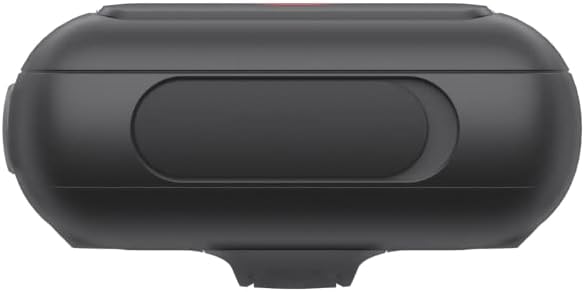
N'elu view of the remote, highlighting the USB-C charging port.
2. Nhazi
Ịchaji Remote
Before first use, fully charge the GPS Action Remote using the provided USB Type-C cable. Connect the cable to the remote's USB-C port and a compatible power source.
Ejikọta eriri
The remote comes with two types of straps for versatile mounting:
- eriri aka: Ideal for wearing the remote on your wrist for quick access. Thread the wrist strap through the slot on the back of the remote until it is securely in place.
- Selfie Stick/Handlebar Strap: Use this strap to attach the remote to a selfie stick, bicycle handlebars, or other cylindrical objects. Securely fasten the strap around the object and the remote.

Illustration showing the flexible attachment options for the remote, including wrist and handlebar mounting.
Pairing with Camera
To pair the GPS Action Remote with your Insta360 camera, follow these steps:
- Turn on your Insta360 camera.
- Turn on the GPS Action Remote by pressing the power button on its side.
- On your camera, swipe down from the top to access the shortcut menu.
- Select the Bluetooth remote icon. The camera will start searching for available remotes.
- On the GPS Action Remote, navigate to the pairing menu and select 'Pair New'.
- On the camera's screen, select 'Insta360 GPS Remote' from the list of found devices.
- Confirm the connection. Once the camera screen displays 'Connected', pairing is successful.
For a visual guide on pairing, please refer to the official quick guide video below:
Official Insta360 GPS Remote Quick Guide video, demonstrating pairing and basic usage.
3. Ntuziaka ọrụ
Njikwa ntọala
- Bọtịnụ ike: Located on the side, press and hold to turn the remote on/off.
- Bọtịnụ ụkpụrụ: Located on the side, press to cycle through different shooting modes (e.g., Photo, Video, TimeShift, Loop Record).
- Bọtịnụ mkpuchi: The large red button on the front. Press to capture photos or start/stop video recording.
Ụdị mgbanwe
Use the Mode button to select your desired shooting mode on the remote. The selected mode will be displayed on the remote's screen and synchronized with your connected Insta360 camera.
Real-time GPS Data
The remote utilizes GPS, BD, Galileo, and GLONASS for accurate and low-latency real-time GPS data. This data can be used for location overlays in your videos during post-production.
Illustration depicting the remote's ability to provide real-time GPS data for accurate tracking.
Remote Wake Function
The remote can remotely wake up your camera even when it is powered off. Ensure the Bluetooth Wakeup function is enabled in your camera's settings for this feature to work.
Visual representation of the remote's ability to wake up the camera from a distance.
4. Nlekọta
Ntuziaka mgbochi mmiri
The Insta360 GPS Action Remote is waterproof up to 5 meters (16 feet). However, it should ọ bụghị be used underwater for extended periods or continuous submersion. Ensure the USB-C port cover is securely closed before exposing the remote to water.
Nhicha na Nchekwa
- Clean the remote with a soft, dry cloth. If necessary, a slightly damp cloth can be used, but ensure no moisture enters the ports.
- Debe ihe eji emechi ihe n'ebe dị jụụ ma kpọọ nkụ, ebe anwụ na-anaghị anwụ kpọmkwem na oke okpomọkụ dị oke njọ.
- When storing for long periods, ensure the remote is partially charged (around 50%) to preserve battery health.
5. Nchọpụta nsogbu
Okwu na ngwọta nkịtị
- Connection Breaks/Loss: If the remote frequently loses connection with the camera, ensure both devices have sufficient battery. Try re-pairing the remote with the camera. Ensure there are no significant obstructions or excessive distances between the remote and the camera.
- GPS Data Inaccuracy/Missing: For accurate GPS data, ensure the remote has a clear line of sight to the sky. Performance may be affected in areas with tall buildings, dense foliage, or indoors. Update the remote's firmware to the latest version via the Insta360 app.
- Remote Not Waking Camera: Verify that the 'Bluetooth Wakeup' function is enabled in your camera's settings. Ensure both devices are within range and have adequate battery.
- Batrị na-agbapụta ngwa ngwa: The Bluetooth Wakeup function, while convenient, can increase battery consumption. If not needed, disable it in the camera settings. Ensure the remote is fully charged before use.
6. Nka na ụzụ nkọwa
| Njirimara | Nkọwapụta |
|---|---|
| Akụkụ ngwaahịa | 19.69 x 19.69 x 11.02 sentimita asatọ |
| Ibu Ibu | 2.65 ounces |
| ASIN | B0BP75DD63 |
| Nọmba ihe nlereanya | CINSAAVA |
| Batrị | 1 batrị lithium ion chọrọ. (gụnyere) |
| Ụbọchị mbụ dị | Disemba 6, 2022 |
| Onye nrụpụta | Ụlọ ọrụ Arashi Vision Inc. |
| Ụdị | Insta360 |
| Njirimara Pụrụ Iche | Waterproof |
| Teknụzụ Njikọta | Bluetooth |
| Ụdị nkwụnye | Ugwu mgbidi |
| Ike Nchekwa ebe nchekwa | 500 GB |
| Ntinye Interface mmadụ | Bọtịnụ |
| Ngwa dakọtara | Insta360 G0 3 X3 ONE X2 ONE RS |
| Usoro njikwa | Ime ime |
| Agụnyere batrị | Ee |
7. Akwụkwọ ikike na nkwado
Ozi akwụkwọ ikike
Specific warranty details for the Insta360 GPS Action Remote are typically provided with the product packaging or available on the official Insta360 websaịtị. Biko gaa na ebe ndị a maka usoro na ọnọdụ nkwa kachasị zie ezi na nke kachasị ọhụrụ.
Nkwado ndị ahịa
For further assistance, technical support, or service inquiries, please visit the official Insta360 support page or contact their customer service directly. Contact information and support resources can usually be found on the manufacturer's websaịtị.


