Okwu mmalite
This manual provides detailed instructions for the Strex Bluetooth 2-in-1 Transmitter and Receiver, Model SP173. This versatile device allows you to wirelessly transmit or receive audio signals, enhancing your audio experience with various devices.
The Strex Bluetooth adapter supports both Ntughari (TX) na Onye nnata (RX) modes, utilizing Bluetooth 5.0 technology for stable, high-quality audio transmission.
Ihe ngwugwu
- Strex Bluetooth 2-in-1 Audio Transmitter/Receiver
- Igwe ọkụ USB Micro
- Igwe okwu ọdịyo 3.5mm AUX
- 3.5mm ruo RCA Cable
- Akwụkwọ ntuziaka (akwụkwọ a)

Ngwaọrụ agwụlaview
Familiarize yourself with the various components and ports of your Strex Bluetooth adapter.

- Mgbanwu ma ọ bụ gbanyụọ: Na-agbanye ngwaọrụ ahụ ma ọ bụ gbanyụọ.
- Mode Switch (RX/TX): Selects between Receiver (RX) and Transmitter (TX) modes.
- Ikanam ọnọdụ: Indicates power, pairing, and connection status.
- Ọdụ USB Nchaji Port: Maka ịchaji batrị dị n'ime.
- 3.5mm Audio Input/Output: Connects to audio sources or output devices using the provided cables.
Ntọala na arụ ọrụ
Ịchaji ngwaọrụ
Before first use, ensure the device is fully charged. Connect the Micro USB power cable to the charging port on the adapter and the other end to a USB power source (e.g., computer USB port, USB wall adapter).
- A full charge takes approximately 90 nkeji.
- The device provides up to 6-8 awa of continuous playtime on a single charge.

Ụdị nnata (RX).
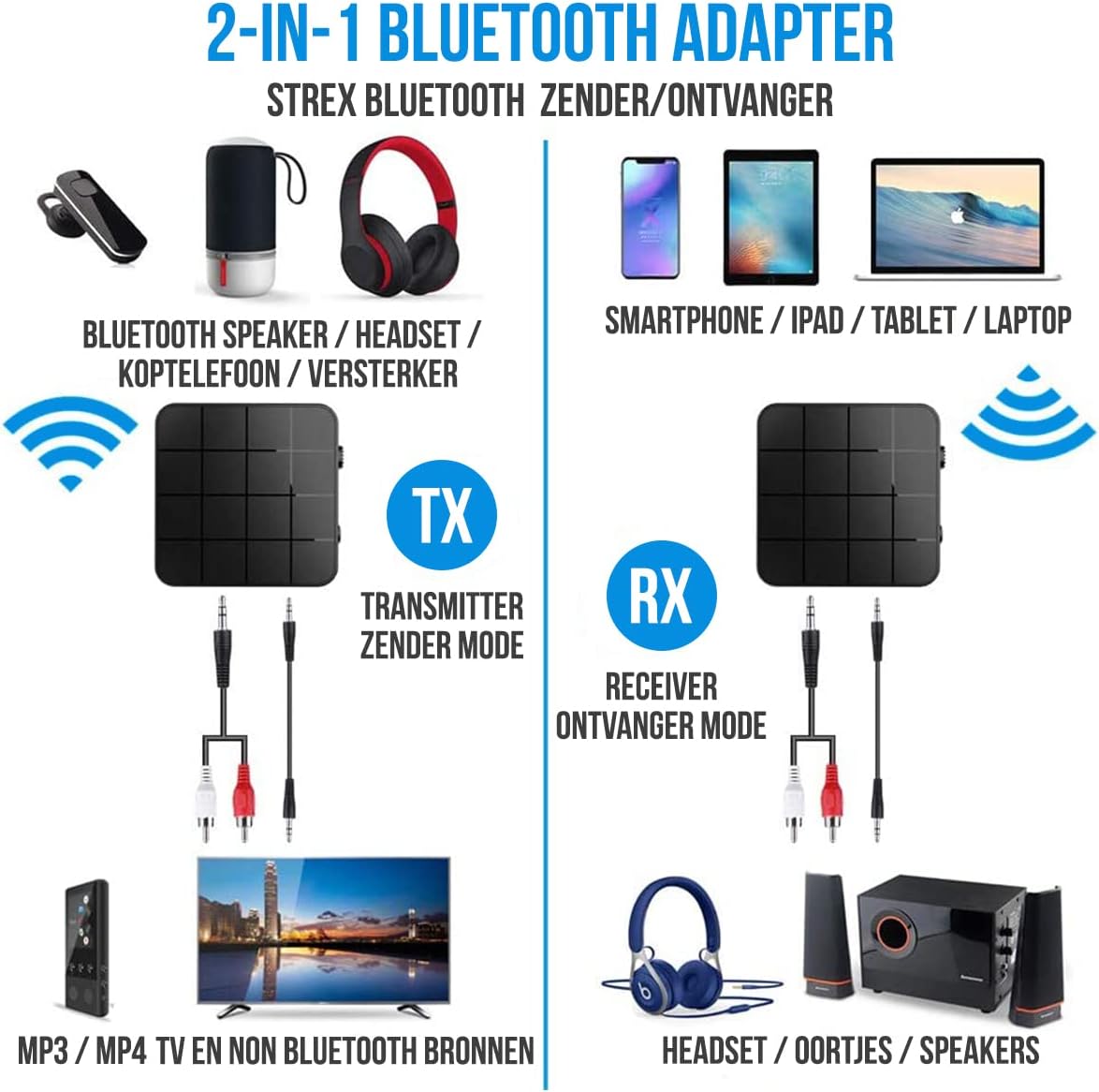
In RX mode, the Strex adapter receives audio wirelessly from a Bluetooth-enabled device (e.g., smartphone, tablet) and outputs it to a non-Bluetooth audio system (e.g., wired speakers, car stereo).
- Gbanwee ngwaọrụ gaa na Ụdị RX using the mode selector switch.
- Connect the Strex adapter to your non-Bluetooth audio system using either the 3.5mm AUX USB ma ọ bụ 3.5mm ka eriri RCA.
- Power on the Strex adapter. The Status LED will indicate pairing mode (typically blinking blue).
- On your Bluetooth-enabled device (e.g., smartphone), go to Bluetooth settings and search for available devices. Select "Strex" (or similar name) to pair.
- Once paired, the Status LED will show a solid blue light. You can now stream audio from your device to your audio system.

Ụdị nnyefe (TX).
In TX mode, the Strex adapter transmits audio wirelessly from a non-Bluetooth audio source (e.g., TV, PC, old stereo system) to a Bluetooth-enabled receiving device (e.g., Bluetooth headphones, Bluetooth speakers).
- Gbanwee ngwaọrụ gaa na Ụdị TX using the mode selector switch.
- Connect the Strex adapter to your non-Bluetooth audio source (e.g., TV's audio output) using either the 3.5mm AUX USB ma ọ bụ 3.5mm ka eriri RCA.
- Power on the Strex adapter. The Status LED will indicate pairing mode.
- Tinye ekweisi ma ọ bụ igwe okwu Bluetooth gị n'ọnọdụ njikọta.
- The Strex adapter will automatically search for and connect to nearby Bluetooth receiving devices. Once connected, the Status LED will show a solid light.
- Ensure your Bluetooth headphones/speakers are unpaired from any other devices (e.g., smartphone) before attempting to pair with the Strex adapter in TX mode.

Important Notes on Operation:
- The adapter cannot simultaneously send and receive audio. It must be set to either TX or RX mode.
- For optimal performance, ensure the adapter is within 10 meters (33 feet) of the connected Bluetooth device.
- Bluetooth 5.0 provides HD Audio with minimal latency, but some older Bluetooth devices may experience slight synchronization differences.
Nlekọta
- Nhicha: Jiri akwa dị nro dị nro hichaa ngwaọrụ ahụ. Ejila ihe nhicha mmiri ma ọ bụ ikuku ikuku.
- Nchekwa: Chekwaa ngwaọrụ ahụ n'ebe dị jụụ, kpọrọ nkụ na-adịghị na ìhè anyanwụ kpọmkwem na oke okpomọkụ.
- Nlekọta batrị: Ka ịgbatị ndụ batrị ogologo, zere ịchaji batrị ugboro ugboro. Na-anya ngwaọrụ mgbe niile, ọbụlagodi na ọ naghị eji ya ogologo oge.
Nchọpụta nsogbu
- Enweghị ike:
Ensure the device is charged. Connect it to a power source using the Micro USB cable and allow it to charge for at least 15 minutes before attempting to power on.
- Cannot Pair in RX Mode:
Make sure the adapter is in RX mode. Ensure your smartphone/tablet's Bluetooth is enabled and it is searching for new devices. If previously paired, try unpairing and re-pairing. Keep the devices within 10 meters.
- Cannot Pair in TX Mode:
Verify the adapter is in TX mode. Ensure your Bluetooth headphones/speakers are in pairing mode and are not connected to any other device. Some devices may require you to manually initiate pairing on the adapter (refer to Status LED indications).
- Enweghị Mbupụ/Ntinye Ọdịyo:
Check all cable connections (3.5mm AUX or RCA) are secure. Ensure the volume on both the adapter and the connected audio device is turned up. Confirm the correct input/output source is selected on your audio system/TV.
- Audio Lag/Poor Quality:
Ensure devices are within range and there are no significant obstructions. Reduce interference from other wireless devices. While Bluetooth 5.0 minimizes lag, some older audio sources or receiving devices might introduce slight delays.
Nkọwapụta
| Nọmba nlereanya | SP173 |
| Ụdị Bluetooth | Bluetooth 5.0 (A2DP, AVRCP in Receiver mode) |
| Ụdị arụ ọrụ | Nyefe (TX) na onye nnata (RX) |
| Njikọta | 3.5mm AUX, RCA (via 3.5mm to RCA cable) |
| Ikuku iche | Ruo mita 10 (ụkwụ 33) |
| Ụdị batrị | Li-Polymer |
| Ike batrị | 200 mAh |
| Oge egwuregwu | Ihe dị ka awa 6-8 |
| Oge Nchaji | Ihe dị ka nkeji iri |
| Akụkụ (L x W x H) | 4.4 x 4.4 x 1.2 cm (1.73 x 1.73 x 0.47 inch) |
| Ibu | 18 grams (0.63 ounces) |
| Ihe onwunwe | Plastic |
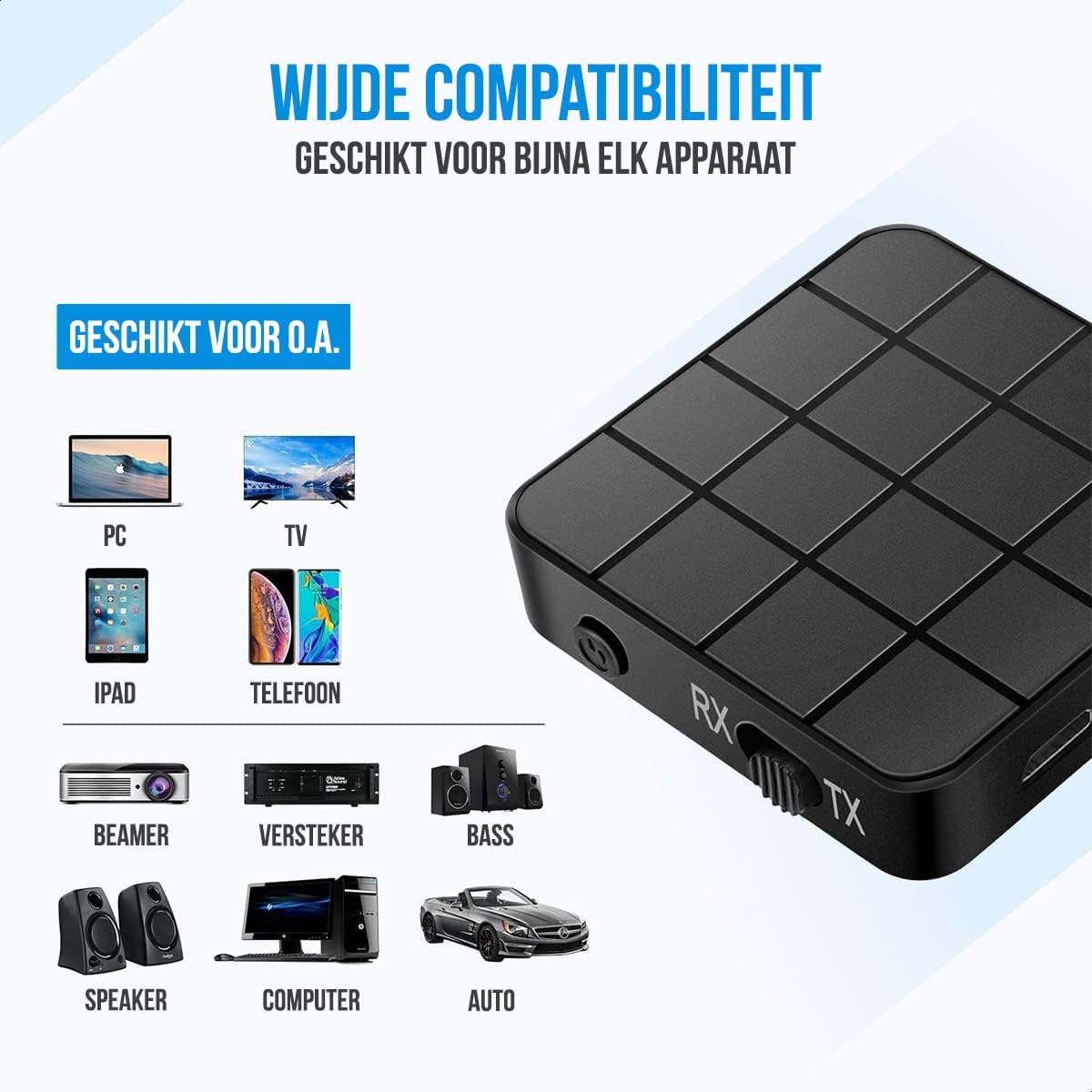
| Ngwa dakọtara | Smartphones, Tablets, PCs, TVs, Audio Systems, Headphones, Speakers |

Ozi nchekwa
- Atụfula batrị n'ọkụ. Batrị nwere ike ịgbawa.
- Debe ngwaọrụ ahụ ka ọ ghara iru mmiri na oke iru mmiri.
- Edoghachila ngwaọrụ ahụ n'akụkụ ihe ndị nwere ike ire ọkụ.
- The device has an operating range of 10 meters and may interfere with other wireless devices within this range.
- Always adhere to local regulations for the disposal of electronic waste.
Akwụkwọ ikike na nkwado
Specific warranty details are not provided in this manual. For warranty information or technical support, please refer to the product packaging or contact Strex customer service through their official websaịtị ma ọ bụ onye na-ere ahịa ebe a zụrụ ngwaahịa ahụ.


