1. Okwu mmalite
This manual provides detailed instructions for the Phomemo PM241BT Bluetooth Thermal Label Printer. Please read this guide thoroughly before using the printer to ensure proper operation and to maximize its lifespan. This printer is designed for efficient label printing for various applications, including shipping, addressing, and product labeling.

Image 1.1: Phomemo PM241BT printer in operation, connected via Bluetooth to a smartphone.
2. Ozi nchekwa
Lee ihe ndị a iji gbochie mmebi nke ngwa nbipute ma ọ bụ mmerụ ahụ nye onwe gị:
- Do not disassemble or modify the printer.
- Keep the printer away from water, moisture, and direct sunlight.
- Jiri naanị ihe nkwụnye ọkụ na eriri ndị enyere.
- Ensure the printer is placed on a stable, flat surface.
- Avoid touching the print head immediately after printing, as it may be hot.
3. Ihe ngwugwu
Chọpụta na ihe niile dị na ngwugwu:
- Phomemo PM241BT Thermal Label Printer
- Ihe nkwụnye ọkụ
- eriri USB
- Ihe nkwụnye USB-C
- Ụdọ ọkụ
- Ntuziaka mmalite ngwa ngwa
- 10 x 4x6 inch Labels
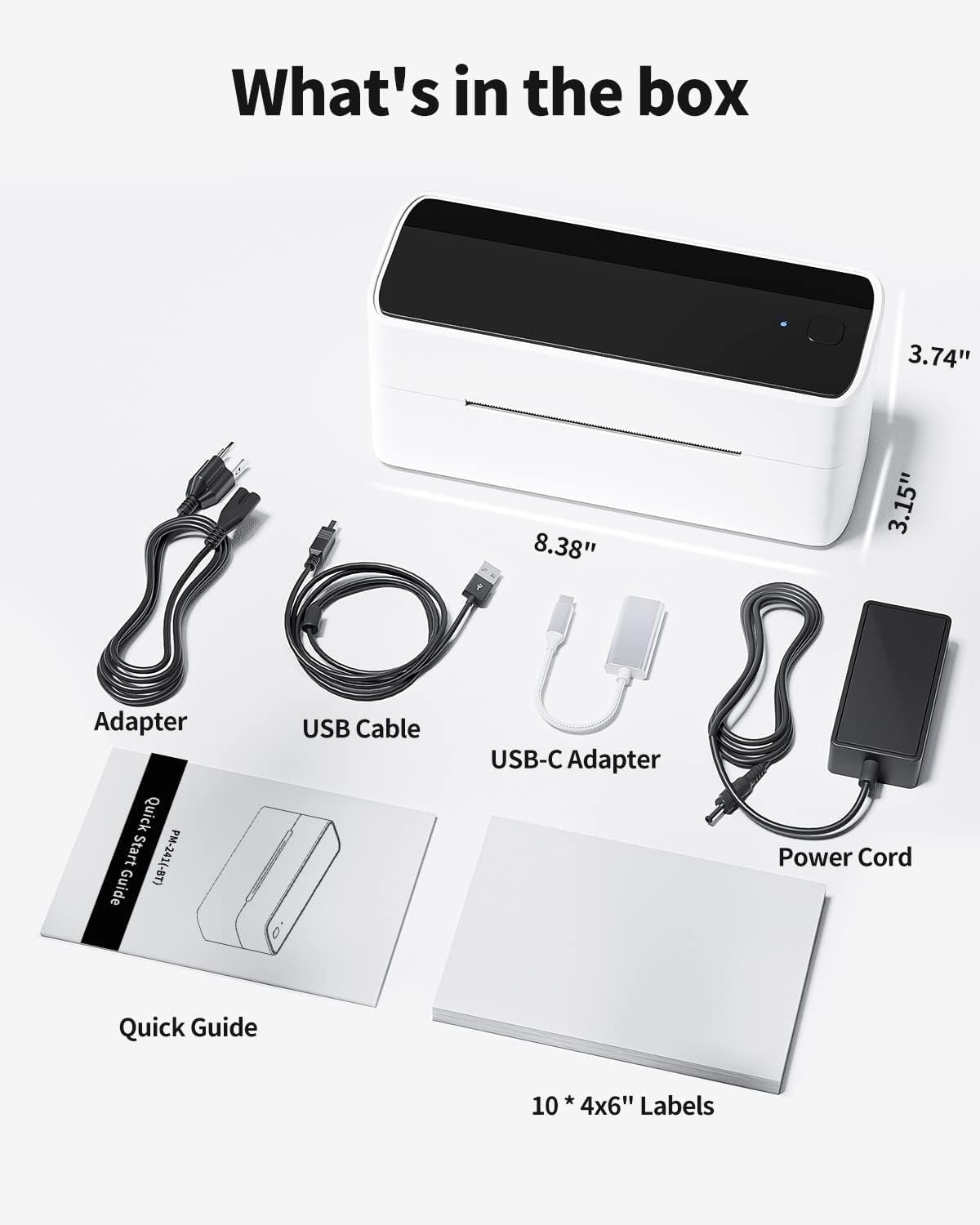
Image 3.1: All components included in the Phomemo PM241BT product package.
4. Nhazi
4.1. Njikọ ngwaike
- Connect the power cord to the power adapter, then plug the adapter into the printer's power port.
- Tinye eriri ọkụ n'ime oghere mgbidi.
- If connecting via USB, connect the USB cable from the printer to your computer. Use the USB-C adapter if necessary.
4.2. Ịbugo aha
The printer supports thermal labels with a width of 1 inch (25.4 mm) to 4.6 inches (116 mm).
- Gbaa mbọ hụ na agbanyere ngwa nbipute.
- Jiri nwayọ mepee mkpuchi elu nke ngwa nbipute ahụ.
- Insert the thermal labels into the feed slot, ensuring the print side faces upwards.
- Adjust the label guides to fit the label width snugly.
- Close the top cover. The printer will automatically detect and calibrate the label size.
4.3. Nwụnye Software na Njikọta
The Phomemo PM241BT offers both Bluetooth and USB connectivity.
4.3.1. Bluetooth Connection (Mobile Devices & Computers)
For Bluetooth connectivity, download the "Labelife" application or software.
- For Mobile (iOS/Android):
- Scan the QR code in the Quick Start Guide or search for "Labelife" in your device's app store to download the app.
- Kwado Bluetooth na ekwentị mkpanaaka gị.
- Open the Labelife app and follow the on-screen instructions to connect to the PM241BT printer.
- For Computers (macOS/Windows/ChromeOS/Linux):
- Download the Labelife software from the official Phomemo website or the provided link in the Quick Start Guide.
- Install the software and ensure your computer's Bluetooth is enabled.
- Open Labelife and pair with the PM241BT printer.

Image 4.1: Bluetooth connection steps for mobile devices using the Labelife app.
4.3.2. USB Connection (Computers Only)
For USB connection, you will need to install the printer driver.
- Jiri eriri USB jikọọ ngwa nbipute na kọmputa gị.
- Gaa leta labelife.net/#/pm246sbt to download the appropriate printer driver for your operating system (macOS, Windows, ChromeOS, Linux).
- Wụnye onye ọkwọ ụgbọ ala na-eso ntuziaka ihuenyo.
- Once installed, your computer should recognize the PM241BT as a standard printer.

Image 4.2: USB connection and driver installation for PC.
5. Na-arụ ọrụ na ngwa nbipute
5.1. Printing via Bluetooth
After connecting your device via Bluetooth using the Labelife app:
- Open the Labelife app on your smartphone or computer.
- Select or create the label you wish to print. The app offers various templates for shipping, address, circular, and barcode labels.
- Confirm print settings (e.g., number of copies).
- Initiate the print command from the app.

Image 5.1: Wireless printing from a smartphone using Bluetooth.
5.2. Printing via USB
Once the USB driver is installed, you can print from any application on your computer that supports printing.
- Open the document or label file you want to print (e.g., PDF, image, or a label created in Labelife software).
- Go to 'File' > 'Print' or use the print shortcut (Ctrl+P or Cmd+P).
- Select "Phomemo PM241BT" from the list of available printers.
- Adjust print settings as needed (e.g., paper size, orientation). Ensure the label size matches the loaded labels.
- Pịa 'Bipụta'.

Image 5.2: Printing from a laptop using a USB connection.
5.3. Supported Label Types and Platforms
The PM241BT printer is compatible with various thermal label types and major e-commerce/shipping platforms:
- Ụdị akara: Shipping labels (4x6 inches), address labels, circular labels, barcode labels, FBA labels, Amazon Warehouse labels, price labels.
- Platform: Shopify, Etsy, eBay, Amazon, Hermes, Royal Mail Click & Drop, Parcelforce, DPD, UPS, DHL, FedEx, and others.

Foto 5.3: Ọpụamples of various label types and sizes supported by the printer.
6. Nlekọta
Regular maintenance ensures optimal performance and extends the printer's life.
6.1. Na-ehicha isi mbipụta
Clean the print head if print quality degrades or after every few rolls of labels.
- Gbanyụọ ngwa nbipute wee wepụ eriri ọkụ.
- Mepee mkpuchi elu.
- Use an alcohol swab (70% isopropyl alcohol) to gently wipe the print head.
- Allow the print head to dry completely before closing the cover and powering on the printer.
6.2. Cleaning the Platen Roller
Clean the platen roller if labels are not feeding smoothly.
- Gbanyụọ ngwa nbipute wee wepụ eriri ọkụ.
- Mepee mkpuchi elu.
- Use an alcohol swab to clean the platen roller, rotating it manually to clean the entire surface.
- Allow it to dry completely before use.
7. Nchọpụta nsogbu
Rụtụ aka na tebụl na-esonụ maka okwu nkịtị na azịza ha:
| Nsogbu | Ihe nwere ike ime | Ngwọta |
|---|---|---|
| Igwe nbipute anaghị agbanye | Power cable not connected; power outlet issue | Lelee njikọ ike; nwaa oghere dị iche. |
| Ọdịmma ebipụta na-adịghị mma | Dirty print head; incorrect label type; low print density setting | Clean the print head; ensure thermal labels are used; adjust print density in software. |
| Akara aha anaghị enye nri nke ọma | Labels loaded incorrectly; label guides not adjusted; dirty platen roller | Reload labels correctly; adjust label guides; clean platen roller. |
| Ọdịda njikọ Bluetooth | Bluetooth off; incorrect pairing; app issue | Ensure Bluetooth is on; re-pair device in Labelife app; restart app/device. |
| Printer not recognized by PC via USB | Driver not installed; faulty USB cable | Install or reinstall the printer driver; try a different USB cable or port. |
8. Nkọwapụta
- Ụdị: PM241BT
- Teknụzụ mbipụta: Thermal
- Njikọta: Bluetooth (iOS, Android, macOS, Windows, ChromeOS, Linux via Labelife app), USB (macOS, Windows, ChromeOS, Linux)
- Mkpebi Bipụta: 203 dpi
- Max Print Speed: 150 mm/s (72 pages per minute)
- Supported Label Width: 1 inch (25.4 mm) to 4.6 inches (116 mm)
- Akụkụ: 11 x 22 x 16 cm (4.3 x 8.7 x 6.3 inch)
- Arọ: 1.05 n'arọ (2.3 lbs)
- Ndakọrịta sistemụ arụmọrụ: iOS, Android, macOS, Windows, ChromeOS, Linux

Foto 8.1: Ofeview of connectivity options and compatible operating systems.
9. Akwụkwọ ikike na nkwado
Phomemo offers a limited warranty for the PM241BT printer. For specific warranty terms, please refer to the documentation included with your purchase or contact customer support.
9.1. Nkwado ndị ahịa
For technical assistance, troubleshooting, or warranty claims, please contact Phomemo customer service. Support is available 24 hours a day. You may also be eligible for free returns within 30 days of purchase.
Please visit the official Phomemo website for contact information or refer to your Quick Start Guide.


