1. Ozi nchekwa dị mkpa
Please read all safety instructions carefully before using this product. Failure to follow these instructions may result in injury or damage.
- Nkwanye: Avoid placing the camera in unstable locations or within reach of children or pets.
- Ike: Use only the provided AC adapter and power cable. Disconnect power before moving the device.
- gburugburu: Keep the camera away from high humidity, dust, and extreme temperatures. This product is not waterproof.
- Nlekọta: Do not attempt to disassemble or repair the camera yourself. Contact customer support for any issues.

Image: General safety guidelines for camera usage.
2. Ihe ngwugwu
Chọpụta na etinyere ihe niile na ngwugwu gị:
- Galayou G2 Camera Unit
- Ihe nkwụnye AC
- Igwe ọkụ ọkụ
- Mounting Kit (screws, anchors)
- Japanese Instruction Manual

Image: The Galayou G2 camera and a smartphone displaying its live feed.
3. Ntuziaka Nhazi
3.1 Ntọala mbụ
- Ike Na: Connect the camera to power using the provided AC adapter and cable. The indicator light will turn red.
- Nbudata ngwa: Download the dedicated 'blurams' app from the App Store (iOS) or Google Play Store (Android).
- Ikikere ngwa: Ensure Bluetooth and Location permissions are enabled for the 'blurams' app in your smartphone settings.
- Tọgharịa igwefoto: Press and hold the reset button on the camera until you hear a beep sound. The indicator light will flash red and blue alternately, indicating it's ready for network connection.
- Tinye ngwaọrụ na ngwa: Open the 'blurams' app, tap 'Add Device' or the '+' icon. Select your camera model (G2 or similar D1 model) and choose 'Wi-Fi connection via Bluetooth'.
- Njikọ Wi-Fi: Enter your 2.4GHz Wi-Fi network name and password. The camera only supports 2.4GHz Wi-Fi.
- Nyocha koodu QR: The app will display a QR code. Hold your smartphone in front of the camera lens to scan the QR code. You will hear a beep sound from the camera upon successful scan.
- Nkwenye njikọ: The camera will announce 'Connection successful' and then 'Connecting to network'. Once connected, the indicator light will turn solid blue.
3.2 Video Guide: Bluetooth Wi-Fi Connection
Video: This video demonstrates the Bluetooth-assisted Wi-Fi connection method for the D1 camera, which is similar to the G2 model. It shows the steps from app permissions to successful network connection.
3.3 Video Guide: Camera Setup Method
Video: This video provides a general guide on how to set up a Skyworth pet camera, which can be used as a reference for the Galayou G2's setup process.
4. Ntuziaka ọrụ
4.1 Ndụ View na Pan/Tilt Control
Once connected, you can access the live feed through the 'blurams' app. The camera offers a 355° horizontal rotation and 52° vertical rotation for comprehensive coverage.
- Pan/Tit: Use the directional controls in the app to remotely adjust the camera's viewakụkụ n'akuku.
- Mbugharị dijitalụ: The camera supports 4x digital zoom to view nkọwa.

Image: The camera's pan and tilt capabilities, offering a wide field of view.
4.2 Video Quality and Night Vision
The G2 camera features 2K high-resolution video (1440p) and a 3-megapixel CMOS sensor for clear images. It also provides advanced night vision capabilities.
- Mkpebi 2K: Enjoy clear and detailed video footage.
- Ụdị ọhụụ abalị: The camera supports three night vision modes: Smart Night Vision (auto-switches between color and black & white based on motion), Color Night Vision (always color), and Infrared Night Vision (always black & white).
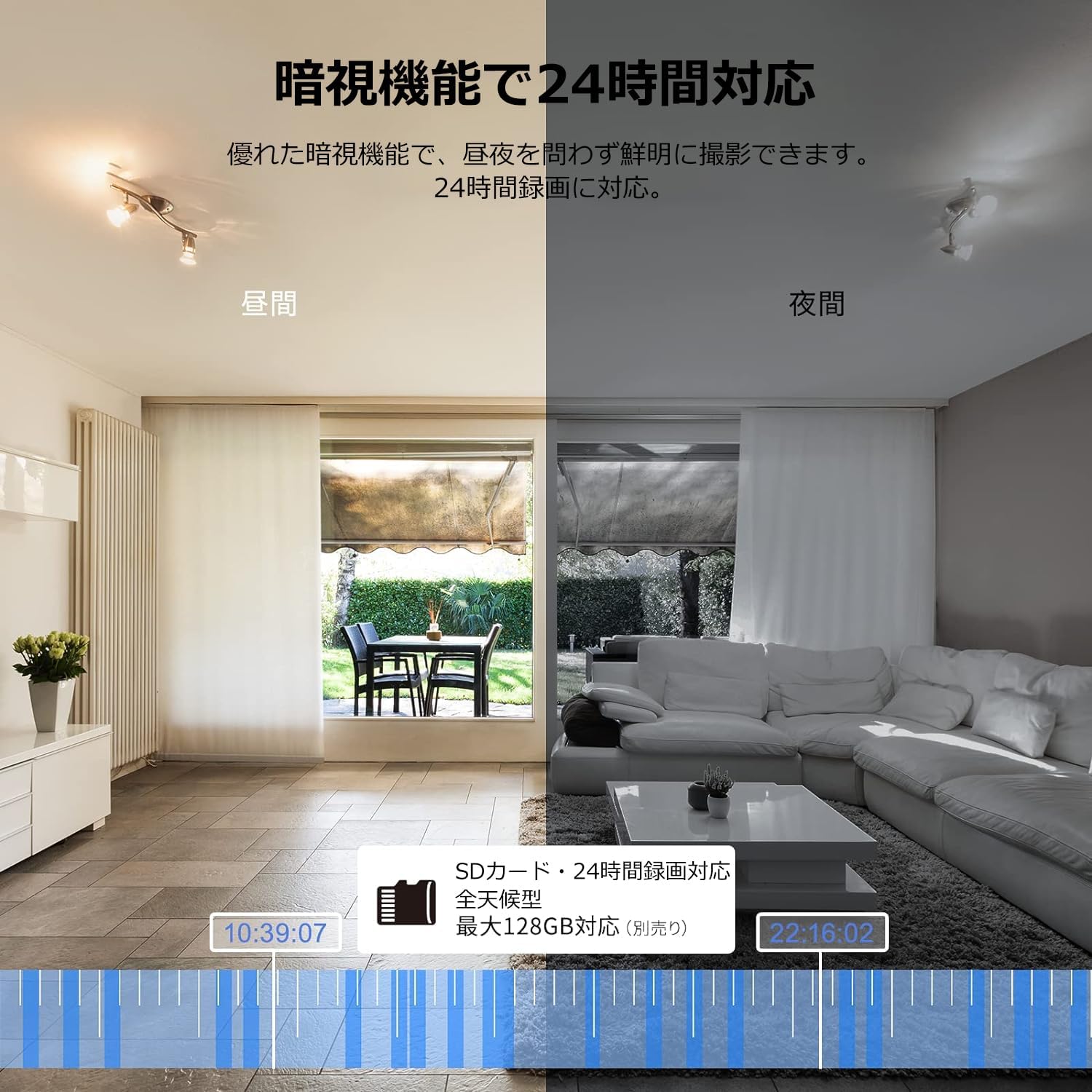
Image: Comparison of day and night vision, demonstrating the camera's ability to record clearly in low light.
4.3 Audio ụzọ abụọ
Equipped with a microphone and speaker, the camera allows for real-time two-way communication.
- Speak and Listen: Talk to family members or pets through the app, and hear their responses.
- Mbelata mkpọtụ: The two-way audio features noise reduction for clearer sound.

Image: The camera's two-way audio feature, allowing interaction with pets.
4.4 Motion Detection & Automatic Tracking
The camera can detect motion and automatically track subjects within its field of view.
- Mkpu ngagharị: Receive instant notifications on your smartphone when motion is detected.
- Automatic Tracking: The camera will follow detected movement, keeping the subject in frame.
- Nchọpụta mmadụ: Advanced AI can differentiate between humans and other moving objects, reducing false alarms.
- Ọrụ mkpu: Trigger an alarm sound from the camera via the app to deter intruders.

Image: Motion detection and alarm features, showing alerts on a smartphone.
4.5 Ndekọ na Nchekwa
The camera supports both local and cloud storage options for continuous recording.
- Kaadị MicroSD: Supports up to 128GB microSD cards (sold separately) for 24-hour continuous recording with automatic overwriting.
- Nchekwa igwe ojii: Optional paid cloud storage service is available for extended recording and backup.
- Mkpakọ vidiyo: Utilizes H.264 and H.265 compression formats for efficient storage.


Images: MicroSD card recording and cloud storage options.
4.6 Ọnọdụ nzuzo
Activate privacy mode to physically cover the camera lens, ensuring your privacy when needed.
- One-Tap Activation: Easily turn off the lens via the app.
- Physical Cover: The camera physically rotates its lens downwards, blocking the view.

Image: Privacy mode icon.
Njikọ Alexa nke 4.7
The Galayou G2 is Alexa-certified, allowing for voice control and viewing the camera feed on compatible Alexa devices.
- Iwu olu: Jiri iwu olu mee ya view the camera feed on an Echo Show or other Alexa-enabled screen.

Image: Alexa integration with the Galayou G2 camera.
4.8 Multi-Camera Support & Sharing
The app supports adding multiple cameras and sharing access with family members.
- Igwefoto ọtụtụ: Monitor different areas of your home by adding several cameras to the app.
- Ịkekọrịta ezinụlọ: Share camera access with up to 4 family members simultaneously.

Image: Family sharing and multi-camera viewing.
4.9 Video Guide: Product Features
Video: This video showcases various features of a Skyworth pet camera, including its monitoring capabilities, which are comparable to the Galayou G2.
4.10 Video Guide: Blurams 300万画素 見守りカメラ
Video: This video highlights the features of a Blurams 3-megapixel monitoring camera, demonstrating functionalities similar to the Galayou G2.
4.11 Video Guide: JUFLSKY 300万画素 360°PTZ機 (Preview)
Vidiyo: obere oge tupuview ihe ngosi vidiyoasing a 300-megapixel 360° PTZ camera, similar in functionality to the G2.
5. Nchọpụta nsogbu
- Enweghị ike ijikọ na Wi-Fi:
- Ensure your Wi-Fi network is 2.4GHz. The camera does not support 5GHz networks.
- Lelee paswọọdụ Wi-Fi gị maka izi ezi.
- Move the camera closer to your Wi-Fi router.
- Perform a factory reset on the camera and try the setup process again.
- No Live Feed:
- Lelee njikọ ịntanetị gị.
- Ensure the camera is powered on and the indicator light is solid blue.
- Malitegharịa ngwa ahụ na/ma ọ bụ ekwentị gị.
- Nchọpụta ngagharị anaghị arụ ọrụ:
- Hụ na achọpụtara mmegharị ahụ na ntọala ngwa ahụ.
- Adjust the motion detection sensitivity.
- Gbaa mbọ hụ na enweghị ihe mgbochi na-egbochi igwefoto view.
- Ogo vidiyo na-adịghị mma:
- Check your internet speed. A stable connection is required for optimal streaming.
- Gbaa mbọ hụ na oghere igwefoto dị ọcha.
- Adjust the video quality settings in the app (e.g., from SD to 2K).
6. Nkọwapụta
| Njirimara | Nkọwapụta |
|---|---|
| Aha Nlereanya | G2 |
| Ụdị nkwụnye | Tabletop and Ceiling Mount |
| Mkpebi ịse vidiyo | 1440p (2K) |
| Agba | Automatic Tracking Camera |
| Ngwa gụnyere | Camera body, AC adapter, Japanese instruction manual, mounting set, power cable |
| Teknụzụ nzikọrịta ozi ikuku | Wi-Fi (naanị 2.4GHz) |
| Mkpebi vidiyo dị irè | 2 Megapixels (300万画素) |
| Ubi nke View | ogo 95 |
| Oke ọhụụ abalị | 7 mita |
| Ọnụego Frame | 15fps |
| Ihe onwunwe | Plastic |
| Akụkụ ngwaahịa (LxWxH) | 7.2 x 7.2 x 10.9 cm |
| Ọkwa Nguzogide mmiri | Ọ bụghị Waterproof |
| Isi Iyi Ìhè | Infrared |
| Akwadoro ojiji | Nchebe ime ụlọ |
| Ojiji ime ime/n'èzí | Ime ụlọ |
| Ngwa dakọtara | Smartphone, Tablet, Desktop, Laptop |
| Isi Iyi Ike | Igwe ọkụ eletrik |
| Ụdị njikwa | Ngwa |
7. Akwụkwọ ikike na nkwado
The Galayou G2 camera comes with a manufacturer's warranty and customer support.
- Akwụkwọ ikike: 1-year manufacturer's warranty.
- Nkwado ndị teknuzu: For any issues or questions, please contact GALAYOU customer support through the app or visit the official GALAYOU store on Amazon.