Okwu mmalite
This manual provides detailed instructions for the setup, operation, maintenance, and troubleshooting of your TECURS Wireless Gaming Keyboard. Please read this manual thoroughly before using the product to ensure proper function and longevity.
Ihe ngwugwu
Mgbe ị meghere ngwugwu ahụ, hụ na ihe niile edepụtara n'okpuru dị ma dịkwa mma:
- TECURS Wireless Gaming Keyboard
- USB Receiver (2.4 GHz)
- USB Charging Cable (Micro USB)
- Akwụkwọ ntuziaka onye ọrụ
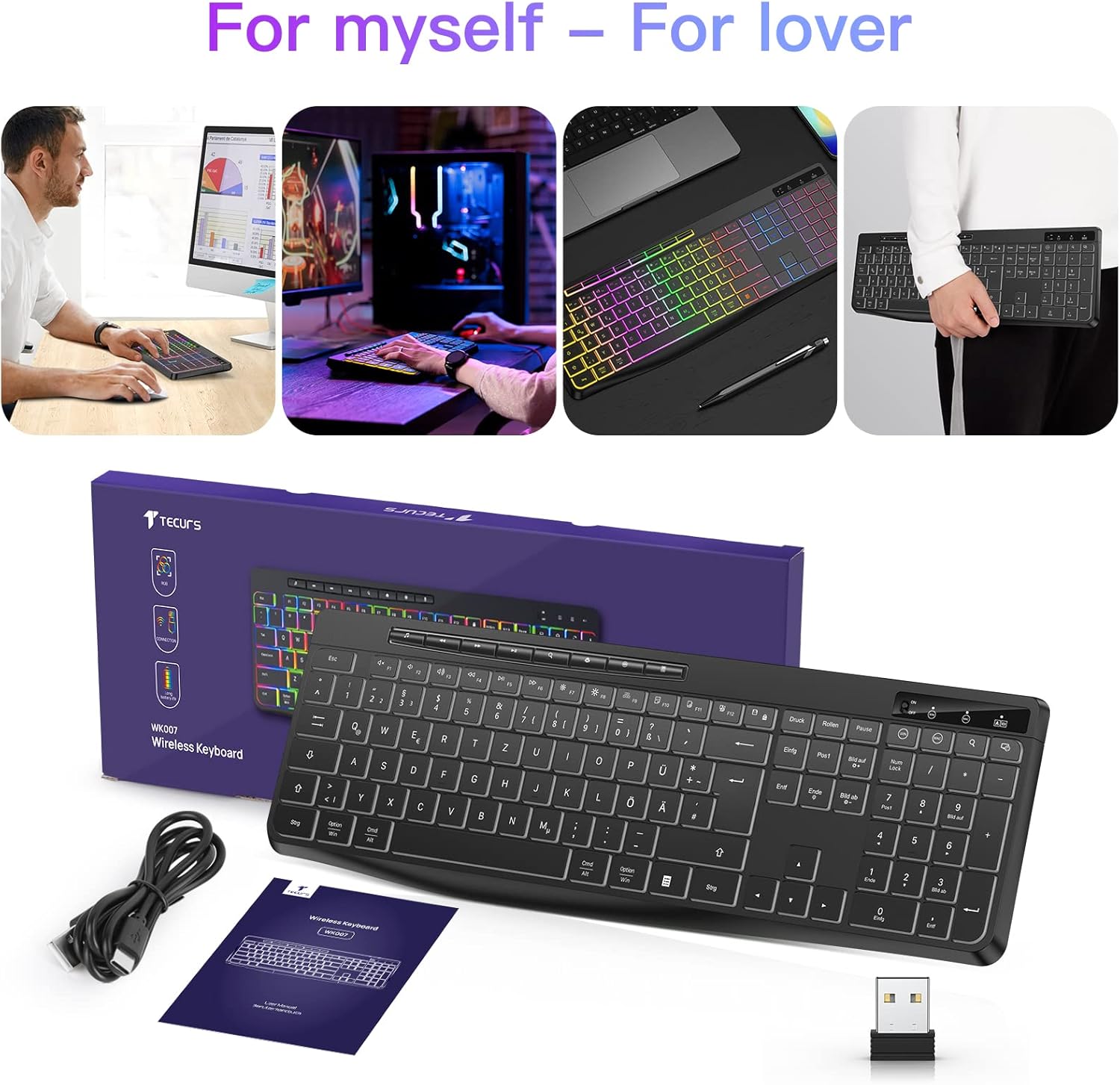
Image: The TECURS Wireless Gaming Keyboard, its USB receiver, USB charging cable, and user manual laid out on a surface.
Melite
1. Jikọọ ahụigodo
- Locate the USB receiver. It is typically stored in a compartment on the keyboard or included separately in the packaging.
- Insert the USB receiver into an available USB port on your computer, laptop, or compatible gaming console (PS4, PS5).
- Turn on the keyboard using the power switch, usually located on the top edge or underside of the keyboard. The keyboard should automatically connect to the receiver.

Image: The TECURS Wireless Gaming Keyboard shown with its compact USB receiver, illustrating the wireless connection method.
2. Nchaji mbụ
The keyboard comes with a built-in rechargeable Lithium-ion battery. For optimal performance, it is recommended to fully charge the keyboard before first use.
- Connect the Micro USB charging cable to the keyboard's charging port and the other end to a USB power source (e.g., computer USB port, USB wall adapter).
- An indicator light will typically show the charging status. Refer to the keyboard's specific indicator behavior for details.
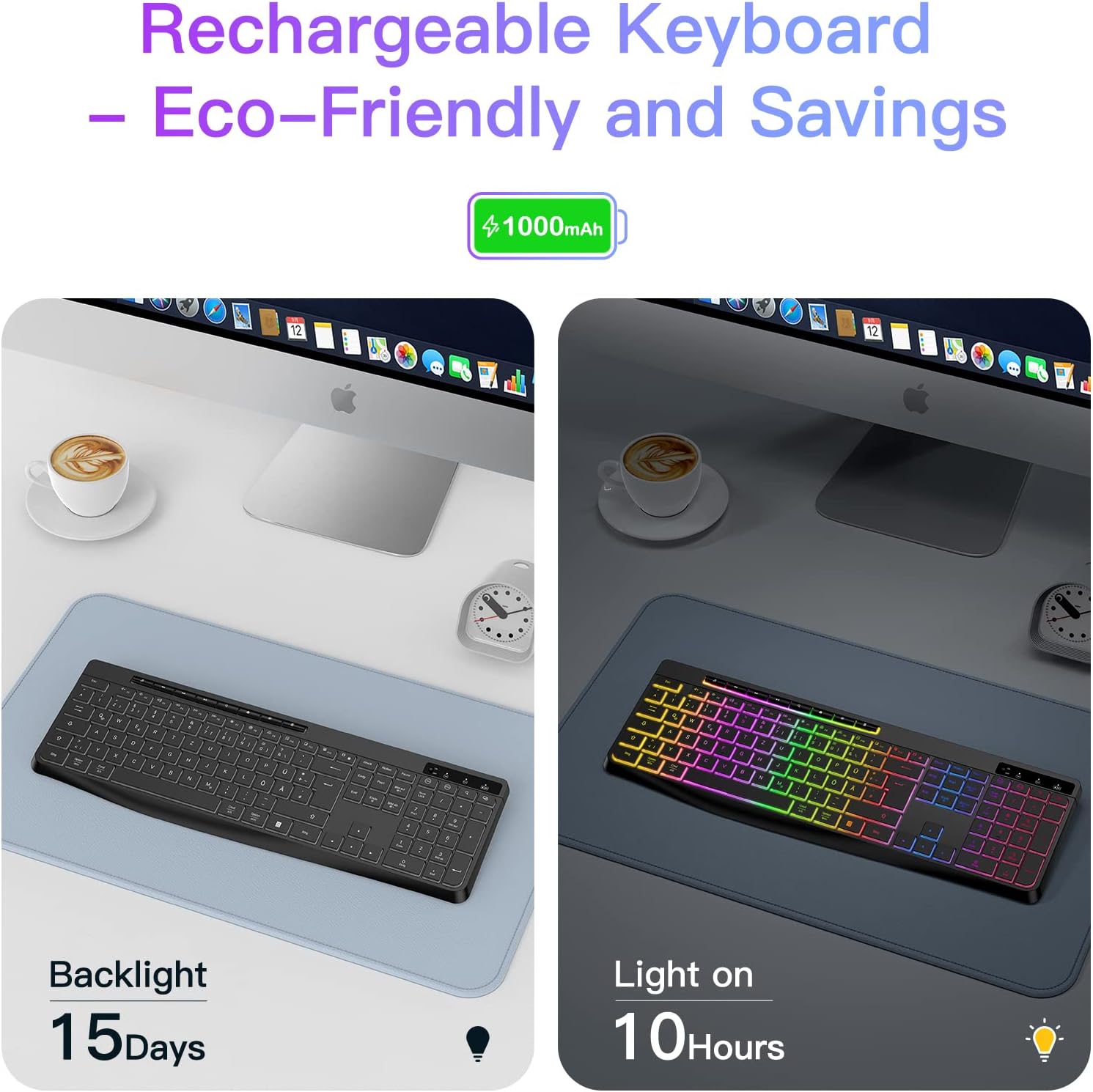
Image: An illustration demonstrating the battery life of the keyboard: up to 15 days with backlight off and 10 hours with backlight on, based on a 1000mAh battery.
3. Wireless Range
The keyboard operates wirelessly with a receiving distance of 8-10 meters, providing flexibility in your workspace or gaming setup.

Image: A visual representation of the wireless keyboard's effective receiving distance, typically 8-10 meters, highlighting freedom from cables.
Ntuziaka ọrụ
1. Ide ihe dị mfe
The keyboard features a QWERTZ layout (German layout) with standard key functions. Simply begin typing after successful connection.
2. Njikwa ọkụ azụ
The keyboard includes an RGB backlight feature. Use the dedicated backlight control keys (often located near the function keys or as a combination with the Fn key) to:
- Gbanyụọ/ gbanyụọ ọkụ azụ.
- Gbanwee ọkwa nchapụta.
- Cycle through different color modes or effects.
Refer to the keyboard's specific key legends for exact backlight control combinations.
3. Igodo mgbasa ozi
Dedicated multimedia keys are provided for quick access to functions such as volume control, play/pause, and track skipping. These keys are typically located above the function key row.
4. Usoro ndakọrịta
The keyboard is compatible with various operating systems and devices:
- Sistemu eji arụ ọrụ: Windows, Mac, Linux
- Ngwa dakọtara: PC, Laptops, PS4, PS5, Game Consoles
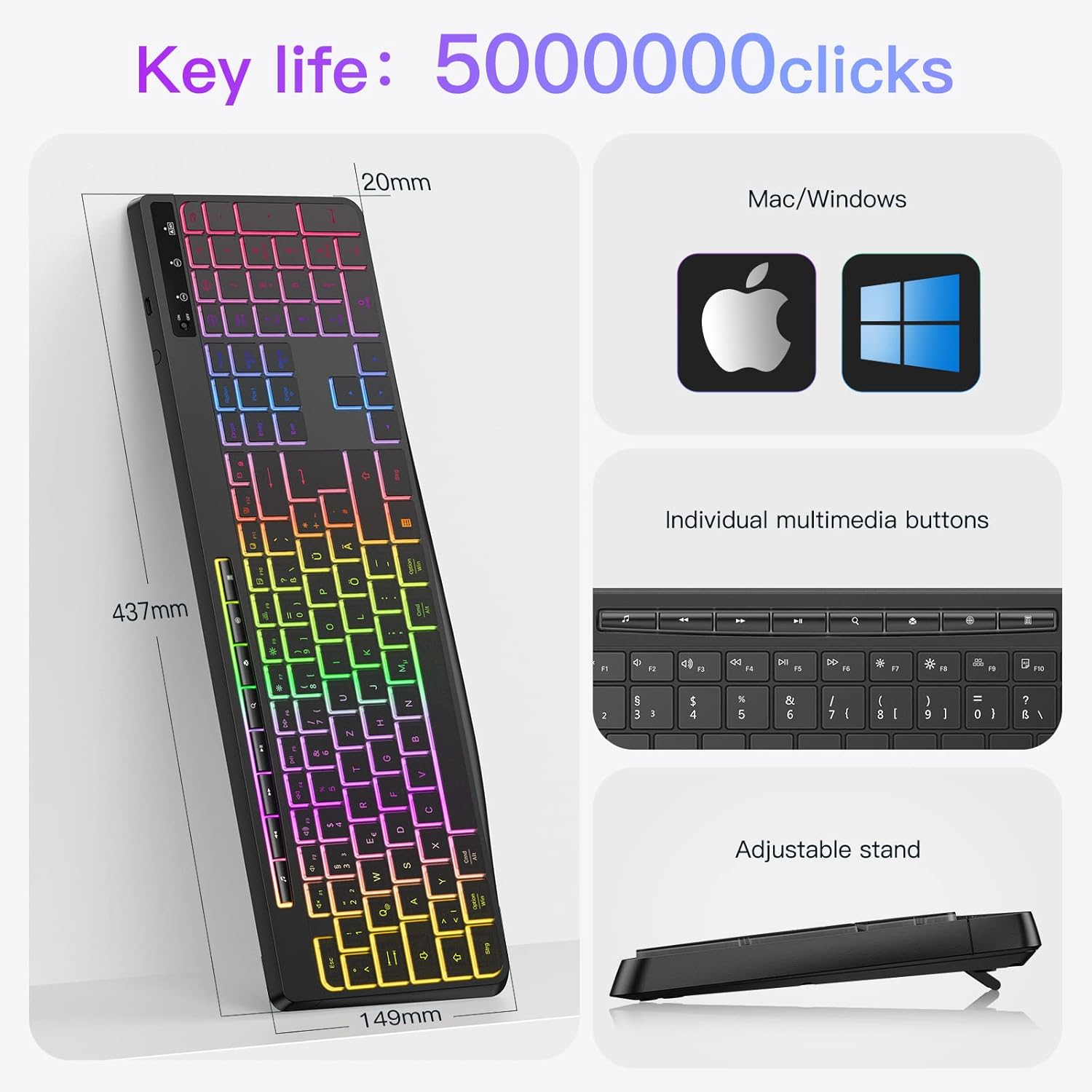
Image: An infographic detailing the keyboard's dimensions (437mm length, 149mm width, 20mm thickness), key life of 50 million clicks, compatibility with Mac/Windows, individual multimedia buttons, and an adjustable stand.
5. Ọrụ Dị Nwayọọ
The keyboard features silent keys designed to minimize typing noise, making it suitable for quiet environments.

Image: A person typing on the backlit keyboard in a dimly lit room, with a sleeping child in the background, emphasizing the low noise operation.
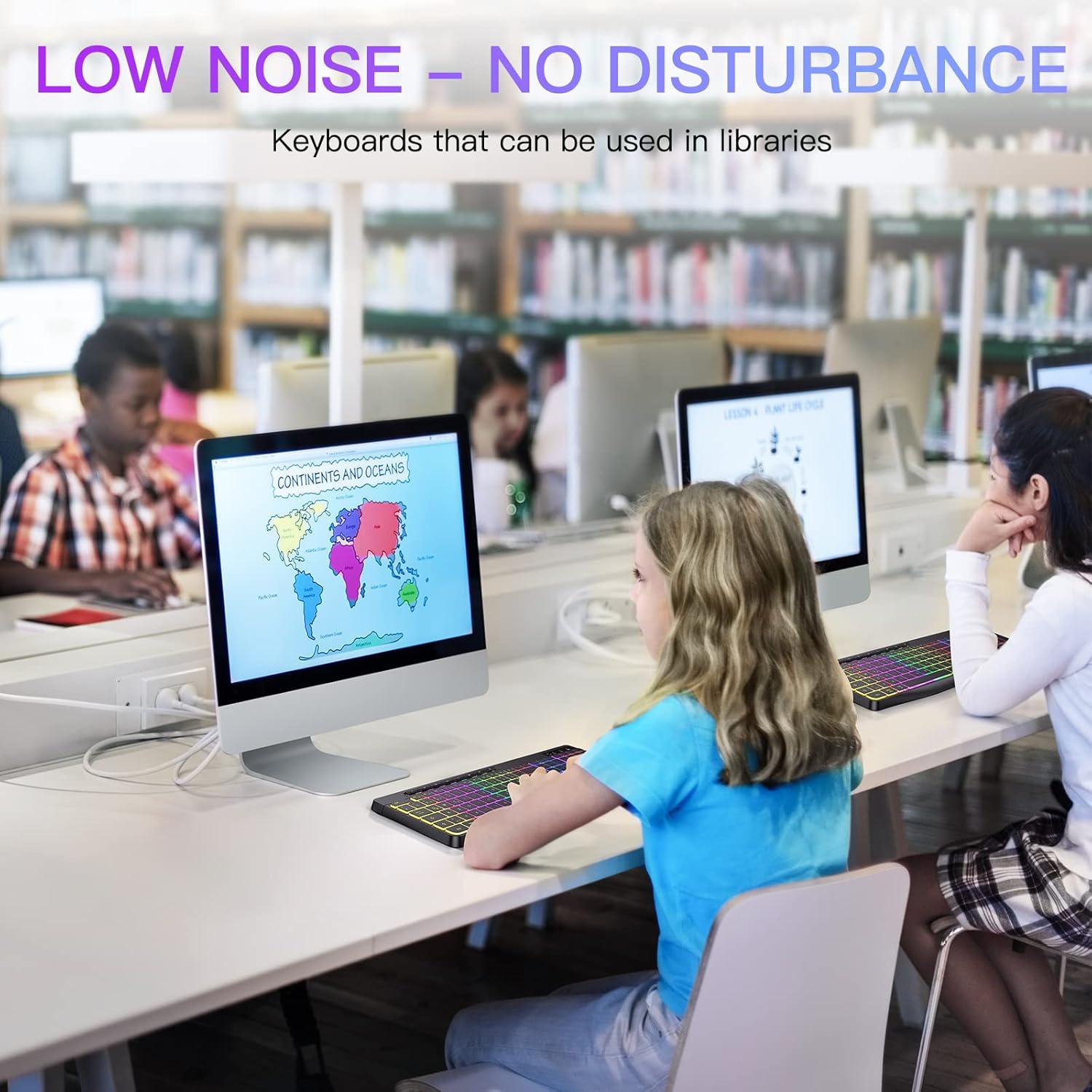
Image: Children using the keyboard in a library setting, illustrating its suitability for environments where low noise is preferred.
Nlekọta
1. Nhicha
Iji hichaa ahụigodo gị:
- Turn off the keyboard and disconnect it from any power source.
- Jiri akwa dị nro na nke enweghị mmiri ọkụ damptinye mmiri ma ọ bụ ihe ngwọta dị nro.
- Wipe the keycaps and surface gently. Avoid excessive moisture.
- Maka uzuzu na irighiri ihe n'etiti igodo, jiri ikuku abịakọrọ.
Note: The keyboard is designed to be waterproof, offering protection against accidental spills. However, it is not designed for immersion in water.
2. Nlekọta batrị
Ka ịgbatị ndụ batrị:
- Zere ịchaji batrị ugboro ugboro.
- Charge the keyboard regularly, especially if it will be stored for an extended period.
- Store the keyboard in a cool, dry place.
Nchọpụta nsogbu
| Nsogbu | Ihe nwere ike ime | Ngwọta |
|---|---|---|
| Ahụigodo anaghị aza | Low battery; USB receiver not connected; Keyboard not powered on; Driver issue. | Charge the keyboard; Ensure USB receiver is securely plugged in; Turn on the keyboard; Try a different USB port; Restart your device. |
| Ìhè azụ anaghị arụ ọrụ | Agbanyụrụ ọkụ azụ; Batrị dị ala. | Press the backlight control key(s) to turn it on or adjust brightness; Charge the keyboard. |
| Igodo na-arapara ma ọ bụ anaghị anabata ya | Debris under keys; Liquid spill. | Clean the keyboard using compressed air or a damp cloth; If liquid spill, turn off immediately, clean, and allow to dry completely before use. |
| Ndụ batrị dị mkpụmkpụ | Frequent backlight use; Battery degradation over time. | Reduce backlight brightness or turn it off when not needed; Ensure full charge cycles; If battery life significantly degrades, consider contacting support. |
Nkọwapụta
| Njirimara | Nkọwa |
|---|---|
| Ụdị | TECURS |
| Nọmba nlereanya | SPT-WK007 |
| Teknụzụ Njikọta | Ikuku 2.4GHz (USB nnata) |
| Nhazi ahụigodo | QWERTZ (German Layout) |
| Ìhè azụ | RGB, Adjustable |
| Atụmatụ pụrụ iche | Ergonomic, Rechargeable, Backlit, Integrated Stand, Waterproof |
| Sistemu eji arụ ọrụ dakọtara | Windows, Mac, Linux, PS4, PS5 |
| Ngwa dakọtara | PC, Laptop, Game Console |
| Ụdị batrị | Lithium-ion (1 gụnyere) |
| Nchaji ọdụ ụgbọ mmiri | Micro USB |
| Akụkụ (L x W x H) | 43.7 cm x 14.9 cm x 2 cm |
| Akwadoro ojiji | Business, Gaming |
Akwụkwọ ikike na nkwado
For warranty information and technical support, please refer to the documentation provided with your purchase or visit the official TECURS websaịtị. Debe ihe akaebe nke ịzụrụ maka akwụkwọ ikike.


