Okwu mmalite
This manual provides detailed instructions for the setup, operation, and maintenance of your Gioteck SC3 Wireless Pro Controller. Designed for use with Nintendo Switch, PC, and mobile devices, this controller features programmable back buttons, customizable RGB lighting, and changeable magnetic thumb sticks for an enhanced gaming experience.
1. Nhazi
Ihe ngwugwu 1.1
- Gioteck SC3 Wireless Pro Controller
- Igwe nchaji USB
- Additional Magnetic Thumb Sticks (if included)
- Akwụkwọ ntuziaka (akwụkwọ a)
1.2 Ịchaji njikwa
Before initial use, fully charge the controller. Connect the supplied USB charging cable to the controller's charging port and the other end to a USB power source (e.g., Nintendo Switch dock, PC USB port, or USB wall adapter).
- Ihe ngosi LED ga-egosi ọkwa nchaji.
- Ụgwọ zuru ezu na-ewekarị awa 2-3.
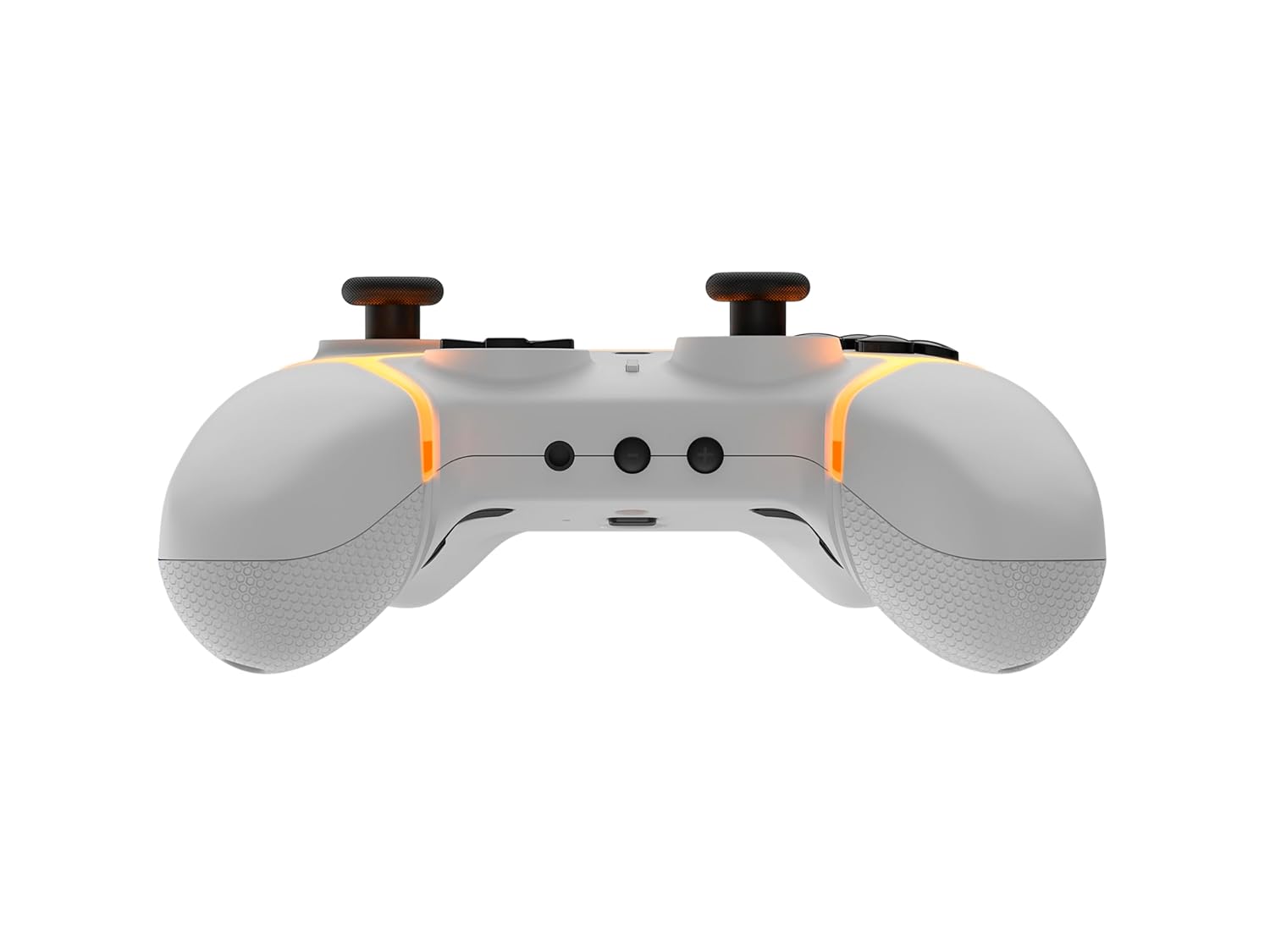
Foto: N'okpuru view of the Gioteck SC3 controller, highlighting the USB-C charging port located between the two textured grips.
1.3 Ijikọ na Nintendo Switch
- Site na Nintendo Switch HOME Menu, họrọ Ndị njikwa, mgbe ahụ Gbanwee njide/usoro.
- On the SC3 controller, press and hold the Bọtịnụ njikọta (usually a small button on the top or back) for a few seconds until the LED indicators begin to flash rapidly.
- Once the controller is recognized by the Switch, the player LED(s) on the controller will illuminate solid, indicating successful pairing.
- Pịa Bọtịnụ iji gosi.
Note: For subsequent uses, the controller should automatically reconnect to the last paired Switch console when powered on.
1.4 Connecting to PC/Mobile (Bluetooth)
- Ensure Bluetooth is enabled on your PC or mobile device.
- On the SC3 controller, press and hold the Bọtịnụ njikọta for a few seconds until the LED indicators flash rapidly.
- On your PC/mobile device, navigate to Bluetooth settings and search for new devices.
- Select "Gioteck SC3" or similar from the list of available devices to pair.
- The controller's LED will become solid upon successful connection.
1.5 Installing Magnetic Thumb Sticks
The SC3 controller features changeable magnetic thumb sticks. To replace them:
- Gently pull the existing thumb stick straight up to remove it.
- Align the desired magnetic thumb stick with the base and gently push it down until it snaps into place.

Foto: N'ihu view of the Gioteck SC3 controller, showcasing the magnetic thumb sticks and button layout.
2. Ntuziaka ọrụ
Nhazi bọtịnụ 2.1
The SC3 controller features a traditional button layout. Refer to the image below for button identification.

Foto: Ihu nwere akụkụ anọ view of the Gioteck SC3 controller, displaying the full button layout including face buttons, D-pad, analog sticks, and shoulder buttons.
- Osisi Analog aka ekpe/aka nri: Maka njikwa mmegharị na igwefoto.
- D-Pad: Ntinye ntụziaka.
- Bọtịnụ A/B/X/Y: bọtịnụ ime ihe.
- L/R/ZL/ZR Buttons: Bọtịnụ ubu na ihe mkpali.
- +/- bọtịnụ: Start/Select equivalents.
- Bọtịnụ ụlọ: Returns to the console's home menu.
- Bọtịnụ ijide: Takes screenshots.
2.2 bọtịnụ azụ nwere ike ime
The SC3 controller includes programmable back buttons (M1, M2, M3, M4) for custom assignments.

Foto: N'azụ view of the Gioteck SC3 controller, clearly showing the four programmable back buttons (M1, M2, M3, M4) and textured grips.
Usoro mmemme:
- Pịa ma jide Bọtịnụ mmemme (refer to diagram if available, usually a small button on the back) until the LED indicator flashes.
- Pịa bọtịnụ azụ (M1, M2, M3, or M4) you wish to program. The LED will flash slowly.
- Pịa Bọtịnụ ntinye (e.g., A, B, X, Y, L, R, ZL, ZR, D-pad direction) you want to assign to the back button.
- Pịa Bọtịnụ mmemme again to save the assignment. The LED will stop flashing.
- Repeat for other back buttons as desired.
To clear a programmed button, follow steps 1-2, then press the Program Button again without pressing an input button.
Nhazi ọkụ 2.3 RGB
The controller features customizable RGB lighting. Specific instructions for changing colors or effects are typically found in the product's quick start guide or by pressing a dedicated button combination (e.g., Function + R3).
Consult the quick start guide included with your controller for precise button combinations to adjust RGB lighting.
2.4 Motion Controls
The SC3 controller supports motion controls, allowing for immersive gameplay in compatible Nintendo Switch titles. No special setup is usually required; motion controls activate automatically when supported by the game.
2.5 Audio Headset Jack
A 3.5mm audio headset jack is located on the controller for connecting compatible headsets. It includes dedicated mute and volume control buttons.
- Elu elu/ala: Hazie mmepụta ọdịyo.
- Oghere bọtịnụ: Mute/unmute microphone input.

Foto: Top view of the Gioteck SC3 controller, highlighting the 3.5mm audio jack, volume controls, and mute button.
3. Nlekọta
3.1 Nhicha
Iji hichaa ihe njikwa gị, jiri ákwà dị nro ma kpọọ nkụ. Maka unyi siri ike, jiri obere dampen the cloth with water. Avoid using harsh chemicals, abrasive cleaners, or solvents, as these can damage the controller's finish and internal components.
- Do not immerse the controller in water or any other liquid.
- Ensure all ports are dry before charging or connecting devices.
3.2 Nchekwa
Debe ihe njikwa ahụ n'ebe dị jụụ ma kpọọ nkụ, ebe anwụ na-anaghị apụta kpọmkwem, ebe okpomọkụ dị oke elu. Zere itinye ihe dị arọ n'elu ihe njikwa ahụ iji gbochie mmebi.
3.3 Nlekọta batrị
The controller contains a rechargeable battery. To prolong battery life:
- Zere ịchaji batrị ugboro ugboro.
- Charge the controller regularly, even if not in use for extended periods (e.g., once every 3-6 months).
- Do not expose the controller to temperatures above 60°C (140°F).
4. Nchọpụta nsogbu
4.1 Njikwa Anaghị ejikọta/Na-ejikọ
- Lelee batrị: Gbaa mbọ hụ na akwụchara onye njikwa ya nke ọma.
- Tinyegharịa ụzọ: Follow the pairing instructions in Section 1.3 or 1.4.
- Ntinye aka: Move closer to the console/device and away from potential sources of wireless interference (e.g., Wi-Fi routers, other Bluetooth devices).
- Reset Controller: Locate a small reset button (often a pinhole) on the back of the controller. Use a paperclip to press and hold it for a few seconds. Then attempt to re-pair.
- Update Console/Device Software: Ensure your Nintendo Switch, PC, or mobile device's operating system is up to date.
4.2 Buttons/Sticks Not Responding
- Re-sync: Kwupu ma jikọọ onye njikwa.
- Ọcha: Ensure no debris is lodged around the buttons or sticks.
- Test in another game/menu: Determine if the issue is specific to a game or system-wide.
- Reset Controller: Perform a hard reset as described above.
4.3 Motion Controls Not Working
- Ndakọrịta egwuregwu: Verify that the game you are playing supports motion controls.
- Megharịa: On Nintendo Switch, you can recalibrate motion controls in the system settings.
- Reset Controller: Mee nrụpụta siri ike.
5. Nkọwapụta
| Ụdị: | Gioteck SC3 Wireless Pro Controller |
| ndakọrịta: | Nintendo Switch (Original, Lite, OLED), PC, Mobile Devices |
| Njikọta: | Ikuku Bluetooth |
| Akụkụ (ihe dị ka): | 2.87 x 5.35 x 6.34 sentimita (7.29 x 13.59 x 16.1 cm) |
| Ibu (ihe dị ka): | 10.6 ounce (300 grams) |
| Jack ọdịyo: | 3.5mm with mute and volume controls |
| Atụmatụ pụrụ iche: | Programmable back buttons, Magnetic thumb sticks, RGB lighting, Motion controls |
6. Akwụkwọ ikike Ozi
The Gioteck SC3 Wireless Pro Controller comes with a manufacturer's warranty. For specific details regarding warranty coverage, duration, and claims process, please refer to the warranty card included with your product or visit the official Gioteck websaịtị.
Biko dowe ihe akaebe nke ịzụrụ ihe maka ebumnuche ikike.
7. Nkwado ndị ahịa
If you encounter any issues or have questions not covered in this manual, please contact Gioteck customer support. Contact information can typically be found on the product packaging or the official Gioteck websaịtị.
Gioteck Official Websaịtị: www.gioteck.com


