1. Okwu mmalite
Thank you for choosing the Cherry KW 9100 Slim Wireless Rechargeable Keyboard. This extra-slim, low-profile keyboard is designed for Mac computers, offering versatile connectivity options and a comfortable typing experience. This manual provides essential information for setting up, operating, maintaining, and troubleshooting your new keyboard.
The keyboard features dual wireless connectivity (Bluetooth and 2.4 GHz wireless USB receiver), allowing you to easily switch between devices. It incorporates high-quality CHERRY SC scissor technology for quiet and precise keystrokes, and includes AES-128 encryption for secure data transmission. The integrated rechargeable battery provides weeks of use on a single charge, and the keyboard can be charged while in use via the included USB-A to USB-C cable.

Image 1.1: The Cherry KW 9100 Slim Wireless Rechargeable Keyboard, showcasing its full layout and slim profile.
2. Ozi nchekwa
- Do not expose the keyboard to liquids, excessive moisture, or extreme temperatures.
- Zere idobe ma ọ bụ idobe ahụigodo na mmetụta siri ike.
- Debe ahụigodo ahụ ka ọ ghara ịdị ike ndọta.
- Anwala ịkwasa ma ọ bụ gbanwee ahụigodo. Nke a ga-emebi akwụkwọ ikike.
- Use only the provided USB-A to USB-C cable for charging.
3. Ihe ngwugwu
Chọpụta na ihe niile dị na ngwugwu gị:
- Cherry KW 9100 Slim Wireless Rechargeable Keyboard
- USB-A ka eriri USB-C
- 2.4 GHz Wireless USB Receiver
- Magnetic Strip (for angle adjustment)
- Akwụkwọ ntuziaka (akwụkwọ a)
4. Nhazi
4.1. Ịchaji ahụigodo
Before first use, or when the battery indicator shows low power, connect the keyboard to a USB power source (e.g., computer USB port, USB wall adapter) using the provided USB-A to USB-C cable. The keyboard can be used while charging.
4.2. Connecting via 2.4 GHz Wireless USB Receiver
- Locate the 2.4 GHz wireless USB receiver.
- Insert the USB receiver into an available USB-A port on your Mac computer.
- On the keyboard, slide the connectivity switch (located on the side) to the 'RF' position.
- Igodo ahụ kwesịrị ijikọ na kọmputa gị na akpaghị aka.
4.3. Ijikọ site na Bluetooth
Ensure your Mac computer has Bluetooth 4.0 or higher.
- On the keyboard, slide the connectivity switch (located on the side) to the 'BT' position.
- Na Mac gị, gaa Ntọala sistemụ (ma ọ bụ Mmasị sistemụ) > Bluetooth.
- Gbaa mbọ hụ na agbanyere Bluetooth.
- The keyboard should appear in the list of discoverable devices (e.g., "CHERRY KW 9100"). Select it to pair.
- Soro mkpali na ihuenyo ọ bụla iji mezue usoro njikọta.

Foto 4.1: Akụkụ view of the keyboard, highlighting the RF/BT connectivity switch and the USB-C charging port.
4.4. Ịgbanwe Akụkụ Igodo
The keyboard includes a removable magnetic strip that can be attached to the underside to adjust the typing angle for improved ergonomics. Simply attach the strip to the designated area on the bottom of the keyboard.
5. Na-arụ ọrụ ahụigodo
5.1. Switching Between Connectivity Modes
Use the slide switch on the side of the keyboard to toggle between 'RF' (2.4 GHz wireless) and 'BT' (Bluetooth) modes. This allows you to seamlessly switch between two connected devices, for example, a laptop via Bluetooth and a desktop PC via the USB receiver.
5.2. Key Functions and Mac Layout
The keyboard features a Mac-specific layout, including Command, Option, and Control keys. The function keys (F1-F15) provide quick access to various system functions such as brightness, media control, and volume. Some function keys may require pressing the 'Fn' key simultaneously depending on your Mac's system settings.
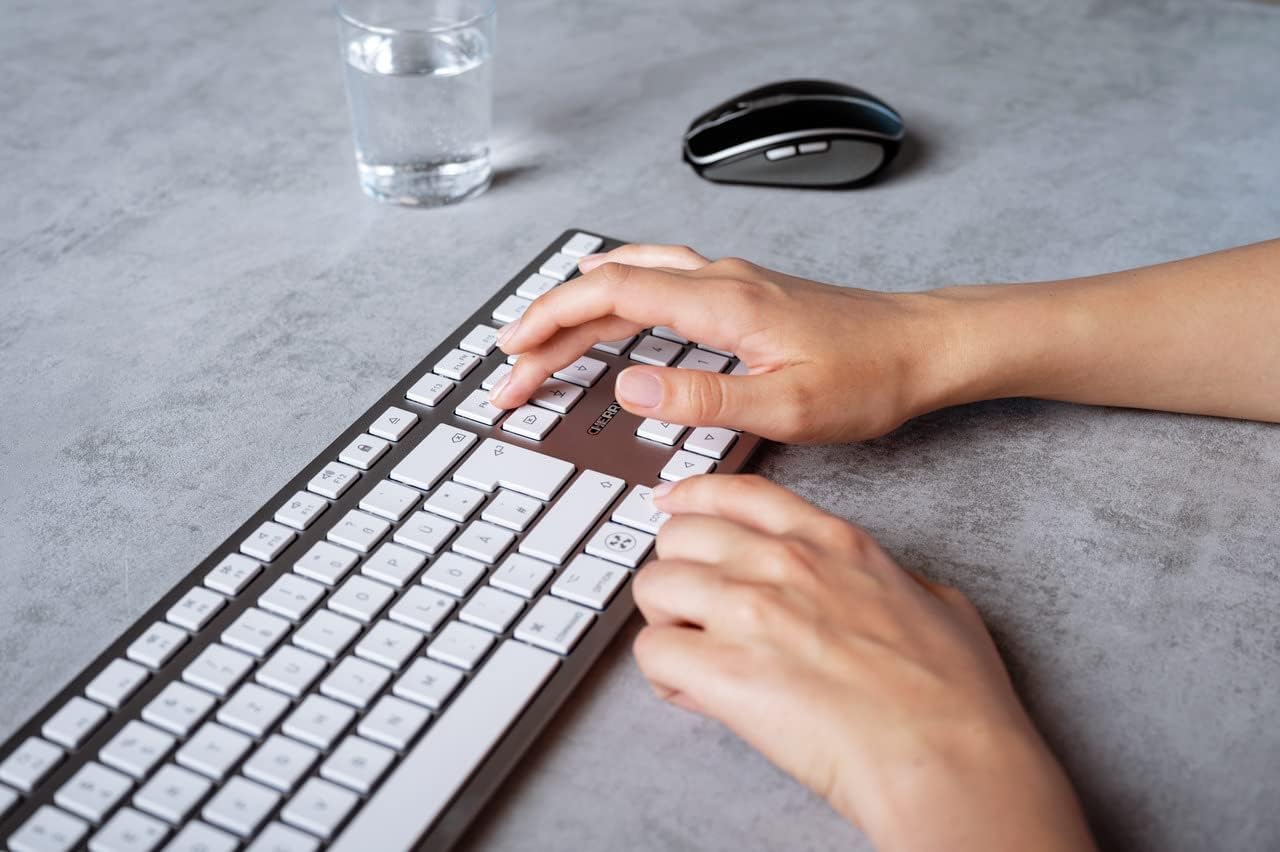
Image 5.1: A user typing on the Cherry KW 9100 keyboard, demonstrating its ergonomic design and key spacing.
5.3. Njikwa Ike
To conserve battery life, the keyboard will enter a sleep mode after a period of inactivity. To wake it up, simply press any key. The keyboard will reconnect automatically to the last active device.
6. Nlekọta
6.1. Nhicha
To clean the keyboard, gently wipe the surface with a soft, lint-free cloth. For stubborn dirt, slightly dampen the cloth with water or a mild, non-abrasive cleaning solution. Ensure no liquid enters the keyboard. Do not use harsh chemicals or abrasive materials.
6.2. Nchekwa
When not in use for extended periods, store the keyboard in a dry, cool place. It is recommended to fully charge the battery before long-term storage.
7. Nchọpụta nsogbu
| Nsogbu | Ihe nwere ike ime | Ngwọta |
|---|---|---|
| Keyboard not connecting via 2.4 GHz. | USB receiver not properly inserted; keyboard switch in 'BT' mode; low battery. | Ensure receiver is fully inserted. Slide keyboard switch to 'RF'. Charge the keyboard. Try a different USB port. |
| Ahụigodo anaghị ejikọ site na Bluetooth. | Keyboard switch in 'RF' mode; Bluetooth off on Mac; low battery; pairing issue. | Slide keyboard switch to 'BT'. Ensure Bluetooth is enabled on your Mac. Charge the keyboard. Remove and re-pair the keyboard in Mac's Bluetooth settings. |
| Keys are unresponsive or delayed. | Low battery; interference; keyboard in sleep mode. | Charge the keyboard. Move closer to the receiver/Mac. Press any key to wake the keyboard. |
| Function keys (F1-F15) not working as expected. | System settings; 'Fn' key usage. | Check your Mac's Keyboard settings (System Settings > Keyboard) for function key behavior. Try pressing the 'Fn' key simultaneously with the desired function key. |
| Batrị na-agbapụ ngwa ngwa. | Frequent use; keyboard not entering sleep mode. | Ensure the keyboard is allowed to enter sleep mode when idle. Fully charge the keyboard. |
8. Nkọwapụta
| Njirimara | Nkọwa |
|---|---|
| Nọmba nlereanya | JK-9110US-1 |
| Ụdị | cherị |
| Teknụzụ Njikọta | Bluetooth, USB-A (for receiver), USB-C (for charging) |
| Ngwa dakọtara | Mac computers with Bluetooth 4.0 or higher and USB-A connections |
| Nkọwa ahụigodo | Dị ala-profile, extra-slim, wireless, scissor-switch keyboard with adjustable angle and rechargeable battery |
| Njirimara Pụrụ Iche | Magnetic (for angle adjustment), Travel |
| Agba | Ọlaọcha |
| Ihe onwunwe | Ọla, plastik |
| Akụkụ ngwaahịa | 17.32 x 5.12 x 0.59 sentimita (44 x 13 x 1.5 cm) |
| Ibu Ibu | 1.94 pound (0.88 n'arọ) |
| Onye nrụpụta | CHERỊ |
9. Akwụkwọ ikike na nkwado
Your Cherry KW 9100 Slim Wireless Rechargeable Keyboard is covered by a manufacturer's warranty. For detailed warranty information, technical support, or service inquiries, please visit the official Cherry websaịtị ma ọ bụ kpọtụrụ nkwado ndị ahịa ha ozugbo. Debe ihe akaebe nke ịzụrụ ihe maka akwụkwọ ikike.
Nkwado n'ịntanetị: www.chinyere.de


