Okwu mmalite
This manual provides detailed instructions for the setup, operation, maintenance, and troubleshooting of your STEELPLAY Wireless Controller, model LA-0HNY-U4YG. Please read this manual carefully before using the product to ensure proper functionality and to prevent damage.
Melite
Ihe ngwugwu
Chọpụta na ihe niile dị na ngwugwu:
- STEELPLAY Wireless Controller (LA-0HNY-U4YG)
- Igwe nchaji USB
- Akwụkwọ ntuziaka (akwụkwọ a)
Ịchaji njikwa
Before first use, fully charge the controller. Connect the USB charging cable to the controller's charging port and the other end to a powered USB port (e.g., gaming console, PC, USB wall adapter).
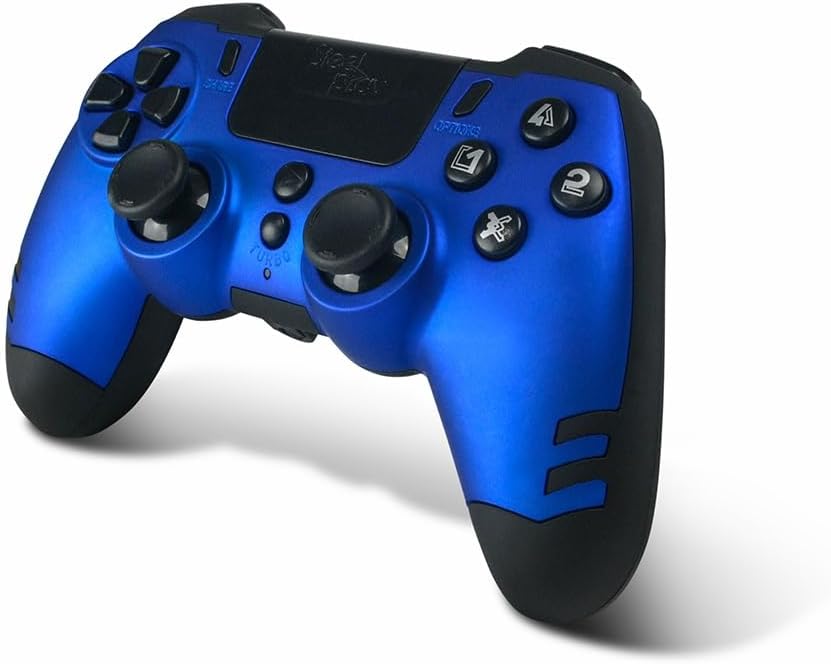
Image: The STEELPLAY Wireless Controller with a charging cable connected. This image illustrates the controller's design and potential charging port location.
Ijikọ na ngwaọrụ
Follow these steps to pair your wireless controller with your gaming console or PC:
- Gbaa mbọ hụ na ebubo onye njikwa ahụ.
- Turn on your gaming console or PC.
- Na njikwa ahụ, pịa ma jide KEWA bọtịnụ na PS button simultaneously until the light bar begins to flash.
- On your device, navigate to Bluetooth settings and select the "STEELPLAY Wireless Controller" from the list of available devices.
- Once paired, the light bar will stop flashing and remain lit, indicating a successful connection.
Ntuziaka ọrụ
Njikwa ntọala
The STEELPLAY Wireless Controller features standard gamepad controls. Familiarize yourself with the button layout:
- Mpempe akwụkwọ ntuziaka (D-Pad): For precise directional input.
- Osisi Analog aka ekpe/aka nri: Maka njikwa mmegharị na igwefoto.
- Bọtịnụ Ihe Omume (Triangle, Gburugburu, Obe, Square): Maka ihe omume n'ime egwuregwu.
- Shoulder Buttons (L1, R1) and Triggers (L2, R2): For various in-game functions.
- Bọtịnụ KEERE: To share gameplay content.
- Bọtịnụ nhọrọ: To access in-game menus or pause.
- bọtịnụ PS: To access the console's home menu or power on/off the controller.
- Ihe mmetụ aka: For additional input, often used for navigation or specific game mechanics.
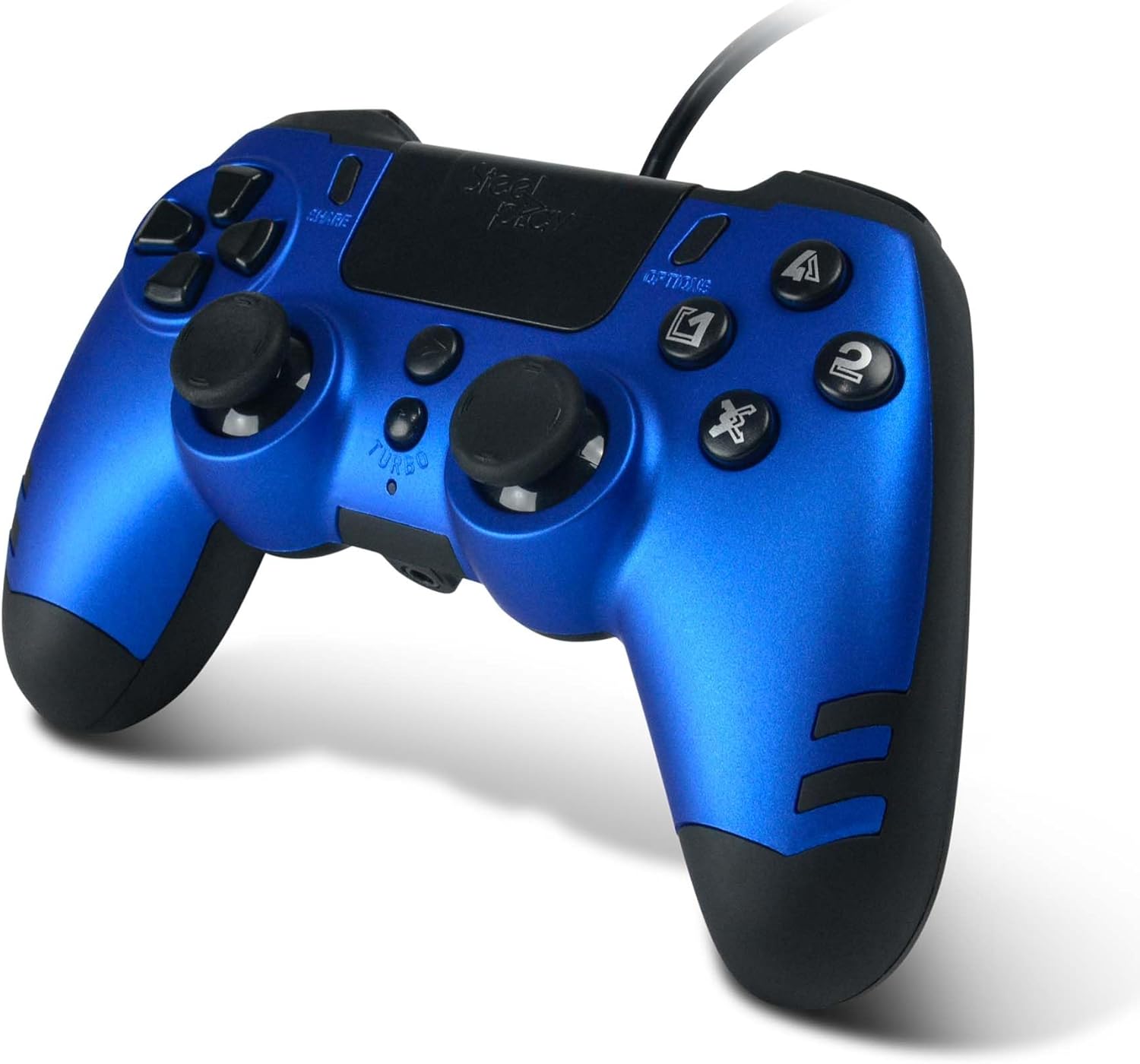
Foto: nkọwa zuru ezu view of the STEELPLAY Wireless Controller, highlighting the layout of its 14 buttons, D-pad, and analog sticks.
Ịgbanyụ/ Gbanyụọ
- Iji gbanye: Pịa PS bọtịnụ.
- Ka ịgbanyụ: Pịa ma jide PS button for approximately 10 seconds until the controller powers down.
Na-ejikọghachi
Once paired, the controller should automatically reconnect to the last paired device when powered on. If it does not, press the PS button to initiate reconnection.
Nlekọta
Nhicha
Iji hichaa njikwa ahụ, jiri akwa dị nro, kpọrọ nkụ. Maka unyi isi ike, ntakịrị dampen the cloth with water. Do not use harsh chemicals, solvents, or abrasive cleaners, as these can damage the controller's finish and internal components.
Nchekwa
Store the controller in a cool, dry place away from direct sunlight and extreme temperatures. Avoid placing heavy objects on the controller.
Nlekọta batrị
The controller contains a rechargeable battery. To prolong battery life:
- Zere ịchaji batrị ugboro ugboro.
- Charge the controller regularly, even if not in use for extended periods.
- Do not expose the controller to temperatures above 60°C (140°F).
Nchọpụta nsogbu
- Controller does not power on:
- Ensure the controller is fully charged. Connect it to a power source using the USB cable and allow it to charge for at least 30 minutes before attempting to power it on again.
- Controller does not connect or pair:
- Ensure the controller is in pairing mode (light bar flashing).
- Verify that the device you are trying to connect to has Bluetooth enabled.
- Remove any previous pairings of the controller from your device's Bluetooth settings and attempt to pair again.
- Move the controller closer to the device to ensure a strong signal.
- Restart both the controller and the device.
- Input lag or unresponsive buttons:
- Ensure the controller is fully charged. Low battery can affect performance.
- Reduce interference by moving away from other wireless devices (Wi-Fi routers, other Bluetooth devices).
- If possible, try connecting the controller via a USB cable to see if the issue persists (if wired mode is supported).
Nkọwapụta
| Njirimara | Nkọwa |
|---|---|
| Aha Nlereanya | LA-0HNY-U4YG |
| Brand (Manufacturer) | STEELPLAY |
| Brand (Retail) | Lexip |
| Njikọta | Ikuku |
| Ọnụọgụ bọtịnụ | 14 |
| Akụkụ | 17.5 x 13 x 8.3 cm |
| Ibu | 350 g |
| Batrị gụnyere | No (Features an internal rechargeable battery) |
Akwụkwọ ikike na nkwado
Specific warranty information is not provided in this manual. Please refer to the retailer's purchase terms or the manufacturer's official website for detailed warranty policies and support contact information.
For further assistance, please contact STEELPLAY customer support through their official channels.


