Okwu mmalite
The Logitech K585 Multi-Device Slim Wireless Keyboard is designed for versatile use across multiple devices, including laptops, tablets, desktops, and smartphones. Its compact and modern design aims to enhance productivity and comfort in various work environments. This manual provides essential information for setting up, operating, maintaining, and troubleshooting your keyboard.

Figure 1: Logitech K585 Multi-Device Slim Wireless Keyboard in Graphite.
Melite
1. Unboxing na mbido nyocha
Jiri nlezianya wepụ ihe niile dị na nkwakọ ngwaahịa. Gbaa mbọ hụ na ihe ndị a dị:
- Ahụigodo Logitech K585
- Batrị AAA 2 (arụnyere ya mbụ)
- Na-emekọ ihe nnata USB
- Akwụkwọ onye ọrụ

Figure 2: Contents included in the Logitech K585 package.
2. Battery Installation (if not pre-installed or for replacement)
The keyboard comes with two AAA batteries pre-installed. If you need to replace them:
- Locate the battery compartment cover on the top edge of the keyboard, usually integrated with the device cradle.
- Jiri nwayọọ slide ma ọ bụ welie ihe mkpuchi ahụ ka imeghe akụkụ ahụ.
- Fanye batrị AAA abụọ, na-ahụ polarity ziri ezi (+/-).
- Mechie mkpuchi nke batrị batrị nke ọma.
3. Connecting via USB Receiver (Logitech Unifying Receiver)
For devices without Bluetooth or for a stable 2.4 GHz wireless connection:
- Locate the Unifying USB receiver, typically stored inside the battery compartment or within the product packaging.
- Plug the Unifying USB receiver into an available USB-A port on your computer (laptop or desktop).
- Igodo ahụ kwesịrị ijikọ na akpaghị aka.
4. Connecting via Bluetooth Wireless Technology
For devices with Bluetooth capability (laptops, tablets, smartphones):
- Turn on the keyboard using the power switch, usually located on the side.
- Press and hold one of the Easy-Switch keys (1, 2, or 3) for three seconds until the LED light above the key starts blinking rapidly. This indicates the keyboard is in pairing mode.
- On your device, go to Bluetooth settings and search for new devices.
- Họrọ "Logitech K585" site na ndepụta ngwaọrụ dị.
- Follow any on-screen prompts to complete the pairing process. The LED light will turn solid for a few seconds and then turn off once connected.
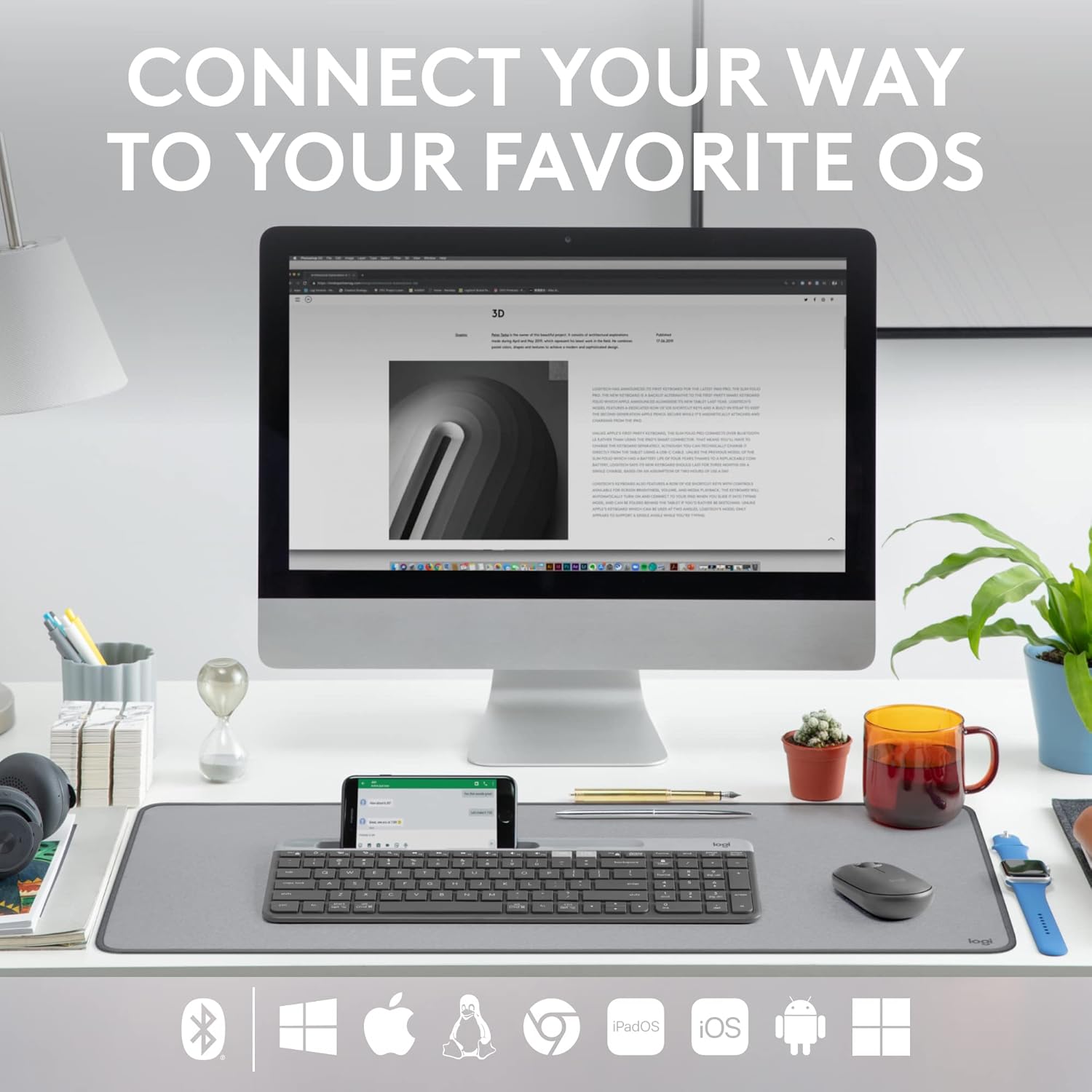
Figure 3: The Logitech K585 supports various operating systems including Windows, macOS, iOS, iPadOS, Android, and ChromeOS.
Na-arụ ọrụ ahụigodo
1. Ọrụ Mgbanwe Dị Mfe
The K585 keyboard allows you to seamlessly switch between up to three connected devices:
- Press the Easy-Switch key (1, 2, or 3) corresponding to the device you wish to use. The LED light above the selected key will briefly illuminate to confirm the switch.
- This feature enables quick transitions between typing on your computer, tablet, or smartphone.
2. Built-in Phone Cradle
The integrated cradle at the top of the keyboard is designed to hold your smartphone or tablet, providing an optimal viewing angle for multitasking.

Figure 4: The K585 keyboard with a smartphone positioned in the integrated cradle for enhanced multitasking.
3. FN Keys and Shortcuts
The keyboard features 12 FN keys that provide easy access to media controls and other shortcuts. These keys can be customized using Logi Options+ Software for enhanced productivity.
- Njikwa mgbasa ozi: Play/pause, volume up/down, mute.
- Igodo ọrụ: F1-F12, often used for specific software functions.
- Nhazi: Download and install Logi Options+ Software from the official Logitech website to personalize FN key assignments.
4. Multi-OS Compatibility
The keyboard layout is optimized for both Windows and Mac OS commands, ensuring a familiar typing experience regardless of your operating system. It also supports iOS, iPadOS, Android, and ChromeOS devices.

Figure 5: Universal compatibility of the Logitech K585 keyboard across different platforms.
Nlekọta
1. Battery Life and Management
The Logitech K585 keyboard offers an extended battery life of up to 24 months, thanks to its efficient design and an auto-sleep feature that activates when the keyboard is not in use. Battery life may vary based on user and computing conditions.

Figure 6: The K585 keyboard boasts a long-lasting 24-month battery life.
To maximize battery life, ensure the keyboard is switched off when not in use for extended periods.
2. Na-ehicha ahụigodo
Iji nọgide na-enwe ọdịdị na ọrụ nke keyboard ahụ:
- Use a soft, lint-free cloth to wipe down the surface.
- Maka unyi isi ike, ntakịrị dampen akwa na mmiri ma ọ bụ dị nwayọọ, na-adịghị abrasive Cleaner.
- Zenarị ịfesa mmiri mmiri ozugbo na ahụigodo.
- Do not use harsh chemicals or abrasive materials, as these can damage the finish.
Nchọpụta nsogbu
If you encounter issues with your Logitech K585 keyboard, consider the following common solutions:
- Enweghị njikọ:
- Gbaa mbọ hụ na agbanyere ahụigodo.
- Lelee ọkwa batrị wee dochie ma ọ dị mkpa.
- For USB receiver connection, try plugging the receiver into a different USB port.
- For Bluetooth connection, ensure Bluetooth is enabled on your device and try re-pairing the keyboard.
- Nkwụsị ma ọ bụ Nkwụsị:
- Move the keyboard closer to the receiver or Bluetooth-enabled device.
- Avoid placing the keyboard near other wireless devices that might cause interference (e.g., Wi-Fi routers, cordless phones).
- Ensure your device's operating system and Bluetooth drivers are up to date.
- Igodo anaghị aza:
- Hichaa gburugburu igodo emetụtara iji wepụ ihe irighiri ihe ọ bụla.
- Malitegharịa ekwentị gị ma ọ bụ ngwaọrụ.
- If using Logi Options+ Software, ensure it is running correctly and not causing conflicts.
Maka nsogbu ndị ọzọ gbasara nsogbu ma ọ bụ nsogbu ndị na-adịgide adịgide, gaa na nkwado Logitech gọọmentị website or the comprehensive user guide available for download.
Nkọwapụta
| Njirimara | Nkọwa |
|---|---|
| Ụdị | Logitech |
| Nọmba nlereanya | 920-011479 |
| Teknụzụ Njikọta | Bluetooth, USB (2.4 GHz Unifying Receiver) |
| Ngwa dakọtara | Laptọọpụ, PC, Ama ekwentị, Mbadamba |
| Ndakọrịta sistemụ arụmọrụ | Windows, macOS, iOS, iPadOS, Android, ChromeOS |
| Agba | Graphite |
| Ibu Ibu | 1.24 pound (ihe dị ka 562 g) |
| Akụkụ ngwaahịa (LxWxH) | 14.7 x 5.6 x 0.76 sentimita (ihe dịka 37.3 x 14.2 x 1.9 cm) |
| Ndụ batrị | Ruo ọnwa 24 (nwere ike ịdị iche dabere na ojiji) |
| Ikuku iche | Ruo 10m (33ft) |

Figure 7: Detailed dimensions of the Logitech K585 keyboard.
Akwụkwọ ikike na nkwado
Maka ozi gbasara akwụkwọ ikike, nkwado teknụzụ, na akụrụngwa ndị ọzọ, biko gaa na nkwado Logitech gọọmentị website. You can also find a comprehensive User Guide in PDF format for this product:
Akwụkwọ ndị emetụtara - 920-011479
 |
Ahụigodo Ngwaọrụ Dị Iche Iche nke Logitech K780: Atụmatụ, Njikọta, na Nduzi Ntọala Chọpụta ahụigodo Ngwa Ngwa Logitech K780, nke bụ keyboard dị iche iche e mere maka ịgbanwe n'etiti kọmputa, ekwentị, na mbadamba. Ntuziaka a na-akọwa atụmatụ ya, nhọrọ njikọ abụọ (Bluetooth Smart na Unifying Receiver), ọrụ emelitere, na ntuziaka ntọala maka sistemụ arụmọrụ dị iche iche. |
 |
Tastiera Logitech K780 Multi-Device: Funzionalità, Connettività e Layout Guida completa alla tastiera Logitech K780 Multi-Device, che copre le sue funzionalità, come collegarla a più dispositivi tramite Bluetooth Smart e Unifying, funzioni ottimizzate e doppio layout per diversi sistemi operativi. |
 |
Logitech K380 Keyboard and Pebble Mouse User Manuals Comprehensive user guides for the Logitech K380 Multi-Device Bluetooth Keyboard and Logitech Pebble Wireless Mouse, covering setup, features, shortcuts, and power management. Includes detailed instructions for pairing, software installation, and key functions. |
 |
Logitech K780 Multi-Device Keyboard: Seamless Connectivity for All Your Devices Explore the Logitech K780 Multi-Device Keyboard. Learn how to connect and use this versatile keyboard with your computer, tablet, and smartphone via Unifying or Bluetooth Smart for enhanced productivity. Discover its features, setup, and multi-device pairing. |
 |
Ahụigodo Ngwaọrụ Dị Iche Iche nke Logitech K780: Ntuziaka Njikọ Ikuku, Bluetooth, na Njikọta Nduzi zuru oke maka ahụigodo ngwaọrụ dị iche iche nke Logitech K780, nke na-ekpuchi atụmatụ ya, nhazi abụọ, mgbanwe dị mfe n'etiti PC, Mac, mbadamba, na ekwentị, yana ụzọ njikọ site na Bluetooth Smart na Unifying receiver. |
 |
Logitech K580 Slim Multi-Device Wireless Keyboard Setup Guide Learn how to set up your Logitech K580 Slim Multi-Device Wireless Keyboard via USB receiver or Bluetooth, and utilize its Easy-Switch feature for seamless device switching. |