Okwu mmalite
Thank you for choosing the Angetube 863PLUS 2K Streaming Webcam. This manual provides essential information for setting up, operating, and maintaining your webcam to ensure optimal performance. Please read these instructions carefully before use.

Image: Angetube 863PLUS 2K Streaming Webcam, showing the webcam unit, remote control, USB-A to USB-C adapter, and USB cable.
Melite
1. Ijikọ Webcam
- Nkwanye: Debe ya webcam securely on top of your monitor, laptop screen, or a tripod using its flexible clip. The clip allows for various angles and stable mounting.
- Nkwụnye ma kpọọ: Jikọọ webcam's USB cable directly to an available USB-A port on your computer. If your computer only has USB-C ports, use the included USB-A to USB-C adapter.
- Nwụnye ọkwọ ụgbọala: Nke webcam is plug-and-play and typically does not require additional drivers for basic functionality. Your operating system (Windows, macOS, Linux, Chrome OS) should automatically detect and install the necessary drivers.

Image: The Angetube 863PLUS webcam shown mounted on a computer monitor and a separate tripod, demonstrating its versatile mounting options.
2. Nwụnye ngwanrọ (Nhọrọ)
For advanced features and customization, Angetube provides optional software. This software allows for fine-tuning of image properties and applying filters.
- Budata: Visit the official Angetube website's download section to obtain the latest webcam software for your operating system (Mac OS/Windows).
- Nwụnye: Follow the on-screen instructions to install the software. Registration may be required to unlock all features.
Video: A short demonstration of the Angetube webcam software interface, showing options for adjusting brightness, contrast, hue, and applying various filters to the webcam feed.
Na-arụ ọrụ Webcam
1. Video Quality and Features
- 2K Ultra HDR Resolution: Nke webcam supports up to 2560x1440p resolution, providing clear and high-quality video. Mara: Windows 7 supports a maximum resolution of 1080p/30fps. Ensure your software and screen support 2K for full resolution.
- Teknụzụ HDR: High Dynamic Range (HDR) ensures optimal exposure and vibrant colors, even in challenging lighting conditions.
- Mbugharị dijitalụ 5X: Utilize the 5x digital zoom capability to focus on specific areas without blur.
- Dual Omnidirectional Microphones: Built-in dual stereo microphones capture clear audio from within 10 feet.
- Built-in Privacy Cover: A sliding privacy cover is integrated into the webcam for enhanced security when not in use.
- All Glass Lens: Features a 6-element glass lens for improved image quality.

Foto: Ngosipụta anya nke webcam's 2K resolution, highlighting fine details in an image.

Image: A split image demonstrating the effect of HDR, with one side showing a well-lit face (HDR On) and the other showing a darker, less detailed face (HDR Off).

Image: Illustration of the 5X digital zoom feature, showing how the image can be magnified from 1x to 5x.

Image: A diagram highlighting the dual omnidirectional microphones integrated into the webcam for clear audio capture.

Foto: The webcam with its built-in privacy cover closed, ensuring privacy when the camera is not in active use.

Foto: Ihe gbawara view nke webcam's all-glass lens, illustrating its multi-element design for superior image clarity.
2. Ring Light Operation
Nke webcam features an integrated ring light with touch control on the back of the unit.
- Ndozi ihie: Rotate the multi-step brightness spin button on the back of the webcam to increase or decrease the light intensity.
- Okpomọkụ agba: The ring light offers three color temperatures: White, Warm, and Natural. Tap the touch control button to cycle through these options.

Image: A visual comparison of the three available ring light color temperatures: White, Warm, and Natural, demonstrating their effect on a subject.
Video: A demonstration showing how to turn off the webcam's ring light by rotating the control on the back of the unit.
3. Ọrụ njikwa anya
The included remote control provides convenient access to various webcam settings from a distance. Mara: The remote cannot control the webcam ring light.
- Mechie: One-button mute for the microphone.
- Image On/Off: Turn the video image on or off.
- e-PTZ (Electronic Pan-Tilt-Zoom): Control pan, tilt, and zoom functions digitally.
- Autofocus/Fixed Focus Switching: Toggle between automatic and manual focus modes.
- Exposure Value Adjustment: Adjust the exposure to optimize lighting in various environments.
- Ntọala eburupụta: Tọgharịa ntọala na ndabara ụlọ ọrụ.
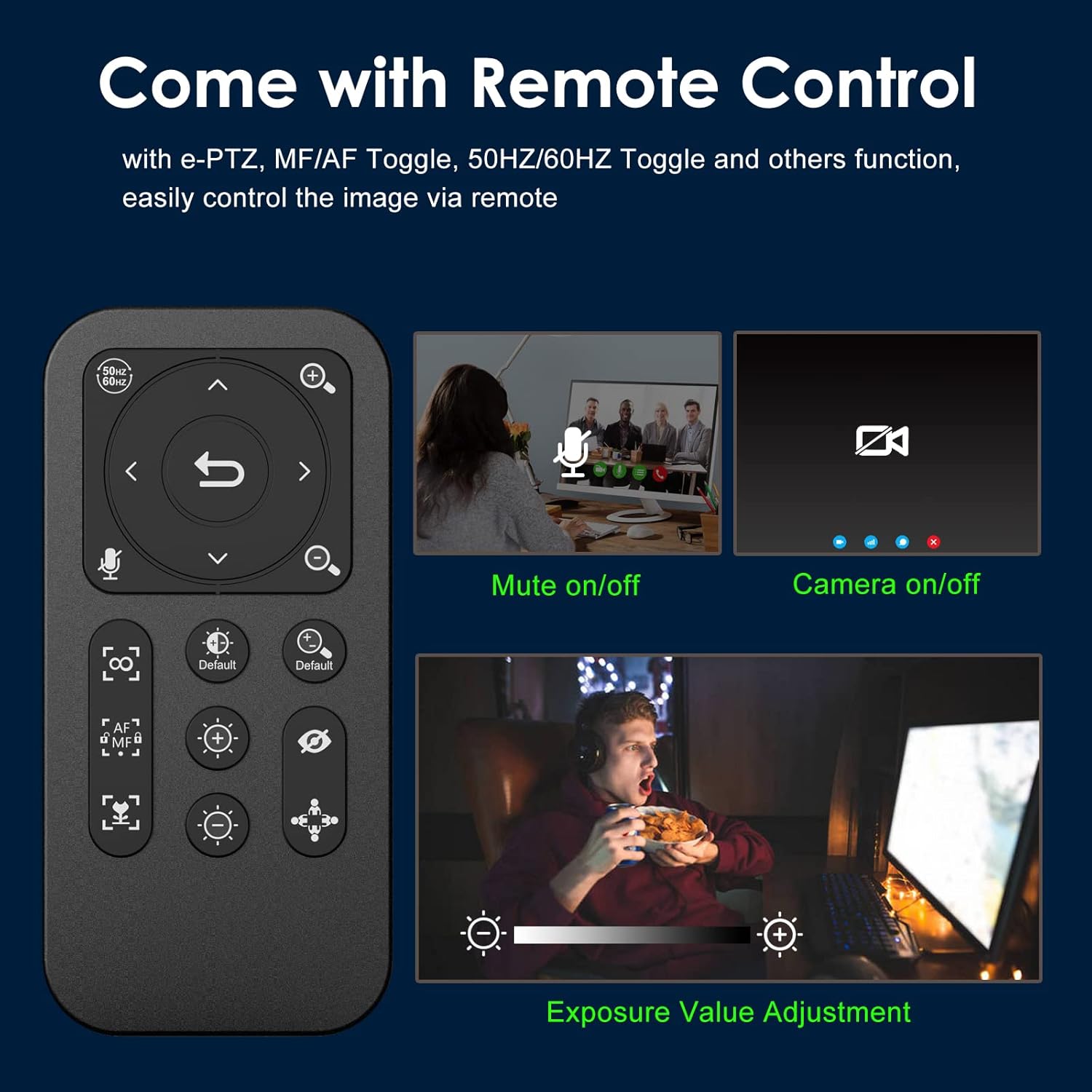
Image: The remote control for the webcam, detailing its various buttons for functions like mute, camera on/off, e-PTZ, and exposure adjustment.
Vidiyo: Ntugharị zuru okeview of the Angetube 2K HDR 5X zoom streaming webcam, ihe ngosiasing its features including the remote control, HDR, and zoom capabilities.
Ndakọrịta
The Angetube 863PLUS webcam offers wide compatibility with various operating systems and applications:
- Sistemu eji arụ ọrụ: Compatible with Windows XP/7/8/10/11, Mac OS 10.6 and above, Linux 2.6.24 and above, Chrome OS 29.0.1547.70 and above, Ubuntu Linux 10.04 and above.
- Ngwa: Ideal for Zoom, Facetime, Video Calling, OBS, Twitch, Facebook, YouTube, Conferencing, Recording, and Online School.
Nkọwapụta
| Njirimara | Nkọwa |
|---|---|
| Nọmba nlereanya | 863 gbakwunyere |
| Mkpebi ịse vidiyo | 1440p (2K) |
| Teknụzụ ihe mmetụta foto | CMOS |
| Ogologo Focal kacha | 800 millimeters |
| Oghere kacha | 2 f |
| Teknụzụ Njikọta | USB |
| Ibu Ibu | 9.2 ounces |
| Akụkụ ngwugwu | 4.09 x 3.86 x 3.78 sentimita asatọ |
| Batrị | 1 CR2 batteries required (included for remote) |
Nchọpụta nsogbu
- 2K Resolution Issue on Windows 7: If you are using Windows 7, the maximum supported resolution is 1080p/30fps. To experience 2K resolution, ensure your operating system and video conferencing software support it.
- Remote Control Not Operating Ring Light: The remote control is designed for camera settings (zoom, focus, mute, etc.) and does not control the integrated ring light. Adjust the ring light directly using the touch controls on the back of the webcam.
- Image Blur/Focus Issues: If the image appears blurry, use the remote control to switch between autofocus and manual focus modes. In manual focus, use the near/far focus buttons to adjust. Ensure the lens is clean and free from obstructions.
- Enweghị Ọdịyo/Ọdịyo Na-adịghị Mma: Chọpụta na webcam's microphone is selected as the input device in your computer's sound settings and your video conferencing application. Ensure the microphone is not muted via the remote or software. For professional audio, consider using a dedicated external microphone.
- WebAchọpụtaghị cam: Nwaa ijikọ ya webcam to a different USB port. Ensure the USB cable and adapter (if used) are securely connected. Restart your computer if the issue persists.
Akwụkwọ ikike na nkwado
Ozi akwụkwọ ikike
Angetube provides warranty service for its products. This product includes warranty service within 18 months from the date of purchase. To claim warranty service, present your warranty card and fill in the relevant content in detail to customer service.
Nkwado ndị ahịa
For any technical assistance or inquiries, please contact Angetube customer support. Angetube is committed to providing lifetime technical customer support.
- Nkwado n'ịntanetị: Gaa leta Angetube Store on Amazon or the official Angetube website for FAQs and contact information.
- Oge nzaghachi: Expect a quick response within 24 hours for support inquiries.
- Nlaghachi/Ngbanwe: Returns for an exchange or refund are typically accepted within 30 days.


