1. Okwu mmalite
This manual provides detailed instructions for the setup, operation, and maintenance of your BINNIFA Play 6D Sound Bar. Please read this manual thoroughly before using the product to ensure proper function and to maximize your audio experience. Keep this manual for future reference.

Image 1.1: The BINNIFA Play 6D Sound Bar, a sleek, silver-colored audio device designed to enhance television sound.
2. Ozi nchekwa
- Do not expose the sound bar to rain, moisture, or extreme temperatures.
- Gbaa mbọ hụ na ikuku ikuku dị na gburugburu unit ahụ iji gbochie ikpo oke ọkụ.
- Emeghela casing; zigara ndị ọrụ ruru eru ọrụ niile.
- Jiri naanị ihe nkwụnye ọkụ enyere.
- Keep the sound bar away from strong magnetic fields.
3. Ihe ngwugwu
Chọpụta na ihe niile dị na ngwugwu:
- BINNIFA Play 6D Sound Bar
- Njikwa anya
- Ada Ada AC
- Igwe ọkụ anya
- Ihe eji ewute mgbidi
4. Ngwaahịa gafereview
4.1 Ihu na elu View
Foto 4.1: N'ihu view of the sound bar, featuring a silver grille and a subtle BINNIFA logo on the left.
4.2 Njikọ azụ azụ
The rear panel of the sound bar provides various input ports for connecting to your television and other audio sources.

Image 4.2: Close-up of the rear panel showing input ports: Coaxial (COX), Optical (OPT), HDMI ARC, USB, AUX, and DC IN.
5. Nhazi
5.1 Nhọrọ ntinye
The BINNIFA Play 6D Sound Bar offers flexible placement options:
- Ndokwa tebụl: Place the sound bar on a flat, stable surface directly in front of your television. Ensure it does not obstruct the TV's remote sensor.
- Ịkwanye mgbidi: Use the included wall mounting kits to attach the sound bar to a wall below your television. Refer to the wall mounting template for precise drilling locations.

Image 5.1: The sound bar positioned on a media console beneath a television, demonstrating tabletop placement.
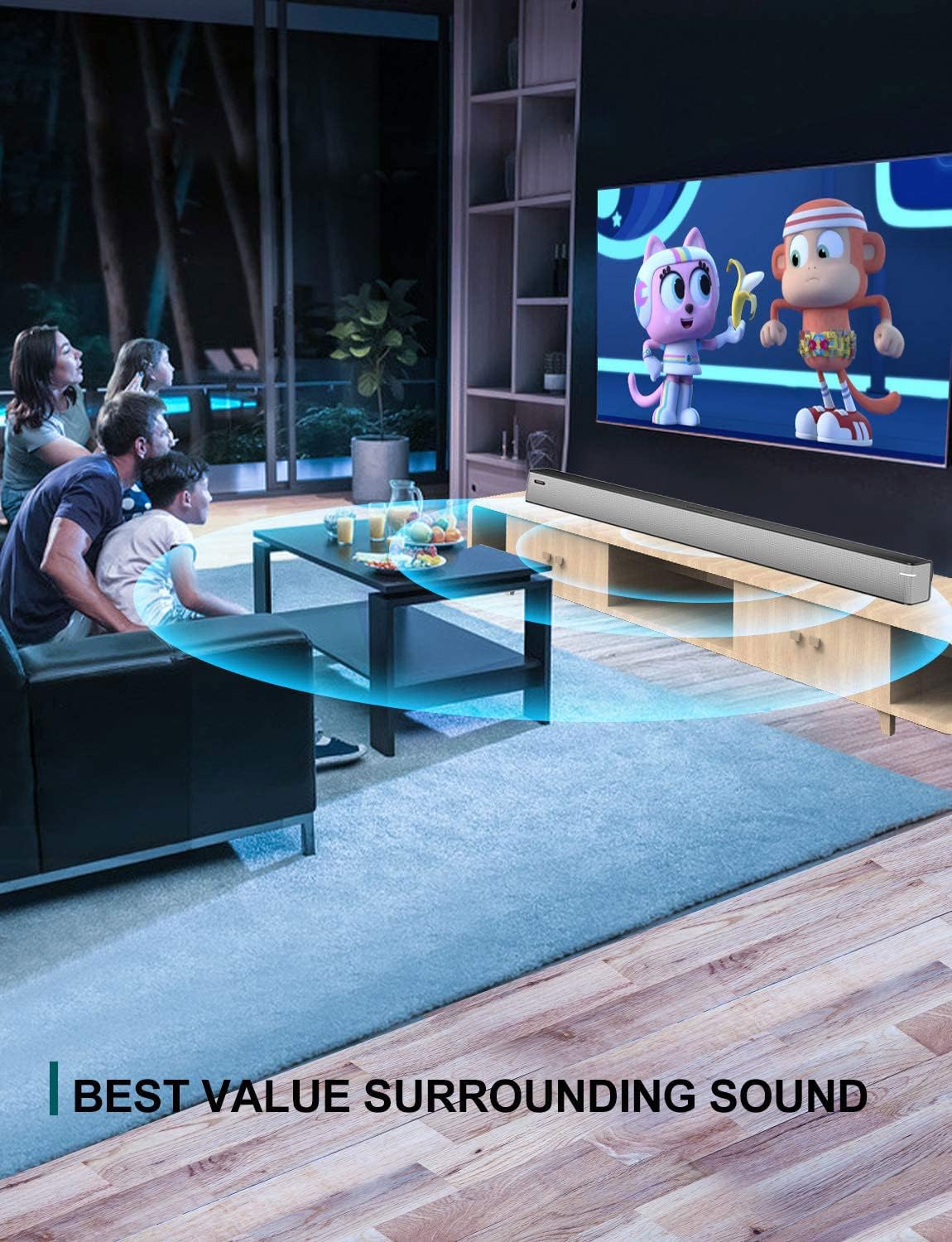
Image 5.2: The sound bar mounted on a wall directly below a television, illustrating wall-mount installation.
5.2 Connecting to Your TV or Audio Source
The sound bar supports multiple connection types. Choose the method that best suits your television or audio device.
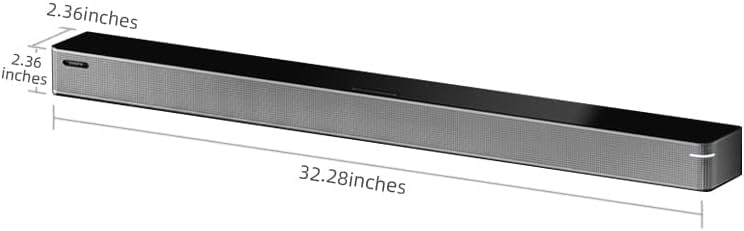
Image 5.3: A diagram illustrating the available connection methods: HDMI ARC, USB Media, and Bluetooth.
- Njikọ HDMI ARC (Akwadoro):
- Connect one end of an HDMI cable (not included) to the HDMI ARC port on your TV.
- Jikọọ nsọtụ nke ọzọ na HDMI ARC ọdụ ụgbọ mmiri na ụda ụda.
- Hụ na arụ ọrụ HDMI ARC nke TV gị dị na ntọala ya.
- Njikọ anya:
- Connect the included optical cable to the Nhọrọ ọdụ ụgbọ mmiri na ụda ụda.
- Connect the other end to the optical digital audio output port on your TV.
- Set your TV's audio output to 'Optical' or 'PCM'.
- Njikọ AUX:
- Connect a 3.5mm audio cable (not included) to the AUX ọdụ ụgbọ mmiri na ụda ụda.
- Connect the other end to the headphone jack or AUX output on your TV or audio device.
- Njikọ USB:
- Fanye draịva USB nwere ọdịyo files n'ime USB ọdụ ụgbọ mmiri na ụda ụda.
- The sound bar will automatically switch to USB mode and begin playback.
- Coaxial Connection:
- Connect a coaxial cable (not included) to the COX ọdụ ụgbọ mmiri na ụda ụda.
- Connect the other end to the coaxial digital audio output port on your TV.
5.3 Njikọ ike
Jikọọ ihe nkwụnye ike AC na ihe nkwụnye ike AC na DC IN port on the sound bar, then plug the adapter into a wall outlet.
6. Ntuziaka ọrụ
6.1 Gbanyụọ ma ọ bụ gbanyụọ
Pịa Ike button on the remote control or on the sound bar to turn the unit on or off.
6.2 Nhọrọ ntinye
Pịa Ntinye button on the remote control to cycle through the available input sources: HDMI ARC, Optical, AUX, USB, and Bluetooth.
6.3 Njikọ Bluetooth
Iji jikọọ ngwaọrụ Bluetooth:
- Turn on the sound bar and select Bluetooth mode using the Ntinye bọtịnụ. Ọkụ ihe ngosi ga-enwu.
- Kwado Bluetooth na ngwaọrụ mkpanaka gị (smartphone, tabletị, wdg).
- Chọọ maka available devices and select "BINNIFA Play 6D" from the list.
- Once paired, the indicator light on the sound bar will stop flashing and remain solid.
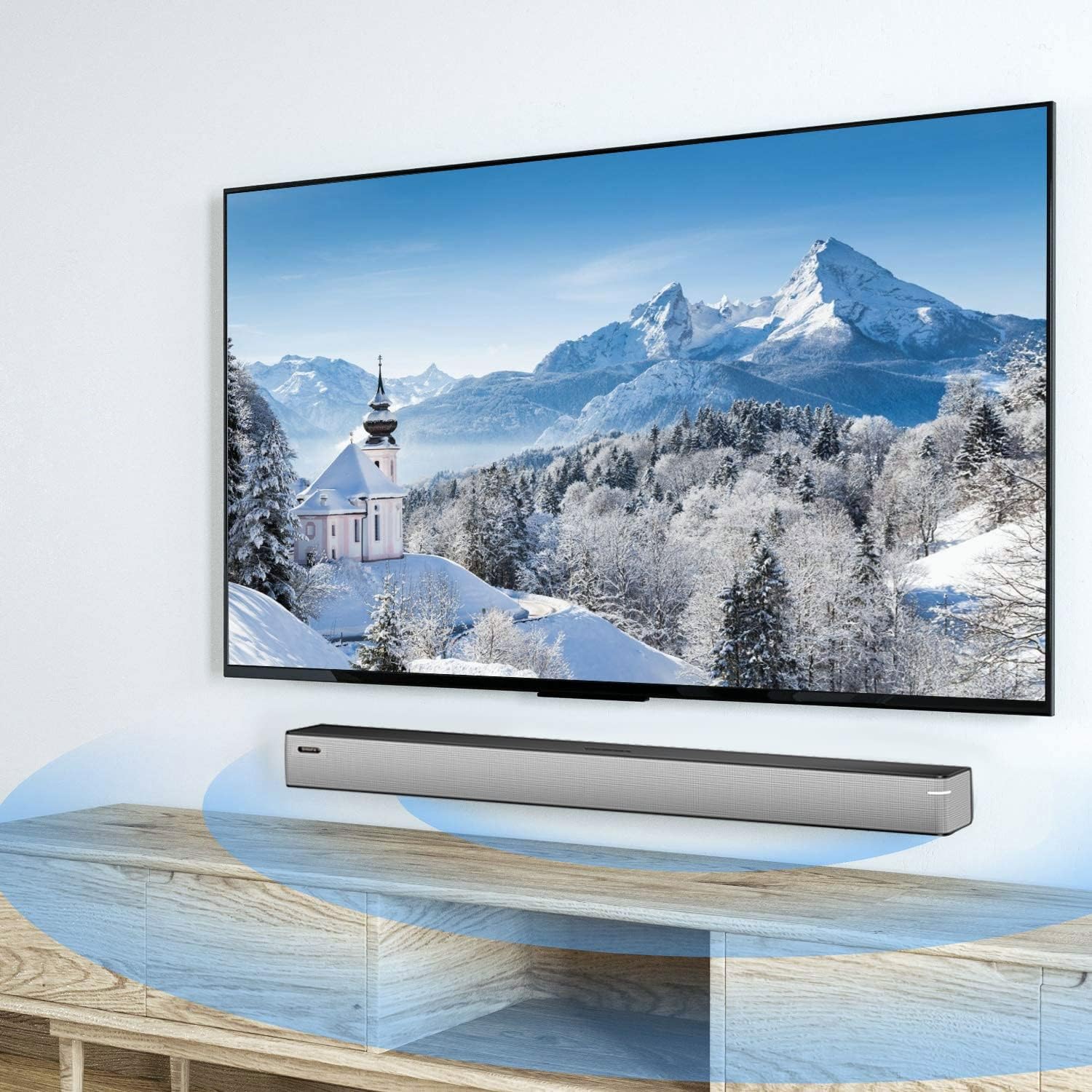
Image 6.1: A smartphone displaying music playback, wirelessly connected to the sound bar via Bluetooth, illustrating simple connectivity.
6.4 Ụdị ụda
The sound bar features three optimized sound modes:
- Ụdị egwu: Ideal for pop music, providing balanced audio.
- Ọnọdụ ihe nkiri: Enhances movie and TV show audio with heavy bass for an immersive experience.
- Ụdị akụkọ: Optimizes vocal clarity for news broadcasts and talk shows.
Press the corresponding button on the remote control to switch between modes.
6.5 Njikwa olu
Jiri ihe Elu elu (+) na Olu ala (-) buttons on the remote control or on the sound bar to adjust the volume level.
7. Nlekọta
To ensure the longevity and performance of your sound bar:
- Nhicha: Wipe the surface of the sound bar with a soft, dry cloth. Do not use liquid cleaners or abrasive materials.
- Nchekwa: Ọ bụrụ na ị na-echekwa unit ahụ ruo ogologo oge, kwụpụ ya na ike ma chekwaa ya n'ebe dị jụụ na nkụ.
- Igwe ikuku: Ensure that the vents are not blocked to prevent overheating.
8. Nchọpụta nsogbu
If you encounter issues with your BINNIFA Play 6D Sound Bar, refer to the following common problems and solutions:
| Nsogbu | Ihe nwere ike ime | Ngwọta |
|---|---|---|
| Enweghị ụda sitere na ogwe ụda. |
|
|
| Ngwaọrụ Bluetooth enweghị ike ijikọ. |
|
|
| Njikwa anya anaghị arụ ọrụ. |
|
|
9. Nkọwapụta
Detailed technical specifications for the BINNIFA Play 6D Sound Bar:
- Ụdị: Play 6D
- Akara: BINNIFA
- Akụkụ ngwaahịa: 32.3"D x 2.36"W x 2.36"H (82cm x 6cm x 6cm)
- Ibu ihe: Pound 4.19 (1.9 n'arọ)
- Ụdị ọkà okwu: Igwe ụda ụda
- Ụdị nkwụnye: Mgbidi mgbidi, tebụl
- Teknụzụ Njikọta: Auxiliary, Bluetooth, Coaxial, HDMI ARC, Optical, USB
- Teknụzụ nzikọrịta ozi ikuku: Bluetooth 5.0
- Ogologo Bluetooth: Ruo mita iri (ụkwụ 33)
- Ike Nwepụta Kachasịnụ: 30 Watt
- Nzaghachi ugboro ugboro: 60 Hz
- Algbaàmà-na-Noise ruru: 75 dB
- Isi mmalite ike: Corded Electric (AC adapter)
- Usoro njikwa: Njikwa anya
- Agba: Ọlaọcha
- UPC: 791200396207

Image 9.1: Diagram illustrating the dimensions of the sound bar: approximately 32.28 inches long, 2.36 inches deep, and 2.36 inches high.
10. Akwụkwọ ikike na nkwado
BINNIFA products are designed for reliability and performance. For warranty information or technical support, please refer to the warranty card included with your product or visit the official BINNIFA websaịtị. Debe nnata nzụta gị dị ka ihe akaebe nke ịzụrụ maka nkwupụta ikike.


