Okwu mmalite
The Miofive Dash Cam Front and Rear system provides comprehensive video recording for your vehicle, featuring 4K resolution for the front camera and 2K for the rear. Designed for reliability and ease of use, this dual dash camera system incorporates advanced features such as 5G WiFi connectivity, built-in GPS, motion detection, and G-sensor technology, all powered by a durable super capacitor. This manual provides detailed instructions for setup, operation, maintenance, and troubleshooting to ensure optimal performance of your device.
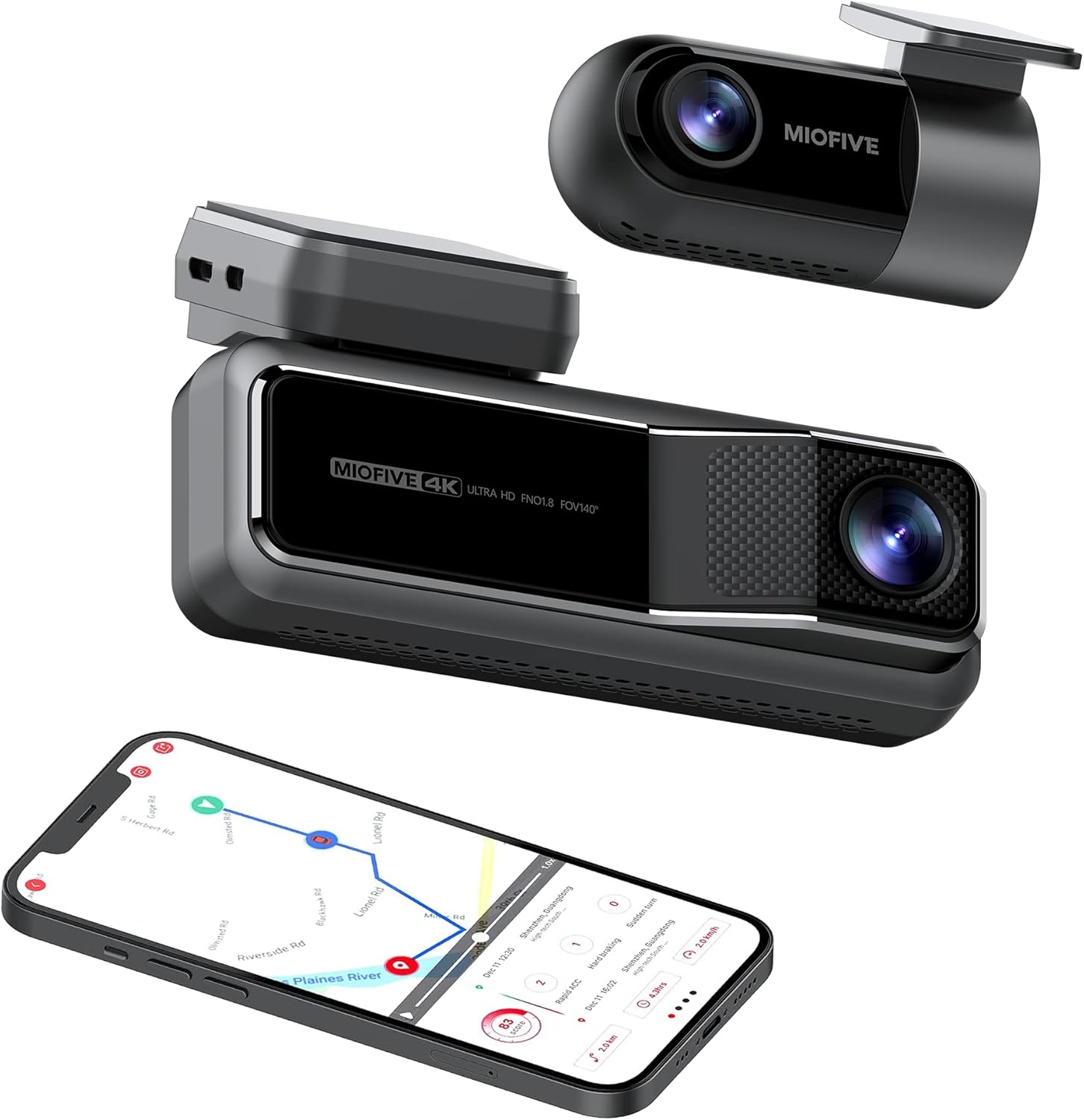
The Miofive Dash Cam system, featuring both front and rear cameras, along with its companion mobile application.
Ntuziaka ọrụ
Gbanyụọ/ Gbanyụọ
The dash cam will automatically power on and begin recording when connected to your vehicle's power supply and the ignition is turned on. It will power off automatically when the vehicle's power is cut.
Ndekọ ntọala
Once powered on, the dash cam will automatically start loop recording. This means it continuously records video in segments, overwriting the oldest footage when the storage is full. Important footage can be locked to prevent overwriting.
5G WiFi and App Control
The Miofive Dash Cam features built-in 5G WiFi for seamless connection to the Miofive mobile application. Download the Miofive app from your smartphone's app store. Once connected, you can:
- View ndepụta vidiyo dị ndụ sitere na igwefoto abụọ ahụ.
- Edekọghachiri egwu footage directly on your phone.
- Download important video clips to your device.
- Adjust camera settings and preferences.
- Receive real-time Over-The-Air (OTA) updates for bug fixes and software enhancements.


The Miofive App provides comprehensive control and access to your dash cam's features and recordings.
G-Sensor and Motion Detection
The built-in G-sensor automatically detects sudden impacts or collisions. When an event is detected, the dash cam will automatically lock the current video segment, preventing it from being overwritten by loop recording. This ensures critical evidence is preserved.

The G-sensor ensures automatic recording and locking of footage during impacts.
Ebe a na-adọba ụgbọala
With the optional hardwire kit, the dash cam can monitor your vehicle even when parked. The 24-hour parking monitor and time-lapse recording features capture disturbances or continuous footage, providing security when you're away from your car.

The parking monitor feature provides continuous surveillance for your vehicle when parked.
Ọhụụ abalị
Equipped with the Sony Starvis IMX415 sensor and High Dynamic Range (HDR) technology, the Miofive Dash Cam delivers clear and bright video quality in low-light conditions, enhancing visibility during nighttime driving or in dimly lit environments.

Enhanced night vision capabilities for clear recordings in low light.
AI Algorithm and Go Assist
The intelligent AI algorithm monitors road conditions and provides helpful alerts. The Go Assist feature can notify you of sudden turns, braking, and accelerations, and prompt you to proceed when the vehicle ahead moves, improving driving awareness.

AI algorithm for smart driving assistance and alerts.
GPS nsochi
Built-in GPS technology records your driving route, speed, and coordinates, providing detailed information for each journey. This data can be accessed and reviewed through the Miofive app.

Integrated GPS technology records essential driving data.
Nlekọta
Regular maintenance helps ensure the longevity and optimal performance of your Miofive Dash Cam:
- Na-ehicha oghere: Gently wipe the camera lenses with a soft, lint-free cloth to remove dust or smudges. Avoid using abrasive cleaners that could scratch the lens.
- Mmelite femụwe: Periodically check the Miofive app for available firmware updates. Keeping your dash cam's firmware up-to-date ensures you have the latest features and bug fixes.
- Lelee njikọ: Ensure all cables (power, rear camera) are securely connected to prevent intermittent power loss or recording issues.
- Njikwa nchekwa: While the dash cam uses loop recording, it's good practice to regularly review and back up any important footage. The built-in 128GB eMMC storage is designed for durability, but managing critical files is always recommended.


