Okwu mmalite
The Logitech MX Brio Ultra HD 4K Webcam is designed to elevate your video communication and content creation. Featuring sharp 4K resolution, AI image enhancement, and advanced audio capabilities, it ensures you look and sound your best in any setting. This manual will guide you through the setup, operation, and maintenance of your new webcam.

Image: The Logitech MX Brio webcam in Pale Grey, showcasing its sleek design and prominent lens.
Kedu ihe dị na Igbe ahụ
Upon unboxing your Logitech MX Brio, you will find the following components:
- Logitech MX Brio Webcam
- USB-C ka eriri USB-C (1.5m)
- Akwụkwọ onye ọrụ
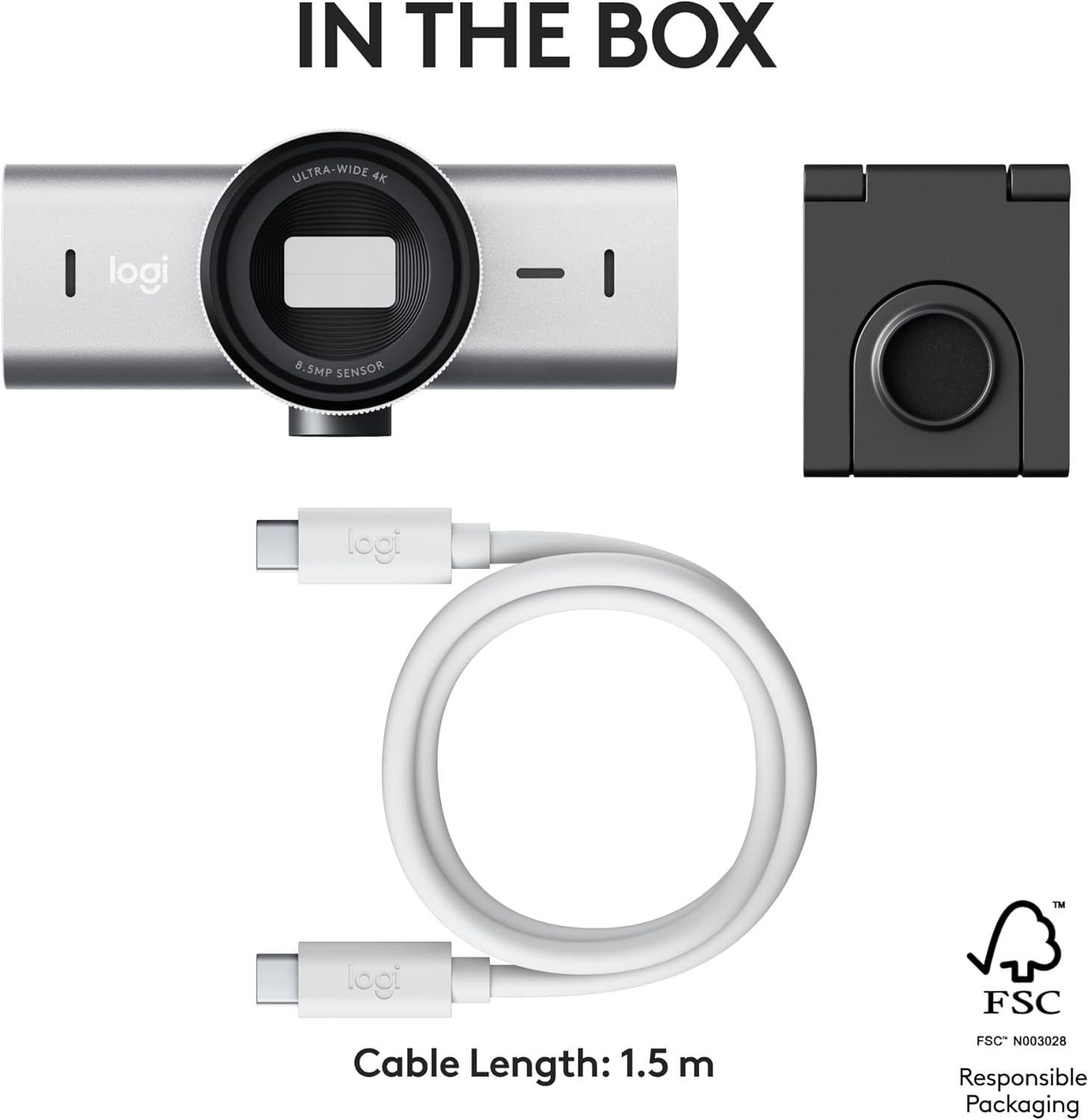
Image: A visual representation of the Logitech MX Brio webcam and its accessories included in the product packaging.
Vidiyo na-ewepụ igbe
Video: An official unboxing video for the Logitech MX Brio webcam, demonstrating the contents and initial presentation of the product.
Melite
Follow these steps to set up your Logitech MX Brio webcam:
- Ịkwanye ahụ Webcam: Debe ya webcam securely on top of your monitor or laptop screen using its integrated magnetic mount. Ensure it is stable and positioned to capture your desired view.
- Jikọọ na kọmputa gị: Connect the included USB-C cable from the webcam to an available USB-C port on your computer. The webcam is compatible with Windows, macOS, Chrome OS, and Linux.
- Software Installation (Logitech Options+): For full customization and control over your webcam's features, download and install the Logitech Options+ software from the official Logitech website. This software allows you to adjust settings such as field of view, exposure, image quality, and more.

Image: The Logitech MX Brio webcam mounted on a computer monitor, demonstrating a typical setup for video calls and streaming.

Image: The Logitech Options+ software interface, providing controls for customizing the MX Brio webcam's settings.
Atụmatụ
The Logitech MX Brio is equipped with several advanced features to enhance your video experience:
- Ultra HD 4K Resolution: Capture video in stunning 4K at 30fps or 1080p at 60fps, ensuring sharp and detailed image quality.
- AI-Enhanced Image Quality: Benefit from auto-exposure, auto white balance, noise reduction, and autofocus for improved face visibility and finer image details, especially in challenging lighting conditions.
- Dual Noise-Reducing Microphones: Integrated omnidirectional microphones with AI-powered noise reduction minimize background sound, ensuring your voice is heard clearly.
- Ụdị ngosi: Easily share physical work or notes on your desk by tilting the webcam down. The image automatically flips for correct orientation.
- Built-in Privacy Shutter: A simple rotation of the integrated webcam cover physically blocks the lens, providing immediate privacy.
- Njikwa enwere ike ịhazi: Utilize Logitech Options+ to precisely adjust lighting, white balance (ISO, Shutter Speed, Temperature, Tint, Vibrance), and field of view (65°, 78°, 90°).
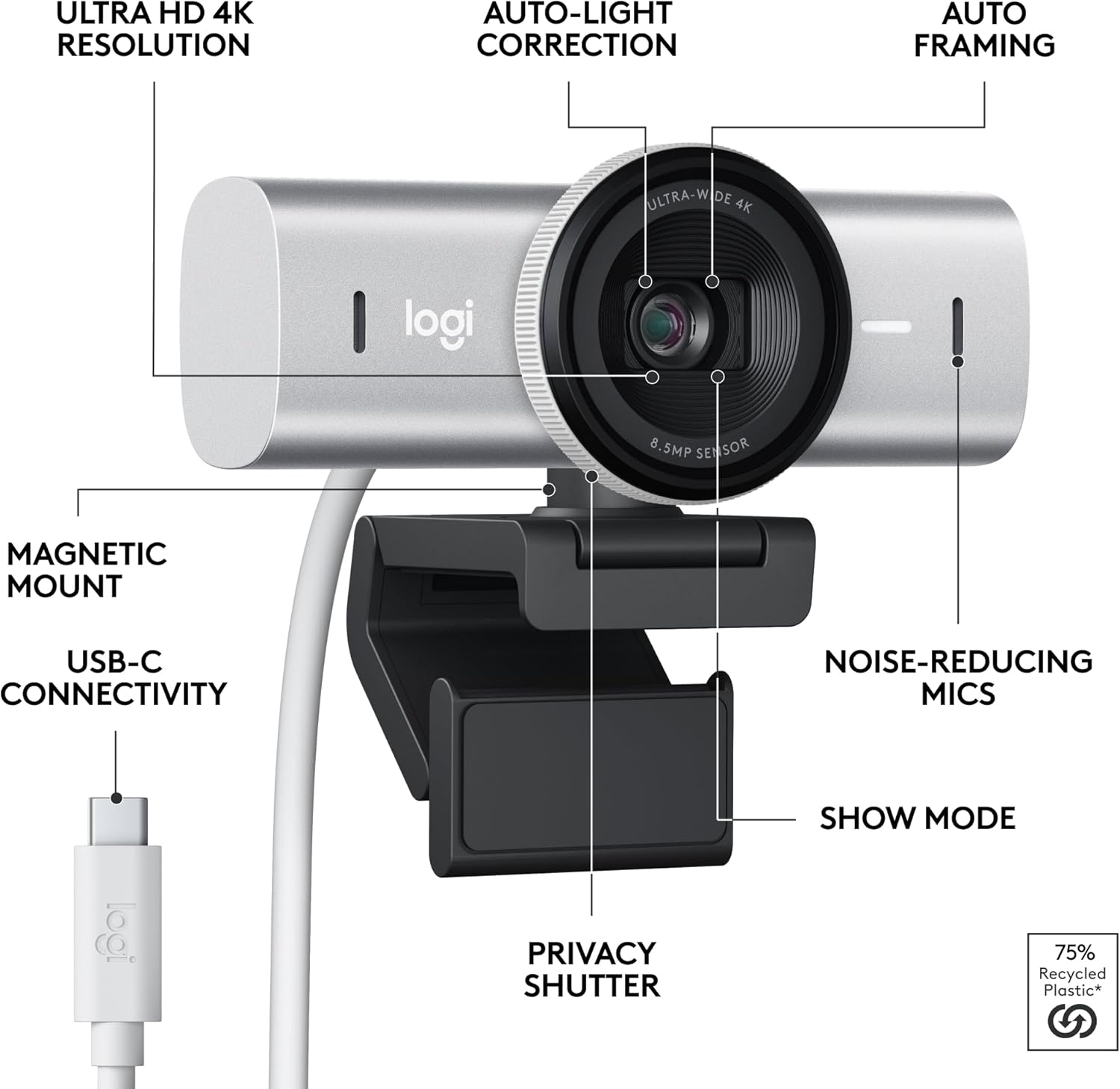
Image: An annotated diagram illustrating the various features and components of the Logitech MX Brio webcam.

Foto: Onye bụbu onye a na-ahụ anyaample of the AI-enhanced image quality, showing improved face visibility and detail in challenging light conditions.

Foto: The webcam positioned on a monitor, with graphic overlays representing sound waves, emphasizing the noise-reducing microphone feature.

Image: A hand demonstrating the use of the built-in privacy shutter, rotating it to block the webcam's lens.
Ntuziaka ọrụ
Once set up, the Logitech MX Brio is ready for use with your preferred video conferencing or streaming applications. For optimal performance and access to advanced features, utilize the Logitech Options+ software.
Using Show Mode
Show Mode allows you to quickly share physical objects or documents on your desk during a video call:
- During a video call, gently tilt the Logitech MX Brio webcam downwards towards your desk.
- Nke webcam's image will automatically flip to correctly orient your desk view for participants.
- Ghichaa webcam back up to return to your face view.

Image: A user demonstrating Show Mode by tilting the webcam to display content on their desk during a video call.
Customizing with Logitech Options+
Logitech Options+ provides granular control over your webcam's settings:
- Ubi nke View: Select between 65°, 78°, or 90° to frame your shot perfectly.
- Exposure Settings: Manually adjust shutter speed, ISO, and exposure compensation, or enable Auto Exposure for automatic adjustments.
- Ndozi onyonyo: Fine-tune brightness, contrast, saturation, and white balance to achieve your desired look.
- Njikwa mgbado anya: Switch between autofocus and manual focus for precise control over what's sharp in your video.

Image: A user adjusting the video settings of their MX Brio webcam through the Logitech Options+ software interface.
Nlekọta
To ensure the longevity and optimal performance of your Logitech MX Brio webcam, soro ntuziaka mmezi ndị a:
- Na-ehicha oghere: Jiri ákwà dị nro, nke na-enweghị lint nke e mere kpọmkwem maka ihe anya iji hichaa ya nke ọma. webLensi kamera. Zere ihe ndị na-emebi emebi ma ọ bụ kemịkalụ siri ike.
- Na-ehicha ahụ: Hichapụ webahụ cam nwere nro, damp cloth. Do not submerge the device in water or use excessive moisture.
- Nchekwa: Mgbe anaghị eji, chekwaa ụlọ ahịa webcam in a clean, dry place away from extreme temperatures and direct sunlight. Utilize the built-in privacy shutter to protect the lens.
Nchọpụta nsogbu
If you encounter issues with your Logitech MX Brio webcam, gbalịa usoro nchọpụta nsogbu ndị a:
- WebAchọpụtaghị cam: Hụ na e jikọtara eriri USB-C nke ọma na abụọ ahụ webcam and your computer. Try a different USB-C port or a different cable if available. Restart your computer.
- Ogo onyonyo adịghị mma: Check your lighting conditions. Ensure the lens is clean. Adjust settings in Logitech Options+ (exposure, white balance, focus) to optimize the image.
- Enweghị Ọdịyo/Ọdịyo Na-adịghị Mma: Verify that the MX Brio is selected as the audio input device in your operating system's sound settings and in your video conferencing application. Check for any physical obstructions to the microphones.
- Okwu ngwanrọ: Ensure your Logitech Options+ software is up to date. If problems persist, try reinstalling the software.
Maka enyemaka ọzọ, gaa na nkwado Logitech websaịtị ma ọ bụ kpọtụrụ ndị ahịa.
Nkọwapụta
| Nkọwapụta | Nkọwa |
|---|---|
| Nọmba nlereanya | 960-001550 |
| Akụkụ ngwaahịa | 2.1 x 3.9 x 2.4 sentimita asatọ |
| Ibu Ibu | 13.4 ounces |
| Mkpebi ịse vidiyo | 4K (30fps), 1080p (60fps) |
| Teknụzụ ihe mmetụta foto | CMOS |
| Teknụzụ Njikọta | USB-C |
| Igwe okwu | Dual omnidirectional, noise-reducing |
| Ndakọrịta | Windows, macOS, Chrome OS, Linux |
Akwụkwọ ikike na nkwado
Logitech products are backed by a limited hardware warranty. For specific warranty terms and conditions applicable to your region, please refer to the warranty information included with your product or visit the official Logitech websaịtị.
For technical support, FAQs, and additional resources, please visit the Logitech support page for the MX Brio webcam:


