1. Okwu mmalite
This manual provides essential information for the proper setup, operation, and maintenance of your Sharp 32FG6EA 32-inch HD Android TV. The Sharp 32FG6EA offers a wide range of connection options and features the Android TV operating system, providing a modern and intuitive television experience. It functions as an all-in-one entertainment hub, integrating Google Assistant for a smarter viewing experience. Users can quickly access entertainment, control smart devices, and obtain on-screen information using voice commands.
2. Ozi nchekwa
Please read all safety instructions carefully before using the television. Keep this manual for future reference.
- Ịnye ọkụ: Ensure the TV is connected to a power source with the correct voltage. Do not overload power outlets.
- Igwe ikuku: Akwụsịla oghere ikuku. Nye ohere zuru oke na gburugburu TV maka ikuku ikuku kwesịrị ekwesị iji gbochie ikpo oke ọkụ.
- Mmiri na mmiri: Do not expose the TV to rain, moisture, or excessive humidity. Avoid placing objects filled with liquids on or near the TV.
- Nhicha: Wepụ TV ahụ tupu ị sachaa ya. Jiri ákwà dị nro ma kpọọ nkụ. Ejila ihe nhicha mmiri ma ọ bụ ihe mkpuchi aerosol.
- Nkwanye: Place the TV on a stable, level surface. If wall-mounting, ensure the mount is securely installed and can support the TV's weight.
- Ije ozi: Anwala ịrụzi TV ahụ n'onwe gị. Nye ndị ọrụ ruru eru ọrụ niile.
3. Ihe ngwugwu
Chọpụta na ihe niile dị na nkwakọ ngwaahịa:
- Sharp 32FG6EA 32-inch HD Android TV
- Njikwa anya (ya na batrị 2 AAA)
- Stand Type Base
- Akwụkwọ ntuziaka
- Igwe ọkụ ọkụ
4. Nhazi
4.1 Nwepu
Carefully remove the TV and all accessories from the packaging. Retain the packaging materials for future transport or servicing.
4.2 Na-agbakwunye nkwụnye ahụ
If you are not wall-mounting the TV, attach the included stand base:
- Tinye ihuenyo TV gbadaa n'elu ala dị nro ma dịkwa larịị iji gbochie mmebi.
- Hazie ntọala ihe nkwụnye ahụ na oghere ndị dị n'okpuru TV ahụ.
- Jiri skru ndị enyere sie ike. Hụ na ihe nkwụnye ahụ siri ike.
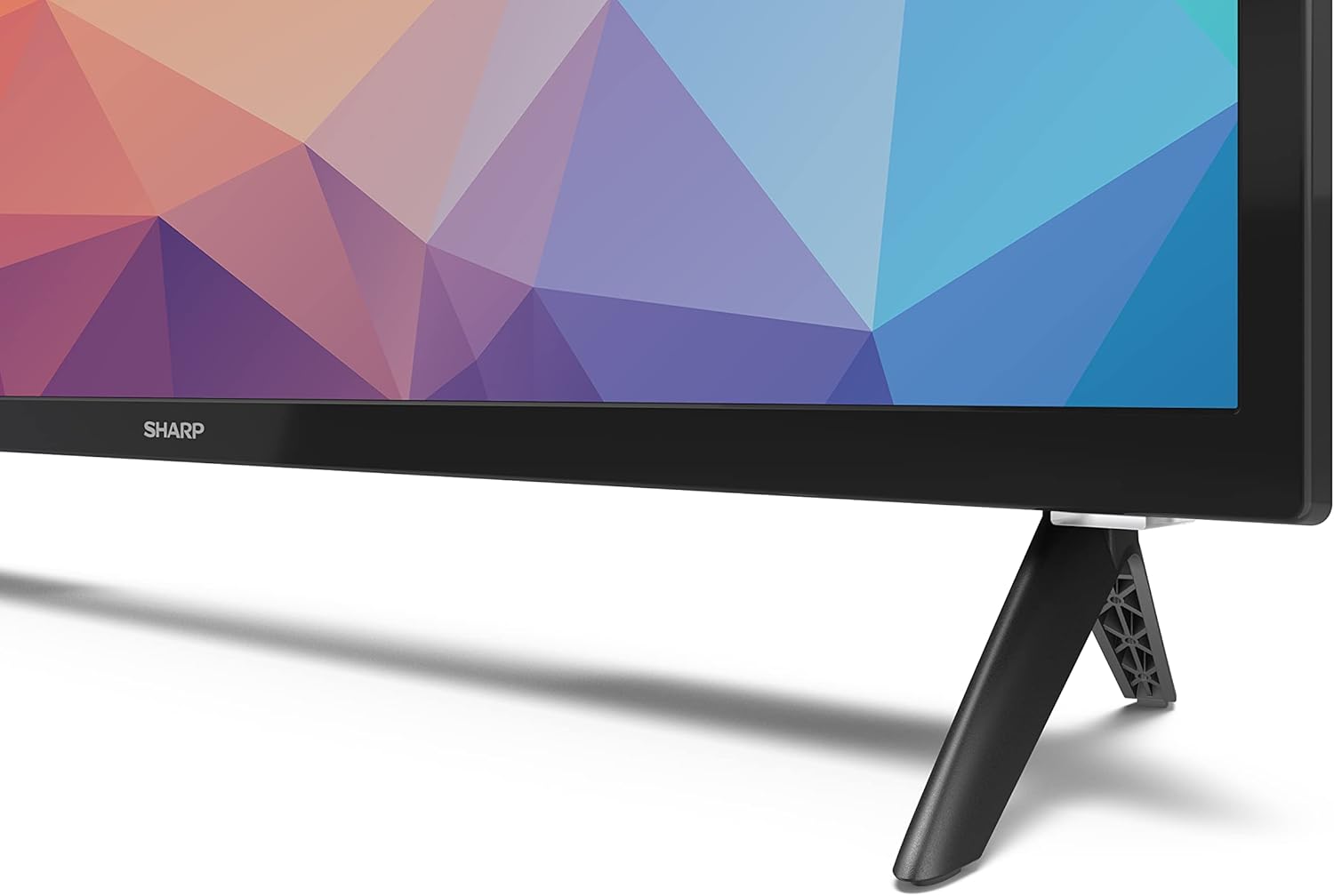
Image: Close-up of the TV stand attachment.
4.3 Mgbidi Mgbidi
The Sharp 32FG6EA supports VESA wall mounts with dimensions of 75 x 75 mm. Wall mount hardware is not included. Follow the instructions provided with your wall mount kit.
4.4 Ijikọ ngwaọrụ mpụga
TV gị nwere ọtụtụ ọdụ ụgbọ mmiri maka ijikọ ngwaọrụ dị iche iche:
- HDMI: Connect Blu-ray players, game consoles, or set-top boxes to the 2 HDMI ports.
- USB: Connect USB storage devices for media playback to the 2 USB ports.
- Antenna/Cable: Connect an antenna or cable TV source for broadcast channels.
- Ethernet: Maka njikọ ịntanetị ejikọrọ.
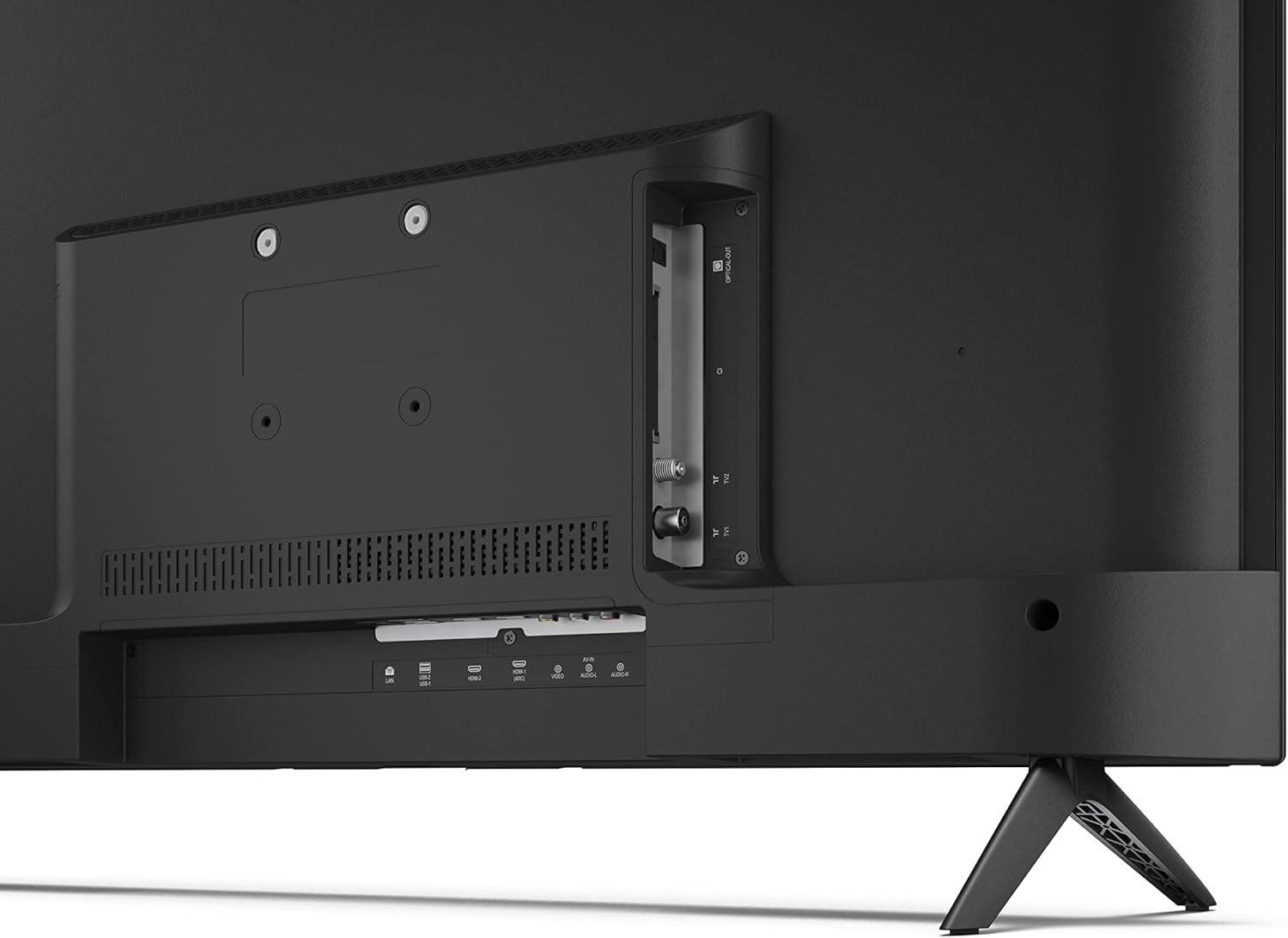
Foto: N'azụ view of the TV with connection ports.
4.5 Njikọ ike
After connecting all necessary devices, plug the power cable into the TV and then into a wall outlet.
4.6 Ọkachamara Mbido Mbido
Mgbe agbanyere ọkụ mbụ, TV ga-eduzi gị site na usoro nhazi mbụ. Nke a gụnyere:
- Nhọrọ asụsụ.
- Njikọ netwọkụ (Wi-Fi ma ọ bụ Ethernet).
- Google account sign-in (required for full Android TV features).
- Nyocha ọwa.
5. .rụ ọrụ
5.1 Remote Control Overview
The included remote control allows you to navigate the TV's features. Insert the 2 AAA batteries into the remote control before use.
- Bọtịnụ ike: Gbanyụọ ma ọ bụ gbanyụọ TV.
- Directional Pad (D-Pad) & OK Button: Gaa na menu wee chọpụta nhọrọ ndị ị họọrọ.
- Bọtịnụ azụ: Na-alaghachi na ihuenyo gara aga.
- Bọtịnụ ụlọ: Na-enweta ihuenyo ụlọ Android TV.
- Elu elu/ala: Na-edozi olu ọdịyo.
- Ọwa elu/ala: Na-agbanwe ọwa TV.
- bọtịnụ enyemaka Google: Na-eme ka njikwa olu rụọ ọrụ.
- Ngwa mkpirisi bọtịnụ: Bọtịnụ raara onwe ha nye maka ọrụ nkwanye ugwu ama ama dịka Netflix, Prime Video, na YouTube.
5.2 Android TV Interface Navigation
The Android TV home screen provides access to your installed apps, recommended content, and settings. Use the directional pad on your remote to navigate through the interface.
5.3 Google nnyemaaka
Press the Google Assistant button on your remote and speak into the microphone to:
- Chọọ maka movies, shows, or information.
- Jikwaa smart home ngwaọrụ.
- Mepee ngwa.
- Adjust TV settings.
5.4 Chromecast arụnyere n'ime ya
The TV includes Chromecast built-in, allowing you to cast content from compatible apps on your smartphone, tablet, or computer directly to the TV screen.
5.5 Njikọ Bluetooth
Connect Bluetooth devices such as headphones or speakers to your TV for a personalized audio experience. Navigate to the TV's settings menu to pair new Bluetooth devices.
5.6 Ntọala ọdịyo
The TV supports Dolby Audio with 2 x 6 W RMS speakers. You can adjust audio settings, including sound modes and equalizer, through the TV's settings menu.
6. Nlekọta
6.1 Ihicha TV
To clean the TV screen and cabinet:
- Kwupu eriri ike na nbata mgbidi.
- Use a soft, lint-free cloth to gently wipe the screen and surfaces.
- Maka akara isi ike, ntakịrị dampen akwa na mmiri ma ọ bụ ihe nhicha ihuenyo pụrụ iche (tinye na akwa akwa, ọ bụghị ozugbo na ihuenyo).
- Ejila ihe nchacha abrasive, waxes, ma ọ bụ ihe mgbaze.
6.2 Mmelite ngwanrọ
Your Android TV may receive periodic software updates to improve performance and add new features. Ensure your TV is connected to the internet to receive these updates. You can check for updates manually in the TV's settings menu.
7. Nchọpụta nsogbu
Ọ bụrụ na ị na-enwe nsogbu na TV gị, rụtụ aka na nsogbu na ngwọta ndị a na-emekarị:
- Enweghị ike: Gbaa mbọ hụ na etinyere eriri ọkụ na nke ọma na TV yana oghere mgbidi na-arụ ọrụ. Gbalịa ụzọ ọpụpụ dị iche.
- Enweghị foto/ụda: Check that the correct input source is selected. Verify all cables (HDMI, antenna) are properly connected.
- Njikwa anya anaghị arụ ọrụ: Lelee batrị ma hụ na etinyere ha nke ọma. Tụnye ebe dịpụrụ adịpụ ozugbo na ihe mmetụta IR nke TV.
- Ogo Foto adịghị mma: Check antenna/cable connections. Adjust picture settings in the TV menu. For streaming content, ensure a stable internet connection.
- Enweghị njikọ ịntanetị: Verify Wi-Fi password or Ethernet cable connection. Restart your router and the TV.
- Apps Not Working: Ensure the TV's software is up to date. Try clearing the app's cache or reinstalling the app.
If problems persist, consult the Sharp support websaịtị ma ọ bụ kpọtụrụ ndị ahịa.
8. Nkọwapụta
| Njirimara | Nkọwapụta |
|---|---|
| Nọmba nlereanya | 32FG6EA |
| Ụdị | Nkọ |
| Nha ihuenyo | 32 inch (obosara 81 cm) |
| Ngosipụta teknụzụ | Ikanam |
| Mkpebi | 720p (1366 x 768 pikselụ) |
| Akụkụ akụkụ | 16:9 |
| Ọnụego ume ọhụrụ | 50 Hz |
| Sistemụ nrụọrụ | Android TV 11 |
| Atụmatụ pụrụ iche | Android TV, Google Assistant, Chromecast built-in |
| Mmepụta ọdịyo | 2 x 6 W RMS, Dolby Audio |
| ọdụ ụgbọ mmiri HDMI | 2 |
| ọdụ ụgbọ mmiri USB | 2 |
| Njikọta | Wi-Fi, Bluetooth, Ethernet |
| Ụlọ elu VESA | 75 x 75 mm |
| Akụkụ ya na Nkwụrụ (W x H x D) | 731 x 486 x 177 mm |
| Akụkụ na-enweghị Nkwụrụ (W x H x D) | 731 x 433 x 68 mm |
| Akụkụ ngwaahịa (D x W x H) | 16 x 73 x 46.4 cm (ihe dị ka, nwere ihe nkwụnye) |
| Ibu | 3.9 n'arọ |
| Klas arụmọrụ ike | E |

Image: TV dimensions diagram.

Image: Energy Label. For more details, visit Ebe nchekwa data EPREL.
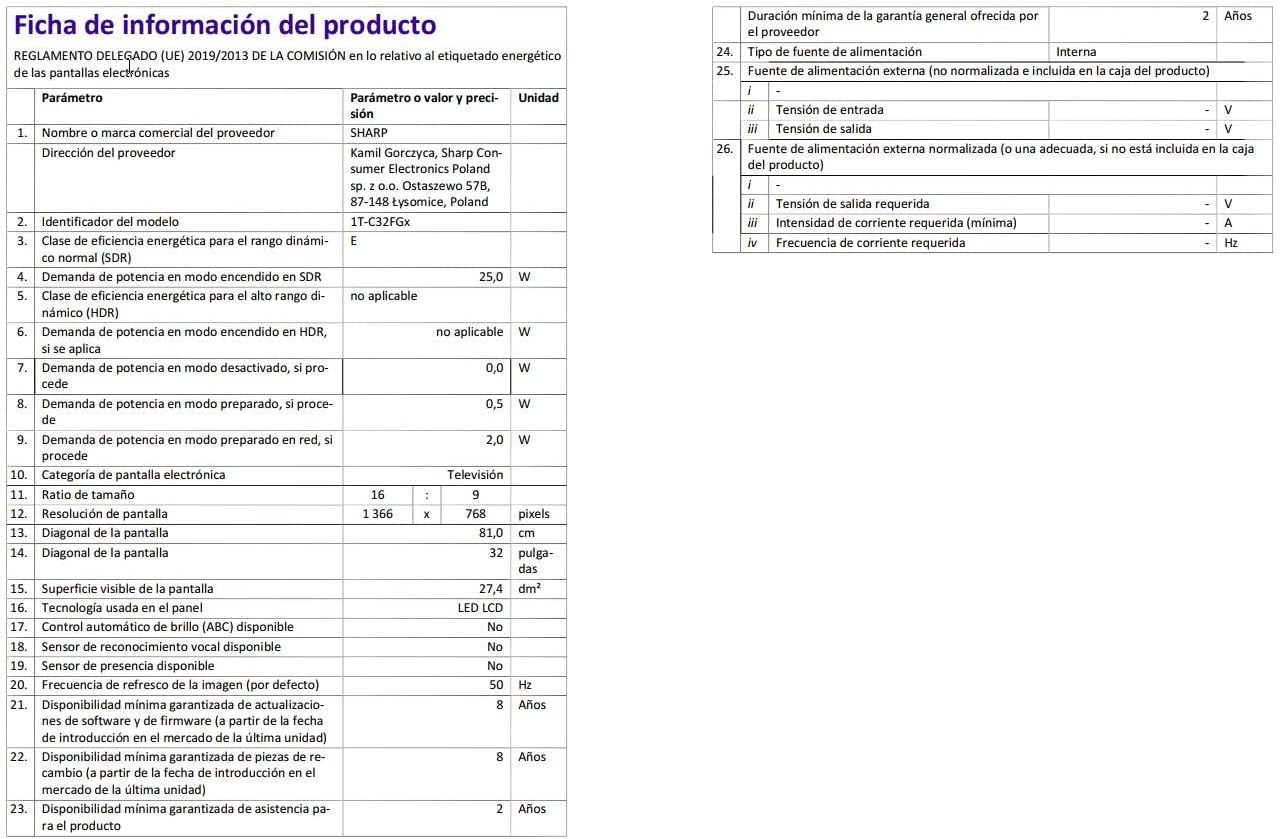
Image: Detailed product information sheet.
9. Akwụkwọ ikike na nkwado
The Sharp 32FG6EA television comes with a minimum general warranty duration of 2 years from the provider.
For technical support, warranty claims, or further assistance, please refer to the contact information provided with your purchase documentation or visit the official Sharp support websaịtị maka mpaghara gị.


