1. Okwu mmalite
The ICY BOX IB-DK8801-TB4 is a versatile Thunderbolt 4 docking station designed to expand the connectivity of your laptop or Mac. It offers a 10-in-1 solution, enabling connection of multiple peripherals, external displays, and providing power delivery through a single Thunderbolt 4 cable. This manual provides instructions for setup, operation, and maintenance to ensure optimal performance.

Figure 1: The IB-DK8801-TB4 docking station integrated into a workspace, demonstrating universal PC connectivity.
2. Ihe ngwugwu
- 1x ICY BOX IB-DK8801-TB4 Thunderbolt 4 Docking Station
- 1x nkwụnye ọkụ
- 1 x Thunderbolt 4 USB
- 1x Akwụkwọ ntuziaka onye ọrụ
3. Ngwaahịa gafereview
The IB-DK8801-TB4 docking station features a comprehensive array of ports for various connectivity needs. Familiarize yourself with the port layout before connecting devices.

Figure 2: Port layout and daisy-chaining illustration of the docking station.
Ọdụ ụgbọ mmiri ihu ihu:
- SD 4.0 Kaadị Reader: For high-speed data transfer from SD cards.
- USB 3.1 Ụdị-A Port: Connect USB peripherals.
- Ọdụ USB-C: Connect USB-C devices.
- Ọdụ ụgbọ mmiri Thunderbolt 4: Connects to your host laptop/Mac.
- Bọtịnụ ike: To power on/off the docking station.
Ọdụ ụgbọ mmiri azụ:
- DC N'ime: Jikọọ nkwụnye ọkụ gụnyere.
- Ọdụ ụgbọ mmiri HDMI: Jikọọ ihe ngosi mpụga.
- Njikọ Ethernet: Maka njikọ netwọk ikuku.
- 2x Thunderbolt 4 Downstream Ports: Connect additional Thunderbolt devices or displays, supporting daisy-chaining.
- 3x USB 3.1 Type-A Ports: Connect additional USB peripherals.
4. Nhazi
Follow these steps to set up your ICY BOX Thunderbolt 4 Docking Station:
- Njikọ Ike: Plug the power adapter into the DC IN port on the rear of the docking station, then connect it to a power outlet.
- Jikọọ na ngwaọrụ nnabata: Use the provided Thunderbolt 4 cable to connect the Thunderbolt 4 Upstream port on the front of the docking station to a Thunderbolt 4 port on your laptop or Mac.
- Ngosipụta Njikọ:
- For a single 8K@30Hz display, connect it to one of the Thunderbolt 4 downstream ports using a compatible cable.
- For dual 4K@60Hz displays, connect one display to the HDMI port and the other to a Thunderbolt 4 downstream port (using a compatible adapter/cable if necessary).

Figure 3: Connecting external monitors to the docking station.
- Ngwa njikọ: Connect your USB devices (keyboard, mouse, external drives) to the available USB 3.1 Type-A or USB-C ports. Insert SD cards into the SD 4.0 card reader as needed.
- Jikọọ netwọk: For a wired internet connection, connect an Ethernet cable from your router/modem to the Ethernet port on the rear of the docking station.
5. Ntuziaka ọrụ
Gbanyụọ/ Gbanyụọ:
Press the power button on the front panel to turn the docking station on or off. The LED indicator will illuminate when the device is powered on.
Nhazi nhazi:
Your host device should automatically detect connected displays. You can configure display settings (resolution, orientation, extended/mirrored mode) through your operating system's display settings.
Nnyefe ike (PD):
The docking station provides up to 96W Power Delivery through the Thunderbolt 4 upstream port to charge your connected laptop or Mac. Ensure your device supports charging via Thunderbolt 4.

Figure 4: The docking station providing 96W Power Delivery to a laptop.
Thunderbolt 4 Capabilities:
The Thunderbolt 4 ports support data transfer speeds of up to 40 Gbit/s. They are compatible with DisplayPort, PCIe, and USB 4, and are backward compatible with previous Thunderbolt versions. This allows for high-speed external storage, external graphics cards, and other high-bandwidth devices.
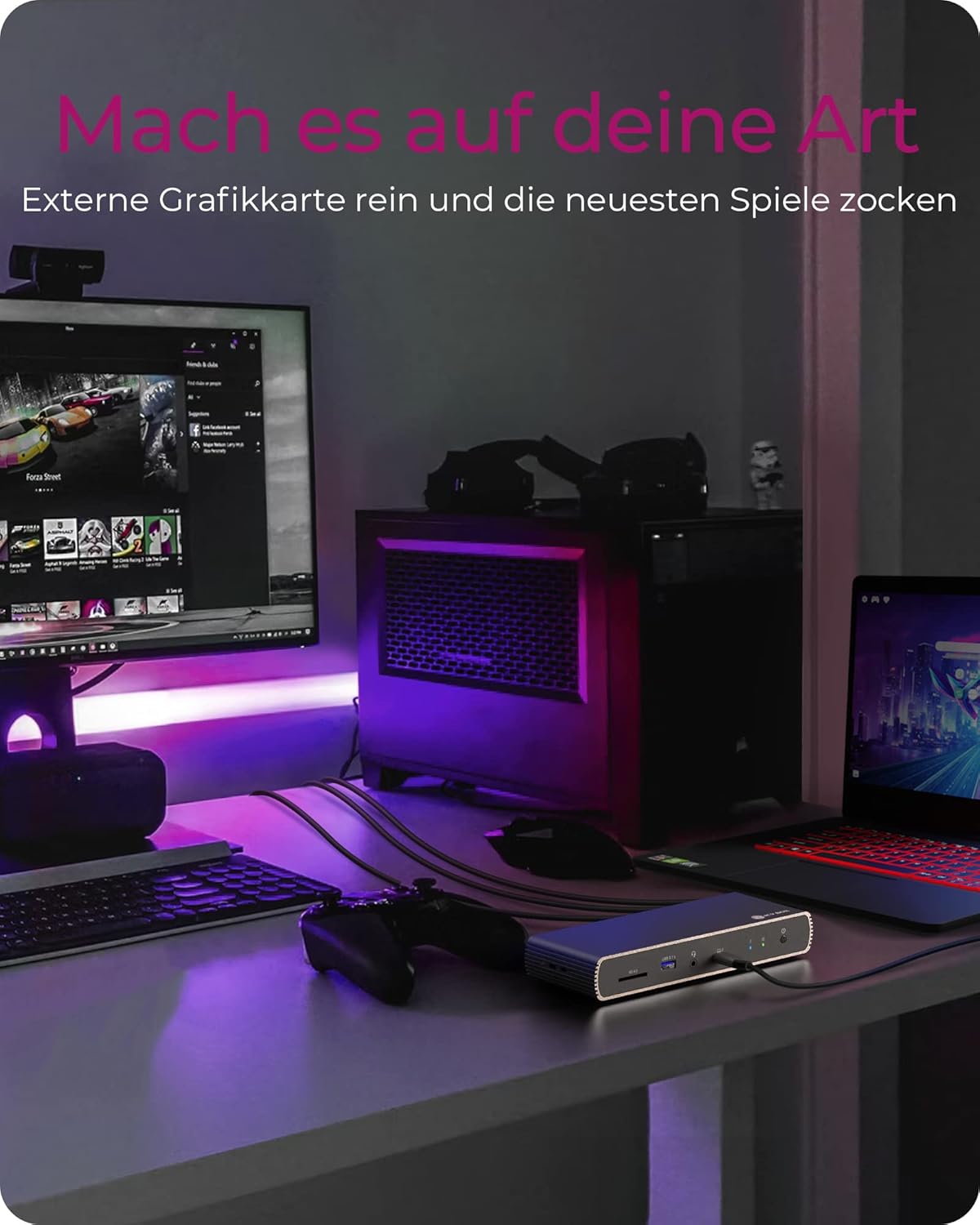
Figure 5: Using the docking station with an external graphics card for enhanced performance.

Figure 6: The docking station facilitating creative workflows with various connected devices.
6. Nlekọta
To ensure the longevity and optimal performance of your docking station:
- Keep the device in a dry, well-ventilated area, away from direct sunlight and heat sources.
- Zere ikpughe ngwaọrụ ahụ nye mmiri mmiri ma ọ bụ oke mmiri mmiri.
- Jiri akwa dị nro hichaa mpụta. Ejila kemịkalụ siri ike ma ọ bụ ihe mkpocha abrasive.
- Ensure all cables are securely connected and not under strain.
7. Nchọpụta nsogbu
Ọ bụrụ na ị hụ nsogbu na ọdụ docking gị, lee nsogbu na ngwọta ndị a na-ahụkarị:
| Nsogbu | Ngwọta enwere ike |
|---|---|
| No power to the docking station. | Ensure the power adapter is securely connected to both the docking station and a working power outlet. Check the power button status. |
| Enweghị ngosi na nleba anya mpụga. | Verify display cables are securely connected. Ensure the docking station is powered on and connected to your host device. Check your host device's display settings. Try a different display cable or port. |
| Achọpụtaghị ngwaọrụ USB. | Ensure the docking station is powered on and connected to your host device. Try connecting the USB device to a different port on the dock or directly to your host device to rule out device issues. |
| Laptop not charging. | Confirm your laptop supports charging via Thunderbolt 4. Ensure the Thunderbolt 4 upstream cable is correctly connected. Check the power adapter connection. |
| Nsogbu njikọ netwọkụ. | Check the Ethernet cable connection. Verify your router/modem is working correctly. Ensure network drivers are up to date on your host device. |
8. Nkọwapụta
| Njirimara | Nkọwa |
|---|---|
| Aha Nlereanya | IB-DK8801-TB4 |
| Ụdị | Igbe oyi |
| Ngwaọrụ Akụrụngwa | DisplayPort, HDMI, Thunderbolt, USB, USB Type C |
| Ngwa dakọtara | MacBook Air, MacBook Pro, Thunderbolt 4 enabled laptops |
| Ọnụọgụ nke ọdụ ụgbọ mmiri | 10 |
| Mgbakọta ọdụ ụgbọ mmiri USB | 4 (USB 3.1) + 1 (USB-C) |
| Mgbakọta ọdụ ụgbọ mmiri HDMI | 1 |
| Thunderbolt 4 ọdụ ụgbọ mmiri | 2x Downstream, 1x Upstream |
| Nnyefe ike | Ruo 96W |
| Mmepụta vidiyo | Single 8K@30Hz or Dual 4K@60Hz |
| Ethernet | Ee |
| Onye na-agụ kaadị SD | SD SD 4.0 |
| Akụkụ ngwaahịa | 50 x 50 x 28 cm |
| Ibu Ibu | 440 g |
9. Akwụkwọ ikike na nkwado
ICY BOX products are designed for reliability and performance. For warranty information and technical support, please refer to the official ICY BOX websaịtị ma ọ bụ kpọtụrụ onye na-ere ahịa mpaghara gị. Debe ihe akaebe nke ịzụrụ ihe maka akwụkwọ ikike.


