1. Okwu mmalite
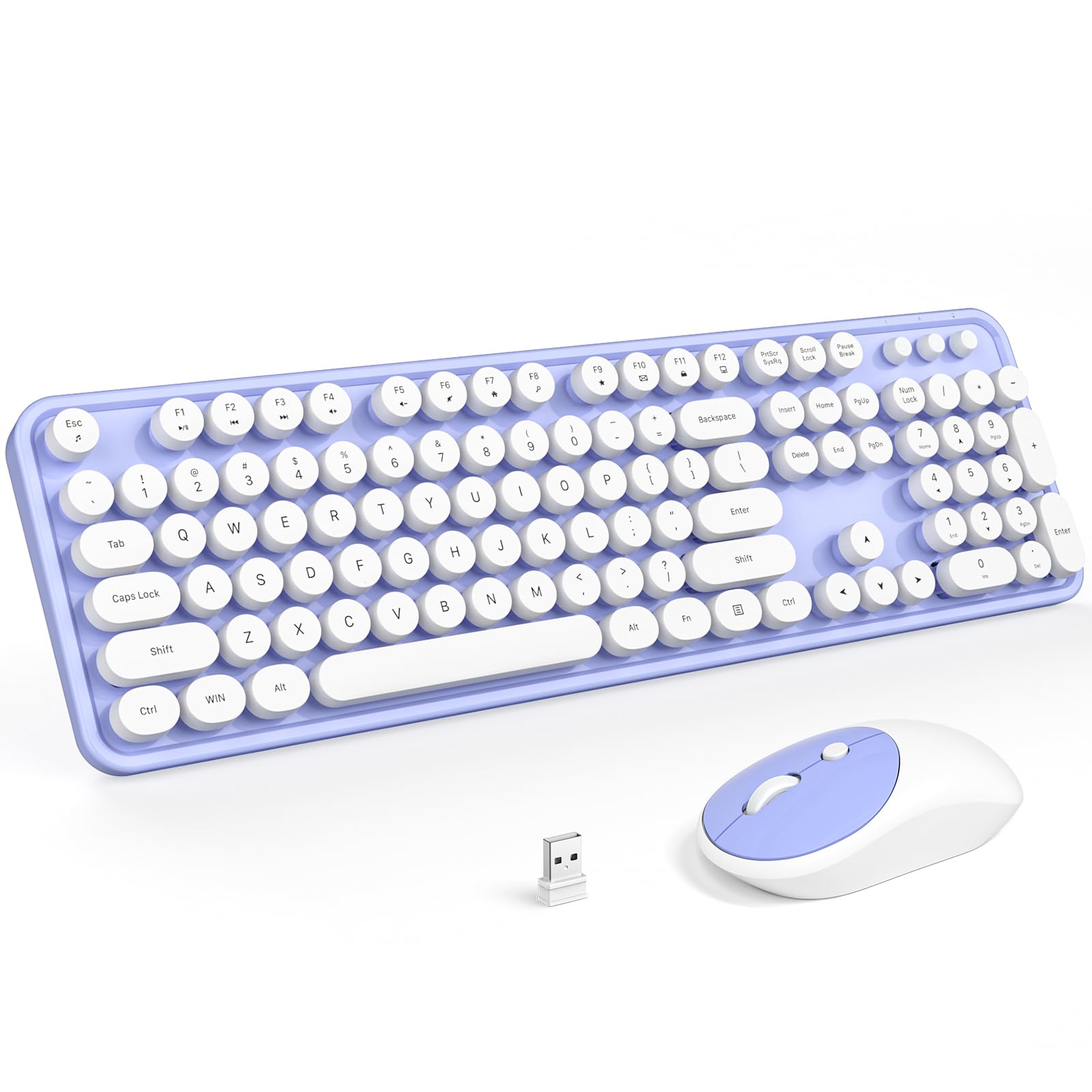
This manual provides detailed instructions for the setup, operation, and maintenance of your MOFII Wireless Keyboard and Mouse Combo. This full-sized, retro-style keyboard and 2.4GHz wireless mouse are designed for use with Windows computers, desktops, PCs, notebooks, and laptops.
2. Ihe ngwugwu
Biko chọpụta na ihe niile dị na ngwugwu gị:
- Wireless Keyboard (1 unit)
- Wireless Mouse (1 unit)
- Wireless USB Receiver (1 unit)
- Akwụkwọ ntuziaka onye ọrụ (1 nkeji)
3. Nhazi
3.1 Ntinye batrị
The keyboard and mouse require batteries (not included) for operation.
- Ahụigodo: Insert one AAA (LR6) battery into the battery compartment located on the underside of the keyboard. Ensure correct polarity.
- Òké: Insert one AA battery into the battery compartment located on the underside of the mouse. Ensure correct polarity.
3.2 Connecting the Receiver (Plug and Play)
The MOFII Wireless Keyboard and Mouse Combo uses a single USB 2.4GHz nano receiver for both devices, requiring no additional software installation.
- Locate the USB nano receiver, typically stored in the mouse's battery compartment or included separately in the package.
- Tinye eriri USB nano nnata n'ime ọdụ ụgbọ USB dị na kọmputa gị.
- The computer should automatically detect and install the necessary drivers. The keyboard and mouse will be ready for use shortly.
3.3 ndakọrịta
This combo is compatible with operating systems including Windows 7, 8, 10, XP, and Vista. It functions perfectly with PCs, laptops, and smart TVs. Please note that it is not compatible with Apple systems.
4. Ntuziaka ọrụ
4.1 Basic Use
Once connected, the keyboard and mouse operate like standard input devices. The keyboard features a full-sized layout with round, retro-style keycaps, providing a comfortable typing experience. The mouse offers precise tracking for navigation.

4.2 Hotkey Functions
The keyboard includes 13 hotkey functions, accessible via the 'Fn' key combined with the F1-F12 keys, providing quick access to various multimedia and system controls. These functions are designed to streamline your workflow and enhance entertainment.

4.3 Auto-Sleep Feature
To conserve battery life, both the keyboard and mouse are equipped with an intelligent auto-sleep mode. If idle for 5 minutes, the devices will automatically enter sleep mode. To wake them up, simply press any key on the keyboard or move the mouse.

5. Nlekọta
5.1 Nhicha
The keyboard features detachable keycaps, making cleaning convenient. Use the included brush or a soft, dry cloth to remove dust and debris. For deeper cleaning, carefully remove the keycaps and clean the keyboard base. Ensure the keyboard is dry before reattaching keycaps and resuming use.

5.2 nnọchi batrị
When the devices stop responding or the performance degrades, it is likely time to replace the batteries. Follow the battery installation steps (Section 3.1) to replace the AAA battery in the keyboard and the AA battery in the mouse. Dispose of old batteries responsibly.
6. Nchọpụta nsogbu
If you encounter issues with your MOFII Wireless Keyboard and Mouse Combo, please refer to the following common solutions:
| Okwu | Ihe nwere ike ime | Ngwọta |
|---|---|---|
| Ahụigodo/Òké anaghị aza | Low or dead batteries; USB receiver not properly connected; device in sleep mode. | Replace batteries in both devices. Ensure the USB receiver is firmly plugged into a working USB port. Press any key or move the mouse to wake from sleep mode. |
| Njikọ ma ọ bụ ogologo oge | Interference from other wireless devices; distance from receiver; low battery. | Move the devices closer to the USB receiver. Ensure no large metal objects are between the devices and the receiver. Replace batteries. Avoid using the devices near strong electromagnetic sources. |
| Cursor cursor na-agbanwe agbanwe ma ọ bụ na-adịghị aga nke ọma | Dirty sensor; unsuitable surface; low battery. | Clean the mouse sensor with a soft cloth. Use the mouse on a clean, non-reflective surface or a mouse pad. Replace the mouse battery. |
| Hotkey adịghị arụ ọrụ | Incorrect key combination; software conflict. | Ensure you are pressing the 'Fn' key simultaneously with the desired F-key. Check for any conflicting software or drivers on your computer. |
7. Nkọwapụta
Detailed product specifications for the MOFII Wireless Keyboard and Mouse Combo:
| Njirimara | Nkọwa |
|---|---|
| Ụdị | MOFII |
| Nọmba nlereanya | B0BCG15M56 |
| Teknụzụ Njikọta | 2.4GHz USB ikuku |
| Ngwa dakọtara | Laptop, Tablet, PC, Desktop (Windows 7/8/10/XP/Vista) |
| Atụmatụ pụrụ iche | Ergonomic Design, Round Keycaps, Detachable Keycaps, Auto-Sleep |
| Nhazi ahụigodo | Full-Sized, 104 keys |
| Batrị ahụigodo | 1 x AAA (LR6) battery (not included) |
| Batrị òké | Batrị 1 x AA (anaghị etinye ya) |
| Ibu Ibu | 1.98 pound (ihe dị ka 0.9 n'arọ) |
| Akụkụ ngwugwu | 17.83 x 5.43 x 3.23 sentimita (ihe dịka 45.3 x 13.8 x 8.2 cm) |

8. Akwụkwọ ikike na nkwado
For warranty information or technical support, please refer to the product packaging or contact MOFII customer service directly. Contact details can typically be found on the official MOFII websaịtị ma ọ bụ site na ikpo okwu ịzụrụ ihe.


