1. Okwu mmalite
The InfiRay T2 Pro Thermal Monocular is a compact, high-performance thermal imaging device designed for use with iOS smartphones. It provides advanced night vision capabilities for a variety of outdoor activities, including hunting, wildlife observation, patrolling, and general security monitoring. With its high resolution, adjustable zoom, and intelligent features like hot spot tracking, the T2 Pro offers clear and detailed thermal images even in complete darkness.

Figure 1.1: InfiRay T2 Pro Thermal Monocular connected to an iPhone with an ergonomic handle.
2. Kedu ihe dị na Igbe ahụ
Upon unboxing your InfiRay T2 Pro, please verify that all the following components are included:
- 1x InfiRay T2 Pro Thermal Monocular
- 1x oghere oghere
- 1x USB-C to Lightning Adapter Cable (for iOS connection)
- 1x T2 Pro Handle/Phone Mount
- 1x Nchekwa
- Akwụkwọ ntuziaka (akwụkwọ a)

Figure 2.1: All components included in the InfiRay T2 Pro package.
3. Nhazi
Follow these steps to set up your InfiRay T2 Pro Thermal Monocular with your iPhone:
- Wụnye ngwa: Download and install the official InfiRay app from the Apple App Store. Ensure your iPhone's operating system is iOS 11 or above for compatibility.
- Assemble the Handle (Optional): If using the included handle, attach your iPhone securely to the phone mount.
- Connect the Monocular: Connect the InfiRay T2 Pro monocular to your iPhone's Lightning port using the provided adapter cable. For iPhone 15/15 Pro models with USB-C, an additional USB-C to Lightning adapter cable (ASIN: B0DLW8B2YY) may be required.
- Mepụta ngwa: Open the InfiRay app on your iPhone. The app should automatically detect the connected monocular and display the thermal image.
- Nhazi izizi: The device may perform a brief calibration upon first connection or when ambient temperature changes significantly. This is normal.
For a visual guide on mounting and connecting the monocular, please refer to the video below:
Video 3.1: Demonstrates how to mount the T2 Pro infrared monocular and connect it to a smartphone.
4. Ntuziaka ọrụ
The InfiRay T2 Pro offers various features to enhance your thermal imaging experience:
4.1 Zoom Functionality
The T2 Pro features a 13mm focal length lens with 2X to 15X zoom capability. To adjust the zoom, use a two-finger swipe gesture on your iPhone screen within the InfiRay app. This allows for clear viewing of objects at ultra-long distances, such as hogs up to 660 yards away.

Figure 4.1: Adjusting zoom using a two-finger swipe on the app interface.
4.2 Dual-Mode Operation
Easily switch between two primary viewing modes within the app:
- Full HD Mode (Green Eye): Utilizes High Definition (HD) technology and InfiRay's outdoor core to provide ultra-clear and sharp thermal images.
- Highlight Mode (Red Eye): This mode highlights targets, which is particularly useful when subjects are partially obscured by dense foliage or bushes.

Figure 4.2: Visual representation of Full HD and Highlight modes.
4.3 Hot Spot Tracking
The hot spot tracking feature allows the T2 Pro to quickly locate and track heat signatures, making it easier to identify and engage targets even in challenging environments. This built-in tool highlights areas of interest in your thermal image.

Figure 4.3: Dynamic Hot Spot Tracking in action.
4.4 Ninja Mode
This exclusive non-exposure technology ensures complete stealth during outdoor use, preventing disturbance to wildlife or targets. It is suitable for various applications including enforcement, patrolling, rescue, security monitoring, and property protection.

Figure 4.4: Anti-Exposure-Exclusive Image Algorithm for clear and detailed images.
4.5 Ubi nke View (FOV)
The T2 Pro features a 13.6° x 10.2° field of view, providing a wider perspective compared to many other night vision scopes. This increased FOV improves efficiency when searching for targets while on the move.
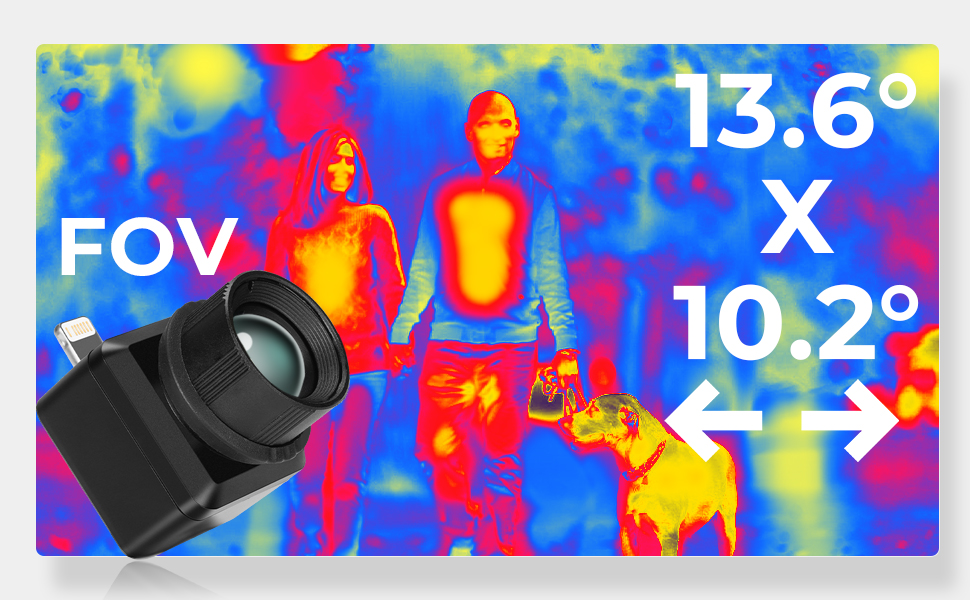
Figure 4.5: Wide Field of View for enhanced situational awareness.
4.6 Ngwa
The InfiRay T2 Pro is versatile and can be utilized in numerous scenarios:
- Ịchụ nta
- Wildlife Exploration
- Patrolling
- DIY Home Inspections
- Car Repair Diagnostics
- Ịgba ugwu
- Nleba anya anụmanụ
- Camping

Figure 4.6: Diverse applications of the InfiRay T2 Pro.
5. Nlekọta
To ensure the longevity and optimal performance of your InfiRay T2 Pro Thermal Monocular, follow these maintenance guidelines:
- Nchacha oghere: Gently clean the lens with a soft, lint-free cloth specifically designed for optics. Avoid using abrasive materials or harsh chemicals that could scratch or damage the lens coating.
- Nhicha ahụ: Wipe the monocular's body with a clean, damp akwa . Ekpudola ngwaọrụ ahụ n'ime mmiri.
- Nchekwa: When not in use, store the monocular in its protective case in a cool, dry place, away from direct sunlight and extreme temperatures.
- Nlekọta USB: Handle the adapter cable with care. Avoid sharp bends or excessive pulling that could damage the connectors or wiring.
6. Nchọpụta nsogbu
If you encounter issues with your InfiRay T2 Pro, try the following troubleshooting steps:
- Amataghị ngwaọrụ:
- Ensure the InfiRay app is updated to the latest version.
- Verify that the adapter cable is securely connected to both the monocular and your iPhone. A loose connection can prevent detection.
- Restart the InfiRay app and/or your iPhone.
- If using an iPhone 15/15 Pro, confirm you are using the correct USB-C to Lightning adapter cable (ASIN: B0DLW8B2YY).
- Ogo onyonyo adịghị mma:
- Check the monocular's lens for dirt, dust, or smudges and clean it gently if necessary.
- Ensure the focus adjustment on the monocular is correctly set for your viewebe di anya.
- Try switching between Full HD and Highlight modes to see if image clarity improves.
- Ngwa na-emebi/oyi:
- Close and reopen the InfiRay app.
- Ensure your iPhone has sufficient available storage and memory.
- Check for any pending iOS updates that might improve app stability.
If these steps do not resolve the issue, please contact InfiRay customer support for further assistance.
7. Nkọwapụta
| Njirimara | Nkọwapụta |
|---|---|
| Akụkụ ngwaahịa | 1.02 x 1.02 x 1.02 sentimita asatọ |
| Ibu Ibu | 2.31 pound |
| Nọmba Nlereanya ihe | T2 Pro |
| Ụdị | InfiRay |
| Aha Nlereanya | T2 Pro |
| Nkọwa akụkụ oghere anya | Standard Eyepiece Lens with HD Coating |
| Ụdị elekwasị anya | Ntinye akwụkwọ ntuziaka |
| Isi Iyi Ike | Igwe ọkụ eletrik |
| Ngwa dakọtara | Smartphone (iOS) |
| Nkọwa nke Mkpuchi Lens | HD mkpuchi |
| Nkọwa Ogologo Focal | 13.0mm |
| Mbugharị ruru | 7.5 (2X-15X digital zoom) |
| Mkpebi | 256x192 |
| Ọnụego Frame | 25Hz |
| Ubi nke View (FOV) | 13.6° x 10.2° |
8. Akwụkwọ ikike & Nkwado
InfiRay stands behind the quality of its products. For specific warranty details, please refer to the warranty card included with your product or visit the official InfiRay websaịtị.
Atụmatụ nchebe nhọrọ dị maka mkpuchi ogologo:
- Atụmatụ Nchekwa afọ 2
- Atụmatụ Nchekwa afọ 3
- Nchedo zuru oke (ndebanye aha kwa ọnwa)
For technical support, troubleshooting assistance, or warranty claims, please contact InfiRay customer service through their official channels. Contact information can typically be found on the product packaging or the InfiRay websaịtị.