1. Okwu mmalite
Daalụ maka ịzụrụasing the Mediacom MCI SK22 Bluetooth Karaoke Speaker. This portable and rechargeable speaker system is designed to provide high-quality audio for music playback and karaoke performances. It comes equipped with two professional wireless microphones, offering a versatile entertainment experience for various occasions.
2. Ozi nchekwa
- Gụọ ntuziaka niile nke ọma tupu i jiri ngwaahịa ahụ.
- Keep the speaker away from water, moisture, and extreme temperatures.
- Anwala ịkwasa ma ọ bụ rụkwaa unit ahụ n'onwe gị. Kpọtụrụ ndị ọrụ ruru eru ọrụ niile.
- Jiri naanị ihe nkwụnye ike enyere maka ịchaji.
- Zere itinye ihe dị arọ n'elu ọkà okwu.
- Ensure proper ventilation around the speaker during use.
3. Ihe ngwugwu
Biko lelee igbe maka ihe ndị a:
- Mediacom MCI SK22 Bluetooth Karaoke Speaker
- 2 x Igwe okwu ikuku
- Njikwa anya
- Ihe nkwụnye ọkụ
- Akwụkwọ ntuziaka onye ọrụ
4. Ngwaahịa gafereview
Familiarize yourself with the various parts and controls of your MCI SK22 speaker.
4.1 N'ihu View with Microphones

Foto: N'ihu view of the Mediacom MCI SK22 speaker, showcasing the main unit and the two accompanying wireless microphones.
4.2 Akụkụ View

Foto: Akụkụ view of the Mediacom MCI SK22 speaker, highlighting its compact and portable design.
4.3 N'azụ View ya na ọdụ ụgbọ mmiri

Foto: N'azụ view of the Mediacom MCI SK22 speaker, displaying the various input and output ports for connectivity.
4.4 Speaker Dimensions
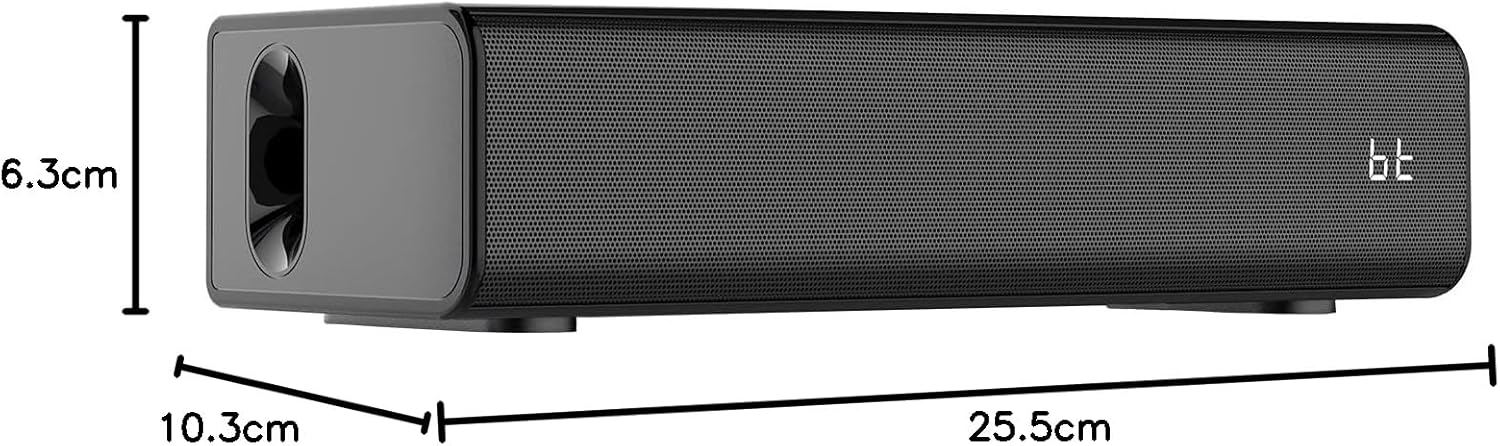
Image: A diagram illustrating the length, width, and height of the Mediacom MCI SK22 speaker.
5. Nhazi
5.1 Ịchaji ọkà okwu
- Jikọọ ihe nkwụnye ike enyere na ọdụ chaja nke ọkà okwu.
- Tinye nkwụnye ọkụ n'ime oghere ọkụ kwesịrị ekwesị.
- The charging indicator light will illuminate. Allow the speaker to fully charge before first use (approximately X hours, refer to LED indicator for full charge).
5.2 Gbanyụọ/ gbanyụọ
- To power on, press and hold the Power button on the speaker or remote control until the display illuminates.
- To power off, press and hold the Power button again.
5.3 Ntọala Igwe okwu
- Ensure the wireless microphones have fresh batteries installed.
- Turn on the microphones using their respective power switches. They should automatically connect to the speaker.
6. Ntuziaka ọrụ
6.1 Njikọ Bluetooth
- Turn on the speaker. The Bluetooth indicator will flash, indicating it is in pairing mode.
- Na ngwaọrụ gị (smartphone, tabletị, wdg), gbanye Bluetooth wee chọọ ngwaọrụ dịnụ.
- Select "MCI SK22" from the list. Once paired, the Bluetooth indicator will stop flashing and remain solid.
6.2 USB playback
- Fanye draịva USB nwere ọdịyo MP3 files banye n'ọdụ ụgbọ mmiri USB na ọkà okwu.
- The speaker will automatically switch to USB mode and begin playing music. Use the speaker's or remote's controls to navigate tracks.
Ntinye AUX 6.3
- Connect an external audio device (e.g., TV, computer, music player) to the speaker's AUX input port using a 3.5mm audio cable (not included).
- The speaker will automatically switch to AUX mode. Adjust volume from both the speaker and the connected device.
6.4 Microphone Usage and Echo Effects
- Once connected, speak or sing into the wireless microphones.
- Use the dedicated controls on the speaker or remote to adjust microphone volume and apply echo effects for an enhanced karaoke experience.
6.5 Njikwa olu
- Adjust the main speaker volume using the volume controls on the speaker or the remote control.
- Individual microphone volume can be adjusted separately.
7. Nlekọta
- Nhicha: Jiri ákwà dị nro ma kpọọ nkụ hichaa elu okwu ahụ. Ejila ihe nhicha ma ọ bụ ihe mgbaze.
- Nchekwa: Mgbe a naghị eji ya eme ihe ruo ogologo oge, chekwaa ọkà okwu n'ebe dị jụụ, nke kpọrọ nkụ, na-adịghị na ìhè anyanwụ kpọmkwem na oke okpomọkụ.
- Nlekọta batrị: To prolong battery life, fully charge the speaker before storing it for long periods and recharge it every few months.
8. Nchọpụta nsogbu
| Nsogbu | Ihe nwere ike ime | Ngwọta |
|---|---|---|
| Enweghị ike | Battery is low or depleted. Power adapter not connected. | Charge the speaker using the provided power adapter. Ensure the power adapter is securely connected to both the speaker and the power outlet. |
| Enweghị ụda | Volume is too low. Incorrect input mode selected. Device not properly connected. | Increase the volume on the speaker and the connected device. Ensure the correct input mode (Bluetooth, USB, AUX) is selected. Check all cable connections. |
| Bluetooth anaghị ejikọta | Speaker is not in pairing mode. Device's Bluetooth is off. Interference. | Ensure the speaker's Bluetooth indicator is flashing. Turn off and on your device's Bluetooth. Move closer to the speaker and away from other wireless devices. |
| Igwe okwu anaghị arụ ọrụ | Microphone batteries are low. Microphones are not turned on. | Replace microphone batteries. Ensure microphones are switched on. |
9. Nkọwapụta
| Njirimara | Nkọwa |
|---|---|
| Ụdị | Mediacom |
| Nọmba nlereanya | MCI SK22 |
| Teknụzụ Njikọta | Bluetooth, AUX, USB |
| Ntinye ọdịyo | Bluetooth, AUX, USB |
| Atụmatụ pụrụ iche | Bass boost, USB port, Built-in microphone, Hi-Res Audio, Echo effects |
| Ngwa dakọtara | Mobile Phone, iPhone, Laptop, Smartphone, TV, Computer, Tablet, Music Player, DVD Player |
| Isi Iyi Ike | Akwanyere batrị |
| Ihe onwunwe | Plastic |
| Agba | Nwa |
| Akụkụ ihe (L x W x H) | 10.3 x 25.5 x 6.3 cm |
| Ibu Ibu | 1.68 kilogram |
| Onye nrụpụta | China |
10. Akwụkwọ ikike na nkwado
Mediacom products are designed for reliability and performance. For warranty information and technical support, please refer to the warranty card included in your package or visit the official Mediacom websaịtị. Debe nnata nzụta gị dị ka ihe akaebe nke ịzụrụ ihe maka akwụkwọ ikike ọ bụla.


