1. Okwu mmalite
This manual provides essential information for setting up, operating, maintaining, and troubleshooting your Alienware X17 R2 Gaming Laptop. Please read this guide thoroughly to ensure optimal performance and longevity of your device.
The Alienware X17 R2 is designed for high-performance gaming and demanding tasks, featuring advanced cooling technologies, powerful processors, and dedicated graphics.
2. Ngwaahịa gafereview
The Alienware X17 R2 is engineered to deliver an immersive gaming experience in a thin 17-inch form factor. Key features include:
- Powerful Intel CPUs: Experience high-performance action across all your favorite games with 12th Gen Intel Core processors.
- Next-Gen GPUs: Game unrestrained with NVIDIA GeForce RTX 3070Ti graphics, Dynamic Boost 2.0, and Deep Learning Super Sampling technology.
- Patented Quad Cooling: An industry-first design uses four intelligently controlled and programmable fans to dissipate heat.
- Ogologo oge egwuregwu: Improve battery life with Advanced Optimus technology from NVIDIA—now available on all display options.
- Legend 2.0 Industrial Design: A fresh evolution in design with a high-endurance finish and customizable AlienFX lighting.

Foto 2.1: N'ihu view of the Alienware X17 R2 Gaming Laptop displaying a game.
3. Nhazi
3.1 Unboxing na nlele mbụ
- Jiri nlezianya wepụ laptọọpụ na ngwa niile na nkwakọ ngwaahịa.
- Verify that all items listed in the "What's in the Box" section are present.
- Lelee laptọọpụ ahụ maka mmebi ọ bụla. Ọ bụrụ na achọpụta mmebi ahụ, kpọtụrụ onye na-ere ahịa gị ozugbo.
3.2 Ijikọ ike
- Connect the power adapter to the charging port located at the rear of the laptop.
- Tinye eriri ọkụ n'ime oghere mgbidi.
- The power indicator light will illuminate, indicating the laptop is receiving power.
3.3 Boot mbụ na nhazi sistemụ arụmọrụ
- Press the Alienware head power button to turn on the laptop.
- Soro ntuziaka dị na ihuenyo iji mezue usoro nhazi Windows 11 Home. Nke a gụnyere ịhọrọ mpaghara gị, ijikọ na netwọk Wi-Fi, na ịmepụta akaụntụ onye ọrụ.
- Allow the system to download and install any necessary updates.
4. Ịrụ ọrụ Laptọọpụ gị
4.1 Ahụigodo na Touchpad
The Alienware X17 R2 features a backlit keyboard and a responsive touchpad. The AlienFX lighting allows for customizable colors and effects across the keyboard and other zones.

Ọgụgụ 4.1: Zuru ezu view of the backlit keyboard and touchpad.
4.2 Ngosipụta na eserese
Enjoy stunning visuals on the 17.3-inch FHD display with a 480Hz refresh rate and 3ms response time. The NVIDIA GeForce RTX 3070Ti graphics card ensures smooth gameplay and high-fidelity rendering. The laptop supports Dolby Vision for optimized color profiles.
4.3 Audio
Experience immersive 3D sound via Dolby Atmos, designed to deliver audio as studios intended.
4.4 Ọdụ ụgbọ mmiri na njikọ
The laptop offers a variety of ports for peripherals and external displays:

Ọgụgụ 4.2: N'azụ view illustrating the various connectivity ports.
- ọdụ ụgbọ mmiri USB 3.0: 3 ports for connecting various USB devices.
- Ọdụ ụgbọ mmiri USB-C: For versatile connectivity, including Thunderbolt 4.
- HDMI2.1: Supports up to 4K/120Hz output for external displays.
- Ethernet: Killer E3100 RJ45 Ethernet for stable wired network connections.
- Ikuku: Killer Wi-Fi 6 (802.11ax) and Bluetooth for wireless connectivity.
5. Nlekọta
5.1 Nhicha
- Jiri ákwà dị nro, nke na-enweghị ihe e ji ehicha ákwà hichaa ihe mkpuchi na elu mpụta.
- Zere iji kemịkalụ siri ike ma ọ bụ ihe na-emebi emebi.
- Regularly clean the cooling vents to prevent dust buildup, which can affect performance.
5.2 Mmelite ngwanrọ
Ensure your operating system and drivers are kept up-to-date. Windows Update will handle OS updates, and Alienware Command Center can assist with driver and firmware updates.
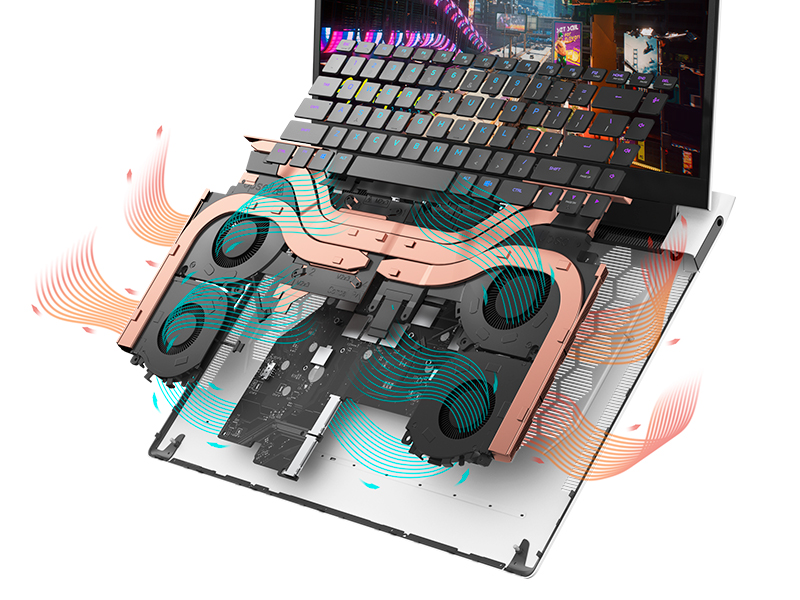
Figure 5.1: Alienware Command Center for system management.
6. Nchọpụta nsogbu
If you encounter issues with your Alienware X17 R2, consider the following basic troubleshooting steps:
- Enweghị ike: Hụ na e jikọrọ ihe nkwụnye ọkụ eletrik ahụ nke ọma na laptọọpụ ahụ na ebe ọkụ eletrik na-arụ ọrụ. Lelee ọkụ ihe ngosi ọkụ eletrik ahụ.
- Ihe ngosi: If the screen is black, try connecting an external monitor to verify if the issue is with the laptop's display or the graphics card. Update graphics drivers.
- ekpo oke ọkụ: Ensure cooling vents are clear of obstructions. Use Alienware Command Center to monitor temperatures and adjust fan profiles.
- Nkwụsị arụmọrụ: Mechie ngwa ndị na-adịghị mkpa. Lelee maka usoro ndabere na-eri CPU ma ọ bụ RAM dị elu. Hụ na oghere zuru oke na SSD.
- Nsogbu ngwanrọ: Restart the laptop. If issues persist, consider performing a system restore or reinstalling the problematic software.
7. Nkọwapụta
| Njirimara | Nkọwapụta |
|---|---|
| Nha ihuenyo | 17.3 sentimita asatọ |
| Mkpebi ihuenyo | 1920 x 1080 pikselụ (FHD) |
| Nhazi | Intel Core i9-12900H (3.8 GHz, 14 Cores) |
| RAM | 16 GB DDR5 (4800 MHz) |
| Draịvụ ike | 1 TB SSD (Solid State) |
| Ihe eserese eserese | NVIDIA GeForce RTX 3070 Ti (8 GB GDDR6) |
| Sistemụ nrụọrụ | Windows 11 Ụlọ |
| Ụdị ikuku | 802.11ax (Killer Wi-Fi 6), Bluetooth |
| USB 3.0 ọdụ ụgbọ mmiri | 3 |
| Ibu Ibu | 6.82 pound |
| Akụkụ ngwaahịa | 11.79 x 15.72 x 0.58 sentimita asatọ |
8. Kedu ihe dị na Igbe ahụ
- Laptọọpụ egwuregwu Alienware X17 R2
- Ihe nkwụnye ọkụ
- Ụdọ ọkụ
- Akwụkwọ
9. Official Product Videos
Alienware X17 R2 Gaming Laptop Overview
Vidiyo 9.1: Onye ọrụ gọọmentị gafereview of the Alienware X17 R2 Gaming Laptop, highlighting its design, cooling, and performance features.
About Alienware X17 R2 Gaming Laptop
Video 9.2: A detailed look at the Alienware X17 R2 Gaming Laptop, showcasing its features and design elements.
10. Akwụkwọ ikike na nkwado
Your Alienware X17 R2 Gaming Laptop comes with a standard manufacturer's warranty. For detailed warranty information, please refer to the documentation included with your product or visit the official Alienware support websaịtị.
For technical support, driver downloads, and service requests, please visit the Alienware support portal. You can also find FAQs and community forums for additional assistance.


