Okwu mmalite
This manual provides comprehensive instructions for the setup, operation, and maintenance of your Tera L5100Y USB Laser 1D Barcode Scanner. Designed for efficiency and durability, this scanner offers fast and precise scanning capabilities for various 1D barcodes. Please read this manual thoroughly to ensure proper use and to maximize the lifespan of your device.

Image: The Tera L5100Y USB Laser 1D Barcode Scanner, featuring its ergonomic design and integrated USB cable.
Melite
Nkwụnye & Play nwụnye
The Tera L5100Y barcode scanner is designed for simple plug-and-play operation, requiring no driver installation. Follow these steps to set up your scanner:
- Ensure your computer or device has an available USB 2.0 port.
- Connect the USB cable of the scanner to a USB port on your computer.
- The operating system (Windows, Mac, Linux) will automatically recognize the device.
- Once recognized, the scanner is ready for use with applications such as Word, Excel, Novell, and other common software.

Image: Illustration showing the simple plug-and-play connection of the Tera L5100Y barcode scanner to a laptop via USB.
Ntuziaka ọrụ
Ụdị nyocha
The L5100Y scanner supports two primary scanning modes:
- Manual Scanning (Key Trigger Mode): Press the trigger button to activate the laser and scan a barcode.
- Auto Continuous Scanning Mode: The scanner continuously emits the laser, allowing for hands-free scanning without pressing the trigger for each item.
You can switch between these modes by scanning specific configuration barcodes provided in the quick start guide or a separate settings sheet.

Image: Diagram illustrating the two scanning modes: Key Trigger Mode (manual) and Continuous Mode (automatic).
Barcode Decoding Capacity
The Tera L5100Y is designed for super 1D decoding capacity, supporting a wide range of linear barcodes including:
- UPC&EAN, UPC-A, UPC-E
- Code 39, CODE32, Code 93, CODE11, Code 128, UCC-EAN128
- EAN-8, EAN-13, ISSN, ISBN
- CODABAR, MSI
- Interleaved 2 of 5, Matrix 2 of 5, Industrial 2 of 5 code, and more.
Note: This scanner is specifically for 1D barcodes and does not scan 2D QR codes or barcodes displayed on screens.

Image: The Tera L5100Y scanner actively scanning a 1D barcode from a roll of labels, with boxes in the background, emphasizing its 1D capability.
Ntọala nwere ike ịhazi
The scanner offers multiple customizable settings to adapt to your specific needs:
- Prefix / Suffix: Add custom characters before or after scanned data.
- Olu: Adjust the sound feedback.
- Onye nkwụsị: Configure the character sent after the barcode data (e.g., Enter key).
- Upper / Lower Case: Convert scanned data to desired case.
- Asụsụ ahụigodo: Supports English, Spanish, German, French, Italian, Japanese, and more.
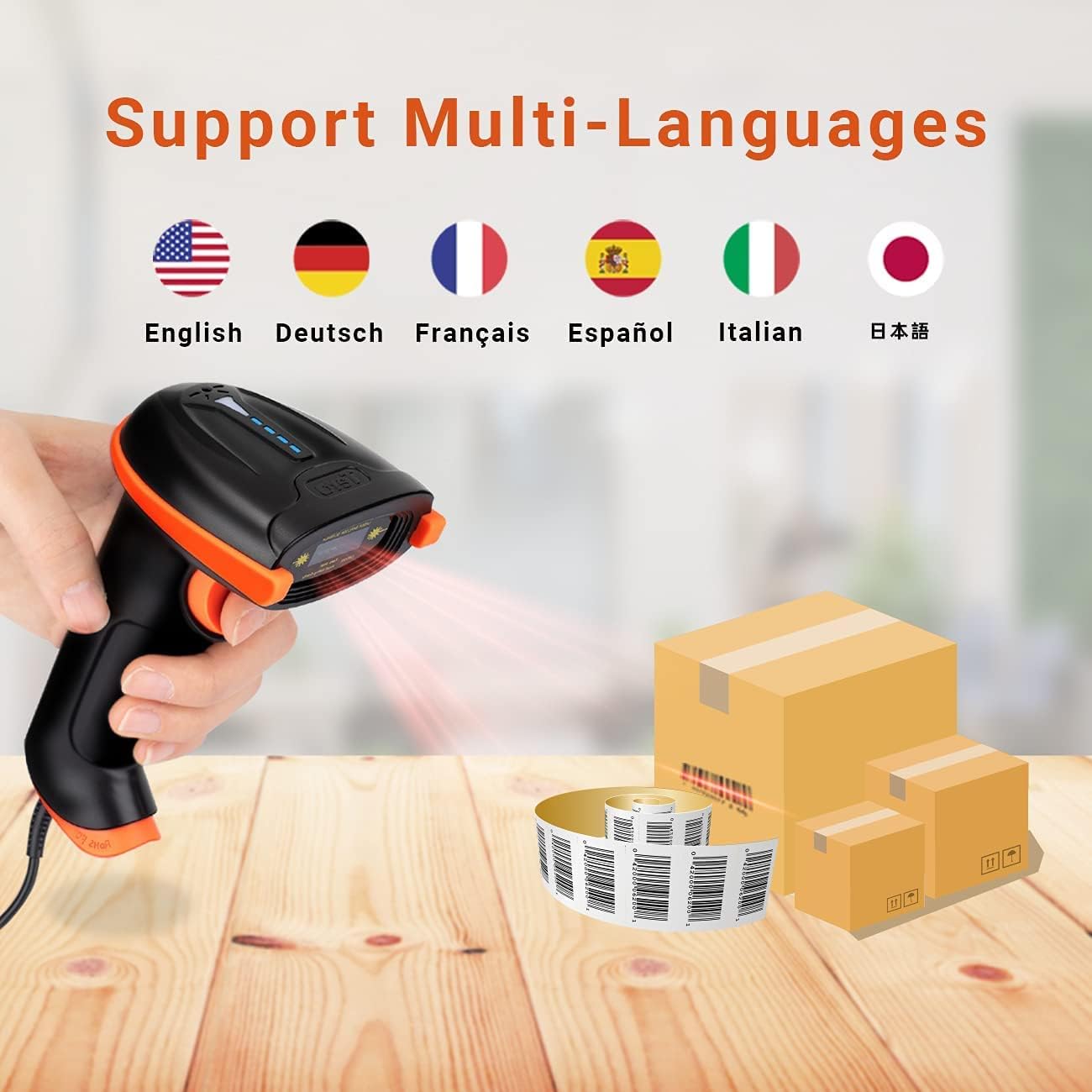
Image: Flags representing supported languages for the scanner.

Foto: Example of adding or hiding digits in scanned barcode output.
Ihe Ndị A Na-ejikarị Eme Ihe
The Tera L5100Y barcode scanner is versatile and suitable for various environments:
- Retail Stores and Supermarkets for checkout and inventory.
- Pharmacies for managing medication and product codes.
- Book Shops for cataloging and sales.
- Warehouses and logistics for tracking goods.

Image: Collage showing the barcode scanner being used in a supermarket, retail store, pharmacy, and book shop.
Atụmatụ imewe
Ergonomic Handle
The L5100Y features a specially designed ergonomic handle for comfortable and extended use. It is slightly longer and thicker with a curved design to fit naturally in the hand, reducing fatigue during long scanning sessions.

Image: Close-up of the scanner's curved and extended ergonomic handle, designed for comfortable grip.
Nlekọta
Durability and Care
The Tera L5100Y is built with durability in mind, featuring an IP65 rating for dustproof and waterproof protection, and an anti-shock silicone design to withstand drops.
- Nhicha: Use a soft, dry cloth to clean the scanner's exterior. For the scanning window, use a lens cleaning cloth and solution if necessary, avoiding abrasive materials.
- Nchekwa: Debe ihe nyocha ahụ n'ebe dị jụụ ma kpọọ nkụ, ebe anwụ na-anaghị apụta kpọmkwem na oke okpomọkụ.
- Nlekọta USB: Zenarị nrịgọ dị nkọ ma ọ bụ ịdọrọ eriri USB gabiga ókè iji gbochie mmebi.
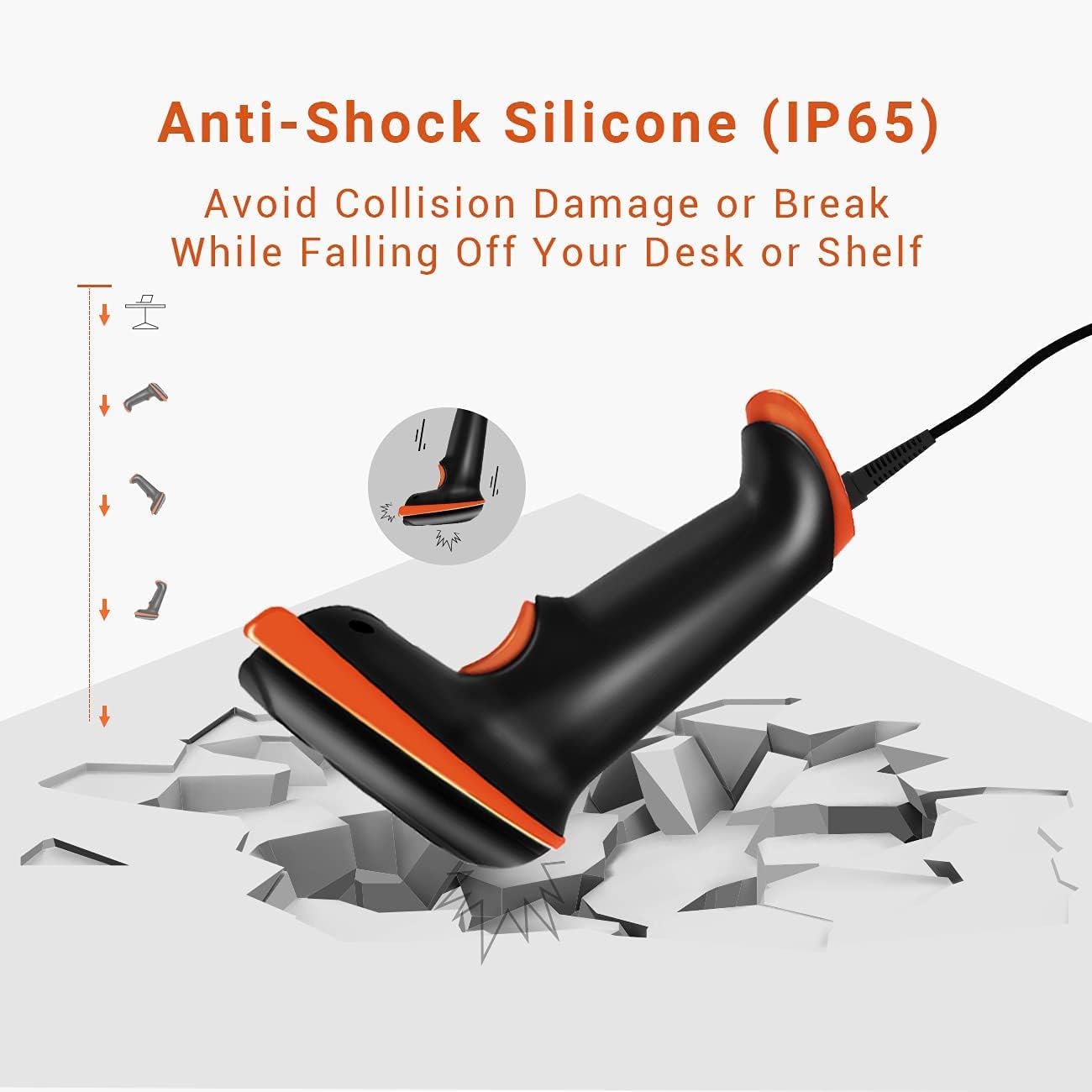
Image: Illustration demonstrating the anti-shock silicone protection of the Tera L5100Y scanner, showing it can withstand impacts from falling.
Nchọpụta nsogbu
| Nsogbu | Ihe nwere ike ime | Ngwọta |
|---|---|---|
| Kọmputa amataghị ihe nyocha. | Loose USB connection, faulty USB port, or incompatible operating system. | Ensure the USB cable is securely connected. Try a different USB port. Verify your operating system (Windows, Mac, Linux) is supported. |
| Scanner does not read barcodes. | Incorrect barcode type, damaged barcode, insufficient lighting, or scanner in wrong mode. | Confirm it's a 1D barcode (not 2D/QR). Ensure the barcode is clear and undamaged. Adjust lighting conditions. Check if the scanner is in the correct scanning mode (manual/continuous). |
| Scanned data is incorrect or incomplete. | Incorrect keyboard language setting, or prefix/suffix settings. | Scan the appropriate configuration barcodes to set the correct keyboard language. Review and adjust prefix/suffix settings if applicable. |
| No sound feedback after scanning. | Volume setting is off or too low. | Scan the configuration barcode to increase the volume. |
Nkọwapụta
| Njirimara | Nkọwa |
|---|---|
| Nọmba nlereanya | L5100Y |
| Teknụzụ Njikọta | USB Cable (Wired) |
| Isi Iyi Ike | Igwe ọkụ eletrik, eriri USB |
| Ngwa dakọtara | Laptop, Desktop (Windows, Mac, Linux) |
| Ọsọ nyocha | Up to 300 scans/sec |
| Ọnụego mperi | 1 in 5 million |
| Ike ngbanwe | 1D Barcodes (UPC/EAN, Code 39, Code 128, etc.) |
| Ogo IP | IP65 (Dustproof, Waterproof) |
| Ergonomics | Curved & Extended Ergonomic Handle |
| Ogologo eriri USB | 5.9 ụkwụ / 1.8m |
| Ibu Ibu | 9.6 ounces |
| Akụkụ ngwugwu | 7.8 x 4.37 x 3.11 sentimita asatọ |


