Okwu mmalite
This manual provides essential guidance for navigating and operating your Apple iPod. Whether you own an iPod Touch, Classic, Nano, or Shuffle, these instructions will help you understand its features, manage your media, and troubleshoot common issues. Please read this guide thoroughly to ensure optimal use of your device.
Na-amalite
Unpacking Your iPod
Carefully remove your iPod and all accessories from the packaging. Ensure all components are present:
- iPod device
- USB charging/sync cable
- EarPods (may vary by model)
- Documentation (this guide)
Ebo mbụ
Before first use, it is recommended to fully charge your iPod. Connect the USB cable to your iPod and then to a power adapter or a computer's USB port. A battery icon on the screen will indicate charging status.
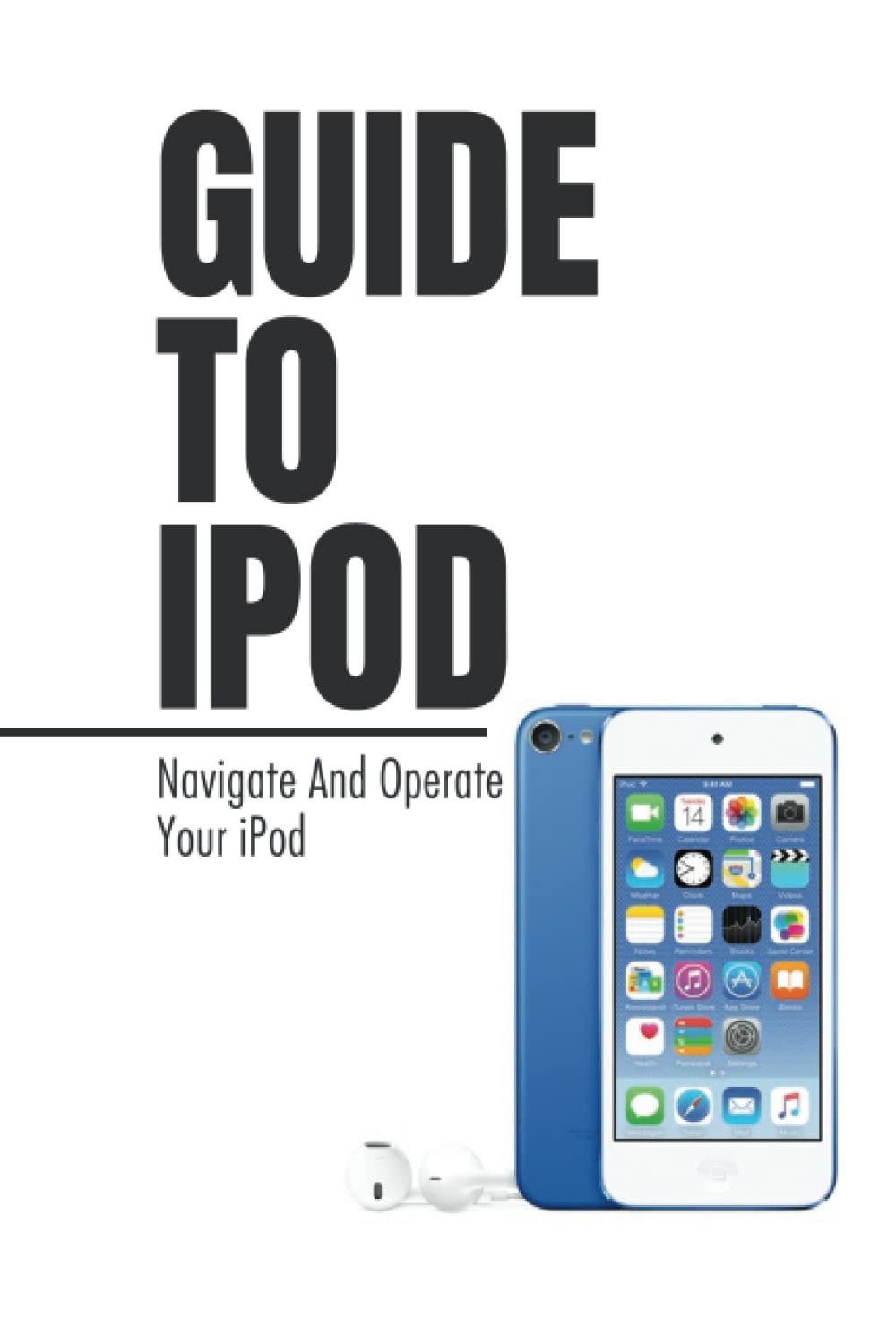
Image: Front cover of the "Guide To iPod" manual, showing the title and a generic iPod silhouette.
Basic Navigation and Controls
iPod models feature different control schemes. Refer to the specific instructions below for your device type.
iPod Touch
The iPod Touch uses a multi-touch display for navigation. Swipe, tap, and pinch gestures are used to interact with the interface. The Home button returns you to the main screen, and the Side button (or Top button on older models) controls power and sleep functions.
iPod Classic / iPod Video
These models feature a Click Wheel for navigation. Use your thumb to scroll through menus and click the center button to select. The outer ring buttons control playback (Menu, Play/Pause, Next, Previous).
iPod Nano
Depending on the generation, iPod Nano models may feature a Click Wheel, multi-touch display, or physical buttons. Consult your specific model's documentation for precise controls.
iPod Shuffle
The iPod Shuffle is controlled by physical buttons for play/pause, volume adjustment, and track skipping. It typically lacks a screen, relying on voiceover features for track information.
EarPods Controls
Many Apple EarPods include an inline remote and microphone. The center button can play/pause music, answer/end calls, and activate Siri (on compatible models). Volume buttons adjust audio output.
Nchaji na ndụ batrị
Charging Your iPod
To charge your iPod, connect it to a computer using the provided USB cable or to a wall outlet with a compatible USB power adapter. The battery indicator on your iPod's screen will show charging progress. A full charge typically takes a few hours.
Na-ebuli ndụ batrị
- Reduce Screen Brightness: Lowering screen brightness significantly extends battery life on models with displays.
- Disable Wi-Fi/Bluetooth: Turn off Wi-Fi and Bluetooth when not in use, especially on iPod Touch models.
- Limit Background App Refresh: On iPod Touch, manage which apps can refresh content in the background.
- Zere oke okpomọkụ: Operating your iPod in very hot or cold environments can degrade battery performance.
Ịchọpụta nsogbu ndị a na-ahụkarị
iPod Won't Turn On or Respond
If your iPod is unresponsive, try the following:
- Charge the iPod: Connect it to a power source for at least 30 minutes.
- Manye Malitegharịa ekwentị:
- iPod Touch: Press and hold both the Home button and the Top (or Side) button until you see the Apple logo.
- iPod Classic/Video: Toggle the Hold switch on, then off. Press and hold the Menu and Center buttons until the Apple logo appears.
- iPod Nano (6th/7th Gen): Press and hold the Sleep/Wake button and the Volume Down button until the Apple logo appears.
- iPod Shuffle: Ensure it's charged. If unresponsive, connect to a computer and try toggling the power switch.
iPod Won't Charge
If your iPod is not charging:
- Check the USB cable for damage and ensure it's securely connected.
- Gbalịa ọdụ ụgbọ USB ma ọ bụ ihe nkwụnye ọkụ dị iche.
- Clean the charging port on your iPod for any debris.
Music Sync Issues
Ensure your computer has the latest version of iTunes (or Finder on macOS Catalina and later). Restart both your computer and iPod, then try syncing again.
Identifying Your iPod Model
Knowing your iPod model is crucial for finding specific accessories, software updates, and troubleshooting information. Here are common ways to identify your device:
Check the Back of the Device
Most iPod models have the model number and serial number engraved on the back casing. Look for text near the bottom.
Using iTunes/Finder
When connected to a computer, iTunes (or Finder on newer macOS) will display your iPod's model information in the device summary.
On iPod Touch
Gaa na Ntọala > Ozuruọnụ > Ihe gbasara to find your model name and number.

Image: Back cover of the "Guide To iPod" manual, showing the ISBN barcode and publication details.
Common iPod Model Numbers and Names:
- iPod Touch: A series of models, e.g., MC008LL/A, MKN52LL/A
- iPod Classic: MA002LL/A, MC297LL/A
- iPod Nano: MA450LL/A, MC037LL/A
- iPod Shuffle: MA523LL/A
Ozi dị mkpa
Akwụkwọ ikike
Apple iPod devices typically come with a one-year limited warranty. For detailed warranty terms and conditions, please refer to the documentation included with your specific iPod model or visit the official Apple support websaịtị.
Nkwado na Ọrụ
For further assistance, technical support, or service inquiries, please visit the official Apple Support websaịtị na support.apple.com/ipod. You can find FAQs, troubleshooting guides, and contact options for Apple customer service.


