1. Okwu mmalite
This manual provides instructions for the LogiLink ID0209 Wireless Keyboard. This keyboard is designed for comfortable, precise, and quiet typing, featuring an adjustable RGB backlight and a long-lasting battery. It connects wirelessly via 2.4 GHz radio technology and is compatible with various operating systems.

Figure 1: LogiLink ID0209 Wireless Keyboard
2. Ihe ngwugwu
Biko lelee ngwungwu maka ihe ndị a:
- LogiLink ID0209 Wireless Keyboard
- USB 2.4 GHz Receiver Dongle
- USB-A ruo Micro USB Chaja eriri USB
- Akwụkwọ ntuziaka (akwụkwọ a)
3. Nhazi
3.1 Ịchaji ahụigodo
Before initial use, fully charge the keyboard. Connect the supplied USB-A to Micro USB cable to the keyboard's Micro USB port (located on the side) and the other end to a USB power source (e.g., computer USB port, USB wall adapter).
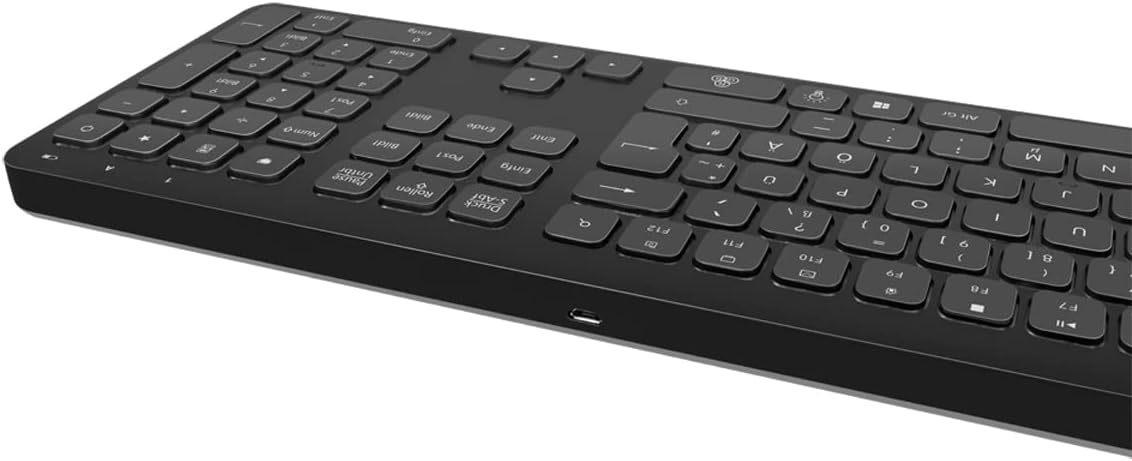
Ọgụgụ 2: Akụkụ ahụigodo view with Micro USB charging port
3.2 Connecting the USB Receiver Dongle
Insert the 2.4 GHz USB receiver dongle into an available USB port on your computer or compatible device. The system will automatically detect and install the necessary drivers.

Figure 3: USB 2.4 GHz Receiver Dongle
3.3 Gbanyụọ/ gbanyụọ
Locate the ON/OFF switch on the back of the keyboard. Slide the switch to the 'ON' position to power on the keyboard. Slide it to 'OFF' when not in use to conserve battery life.
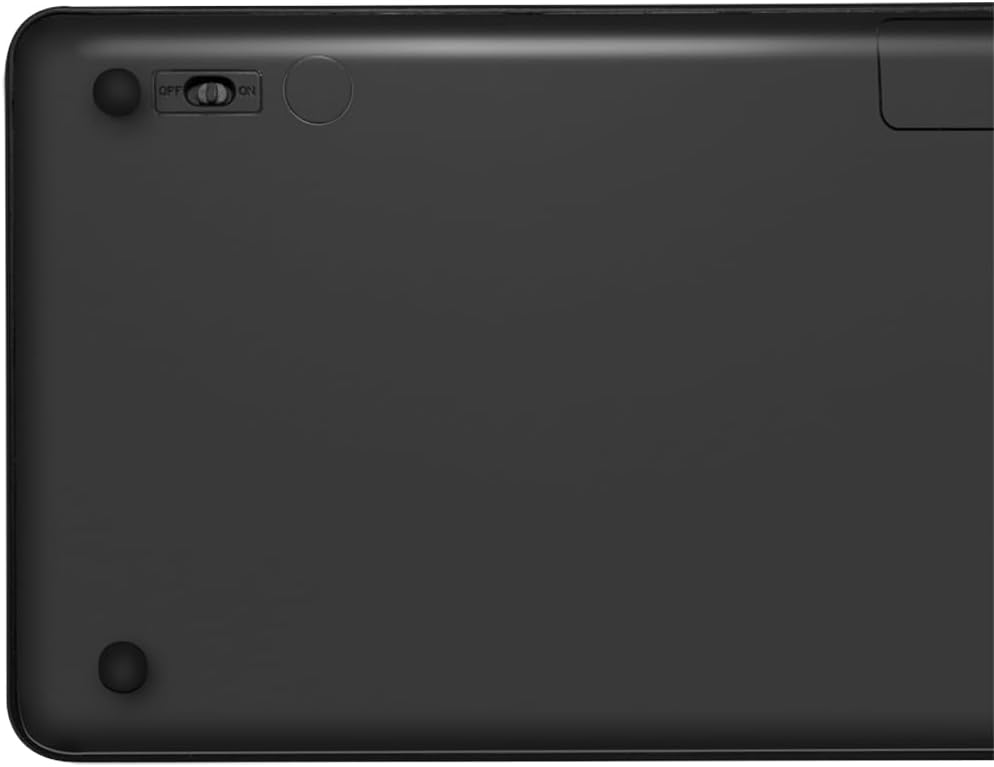
Figure 4: Keyboard back with ON/OFF switch
The keyboard should automatically connect to the USB receiver once both are powered on and within range (up to 10 meters).
4. Ntuziaka ọrụ
Njikwa ọkụ azụ 4.1
The keyboard features an adjustable RGB backlight with 7 colors and 3 brightness levels, including a breathing mode.
- Na-agbanwe agba: Pịa Fn + Light Bulb key to cycle through the 7 available colors (green, blue, yellow, purple, cyan, white, red).
- Na-edozi ihie: Pịa Fn + Up Arrow key ịbawanye nchapụta na Fn + Down Arrow key to decrease brightness. There are 3 brightness levels.
- Ụdị iku ume: Pịa Fn + RGB Cycle key (often depicted as a swirling icon) to activate or deactivate the breathing backlight mode.

Figure 5: Keyboard with RGB backlight in use
4.2 Igodo ụzọ mkpirisi
The keyboard includes 17 shortcut keys for quick access to various functions. Some shortcut keys are specifically designed for Windows operating systems.
To use a shortcut key, press and hold the Fn key, then press the desired function key (e.g., F1-F12, multimedia keys).
- Njikwa mgbasa ozi: Play/Pause, Stop, Previous Track, Next Track, Volume Up, Volume Down, Mute.
- Nrụpụta: Open Mail, Web Browser, My Computer, Search.
- Ndị ọzọ: Lock Screen, Calculator.

Figure 6: Close-up of keyboard keys, including numpad and function row
4.3 Automatic Energy-Saving Mode
The keyboard is equipped with an automatic energy-saving mode. After a period of inactivity, the keyboard will enter a sleep state to conserve battery. Press any key to wake it up.
5. Nlekọta
Iji hụ na ogologo ndụ na ezigbo arụmọrụ nke ahụigodo gị, soro ntuziaka mmezi ndị a:
- Nhicha: Use a soft, dry, lint-free cloth to wipe the keyboard surface. For stubborn dirt, slightly dampen akwa na mmiri ma ọ bụ a nwayọọ ihicha ngwọta. Zere oke mmiri mmiri.
- Nchekwa: Chekwaa ahụigodo ahụ n'ebe dị jụụ, kpọrọ nkụ pụọ na ìhè anyanwụ kpọmkwem na oke okpomọkụ.
- Zere Mmiri mmiri: Do not expose the keyboard to liquids. In case of accidental spills, immediately power off the keyboard and allow it to dry completely before use.
- Jiri Nlekọta Aka: Zere idobe ahụigodo ma ọ bụ idobe ya na mmetụta siri ike.
6. Nchọpụta nsogbu
If you encounter issues with your LogiLink ID0209 keyboard, refer to the following common problems and solutions:
| Nsogbu | Ihe nwere ike ime | Ngwọta |
|---|---|---|
| Ahụigodo anaghị aza | Agbanyụrụ ahụigodo Batrị dị ala Ejikọghị ihe nnata USB Apụghị oke | Ensure keyboard is ON Chajie ahụigodo Plug USB receiver firmly into a working USB port Move keyboard closer to the receiver (within 10m) |
| Ìhè azụ anaghị arụ ọrụ | Agbanyụrụ ọkụ azụ Batrị dị ala | Press Fn + Light Bulb key to turn on/cycle Chajie ahụigodo |
| Igodo na-arapara ma ọ bụ anaghị anabata ya | Unyi ma ọ bụ irighiri ihe n'okpuru igodo | Clean the keyboard as per maintenance instructions |
| Njikọ na-adaba ugboro ugboro | Ntinye aka Apụghị oke Batrị dị ala | Wepụ na ngwaọrụ ikuku ndị ọzọ Move keyboard closer to the receiver Chajie ahụigodo |
7. Nkọwapụta
| Njirimara | Nkọwa |
|---|---|
| Ụdị | LogiLink |
| Nọmba nlereanya | ID0209 |
| Teknụzụ Njikọta | 2.4 GHz Wireless (High-frequency) |
| Ikuku iche | Ruo mita 10 |
| Ọnụọgụ igodo | 111 igodo |
| Igodo ụzọ mkpirisi | 17 (some Windows-specific) |
| Ìhè azụ | Adjustable RGB (7 colors, 3 brightness levels, breathing mode) |
| Ụdị igodo | Flat keys |
| Ngwa dakọtara | Windows, Mac OS, Android, iOS, Smart TV systems |
| Atụmatụ pụrụ iche | Ergonomic, Backlit, Automatic Energy-Saving Mode |
| Nchaji ọdụ ụgbọ mmiri | Micro USB |
| Agba | Nwa |
| Ihe onwunwe | Plastic |
| Onye nrụpụta | 2direct GmbH |
| Mba onye si | China |
8. Akwụkwọ ikike na nkwado
For warranty information and technical support, please refer to the documentation provided with your purchase or visit the official LogiLink websaịtị. Debe ihe akaebe nke ịzụrụ maka akwụkwọ ikike.