1. Ngwaahịa gafereview
The javiscam Wireless Indoor Security Camera (Model B7) is a compact and versatile device designed for indoor surveillance. It features 2K enhanced clarity, 1080p effective resolution, AI motion detection, night vision, and flexible storage options, providing comprehensive monitoring for your home or office.

Image: The javiscam B7 camera, showcasing its compact size when held in hand. A smartphone screen displays a live feed, demonstrating its monitoring capabilities. Another camera unit with a stand is also visible, indicating mounting options.
Akụkụ ndị bụ isi:
- 2K Enhanced Clarity & 1080p Effective Resolution: Provides clear and detailed video streaming.
- Ọhụụ abalị dị elu: Na-eme ka a hụ na ọ na-apụta ìhè n'ọnọdụ ìhè dị ala.
- Nchọpụta Motion AI: Intelligent alerts for detected movement.
- Anya Nkuku obosara nke 150°: Offers a broad field of view for comprehensive coverage.
- Cloud & SD Card Storage: Supports up to 128GB SD card for local storage and cloud storage options.
- Long Standby Battery Life: Up to 100 days standby with a 2800mAh rechargeable battery.
- Ikuku Njikọ: Connects via 2.4G Wi-Fi (does not support 5G Wi-Fi).

Image: A detailed diagram illustrating the multifunctionality of the javiscam B7 camera, highlighting features such as 2K resolution, 12 Megapixel image capture, night vision, motion detection, a 150-degree wide-angle lens, the ability to record while charging, loop recording, and support for up to 128GB storage.
2. Mmalite: Ntọala
2.1 Kedu ihe dị na igbe ahụ
- javiscam B7 Camera Body (1 unit)
- Charging Cable (not explicitly listed but implied for battery)
- Mounting Accessories (implied by "Wall Mount" and images)
- Akwụkwọ ntuziaka (akwụkwọ a)
2.2 Ịchaji igwefoto
Before initial use, fully charge the camera. The camera is equipped with a 2800mAh rechargeable Lithium Polymer battery. Connect the camera to a power source using the provided charging cable. A full charge ensures optimal performance and standby time of up to 100 days.

Image: The javiscam B7 camera positioned near a large 2800mAh battery, visually representing its extended battery life and low power consumption technology.
2.3 Ntinye na Mmepụta Akaụntụ Ngwa
To operate the camera and access its features, you need to download the dedicated mobile application. The app is compatible with Android smartphones.
- Chọọ maka the "javiscam" app (or specified app name in product packaging) on your smartphone's app store (Google Play Store for Android).
- Budata ma wụnye ngwa ahụ.
- Open the app and follow the on-screen instructions to create a new account or log in if you already have one.
2.4 Jikọọ na Wi-Fi
The javiscam B7 camera connects to your home network via 2.4G Wi-Fi. Please note that it does not support 5G Wi-Fi networks.
- Gbaa mbọ hụ na ejikọrọ ekwentị gị na netwọk Wi-Fi 2.4G.
- Open the javiscam app and select "Add Device" or similar option.
- Follow the in-app instructions to pair the camera with your Wi-Fi network. This typically involves scanning a QR code generated by the app with the camera, or entering your Wi-Fi credentials.
- Once connected, the camera's indicator light will change, and you will receive a confirmation in the app.

Image: A visual representation of the app and Wi-Fi connection process, showing users interacting with the javiscam app on a smartphone to access live streaming and real-time motion alerts.
2.5 na -arịgo igwefoto
The camera is designed for indoor use and can be wall-mounted or placed on a flat surface. Its compact dimensions (1.5 x 2 x 1.5 inches) allow for discreet placement.
- Mgbidi Mgbidi: Use the provided mounting accessories to securely attach the camera to a wall or ceiling. Ensure the camera has a clear line of sight to the area you wish to monitor.
- Ndokwa n'elu: The camera can also be placed on shelves, desks, or other flat surfaces.

Image: Various indoor mounting scenarios for the javiscam B7 camera, including ceiling, shelf, and wall placements, demonstrating its versatility. The image also reiterates support for 2.4G Wi-Fi and non-support for 5G Wi-Fi.
3. Na-arụ ọrụ igwefoto
3.1 Ndụ View na nlekota oru
Once connected, you can access the live video feed from your camera anytime, anywhere, through the javiscam app. The camera provides 2K enhanced clarity for detailed viewing.
- Open the javiscam app on your smartphone.
- Họrọ igwefoto gị site na ndepụta ngwaọrụ gaa na view iyi ndu.
- You can pan, tilt, and zoom (digital) within the app to adjust your view, though the camera itself has a fixed 150° wide-angle lens.
3.2 Nchọpụta na Ịdọ Aka Ná Ntị
The camera features intelligent AI motion detection with a PIR sensor for human detection, providing 24-hour protection. When motion is detected, the camera can automatically record video and send alerts to your app.
- Kwado nchọpụta ngagharị: Navigate to the camera settings within the app and ensure motion detection is enabled.
- Gbanwee mmetụta: You can typically adjust the motion detection sensitivity to minimize false alarms.
- Nweta ọkwa: When motion is detected, you will receive a push notification on your smartphone.
- Review Ndekọ: Detected motion events are recorded and can be reviewed in the app's playback section.
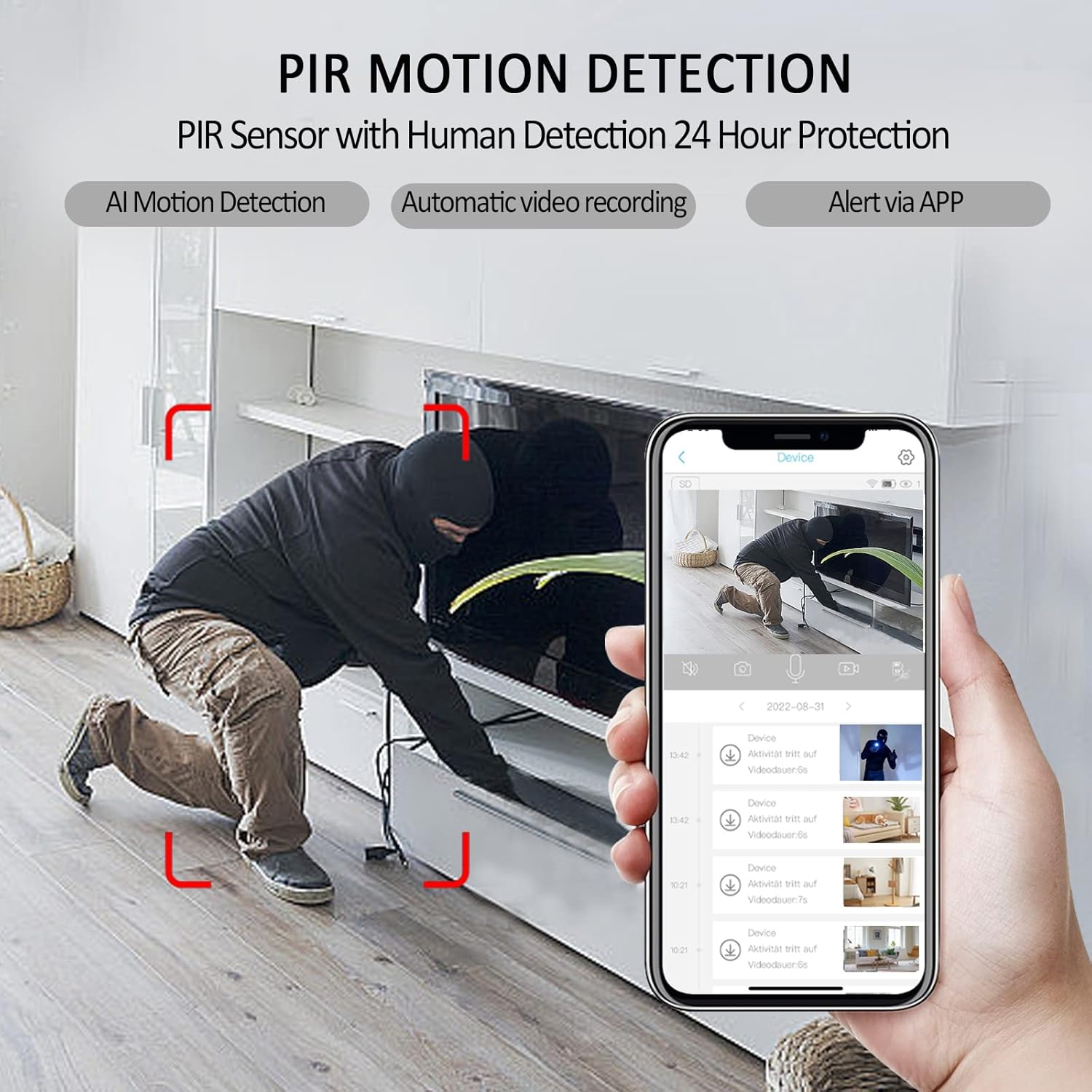
Image: A smartphone displaying the javiscam app interface, illustrating how PIR motion detection works with human detection. The image shows a person in a room with red boxes indicating detected motion, alongside a list of video recordings triggered by alerts.
3.3 Ọhụụ abalị
The camera is equipped with advanced night vision technology, allowing it to capture clear video even in complete darkness. The night vision mode activates automatically in low-light conditions.
3.4 Ndekọ na Nchekwa Vidiyo
The javiscam B7 camera supports both local storage via an SD card and cloud storage options.
- Nchekwa kaadị SD: Insert a microSD card (up to 128GB, not included) into the camera's designated slot. The camera supports loop recording, meaning older footage will be overwritten when the card is full. Video is recorded in AVI format at 1080 pixels effective resolution and 30 frames per second.
- Nchekwa igwe ojii: Refer to the app for available cloud storage plans and subscription details. Cloud storage provides off-site backup of your recordings.
- Record While Charging: The camera can continue to record video even while it is connected to a power source and charging.
3.5 Camera Sharing
You can share access to your camera's live feed and recordings with other users through the app, allowing multiple family members or authorized individuals to monitor the same location simultaneously.
- In the app, navigate to the camera settings and look for a "Share Device" or "User Management" option.
- Follow the instructions to invite other users, typically by entering their account ID or scanning a QR code.
- Ndị ọrụ ekekọrịtara ga-enwe ike view the camera feed and access certain features based on the permissions you grant.
4. Nlekọta
4.1 Ihicha igwefoto
To ensure optimal performance and image clarity, periodically clean the camera lens and body.
- Use a soft, dry, lint-free cloth to wipe the camera body.
- For the lens, use a lens cleaning cloth or a microfiber cloth specifically designed for optics. Avoid abrasive materials or harsh chemicals.
- Gbaa mbọ hụ na agbanyụrụ igwefoto tupu ihicha.
4.2 Nlekọta batrị
The camera's built-in Lithium Polymer battery is designed for long life. To maximize battery longevity:
- Avoid exposing the camera to extreme temperatures (very hot or very cold).
- If storing the camera for an extended period, charge it to about 50% before storage.
- Use only the recommended charging cable and power adapter.
5. Nchọpụta nsogbu
Okwu na azịza ndị nkịtị:
| Nsogbu | Ihe nwere ike ime | Ngwọta |
|---|---|---|
| Camera won't power on. | Low battery or faulty charging cable. | Ensure the camera is fully charged. Try a different charging cable and power adapter. |
| Enweghị ike ijikọ na Wi-Fi. | Incorrect Wi-Fi password, 5G Wi-Fi network, or camera too far from router. | Verify Wi-Fi password. Ensure you are connecting to a 2.4G Wi-Fi network. Move the camera closer to the router. Reset the camera and try pairing again. |
| Enweghị ọkwa nchọpụta mmegharị. | Motion detection disabled, sensitivity too low, or app notifications blocked. | Check app settings to ensure motion detection is enabled and sensitivity is appropriate. Verify app notification permissions on your smartphone. |
| Ogo vidiyo na-adịghị mma. | Dirty lens, poor Wi-Fi signal, or low light conditions. | Clean the camera lens. Ensure strong Wi-Fi signal. Night vision should activate automatically in low light. |
| Kaadị SD anaghị edekọ. | SD card full, corrupted, or not inserted correctly. | Check SD card status in the app. Format the SD card (this will erase data). Reinsert the SD card. Ensure it's a compatible card (up to 128GB). |
6. Nkọwapụta
| Njirimara | Nkọwa |
|---|---|
| Nọmba nlereanya | B7 |
| Ụdị | javiscam |
| Ojiji ime ime/n'èzí | Indoor (Note: IP65 rating indicates some dust and water resistance, but primarily designed for indoor environments.) |
| Teknụzụ Njikọta | Ikuku (Wi-Fi) |
| Ugboro Wi-Fi | 2.4G Wi-Fi (Does not support 5G Wi-Fi) |
| Isi Iyi Ike | Batrị kwadoro (1 batrị lithium polymer gụnyere) |
| Ike batrị | 2800mAh (approximate, based on image) |
| Ndụ Batrị Njikere | Ruo ụbọchị 100 |
| Mkpebi ịse vidiyo | 1080p (Effective Pixels), 2K Enhanced Clarity |
| Ọnụego Frame | 30fps |
| Usoro Nseta vidiyo | AVI |
| Ngalaba nke View | 150 ogo |
| Ọhụụ abalị | Yes (Low light technology: Night Color) |
| Nchọpụta ngagharị | AI Motion Detection, PIR Sensor with Human Detection (Alert Type: Motion Only) |
| Nhọrọ nchekwa | Cloud Storage, MicroSD Card (up to 128GB Flash Memory Installed Size) |
| Ngwa dakọtara | Smartphone (Controller Type: Android) |
| Ụdị nkwụnye | Ugwu mgbidi |
| Akụkụ (L x W x H) | 1.5 x 2 x 1.5 sentimita asatọ |
| Ibu Ibu | 7.4 ounces |
| Agba | Nwa |
| Ngwa gụnyere | Ahụ igwefoto |
| Ogo nchekwa mba ụwa | IP65 |
| UPC | 607535889003 |
7. Akwụkwọ ikike na nkwado
7.1 Ozi akwụkwọ ikike
Specific warranty details for the javiscam B7 camera are not provided in this manual. Please refer to the product packaging, the official javiscam websaịtị, ma ọ bụ ebe ị zụrụ ihe maka usoro na ọnọdụ nkwa zuru oke.
7.2 Nkwado ndị ahịa
For technical assistance, troubleshooting, or any inquiries regarding your javiscam B7 camera, please contact javiscam customer support through their official channels. You may find contact information on the javiscam brand store on Amazon or their official websaịtị.
Visit the javiscam Store: https://www.amazon.com/stores/Javiscam/page/1636DFA1-B903-4A72-86FD-5075537A55E2


