Okwu mmalite
Thank you for choosing the Minoston MT10W WiFi Timer Switch. This smart countdown timer switch allows you to control lights, fans, and heaters with preset countdown times and remote access via a smartphone application. It integrates seamlessly with Amazon Alexa and Google Assistant for voice control. This manual provides detailed instructions for installation, operation, and maintenance to ensure optimal performance and safety.

Foto: N'ihu view of the Minoston MT10W WiFi Timer Switch and its retail packaging, highlighting key features and certifications.
Ozi nchekwa dị mkpa
- Ihe ize ndụ nke ọkụ, ọkụ eletrik, ma ọ bụ mmerụ ahụ.
- Ezubere ngwaọrụ a maka nrụnye dịka koodu eletrik nke mba na ụkpụrụ mpaghara si dị.
- Consult a qualified electrician if you are unsure about any part of these instructions.
- Always turn off power at the circuit breaker or fuse box before installation or servicing.
- NEUTRAL WIRE REQUIRED. Ensure your electrical box has a neutral wire.
- Do not use with dimmable fixtures or 3-way switches.
- Okpomọkụ Na-arụ ọrụ: 32°F ruo 104°F (0°C ruo 40°C).
- Maka naanị ime ụlọ.
Ihe ngwugwu
- Minoston MT10W WiFi Timer Switch
- Akwụkwọ ntuziaka
- Ịkwanye kposara
- Mkpụrụ Mkpụrụ
Nkọwapụta
| Nọmba nlereanya | MT10W |
| Ike | 120VAC, 60Hz |
| Incandescent Load | 960W (1200W Tungsten) |
| Ibu moto | 1 / 2 HP |
| Ibu na-eguzogide | 1800W |
| Ugboro Wi-Fi | 2.4GHz |
| Okpomọkụ na-arụ ọrụ | 32 ° F ~ 104 ° F (0 ° C ~ 40 ° C) |
| iru mmiri | 95% RH, na-abụghị condensing |
| Asambodo | ETL, FCC |
| Akụkụ | 4.5 x 3 x 10.49 cm (1.77 x 1.18 x 4.13 inch) |

Image: Diagram showing the physical dimensions of the Minoston MT10W WiFi Timer Switch, including depth reduction for easier installation.
Ntuziaka nwụnye
Eserese waya
The Minoston MT10W requires a neutral wire for proper operation. Please follow the diagram below carefully.
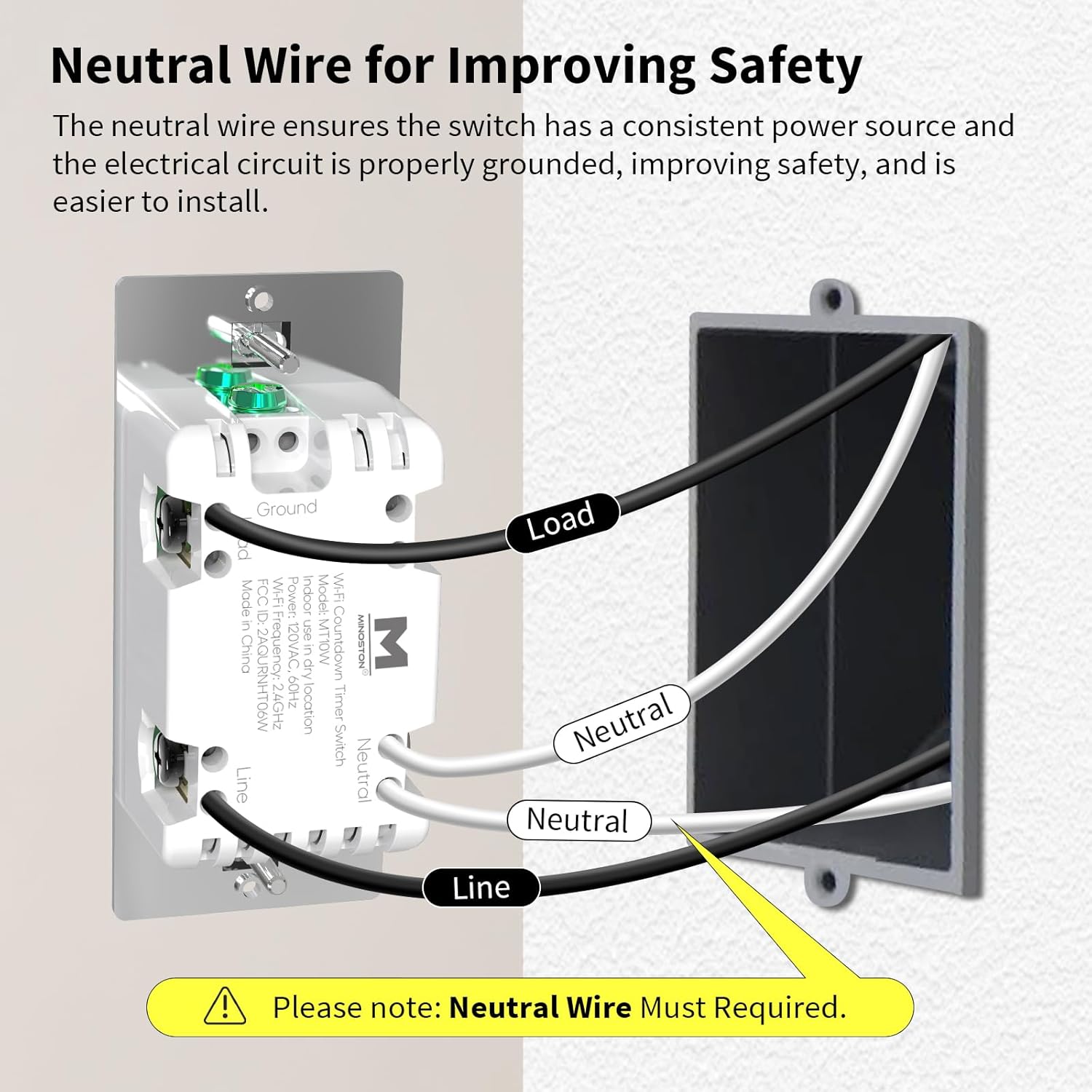
Image: Detailed wiring diagram for the Minoston MT10W WiFi Timer Switch, showing connections for Line, Load, Neutral, and Ground wires. A note emphasizes the requirement for a neutral wire.
Nzọụkwụ Nwụnye
- Gbanyụọ ike: Before beginning, turn off the power to the switch location at the circuit breaker or fuse box.
- Remove old switch: Carefully remove the existing wall plate and switch from the electrical box.
- Identify wires: Identify the Line (hot), Load, Neutral, and Ground wires. A neutral wire is typically white. If you do not have a neutral wire, this switch is not compatible.
- Jikọọ wires:
- Connect the Line wire from the wall box to the Line terminal on the MT10W switch.
- Connect the Load wire from the wall box to the Load terminal on the MT10W switch.
- Connect the Neutral wire from the wall box to the Neutral terminal on the MT10W switch.
- Connect the Ground wire from the wall box to the Ground terminal on the MT10W switch.
- Mount switch: Carefully push the wired switch into the electrical box. Secure it with the provided screws.
- Install wall plate: Attach the new or existing wall plate.
- Weghachite ike: Gbanyụọ ọkụ azụ na ihe nbibi sekit.
Ntọala Wi-Fi na Ngwa
The Minoston MT10W can be controlled via the Smart Life or Minoston APP. Ensure your Wi-Fi network is 2.4GHz.
- Budata ngwa: Download the "Smart Life" or "Minoston" app from the App Store (iOS) or Google Play Store (Android).
- Debanye aha/Nbanye: Mepee ngwa ahụ wee debanye aha maka akaụntụ ọhụrụ ma ọ bụ banye ma ọ bụrụ na ịnweelarị otu.
- Tinye ngwaọrụ:
- Tap "+" or "Add Device" in the app.
- Select "Electrical" > "Switch (Wi-Fi)" or search for "MT10W".
- Follow the in-app instructions to put the switch into pairing mode. This usually involves holding the "30 Min" button for 5 seconds until the blue LED indicator flashes quickly.
- Tinye aha netwọk Wi-Fi 2.4GHz na paswọọdụ gị.
- Wait for the device to connect. Once connected, you can rename the switch.

Image: Screenshot of the mobile application interface demonstrating remote control of the Minoston MT10W WiFi Timer Switch.
Voice Control Setup (Alexa/Google Assistant)
- Ensure your Minoston MT10W switch is successfully added to the Smart Life/Minoston app.
- Mepee ngwa Amazon Alexa ma ọ bụ Google Home.
- Go to "Skills & Games" (Alexa) or "Works with Google" (Google Home).
- Chọọ maka "Smart Life" (or "Minoston" if available) and enable the skill.
- Link your Smart Life/Minoston account with your Alexa/Google account.
- Discover devices. You can now control your switch using voice commands like "Alexa, turn on the timer for 30 minutes" or "Hey Google, turn off the fan."

Image: Illustration of a user interacting with an Amazon Echo device to control the Minoston MT10W WiFi Timer Switch via voice commands.
Ntuziaka ọrụ
Ọrụ bọtịnụ
The Minoston MT10W features an ON/OFF override button and six preset countdown buttons.

Image: Diagram illustrating the various buttons on the Minoston MT10W WiFi Timer Switch and their corresponding functions, including ON/OFF override, preset countdowns, and LED brightness adjustments.
- ON/OFF Override Button:
- Press to manually turn the connected device ON or OFF.
- Hold for 3 seconds to exit countdown mode. Press again to resume countdown mode.
- Preset Countdown Buttons (5 Min, 10 Min, 30 Min, 60 Min, 2 Hour, 4 Hour):
- Press any button to activate the corresponding countdown timer. The connected device will turn ON and automatically turn OFF after the selected duration.
- 5 Min Button (Hold for 3s): Turn off or resume the 6 LED indicators of the countdown.
- 10 Min Button (Hold for 3s): Dim the LED indicator (backlight) of the ON/OFF button.
- 2 Hour Button (Hold for 3s): Dim LED indicators of all 7 buttons to minimum brightness. All LED indicators flash on minimum brightness.
- 4 Hour Button (Hold for 3s): Brighten LED indicators of all 7 buttons to maximum brightness. All LED indicators flash on maximum brightness.
- 30 Min Button (Hold for 5s): Until blue LED indicator flashes quickly, Wi-Fi network configuration is displayed (for pairing mode).
Ìhè ihe ngosi LED
The amber LED indicator light provides soft illumination, making it easy to locate the switch in the dark.

Image: Close-up of the Minoston MT10W WiFi Timer Switch showing the amber LED indicator light, designed for visibility in low-light conditions.
Atụmatụ Nchekwa Ike
Utilizing the countdown timer helps save electricity by ensuring devices like fans, ceiling lights, and other appliances automatically turn off after a set period, preventing unnecessary energy consumption.

Image: A Minoston MT10W WiFi Timer Switch installed in a bathroom setting, illustrating its use for energy saving by automatically turning off lights or exhaust fans.
Nlekọta
- Jiri ihe dị nro, d hichaa elu ihe mgbanwe ahụamp akwa . Ejila kemịkalụ siri ike ma ọ bụ ihe mkpocha abrasive.
- Ensure the switch is not exposed to excessive moisture or direct water spray.
- Regularly check for any loose wiring connections during routine electrical inspections (by a qualified electrician).
Nchọpụta nsogbu
| Nsogbu | Ihe nwere ike ime | Ngwọta |
|---|---|---|
| Mgbanwe adịghị ọkụ. | No power at the circuit breaker; incorrect wiring; neutral wire not connected. | Check circuit breaker. Verify wiring connections according to the diagram. Ensure neutral wire is connected. |
| Enweghị ike ijikọ na Wi-Fi. | Incorrect Wi-Fi password; not 2.4GHz network; switch not in pairing mode; too far from router. | Verify Wi-Fi password. Ensure you are connecting to a 2.4GHz network. Put switch into pairing mode (hold 30 Min button for 5s). Move router closer or use a Wi-Fi extender. |
| Njikwa olu anaghị arụ ọrụ. | Skill not enabled; account not linked; incorrect device name. | Ensure "Smart Life" skill is enabled and accounts are linked in Alexa/Google Home app. Check device name in app and use that name for voice commands. |
| Countdown not working. | Switch is in override mode. | Hold the ON/OFF button for 3 seconds to exit override mode and resume countdown functionality. |
Akwụkwọ ikike na nkwado
Minoston products come with a standard manufacturer's warranty. For specific warranty details, please refer to the warranty card included with your product or visit the official Minoston websaịtị.
For technical support, troubleshooting assistance, or to inquire about replacement parts, please contact Minoston Customer Service:
- Websaịtị: www.minoston.com
- Email: support@minoston.com
Please have your model number (MT10W) and purchase date ready when contacting support.


