1. Introduction to Your Google Pixel 6a
The Google Pixel 6a is a 5G Android smartphone designed for speed, security, and an exceptional user experience. Powered by the Google Tensor chip, it offers advanced features including a high-quality camera, long-lasting battery, and real-time translation capabilities. This manual provides essential information for setting up, operating, maintaining, and troubleshooting your device.
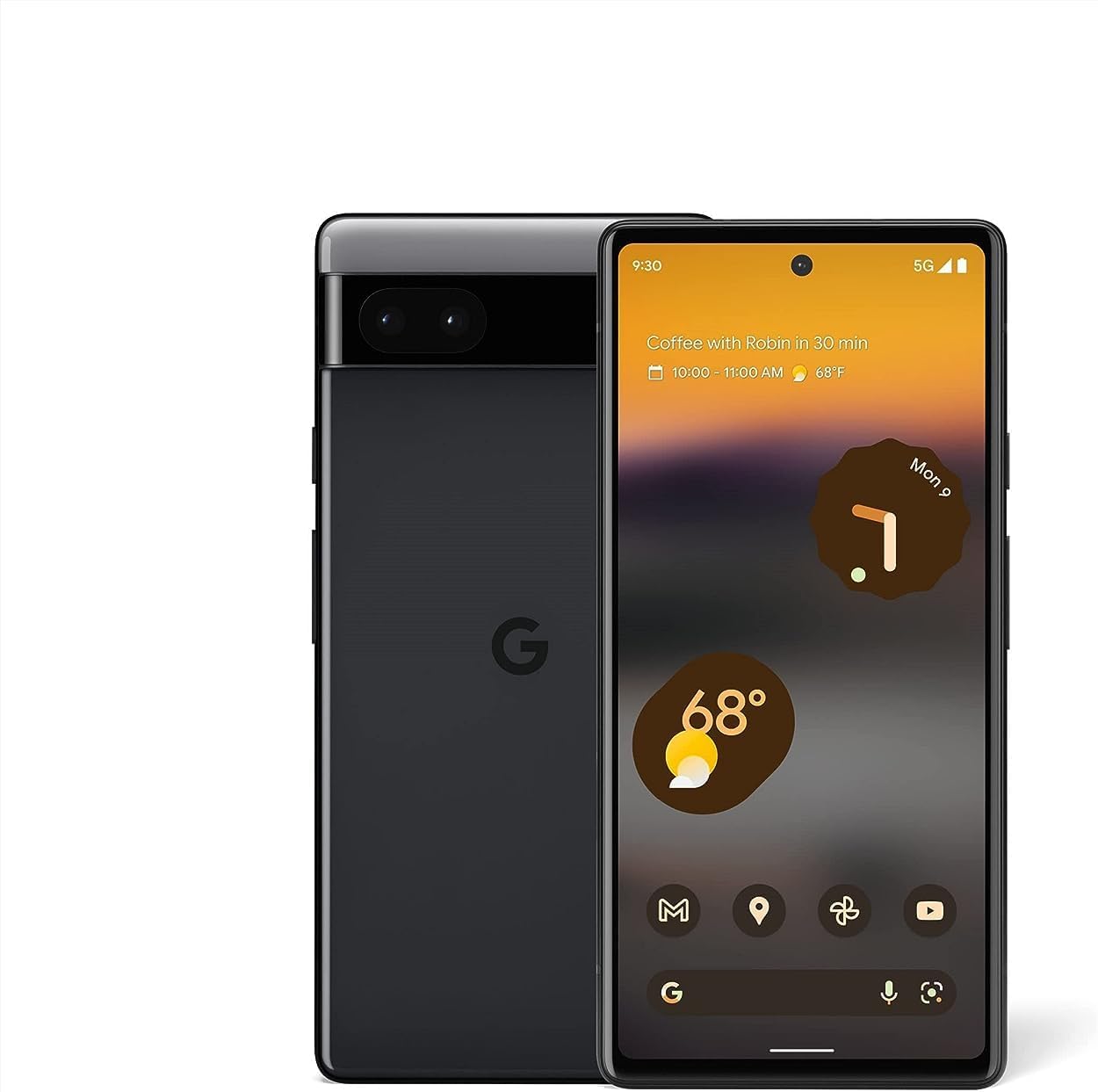
Foto: ihu na azụ view of the Google Pixel 6a smartphone, showcasing ya sleek imewe na igwefoto mmanya.
2. Mbido Mbido
2.1. Kedu ihe dị na Igbe ahụ
Tupu ịmalite, hụ na akụrụngwa niile dị:
- Google Pixel 6a Cell Phone
- 1m USB-C to USB-C cable (USB 2.0)
- Ngwa SIM
- Ihe nkwụnye mgbanwe ngwa ngwa
- Ntuziaka Mmalite Ngwa Ngwa (egosighi na foto)

Image: The contents of the Google Pixel 6a box, including the phone, USB-C cable, SIM tool, and Quick Switch Adapter.
2.2. Ịtinye kaadị SIM
- Locate the SIM card tray on the side of your Pixel 6a.
- Insert the SIM tool into the small hole on the tray and press gently until the tray ejects.
- Tinye kaadị Nano-SIM gị n'ime traị ahụ nwere kọntaktị ọla edo chere ihu ala.
- Jiri nlezianya tinyegharịa traị ahụ n'ime ekwentị.
2.3. Ịkwanye na nhazi mmalite
Press and hold the Power button until the Google logo appears. Follow the on-screen prompts to:
- Họrọ asụsụ na mpaghara gị.
- Jikọọ na netwọk Wi-Fi.
- Jiri Akaụntụ Google banye ma ọ bụ mepụta nke ọhụrụ.
- Set up your fingerprint for secure unlocking.
- Transfer data from your old device using the Quick Switch Adapter or wirelessly.

Image: A visual representation of transferring data, including messages, contacts, and photos, from an old device to the new Google Pixel 6a.
The Pixel 6a is an unlocked Android 5G phone, providing flexibility to choose your preferred carrier and data plan. It is compatible with major carriers such as Google Fi, Verizon, T-Mobile, and AT&T.

Image: A man holding the Google Pixel 6a to his ear, demonstrating its use as an unlocked smartphone with carrier flexibility.
3. Operating Your Google Pixel 6a
3.1. Google Tensor Chip Performance
Your Pixel 6a is powered by the Google Tensor chip, designed specifically for Pixel devices. This chip ensures fast app launches, quick loading of pages and images, and overall smooth performance for all your tasks.

Image: An illustration highlighting the Google Tensor chip, emphasizing its role in making the Pixel 6a smart, secure, and fast.
3.2. Battery Management and Charging
The Pixel 6a features an adaptive all-day battery that learns your usage patterns to save power for your most used applications. It supports fast wired charging up to 18W. A few minutes of charging can provide hours of power. Adapters are sold separately and compatible with USB PD 3.0 PPS adapters.

Image: A Google Pixel 6a phone connected to a charger, illustrating its adaptive battery and fast charging capabilities.
3.3. Akụkụ igwefoto
Capture amazing photos with the Pixel 6a's 12-megapixel camera. Key features include:
- Nchicha Ime Anwansi: Easily remove unwanted objects from your photos in Google Photos.
- Ụdị ngagharị: Capture dynamic shots with artistic blurs.
- Ọnọdụ Eserese: Create professional-looking photos with blurred backgrounds.
- Ihu emeghe: Make blurry faces look sharper.
- Ezigbo ụda: Ensures beautifully authentic photos of diverse skin tones.

Image: A collage demonstrating the Google Pixel 6a's camera features, including Face Unblur, Real Tone, and Magic Eraser.
3.4. Live Translate
The Live Translate feature allows you to translate live video captions, private chats, messages, and even signs in up to 55 languages directly on your phone. This feature enhances communication across language barriers.

Image: A person using the Google Pixel 6a to translate a conversation in real-time, demonstrating the Live Translate feature.
3.5. Nchekwa na nzuzo
Privacy and security are integral to the Pixel 6a. It incorporates the Titan M2 chip and the Google Tensor security core, providing an additional layer of hardware security to protect your device against attacks.

Image: A visual representation of the Pixel 6a's security features, including the Titan M2 chip, IP67 protection, and fingerprint unlock.
3.6. Customizable Interface and Feature Drops
The Pixel 6a offers a highly customizable Android interface, allowing you to personalize your phone's appearance and functionality. Google regularly provides "Feature Drops," delivering new features, tricks, and apps directly to your phone to enhance your experience over time.

Image: Multiple Pixel 6a screens displaying various customizable interface options and color themes.

Image: A notification on a Pixel phone screen indicating a "Feature Drop" update, highlighting continuous improvements.
4. Nlekọta na nlekọta
4.1. Mgbochi mmiri na uzuzu
The Pixel 6a is designed with IP67 protection, meaning it can withstand a certain degree of water and dust exposure. While it is resistant, it is not waterproof or dustproof. Avoid intentional submersion or exposure to high-pressure water jets. Water and dust resistance may diminish over time due to normal wear and tear or physical damage.
4.2. Na-ehicha ngwaọrụ gị
To clean your Pixel 6a, use a soft, lint-free cloth. Avoid abrasive materials, solvents, or aerosol sprays. For stubborn smudges, slightly dampen the cloth with water. Ensure all ports are dry before charging.
5. Ịchọpụta nsogbu nkịtị
This section addresses some common issues you might encounter with your Google Pixel 6a.
5.1. Fingerprint Sensor Issues
If the in-display fingerprint sensor is inconsistent or slow:
- Gbaa mbọ hụ na mkpịsị aka gị dị ọcha ma kpọọ nkụ.
- Re-register your fingerprints, trying different angles and pressures.
- Clean the screen area where the sensor is located.
- If using a screen protector, ensure it is compatible with in-display fingerprint sensors and properly installed. Some screen protectors may interfere with functionality.
5.2. Battery Draining Quickly / Slow Charging
If your battery drains faster than expected or charges slowly:
- Check for background apps consuming excessive power and close them.
- Belata nchapụta ihuenyo ma ọ bụ mee ka ìhè na-agbanwe agbanwe.
- Disable features like always-on display or unnecessary connectivity (Bluetooth, GPS) when not in use.
- Ensure you are using a compatible USB-C charger and cable (preferably the one included or a Google-approved adapter).
- Avoid using the phone heavily while charging.
5.3. Ngwaọrụ ekpo oke ọkụ
It is normal for the device to warm up during intensive use (e.g., gaming, video streaming, prolonged camera use, or fast charging). If it becomes excessively hot:
- Mechie ngwa niile na-agba.
- Disconnect from the charger if it's charging.
- Move to a cooler environment.
- Zere ikpughe ìhè anyanwụ kpọmkwem.
- If the issue persists, consider restarting the device.
5.4. Network Connectivity Issues (Wi-Fi/Mobile Data)
If you experience problems with Wi-Fi or mobile data connectivity:
- Toggle Wi-Fi or mobile data off and on.
- Malitegharịa ekwentị gị.
- For Wi-Fi, forget the network and reconnect. Ensure your router is working correctly.
- For mobile data, check your SIM card is properly inserted and your data plan is active. Contact your carrier if issues persist.
6. Nka na ụzụ nkọwa
| Njirimara | Nkọwa |
|---|---|
| Aha Nlereanya | Pixel 6a (GX7AS) |
| Ụdị | |
| Sistemụ nrụọrụ | Android |
| Ọsọ CPU | 2.8 GHz |
| Nha ihuenyo | 6.13 sentimita asatọ |
| Mkpebi | 1080 x2400 |
| Ọnụego ume ọhụrụ | 60 Hz |
| RAM | 6 GB |
| Ike Nchekwa ebe nchekwa | 128 GB |
| Ike batrị | 4410 ndeamp Oge awa |
| Oge Nchaji | Oge awa 2 (ihe dị ka) |
| Oge Okwu Ekwentị | Awa 15 |
| Teknụzụ Njikọta | Bluetooth, Wi-Fi, NFC |
| Atụmatụ igwefoto | Rear, Front (12 Megapixel main) |
| Jack ọdịyo | USB-C |
| Agba | Unyi |
| Akụkụ ngwaahịa | 6 x 2.8 x 0.35 sentimita asatọ |
| Ibu Ibu | 6.3 ounce (gram 178) |
| Ụbọchị mbụ dị | Julaị 18, 2022 |

Image: A comparison chart detailing specifications between the Pixel 6 and Pixel 6a, including display, camera, memory, battery, and security features.
7. Akwụkwọ ikike na nkwado
7.1. Akwụkwọ ikike ngwaahịa
Your Google Pixel 6a comes with a limited manufacturer's warranty. Please refer to the warranty card included with your purchase or visit the official Google support website for detailed terms and conditions, including coverage period and what is covered.
7.2. Nkwado ndị ahịa
For further assistance, technical support, or service inquiries, please visit the official Google Pixel Support page. You can find FAQs, troubleshooting guides, and contact options for direct support.
Nkwado Google gọọmentị: support.google.com/pixelphone


